(MDM) Removing the agent using Jamf

Uninstall the agent from macOS endpoints using Jamf Pro.

Create a Jamf policy to uninstall the agent from your endpoint machines.
CAUTION:
The content in the following section is still under testing and has not been verified fully yet. Once the content testing is complete an updated version of the content will be published for use.

Steps

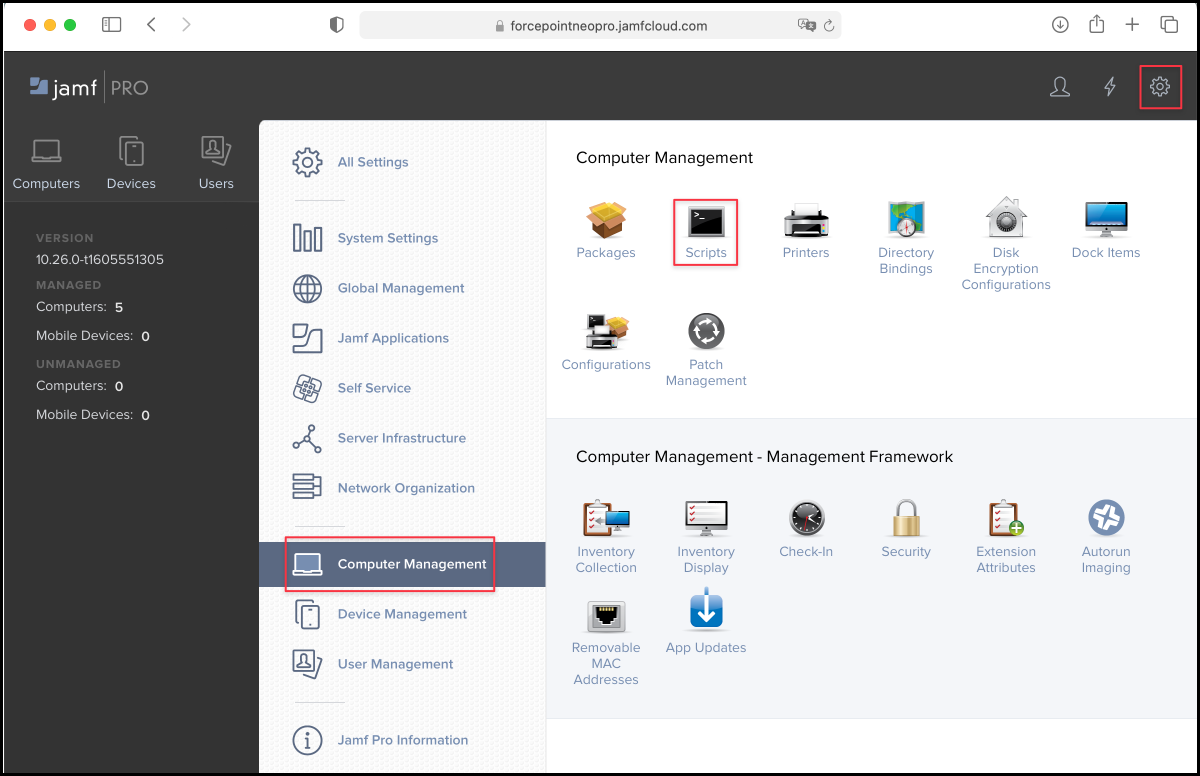
  1. Sign in to Jamf Pro and go to Computers > Settings.
  2. Open Computer Management > Scripts, then click New.
  3. Under Display Name, enter the script name. For example, uninstall_dse.sh.
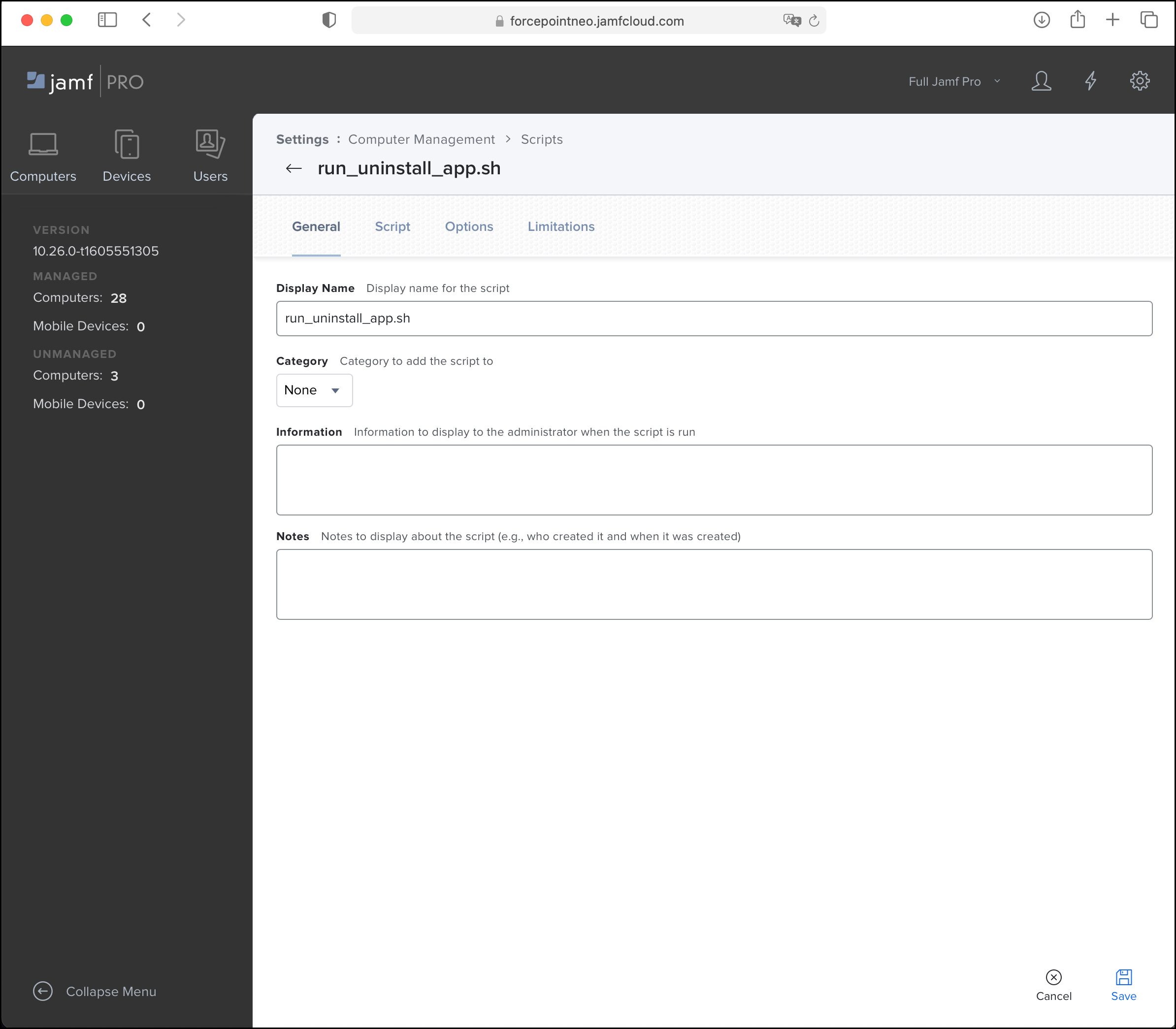
  4. On the Script tab, login as root and enter the script attached here.
  5. Generate the release code from Forcepoint Portal, and update the code in the script.
  6. Click Save.
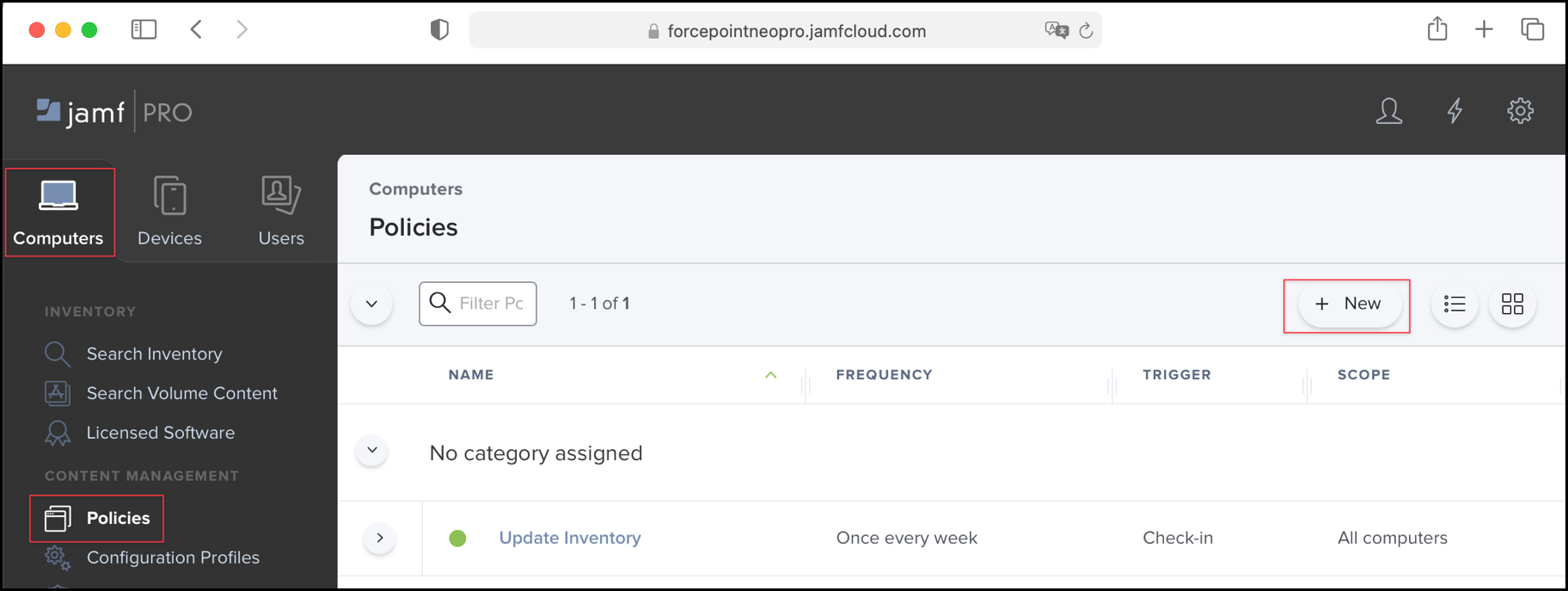
  7. Open Computers > Policies, then click New.
  8. Enter the following details:
    1. Display Name: Remove DSE
    2. Select the Enabled check box
    3. Choose a suitable Trigger, for example: Recurring Check-in.
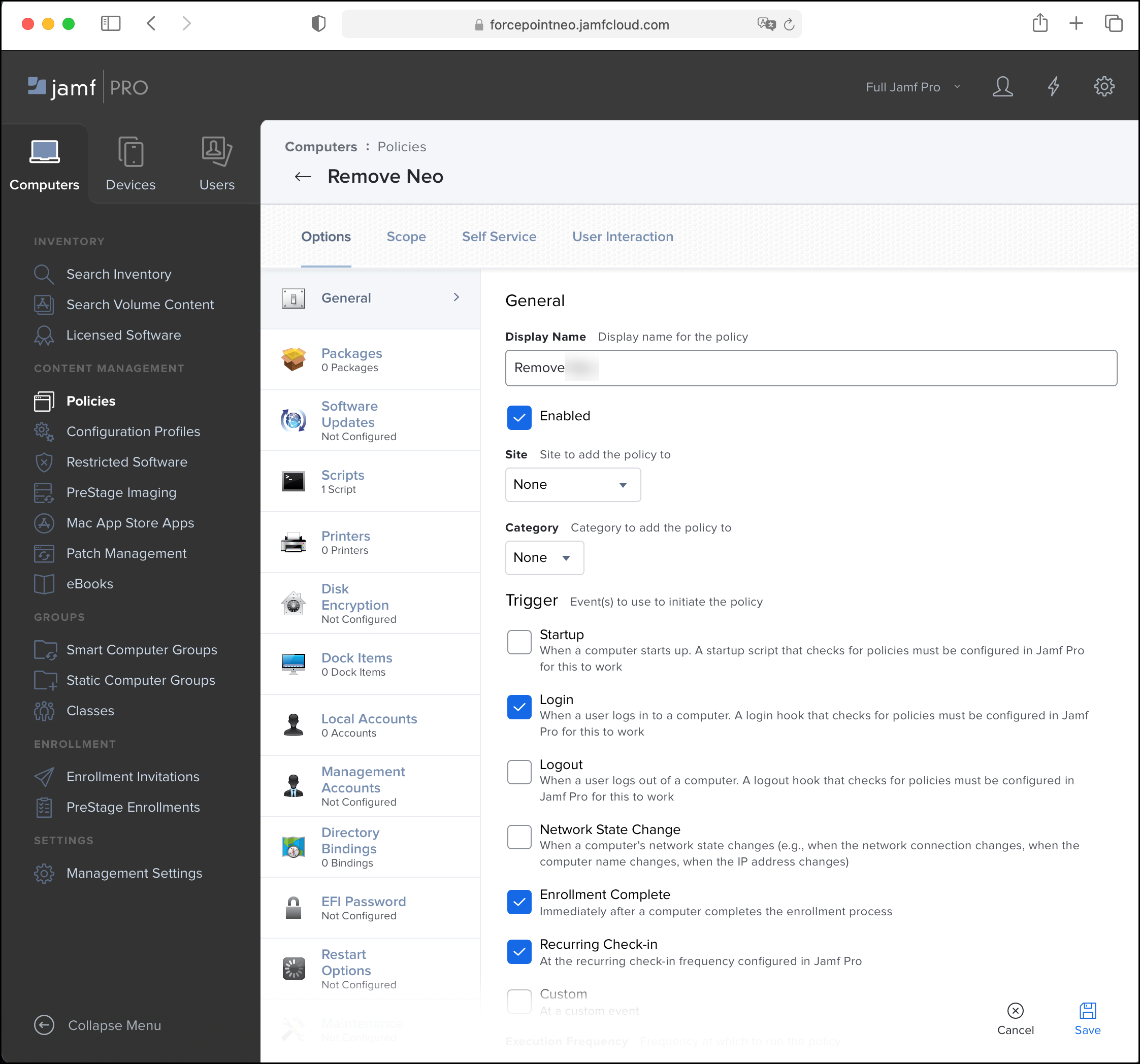
  9. On the Scripts tab, click Configure Scripts and add the script created above.
  10. On the Scope tab, select All Computers and All Users.
    Note: Alternatively, use this tab to specify certain individuals or groups from which to uninstall the agent.
  11. Click Save.
    The Forcepoint Agent uninstallation completes.
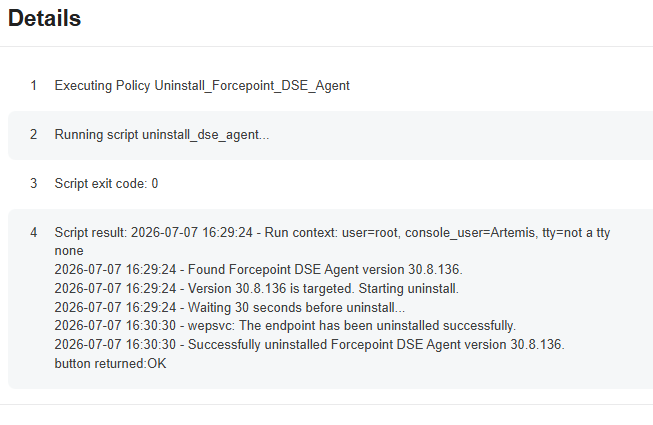
  12. Click Logs to verify the uninstallation.
    Note: To troubleshoot uninstall issues on endpoints, check the below files:
    • Uninstall log - /var/log/WebsenseEndpoint/endpoint_uninstall.log
    • Jamf script log - /var/log/DSEAgentUninstall.log