Customers can upload a Root certificate authority (CA) certificate that will be used to validate if a client cert presented by a user during the Security Assertion Markup Language (SAML) 2.0 authentication process is legitimate.
Steps
-
Login to the Forcepoint Data Security Cloud | SSE portal and navigate to the page.
-
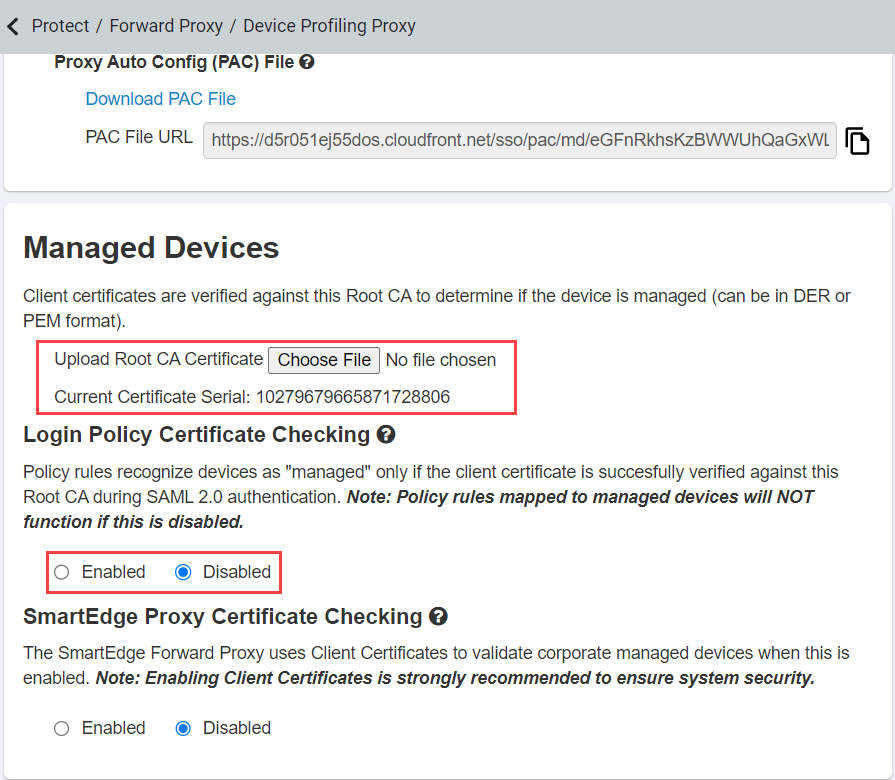
Under Managed Devices section:
-
Enable the Login Policy Certificate Checking option.
-
Click Choose File next to Upload Root CA Certificate and find the cert file (Root CA) you wish to upload. Select it then save
your changes.
- The uploaded cert must be a Root CA (certificate authority).
- The Root CA must be in Privacy-Enhanced Mail (PEM) or Distinguished Encoding Rules (DER) format.
- The Root CA that you upload must be the one which signed the client certs deployed to managed devices.
Note: If the client certs you deployed are part of an internal
CA chain, you must include all of the CA certs in the chain in the uploaded file. The intermediate CA should be the first cert in the file followed by the Root
CA. The intermediate CA serial number will be displayed as the Current Certificate Serial.
- All certificates in the chain (including client, intermediate, and root) must be signed using at least the Secure Hash Algorithm (SHA)-256 hashing algorithm.
Note: Certificates using weak
algorithms like SHA-1 will be rejected during validation.
Once you have uploaded the Root CA, you can push the client certs through to your managed devices using, for example, the Active directory group policy. Once pushed, you then
need to create policy.