Configuring API Google Labels policies
Configure API Google Badge Labels policies to enforce actions on Google Drive files based on classification label status, label change events, and file sharing permissions.
Note: Google
Badge Labels must be enabled and synced in App Security before configuring these policies. See Enabling and syncing badge labels in App Security.
Steps
- In the App Security, navigate to Protect > Policies and locate Google Workspace.
- Under API Google Labels, click "+" to add a new policy.
-
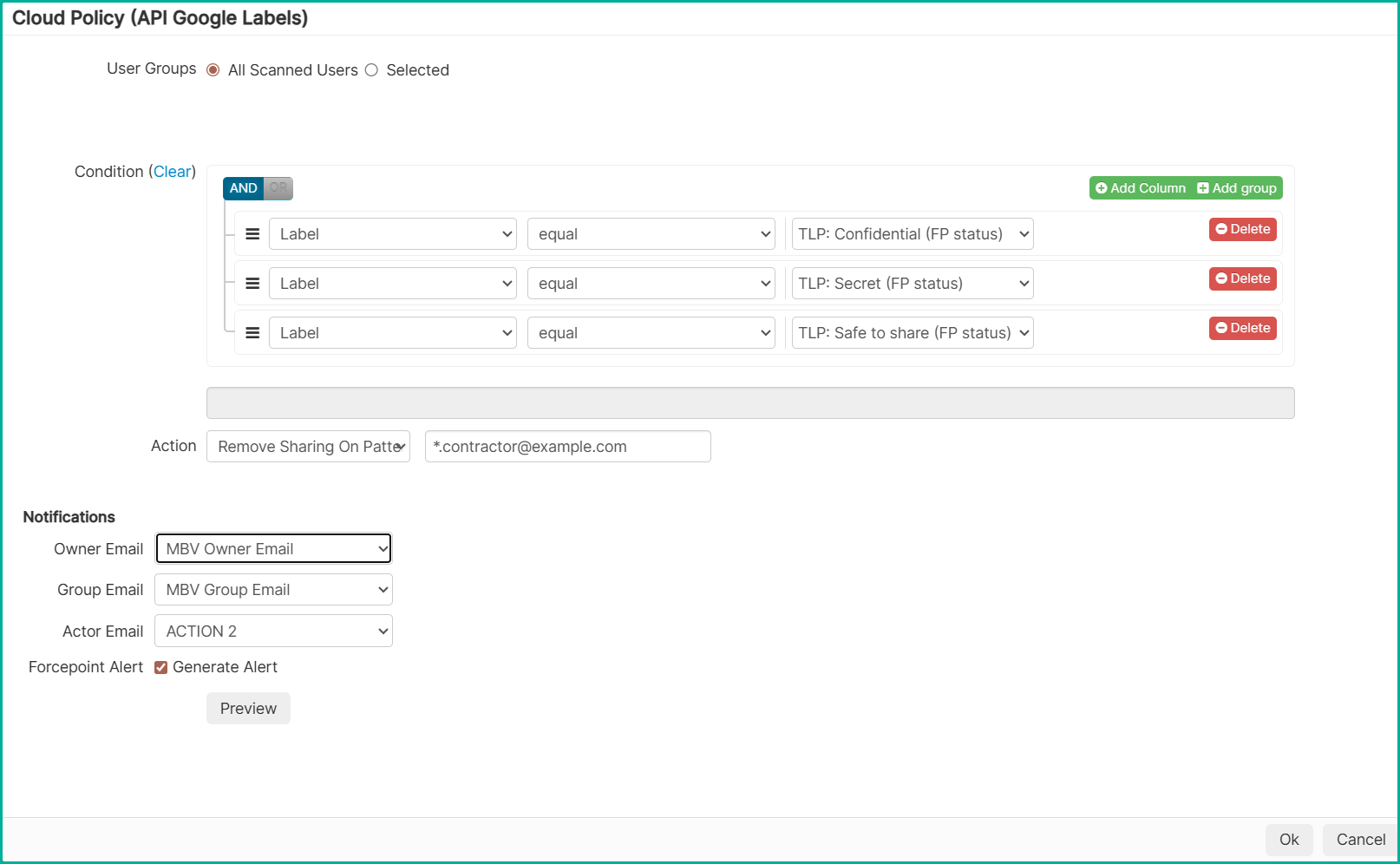
Select which users the policy applies to:
Table 1. Option Description All Scanned Users The policy applies to all users configured for Google Workspace scanning Selected The policy applies to specific user groups. Click + Add group to add one or more groups using AND or OR criteria -
Under Condition, configure one or more conditions using AND or OR criteria. Click Add
Column to add additional condition rows.
Table 2. Condition Description Values Label Match files based on the classification label applied. Select equal or not equal, then select the label value from the dropdown. Values are populated from the synced Google Badge Labels. Drive Match files based on the drive type. GDrive or SharedDrive. User Label Change Date Match files based on the date a user last changed the label. Select before, after, or between, then select a date from the calendar. Status Match files based on the current sharing status. External, Internal, or Shared Domains. File Name Match files based on the file name. Select equal, not equal, or ends with, then enter the file name. File Size (Bytes) Match files based on file size in bytes. Select less, less or equal, greater, or greater or equal, then enter the file size. Owner Match files based on the file owner. Enter the owner's email address or username. Shared With Match files based on the user the file is shared with. Applicable when the file is shared externally or internally. Select equal, not equal, ends with, or contains, then enter the user's email address or username. Path Match files based on the path location within Google Drive. Enter the file path. Creation Time Match files based on the date they were created. Select before, after, or between, then select a date from the calendar Creation Time Period Match files are created within a relative time period. Enter the number of past days. Modification Time Match files based on the date they were last modified. Select before, after, or between, then select a date from the calendar. Modification Time Period Match files modified within a relative time period. Enter the number of past days. For more information about configuring conditions, see Adding conditions to the API policy.
-
Under Action, select the action to enforce when the policy conditions are met:
Table 3. Action Description Allow Permits the event with no change to the file. Use this action to log the activity without enforcement. Restore Label Restores the file's classification label. Select the Default Label checkbox and choose the label value to apply if no previous label exists. Remove All Sharing Removes all sharing access from the file, marking it as private. Remove Public Sharing Removes the publicly shared link from the file, revoking access for anyone with the link. Remove Public+External Sharing Removes the publicly shared link and revokes access for any specific external user, leaving the file shared with internal users only. Remove Domain Sharing Removes sharing access for all users within the domain. Remove Sharing On Pattern Match Removes sharing access for users whose email address matches a specified pattern. Enter the email pattern in the field provided (for example, *.contractor@example.com).For more information about configuring actions, see Adding actions to the API policy.
-
Under Notifications, configure the email notifications to send when the policy is triggered:
Table 4. Notifications Description Owner Email Select a notification template to send an email to the file owner. Group Email Select a notification template to send an email to a configured group. Actor Email Select a notification template to send an email to the user who triggered the policy action. Forcepoint Alert Select Generate Alert to create an alert in the App Security alert log. For information about creating notification templates and label-specific personalization variables, see Configuring notifications.
Following is an example of information that you can enter in the fields:
- Click Preview to review the policy configuration before saving.
- Click Save on the Cloud Policy (API Google Labels) dialog, then click Save on the Policies page.