Enabling and syncing badge labels in App Security
After publishing labels in Google Admin Console, enable and sync them in App Security.
Steps
-
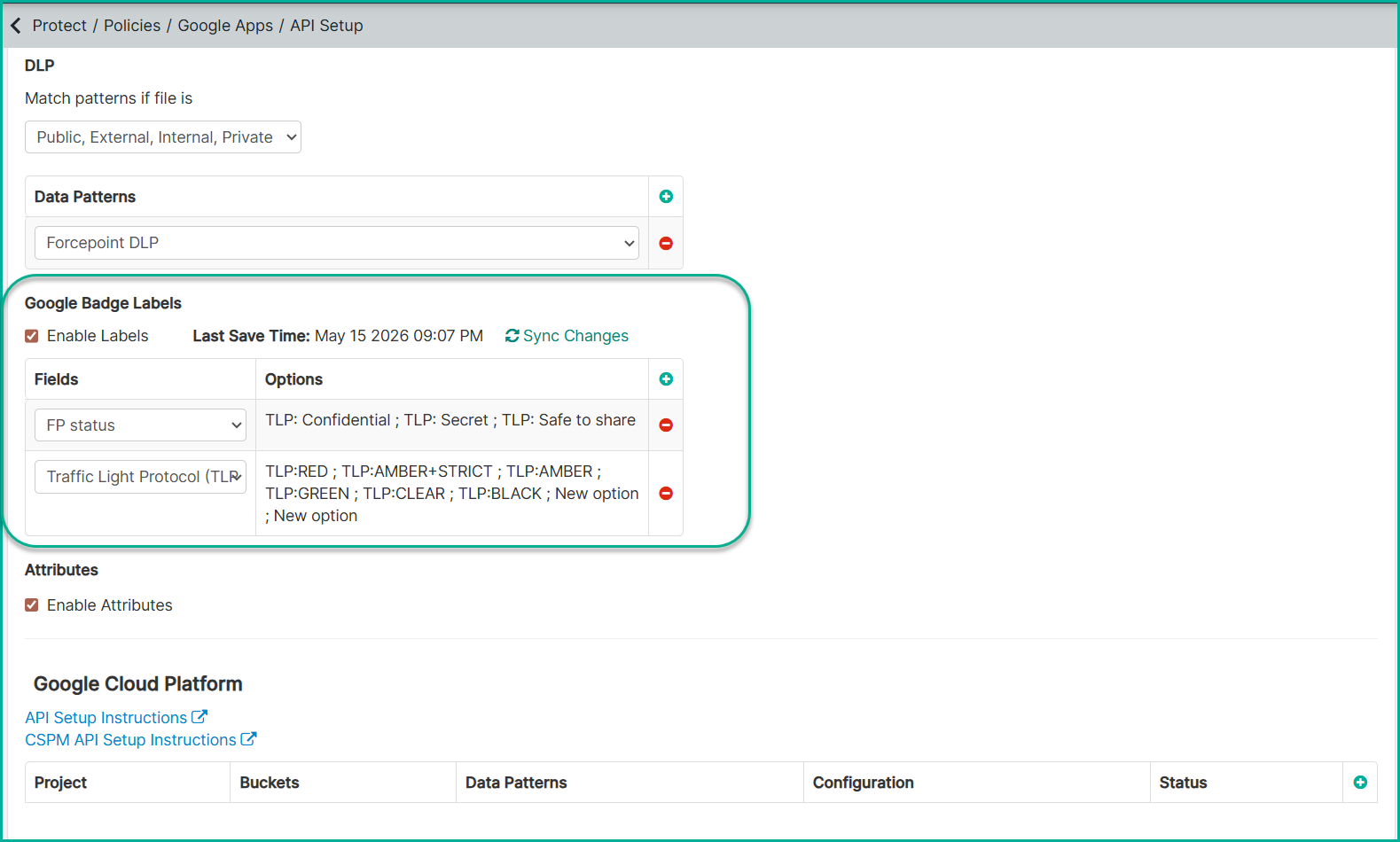
Select the Enable Labels checkbox.
-
Click Sync Changes to pull the latest label configuration from Google. The last save time updates to confirm the sync was successful. Click
"+" on the right side of the table to select and add the synced label fields. Now the new labels appear on the list.
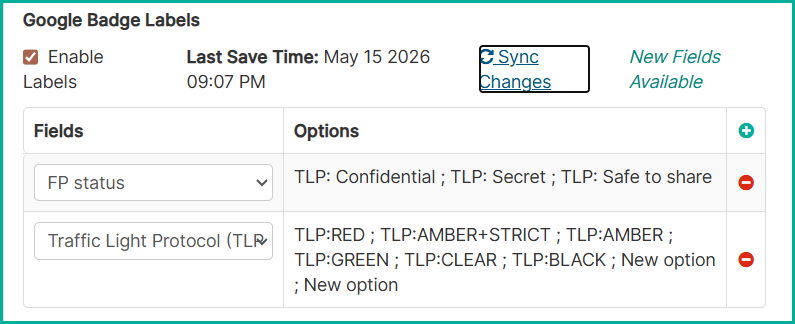 Note: If new labels have been published in Google Admin Console after the last sync, a New Fields Available notification appears next to the Sync Changes button. Click Sync Changes to update the fields and options table before configuring policies.