You can compare snapshots of connections, block lists, VPN SAs, users, routing, SSL VPNs, and neighbors with another snapshot of the same type. You can also compare a snapshot with the
current block list, connections, SD-WAN SAs, users, or routing entries.
Steps
Select
Monitoring Configuration.
Browse to Other Elements > Monitoring Snapshots, then browse to one of the following:
Block list > Log Server
Connections > Log Server or Management Server
Logs > Management Server
Routing > Log Server
SSL VPNs > Log Server
Users > Log Server
SD-WAN SAs > Log Server
Neighbors > Log Server
Right-click the snapshot, then select Open.
In the Query pane, click the Snapshots tab.
Using one of the following methods, select the first snapshot for comparison:
To compare a temporary snapshot of the current entries with a saved snapshot, click
Pause to create the temporary snapshot. The
name of the temporary snapshot is displayed in the first snapshot selection field.
Otherwise, click
Select next to the first snapshot selection field, then select a snapshot.
Select the Compare with checkbox.
Click
Select next to the second snapshot selection field, then select a second snapshot.
Click Apply.
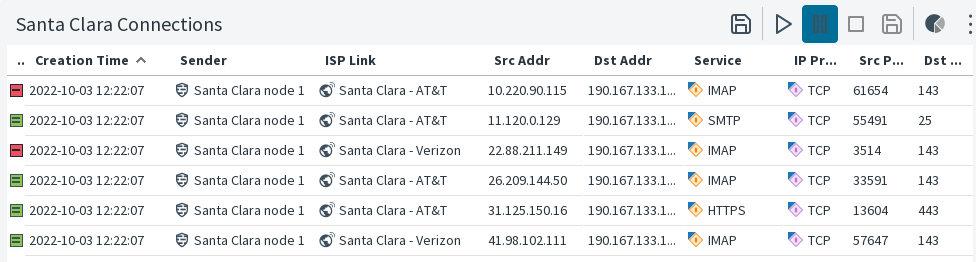
The results of the comparison are highlighted.
Figure: Snapshot comparison results
The icons in the first column signify whether the entry has changed.
Icon
Description
Entry only exists in snapshot 1
Entry is included in both snapshots
Entry only exists in snapshot 2
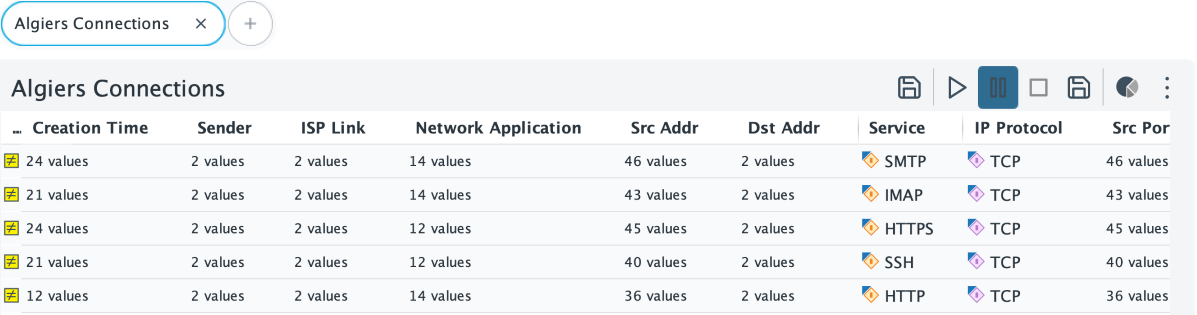
Aggregated entries
No icon
There are more than 100 entries that match the Aggregate by <column name> selection. No further comparison
can be done.
Figure: Example of snapshot comparison with entries aggregated by service
Tip: To open a snapshot for comparison directly in the Monitoring view, right-click the snapshot, then select
Compare to Current.
 Monitoring Configuration.
 Pause to create the temporary snapshot. The
name of the temporary snapshot is displayed in the first snapshot selection field.
Pause to create the temporary snapshot. The
name of the temporary snapshot is displayed in the first snapshot selection field.  Select next to the first snapshot selection field, then select a snapshot.