Deploying the F1E Endpoint for Windows using Microsoft Intune
This section describes the process for installing the Windows F1E Endpoint using Microsoft Intune.
For users planned to use the F1E Windows Endpoint, applications are uploaded and configured in the Microsoft Endpoint Manager Admin Center (MEM). To deploy the Forcepoint DLP Endpoint (F1E) for Windows using Microsoft Intune, prepare the F1E Endpoint package, and then upload and configure it in MEM, as described in the following steps.
Steps
-
In MEM, navigate to and choose the app type Windows app (Win32).
Note: Based on the operating system environment, select the appropriate app type. Choose Windows app (win32) for 32-bit environments and Windows app (win64) for 64-bit based environments.

Note: The Win32 application is configured using the add app wizard. The first page of the wizard, app information, requires the location of a .intunewim file.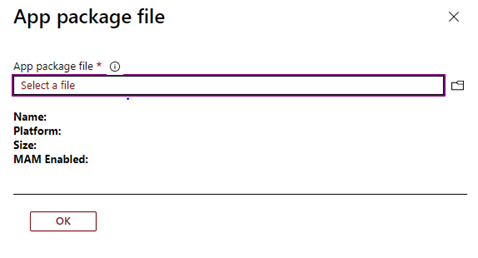
-
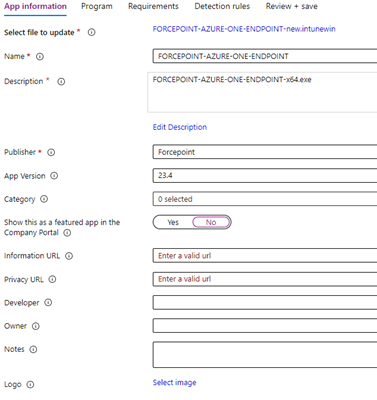
After selecting the file under the App information section, provide the metadata details of the selected file.
Note: Most of the information is available in the Company Portal, another application which can be installed to allow users to install software on-demand. Only the mandatory fields are required to be filled out.
-
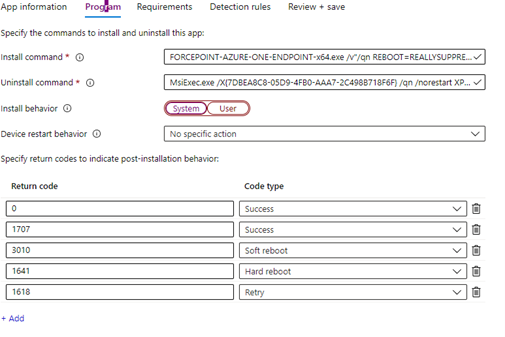
Go to the program section and enter the installation and uninstallation commands for the application.
Important: The install behavior is a key option which must be correct. Choose System (NT AUTHORITY\SYSTEM) to execute the installation with administrative rights. However, there may be circumstances in which you need to execute the installer using a particular user context. Choose no specific action unless there is a need to reboot, which the user can choose to do.
-
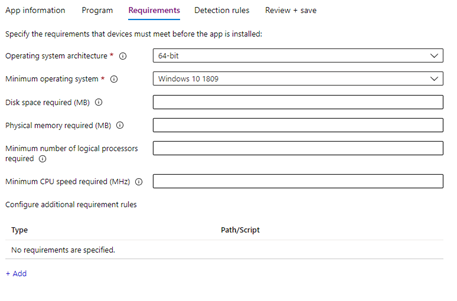
Navigate to the requirements section.
If the Targeted Applications do not meet the configured requirements, the application is not installed. The only mandatory options are OS Architecture (x86, x64, or both) and Minimum Operating System, which at its lowest can be Windows 10 1607.
Of potential interest is the Configure Additional Requirement Rules option, which allows you to query files, directories, registry entries, or use scripts. For example, it can be set to not allow the application to install if a certain file is or is not present, or even query the version attribute of that file. Scripts can run, and based on the output, determine whether the application installs.
-
Move to the Detection Rules tab, which defines how Intune verifies whether the app is installed or not.
These rules are mandatory because without them, Intune would not know when to stop trying to install the app or how to report success or failure. Again, use a script to determine success or use the Manually Configure Detection Rules option for similar options to the earlier requirements, such as the presence of a file or registry entry.
-
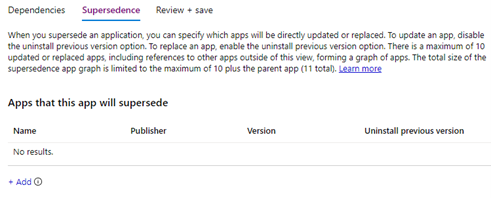
Supersedence is a new option that allows an administrator to update or replace applications.
The former will uninstall the app specified under Apps that this app will supersede, and then install the app being configured. If using Supersedence to update an app, specify a version number rather than just the existence of a file under the earlier detection rule.
-
There are three assignment types:
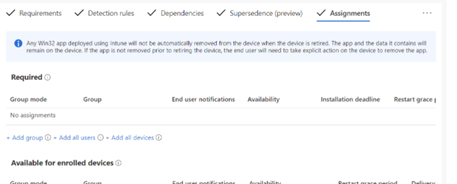
- Required groups will have the application force installed. This can be a user group, device group, all users, or all devices.
- Uninstall groups will have the application force uninstalled. This can be a user group, device group, all users, or all devices.
- Available groups will be able to retrieve the app from the Company Portal. This must be a user group or all users.
-
Supersedence is a new option that allows an administrator to update or replace applications.