Taxonomy
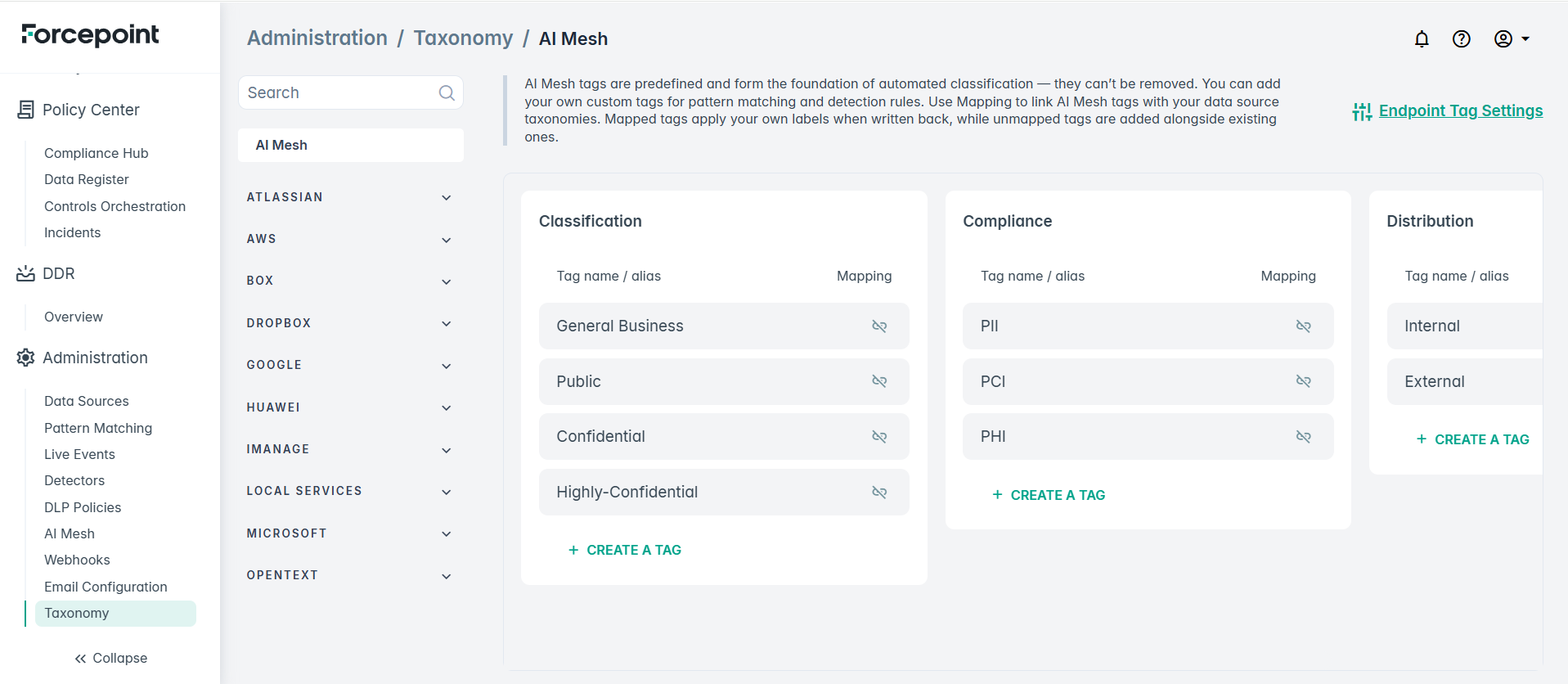
The Taxonomy page lets you view and manage the classification tags used to label your data. Tags are organized into the taxonomy that DSPM applies when classifying files. You can add your own custom tags for pattern matching and detection rules. Using mapping you can link AI Mesh tags with your data source taxonomies. Mapped tags apply your own labels when written back, while unmapped tags are added alongside existing ones.
Navigate to .
Widget Controls
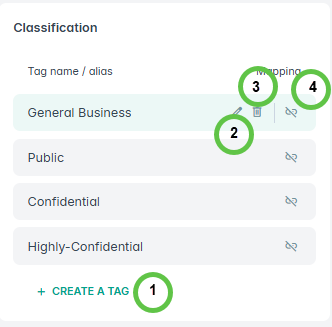
| 1 | Add new tag |
| 2 | Edit tag |
| 3 | Delete tag |
| 4 | Configure mapping to data sources taxonomy |
Adding new Taxonomy Tags
- Click the plus icon Create a tag to open the editor.
- Enter a Tag name and optionally a Tag alias.Note: The Tag alias is usually used for multi-lingual deployments, optional for only English speaking audience.
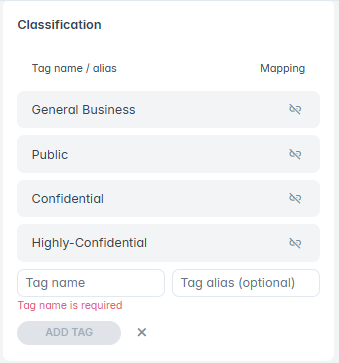
- Click ADD TAG.
Tag aliases
You can define an alias for a tag to display a name that better matches your organization’s custom taxonomy. For example, a tag can be given the alias “C4 Top Secret” so that this label appears in place of the underlying tag name.
An alias applies only to files that are classified after the alias is defined:
- If an alias is defined for a tag at classification time, DSPM displays the alias in the Classification, Compliance Tags, and Distribution fields.
- If no alias is defined, DSPM displays the tag name.
- Files that were classified before the alias was defined continue to display the tag name.
Field names and columns are unchanged by aliases. GQL queries and basic filtering continue to use tag names.
To watch the demo video, click here
Aliases when editing a classification or pattern
When you create or edit a pattern, or manually edit a classification, DSPM shows the alias in the selection dropdown if an alias is defined for the tag. If no alias is defined, the tag name is shown instead. This keeps the value shown in the classification list consistent with what you select in edit dialogs.
Creating label mappings
During file scanning, DSPM automatically applies predefined AI Mesh labels to the files. With the introduction of the label mapping feature, users can now map these predefined classification, compliance, and distribution tags to their own custom tags used across specific data sources.
Upon completion of the file scan, users can configure a mapping between the standard labels generated during the scan and the custom labels intended for use within their specific data sources. After the label mapping is established, executing the connection tagging process applies the custom labels to the files in the data source, replacing the default DSPM-defined tags.
Example:
Before proceeding with the steps in this example, ensure that a file scan has been completed and that several files stored in Google Drive have been discovered and classified. Additionally, make note of the AI Mesh–recommended classification labels assigned to the relevant files.
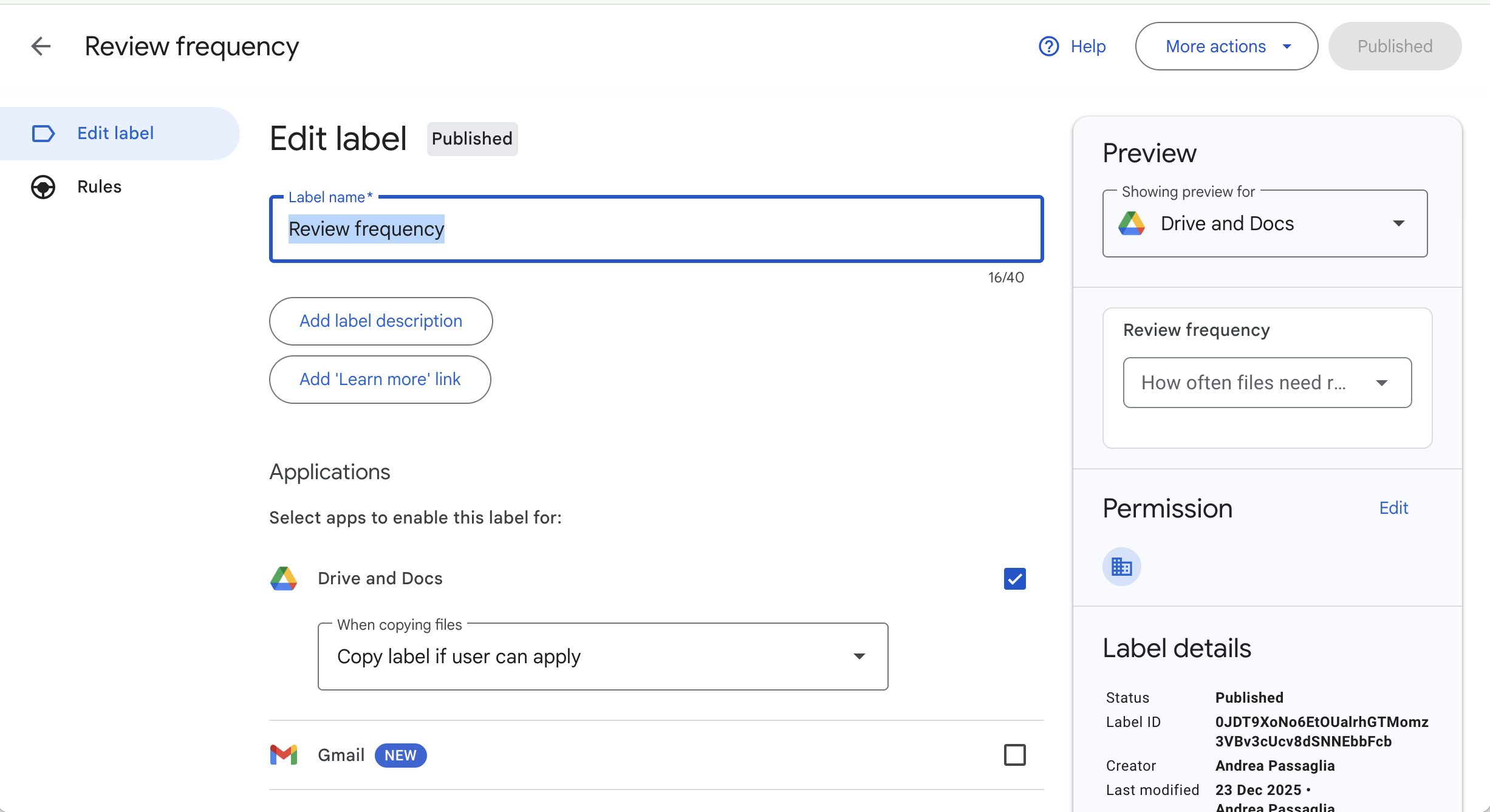
- Log in to the admin console of Google Drive, and navigate to the Edit Label of the specific tag set. In the below example, we have the tag set - Review Frequency
which has the tag Yearly Review under it.
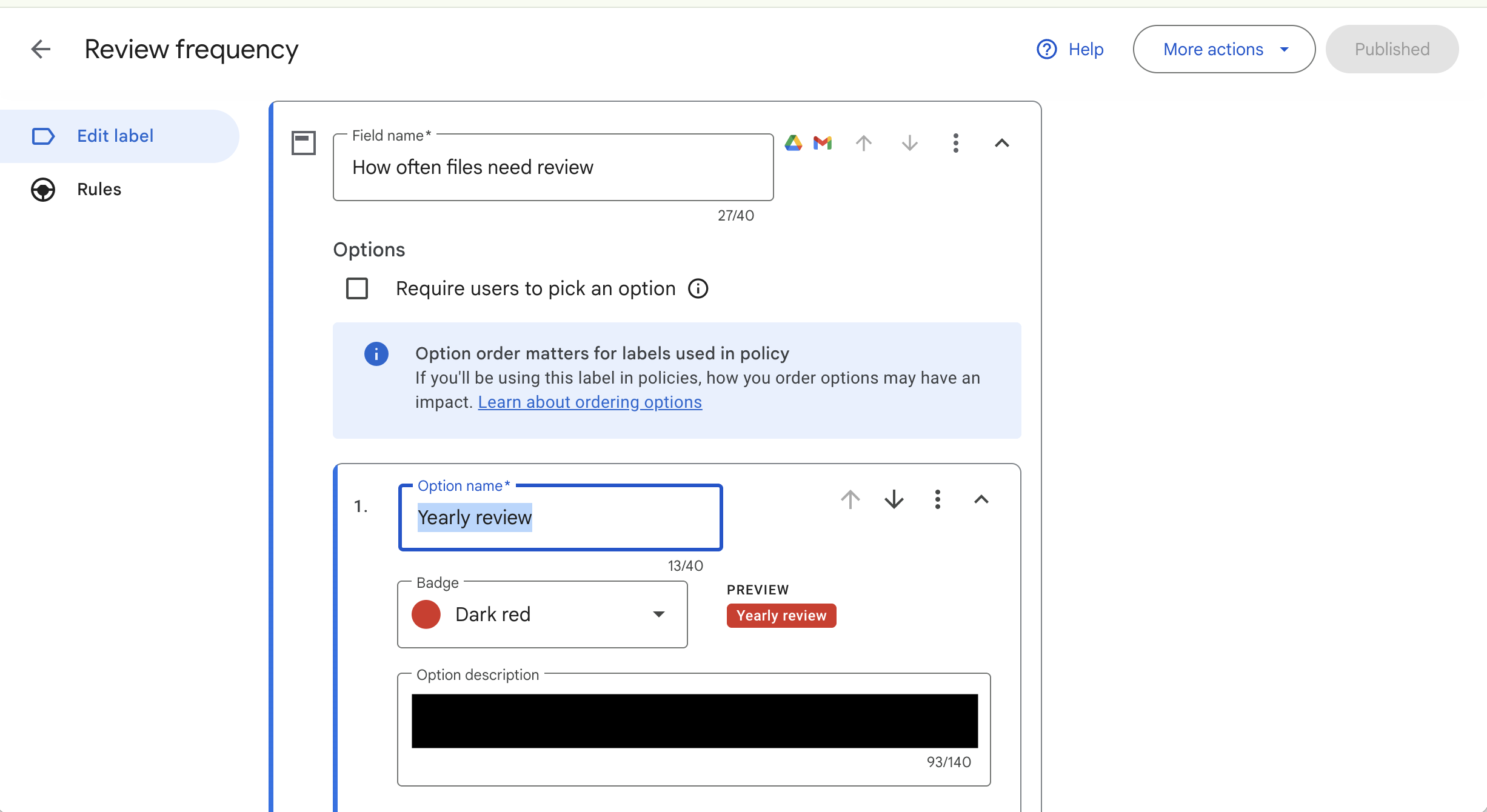
- Copy the tag set name.
- On the Forcepoint DSPM console, navigate to .
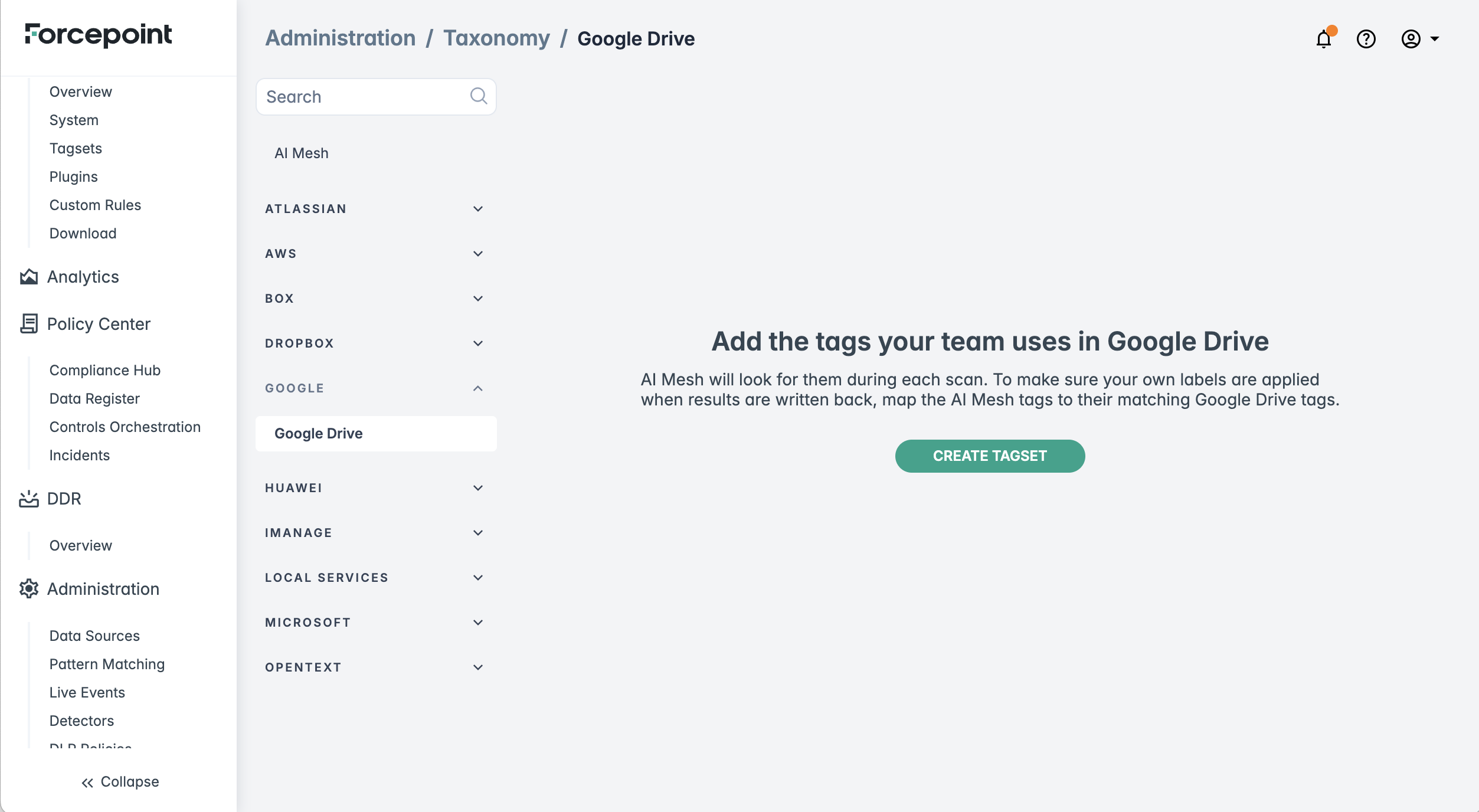
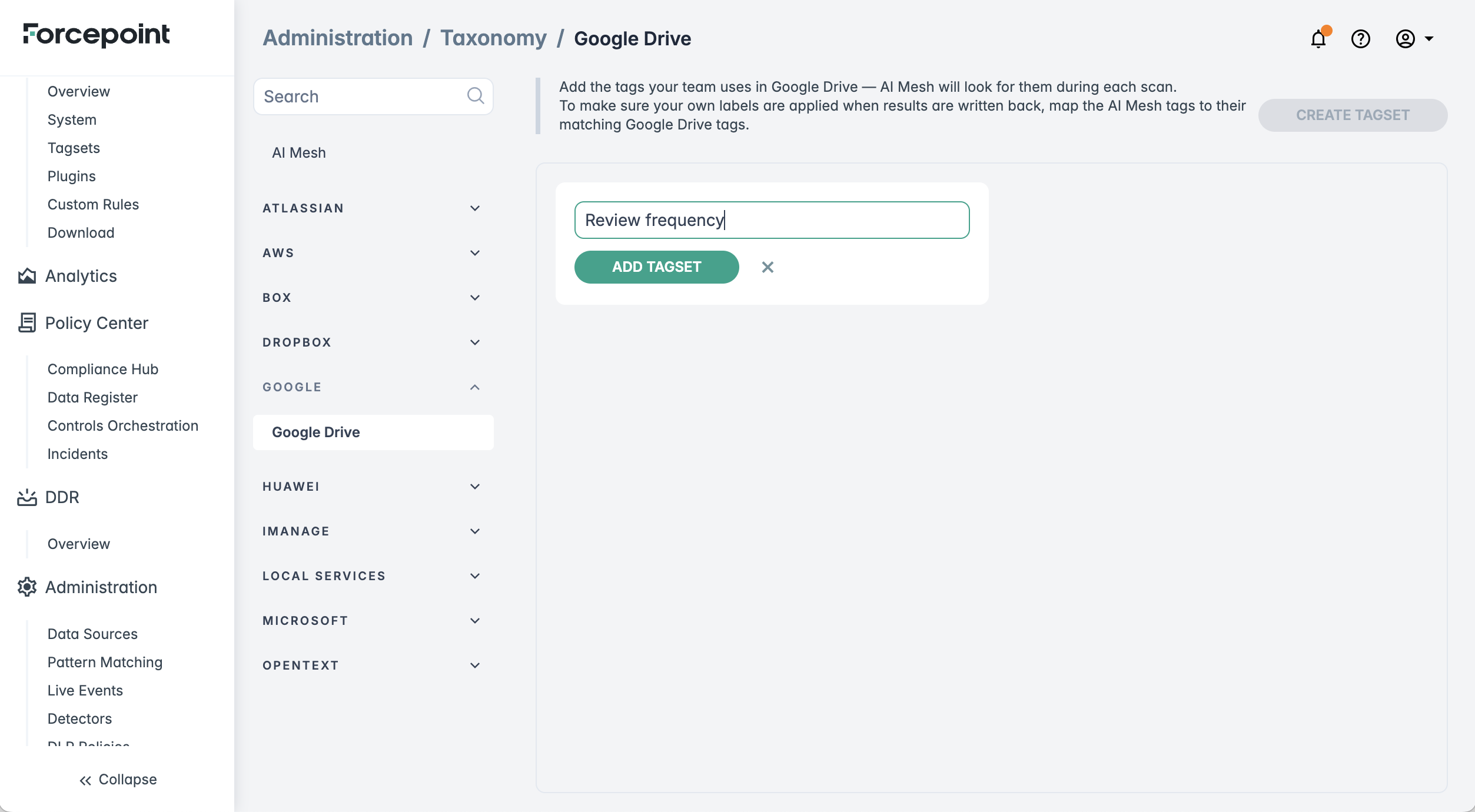
- Click Create Tagset and then copy the tagset name from Google drive. Next, click Add Tagset.
- Next, enter the tag name and click Add Tag.
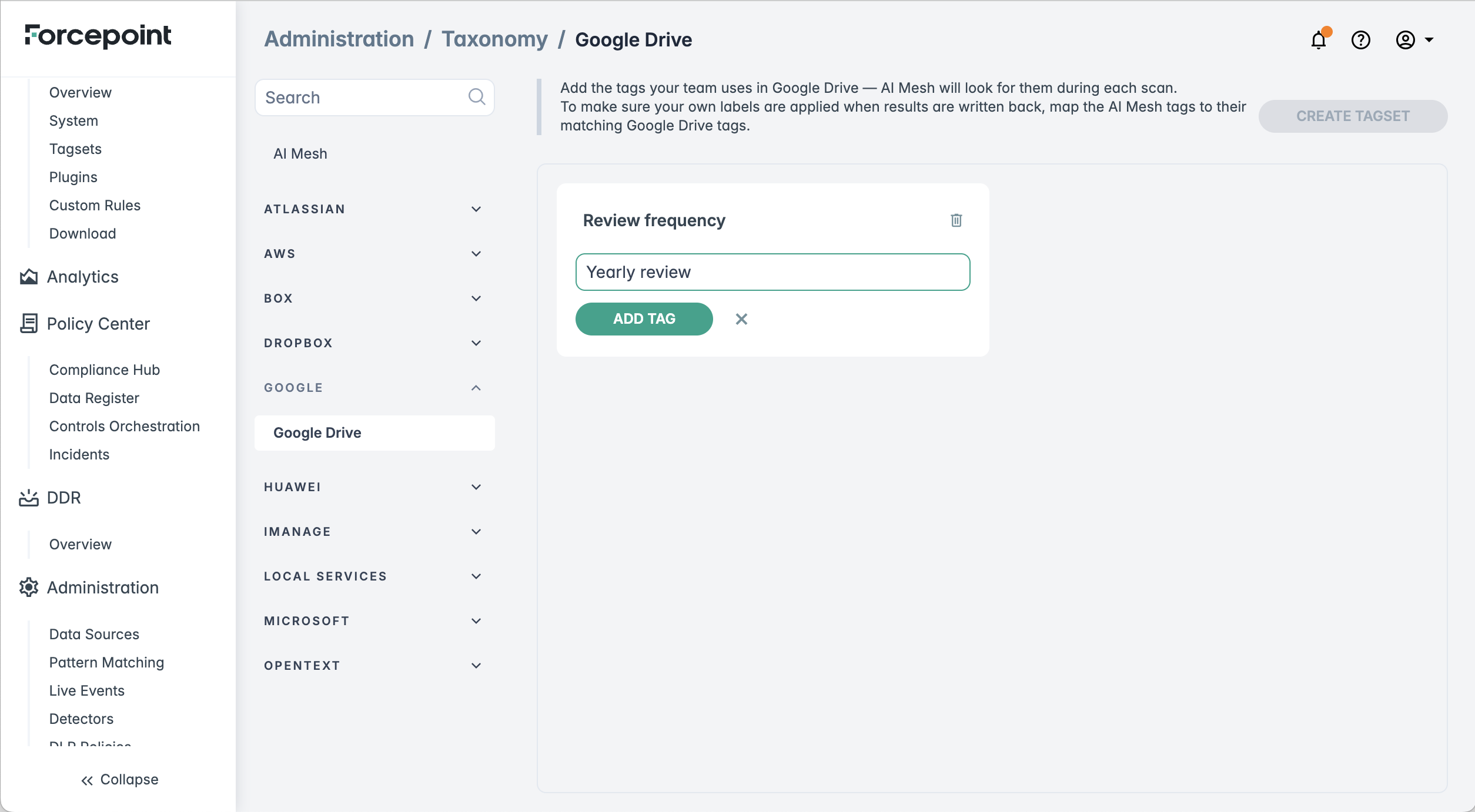
The tagset and the tag will added and displayed as follows:
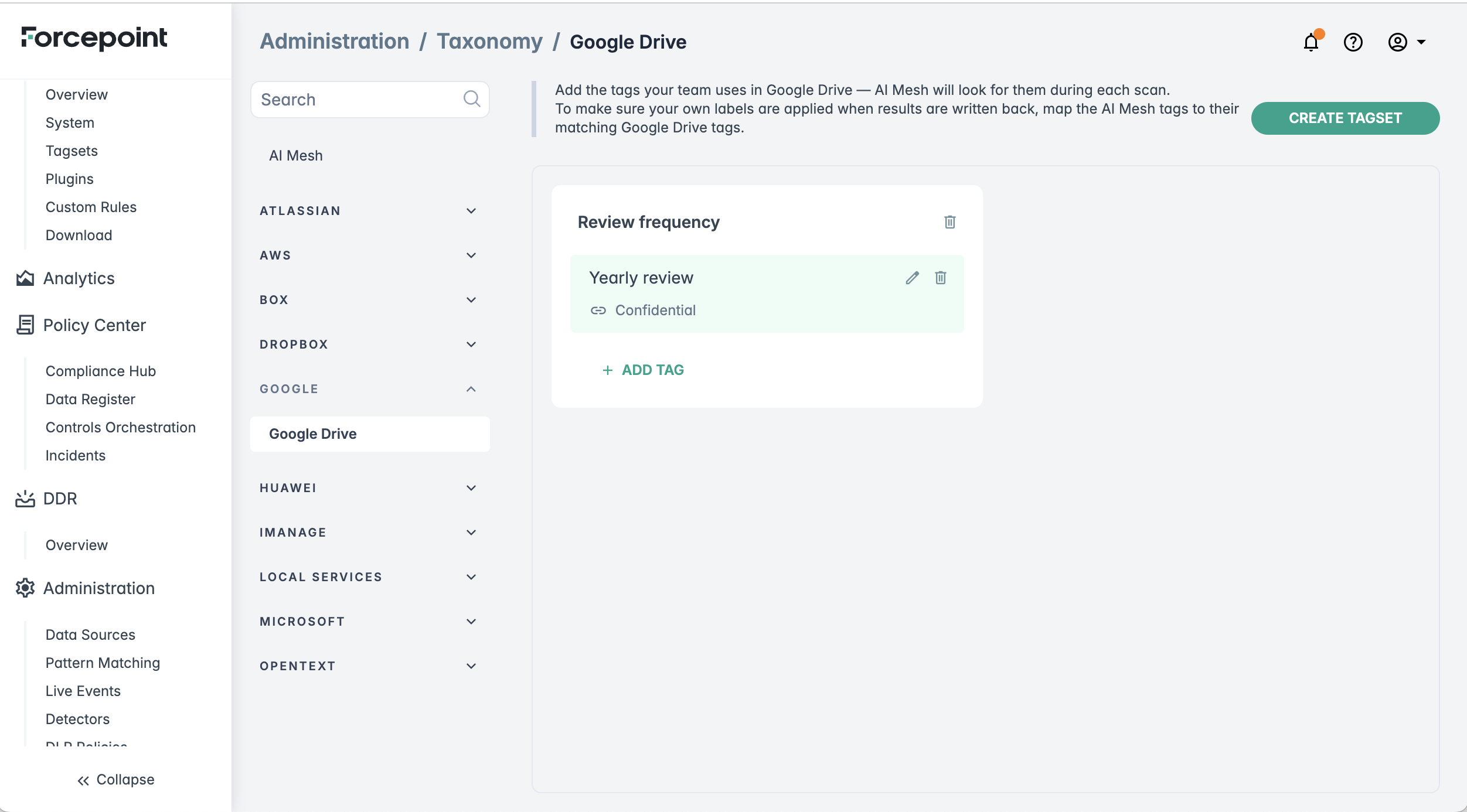
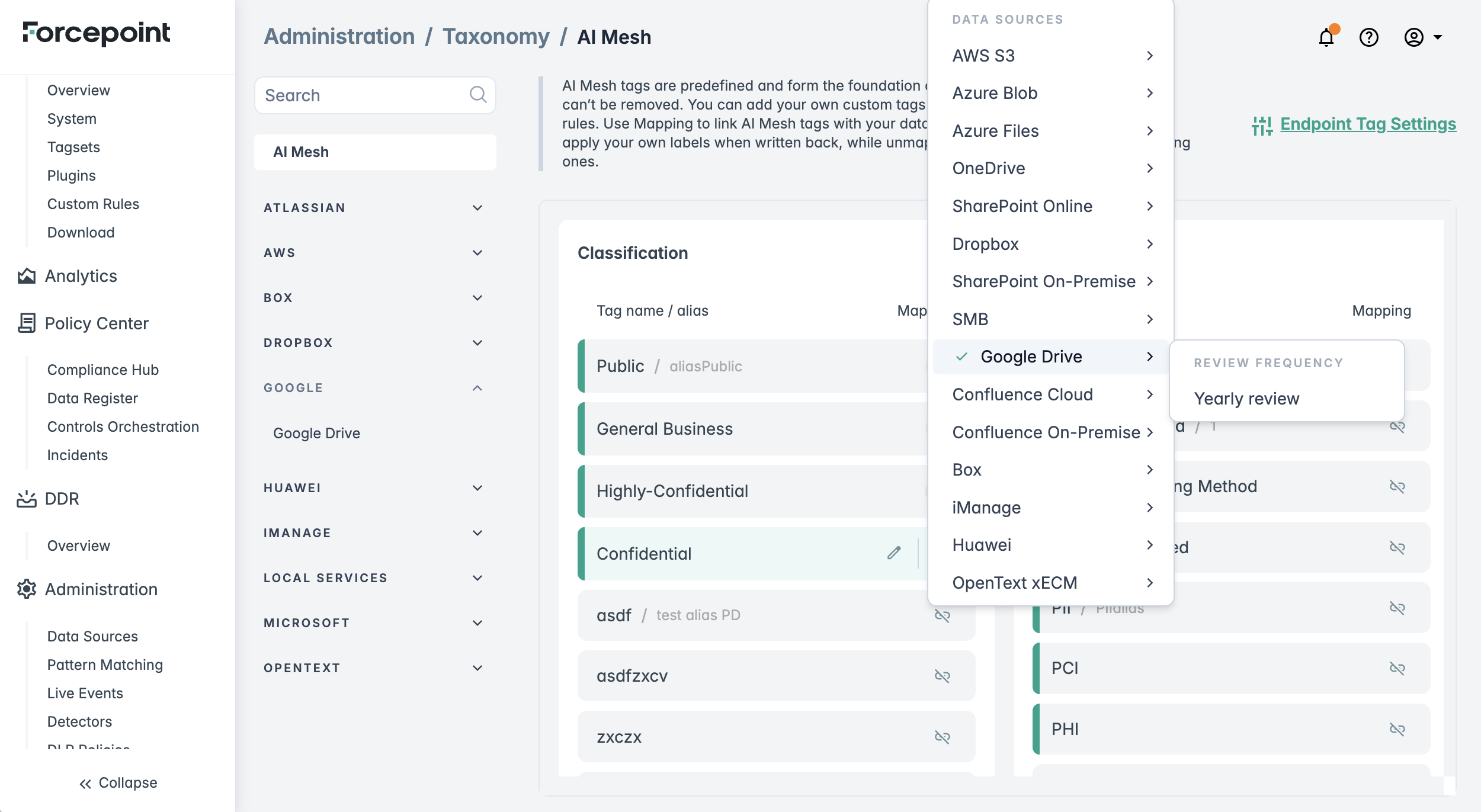
- Next, navigate to AI Mesh section under Taxonomy, click the predefined tag .
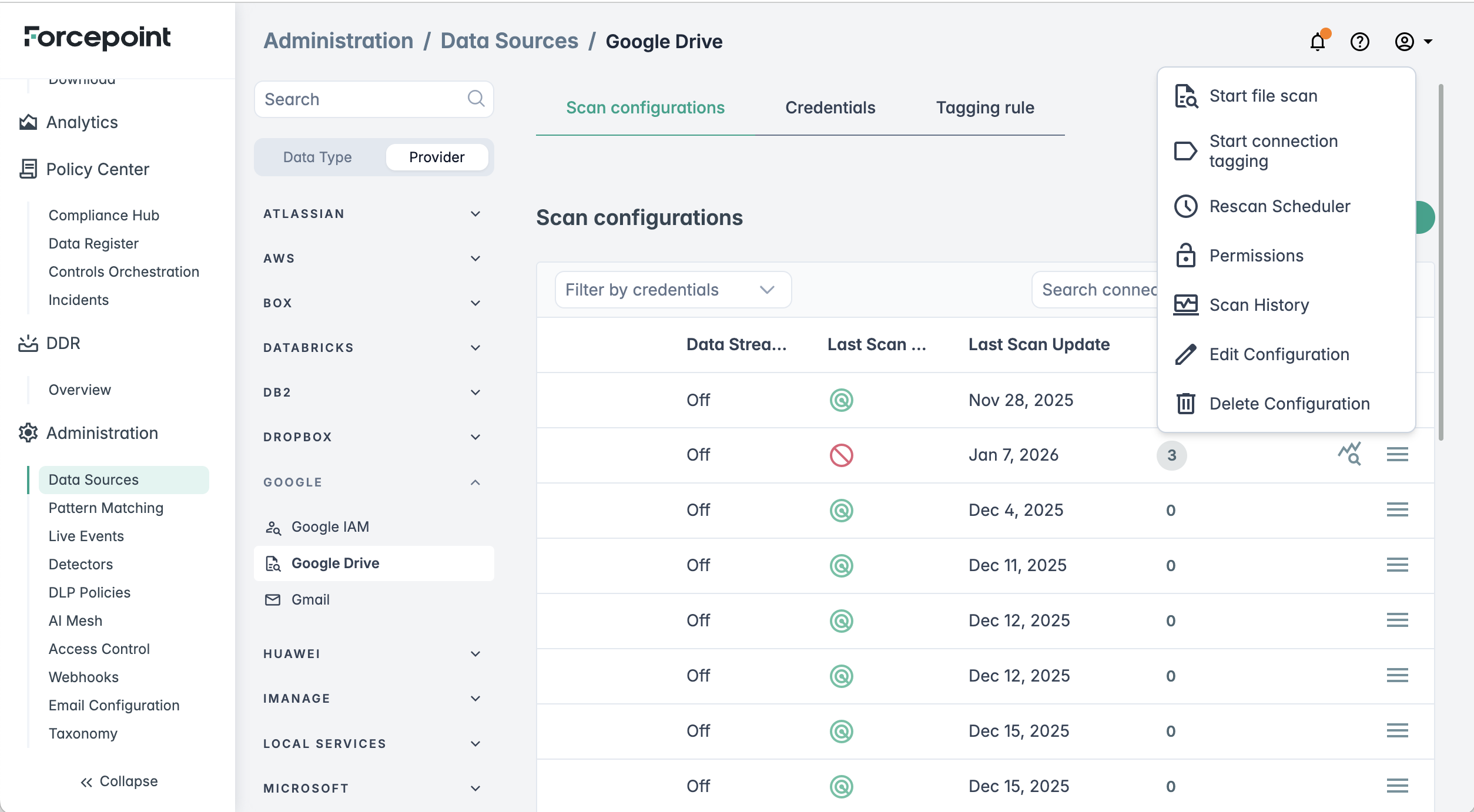
- Next, start the connection tagging from .
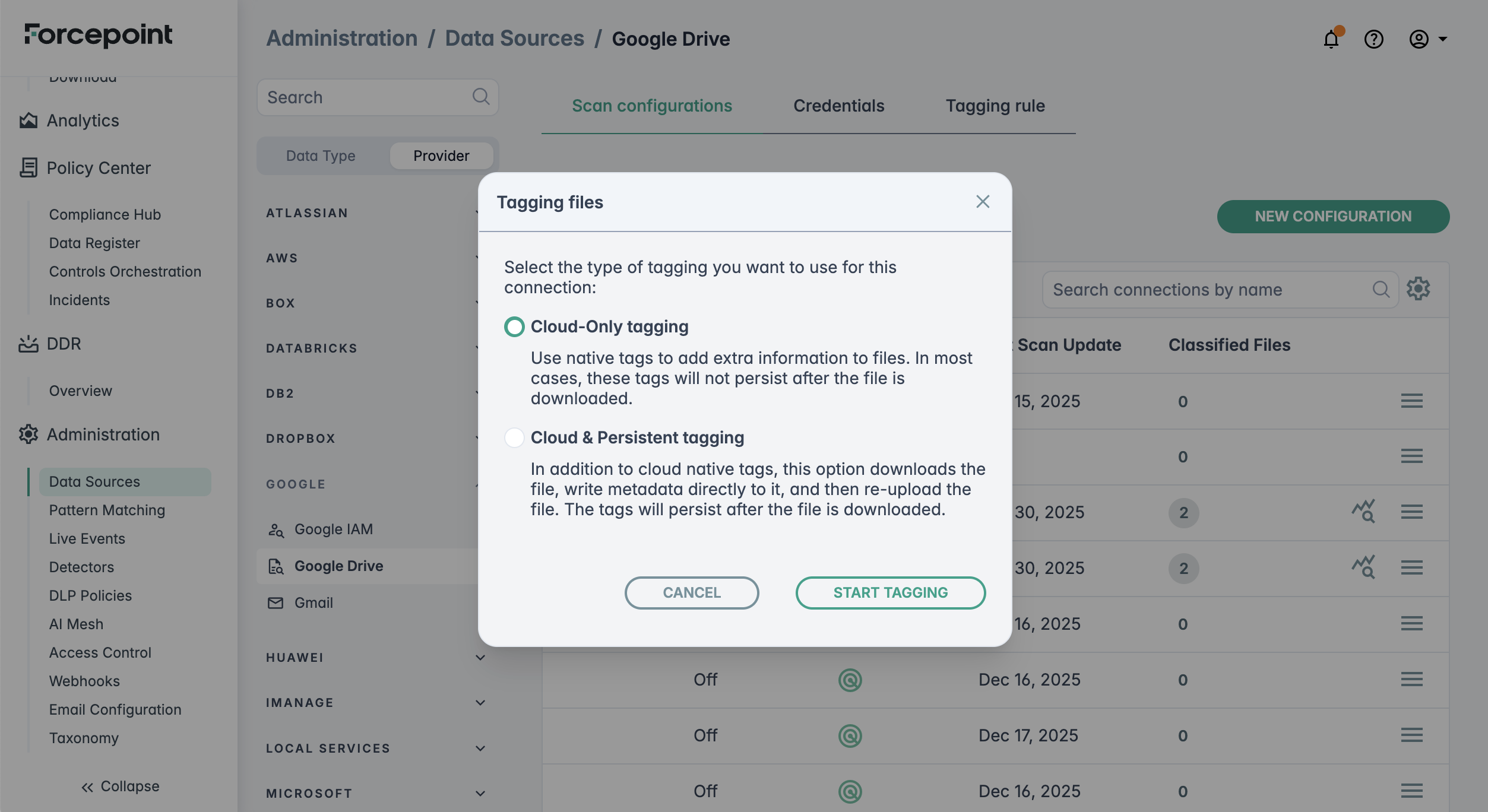
- Ensure the option Cloud-Only tagging is checked. Next, click Start Tagging.
Once the tagging process completes, you can navigate to the Google drive data source console to check the labels for the specified files that were scanned and classified based on the predefined AI Mesh tagging. You should be able to see that the tags applied are the custom tags which were mapped to the specific predefined tags instead of the DSPM AI Mesh predefined tags.