CyberArk Password Manager Integration
Forcepoint DSPM now integrates with CyberArk Password Manager, enabling enterprise customers to use securely stored credentials when connecting to customer infrastructure. You can now store your Secret/Password directly in your CyberArk vault - it always remains there and is never stored by Forcepoint DSPM, ensuring your credentials stay fully under your control. Credentials are retrieved directly from CyberArk at the start of each scan, so any secret rotated in the vault is automatically picked up without any action required in DSPM.
- OneDrive
- SharePoint Online
- AWS S3
- AWS IAM
- SMB Shares
- SharePoint On-Premise
- Confluence On-Premise
- LDAP
- Confluence Cloud
- iManage
- OpenText xECM
Prerequisites
- Log into the Privilege Cloud portal. The URL should be <subdomain>.cyberark.cloud
Example: mysite.cyberark.cloud
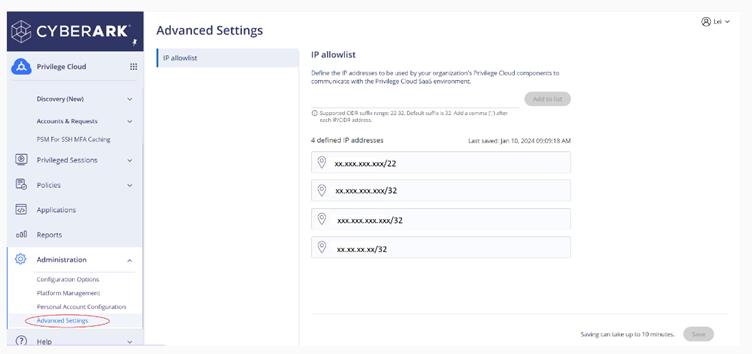
- On the left panel, select .
- In the IP allowlist section, add the list of IP addresses using the CIDR suffix and click Add to list button.
- After adding all the IP addresses, click Save.
- It can take up to 10 minutes to save the configuration. You can continue to work as usual and return after the update is saved.
- You must click the Save button for your changes to take effect.
- If the save fails, retry the operation. If the operation fails again, open a ticket with CyberArk support.
- To remove a saved IP address, hover over the IP address and click remove icon. To keep the IP address, click refresh icon.
- To add an additional IP address, enter the IP address, click the Add to list button, and click Save.
- Log in to the PVWA (Password Vault Web Access).
- Navigate to your PVWA URL: https://<your-pvwa-host>/PasswordVault
- Log in with an account that has Vault Admin or Safe Manager privileges.
- Navigate to the CCP Application.
- Go to Applications tab (or ).
- Find your application (the one DSPM uses to authenticate).
- Click on the application to open its settings.
- Add IP Whitelisting Authentication Method.
- Go Authentication tab of the application.
- Click Add Authentication Method.
- Select Path or Hash if not already set, then also add Allowed Machines.
- Under Allowed Machines, click Add.
- Enter the IP address or hostname of the DSPM server that will be calling CCP. You can add multiple IPs/hostnames here.
- Click OK / Save.
Minimum Permissions Required for CCP Integration
- The CCP Credential Provider user (Prov_<hostname>) : This is the system user created during CCP installation. It must have Retrieve accounts, List accounts, and View Safe Members permissions on the Safe.
- The Application (your DSPM App ID in PVWA) : The end user/application account needs only Retrieve accounts.
Configuring CyberArk Vault Connection for Supported Data Sources
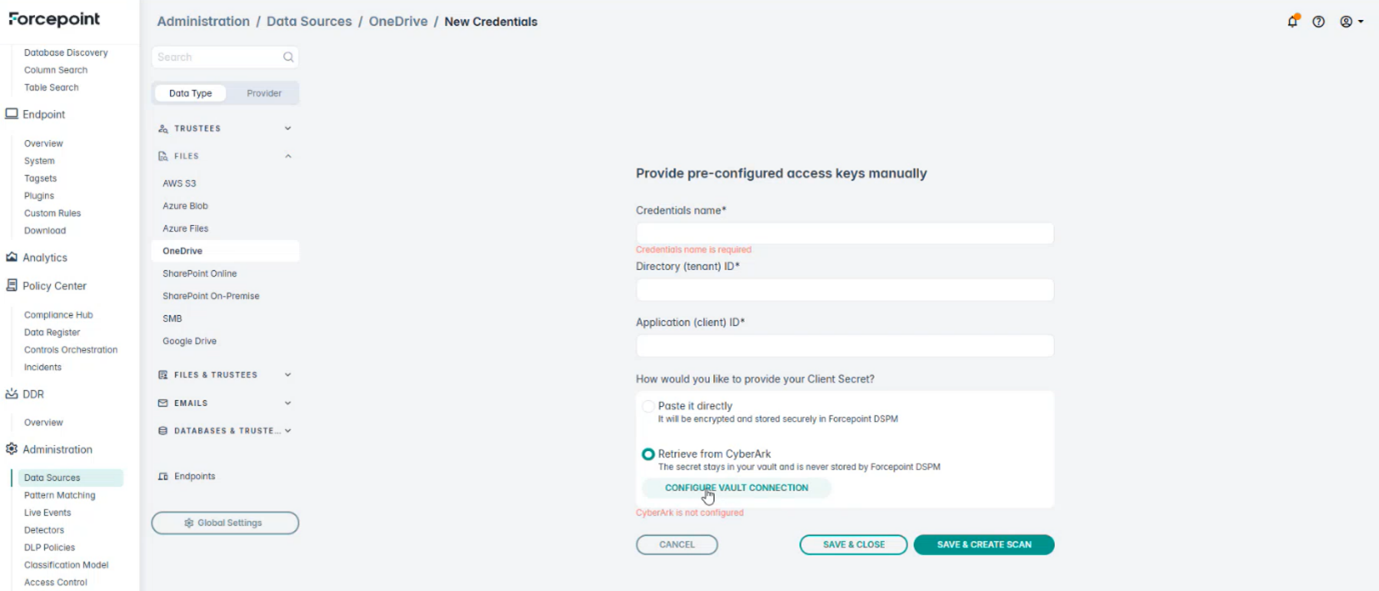
When you create new credentials manually, in the above-mentioned supported data sources, choose the option Retrieve from CyberArk then click CONFIGURE VAULT CONNECTION.
-
Host: The hostname or IP address of the server where CyberArk Central Credential Provider (CCP) is installed and running. This is the machine hosting the AIMWebService. Example: cyberark-ccp.companyname.com
-
Port: The port on which the CCP web service is listening. Typically, 443 for HTTPS.
Default: 443
-
App ID: The unique identifier of the application registered in CyberArk PVWA that represents DSPM. CyberArk uses this to identify who is requesting the credential and validate it against the configured authentication methods (IP whitelist, certificate, etc.).
Example: DSPM-Production [This is created in PVWA under Applications > Add Application].
-
Object Name: The name of the specific credential object (account) inside the Safe that DSPM should retrieve. Each credential stored in CyberArk has a unique object name within its Safe.
Example: AWSServiceAccount or OneDriveConnector-Prod [This is visible in PVWA under the Safe's account list].
-
Safe Name: The name of the CyberArk Safe where the credentials (e.g. your cloud or on-premises account secrets) are stored. A Safe is CyberArk's logical container for grouping and securing related credentials.
Example: DSPM-Credentials
-
Folder Name: The folder within the Safe where the credential object is stored. CyberArk Safes can organise credentials into folders, similar to a directory structure. If no custom folder has been created, this is typically Root.
Default: Root
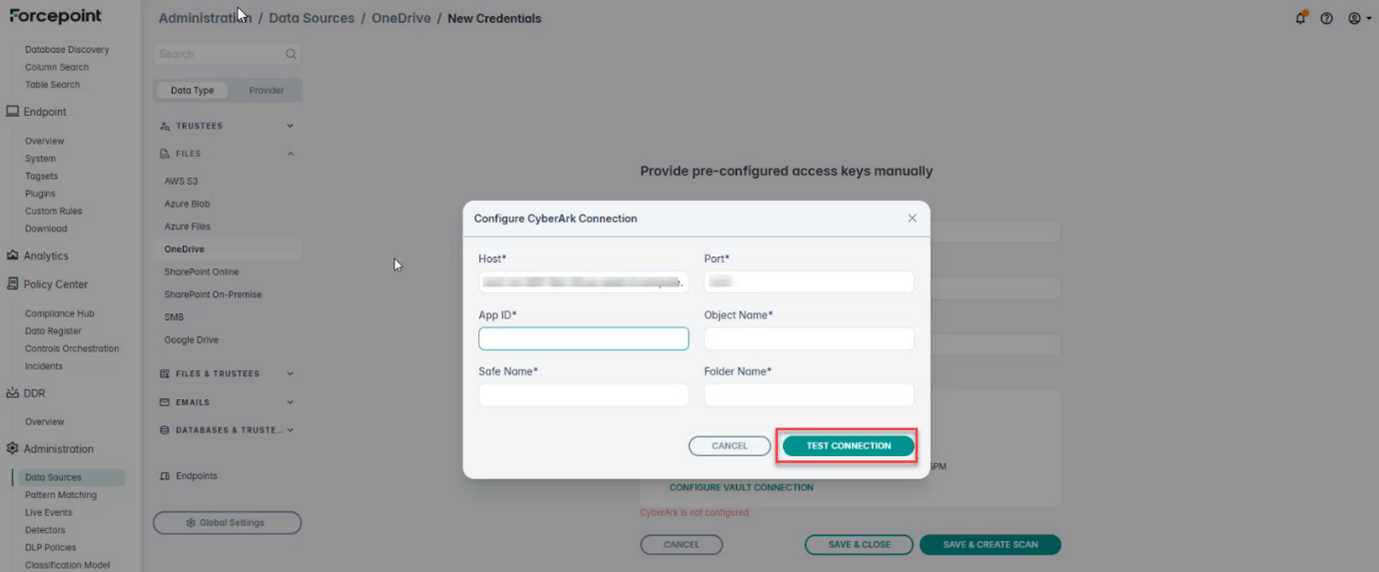
When all the fields above have been filled in, select TEST CONNECTION.
Upon successful connection, Client Secret is fetched from CyberArk vault.
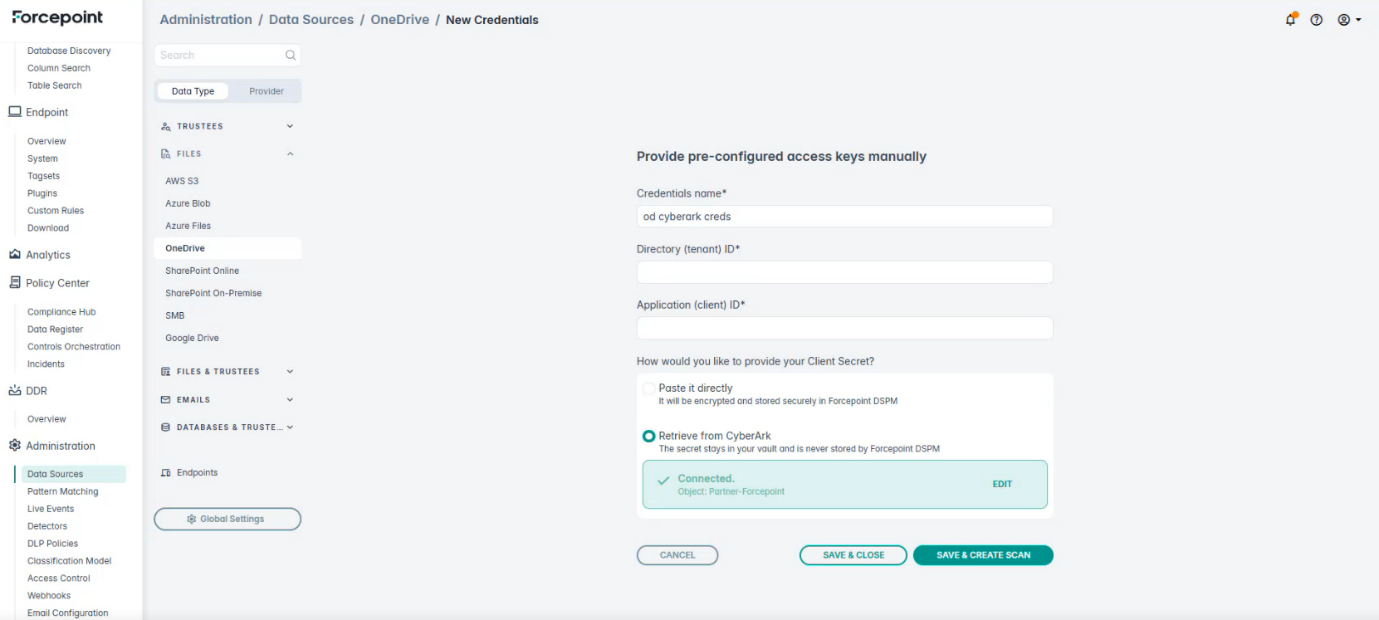
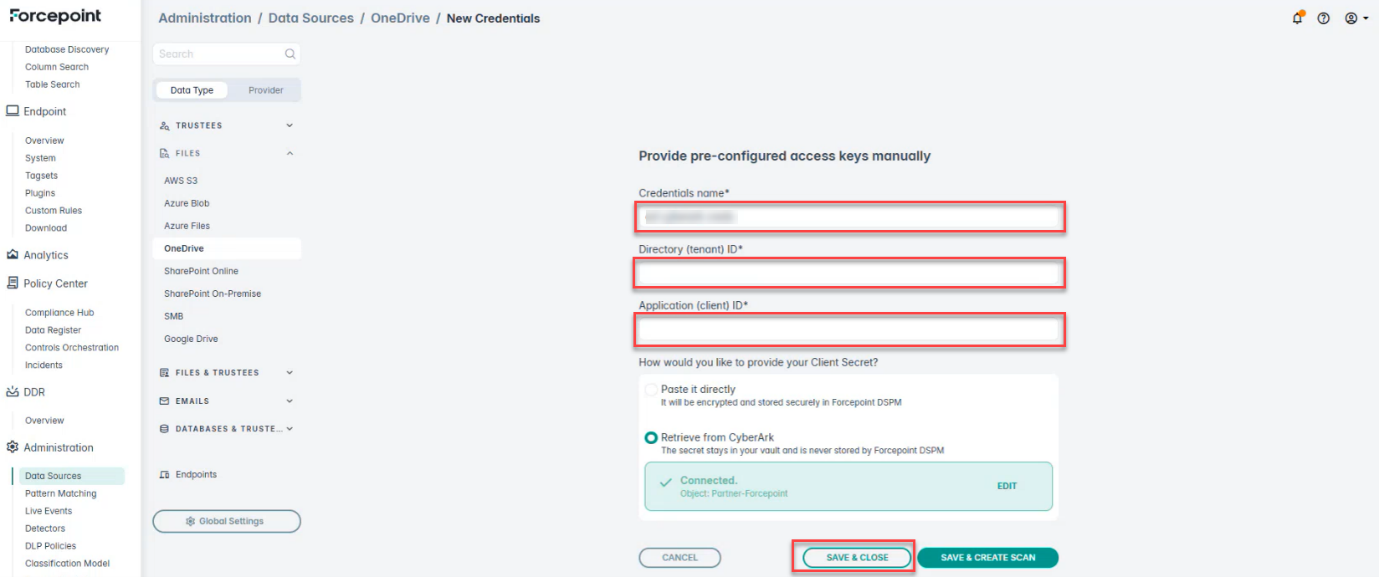
Provide the Credentials name, Directory (tenant) ID, Application (client) ID, and click SAVE & CLOSE.