Enterprise Search
Accessing the Enterprise Search page
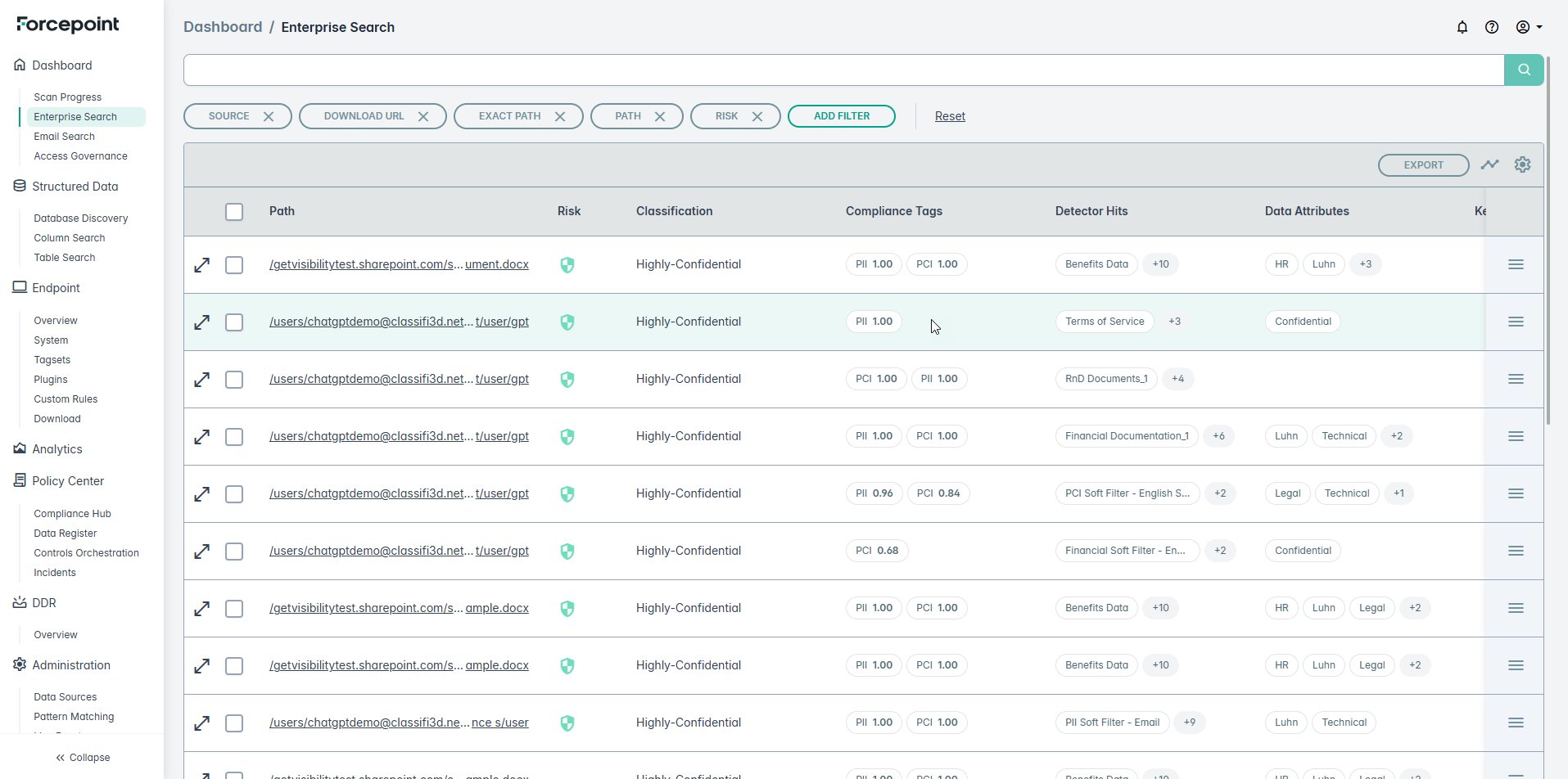
By default, the Enterprise Search page gives a listing of all the files that were scanned and cataloged. By utilizing the GetVisibility Query Language (GQL), you can filter this data to focus on a more manageable subset. This allows you to narrow your search, making it easier to analyze and take appropriate action.
The Enterprise Search page also enables you to access recently used filters, save frequently used filters as bookmarks, and customize the column headings to create more meaningful reports.
From the left navigation under Dashboard select the Enterprise Search section.
Filtering Data

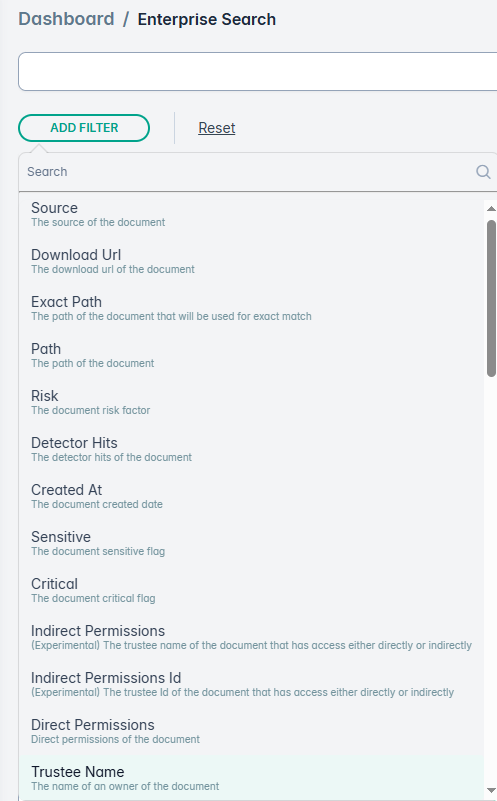
Click on the Add Filter button, to chose from multiple available filters:
Advanced Filtering using GQL
You can also write advanced filters using GQL Query. An example is shown below. For more details refer to GQL.

flow term. For example, to list files that were skipped by
design:flow=FILTERED_OUTSee GQL for all flow values.
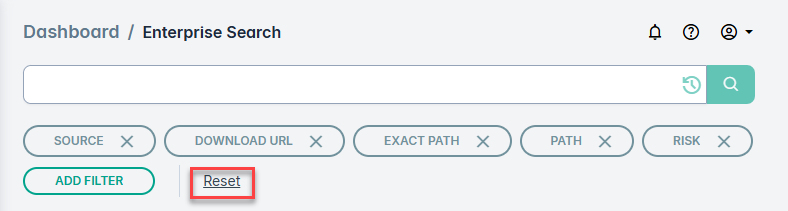
Reset Filters
You can reset the filters using the Reset button.
File Details
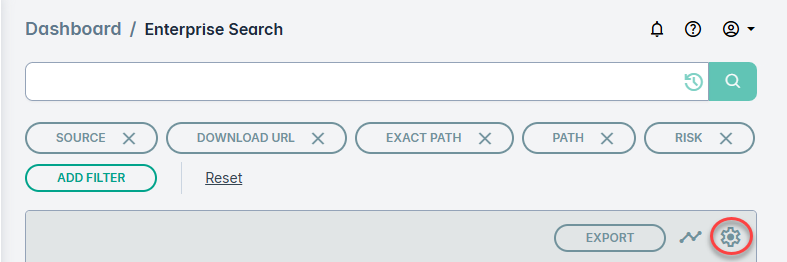
Each file listed in the result has details mentioned in columns. You can select columns to display by selecting the specific column from the Column Configuration menu. Open the Column Configuration by clicking the wheel icon as shown below:
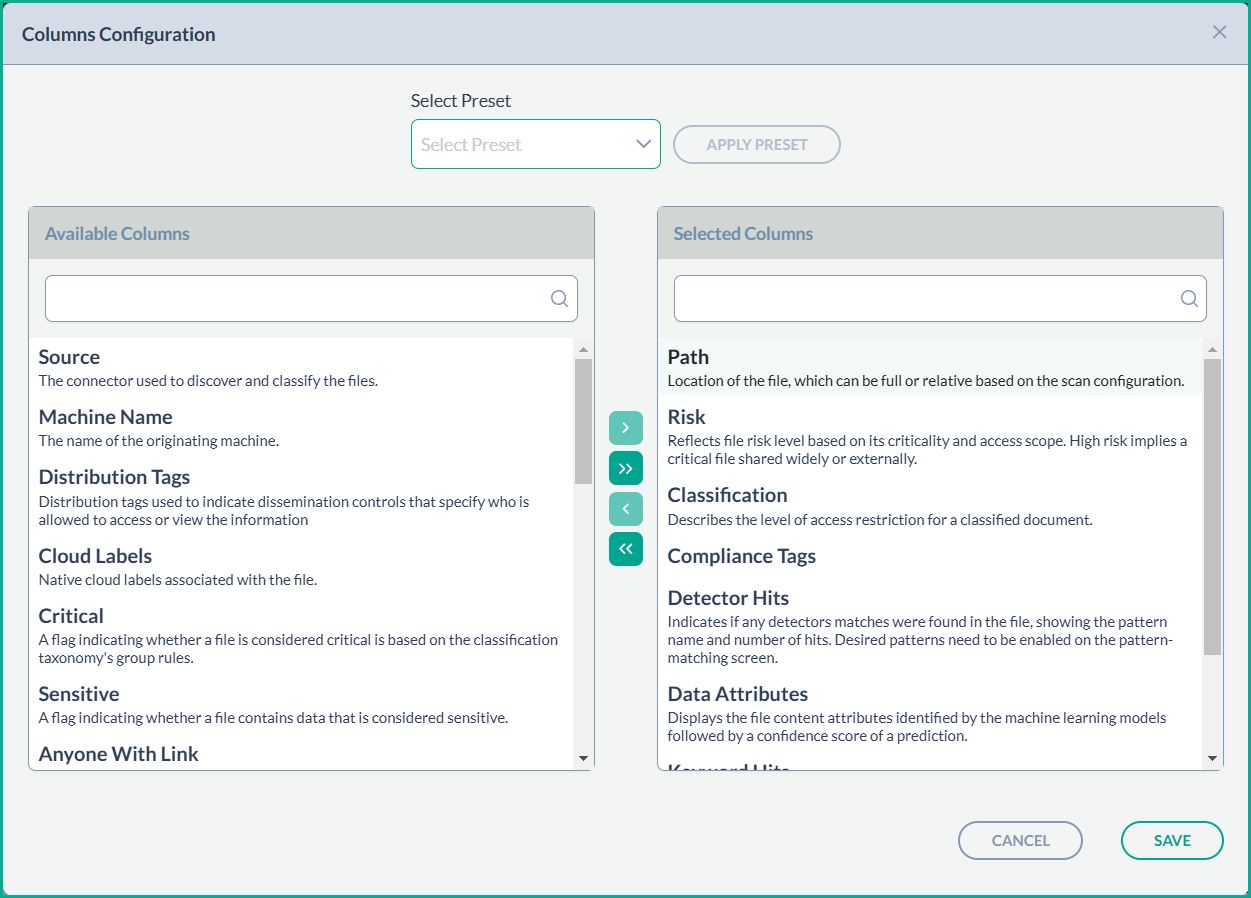
The Column Configuration menu also captures details on the purpose of each column.
Classification status
| Status shown | What it means |
|---|---|
| Classified (shown as the assigned classification and confidence score, for example Public 1.00) | The file was scanned successfully. |
| Pending | The file has been discovered and is queued or being classified. If a scan is canceled before classification finishes, unclassified files can also remain Pending. No action is needed unless the status does not change after a later scan. |
| Filtered Out | The file was intentionally not classified, for example because it exceeds the size limit or its content couldn't be downloaded. |
| Not Classified | An error occurred while the file was being classified. The file is not counted as covered. |
Only successfully classified files count as classified. Filtered Out and Not Classified files are reported together as unclassified, and the totals in Enterprise Search, the Scan Analytics sidebar and scan reports agree.
Availability:Filtered Out appears only for files scanned after [release/version]. Earlier files can still show Classified, Pending and Not Classified. To see updated status details for existing data, run a new scan.
If a file is Filtered Out or Not Classified: check the reason shown on hover. Temporary connectivity or access problems may resolve on a later scan. If an error persists, contact Forcepoint Support and provide the file path and the reason shown.
Exporting Data
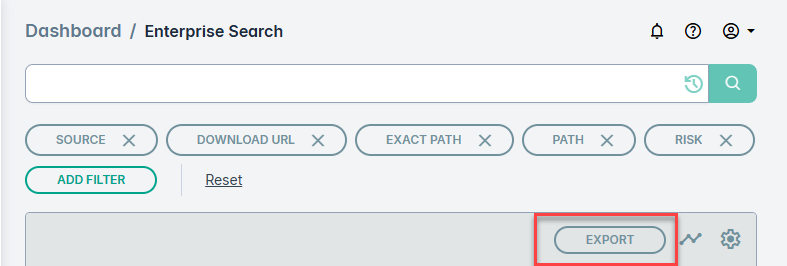
- Use the EXPORT button to create a CSV or JSON download of the filtered data.
Permissions & Access Rights
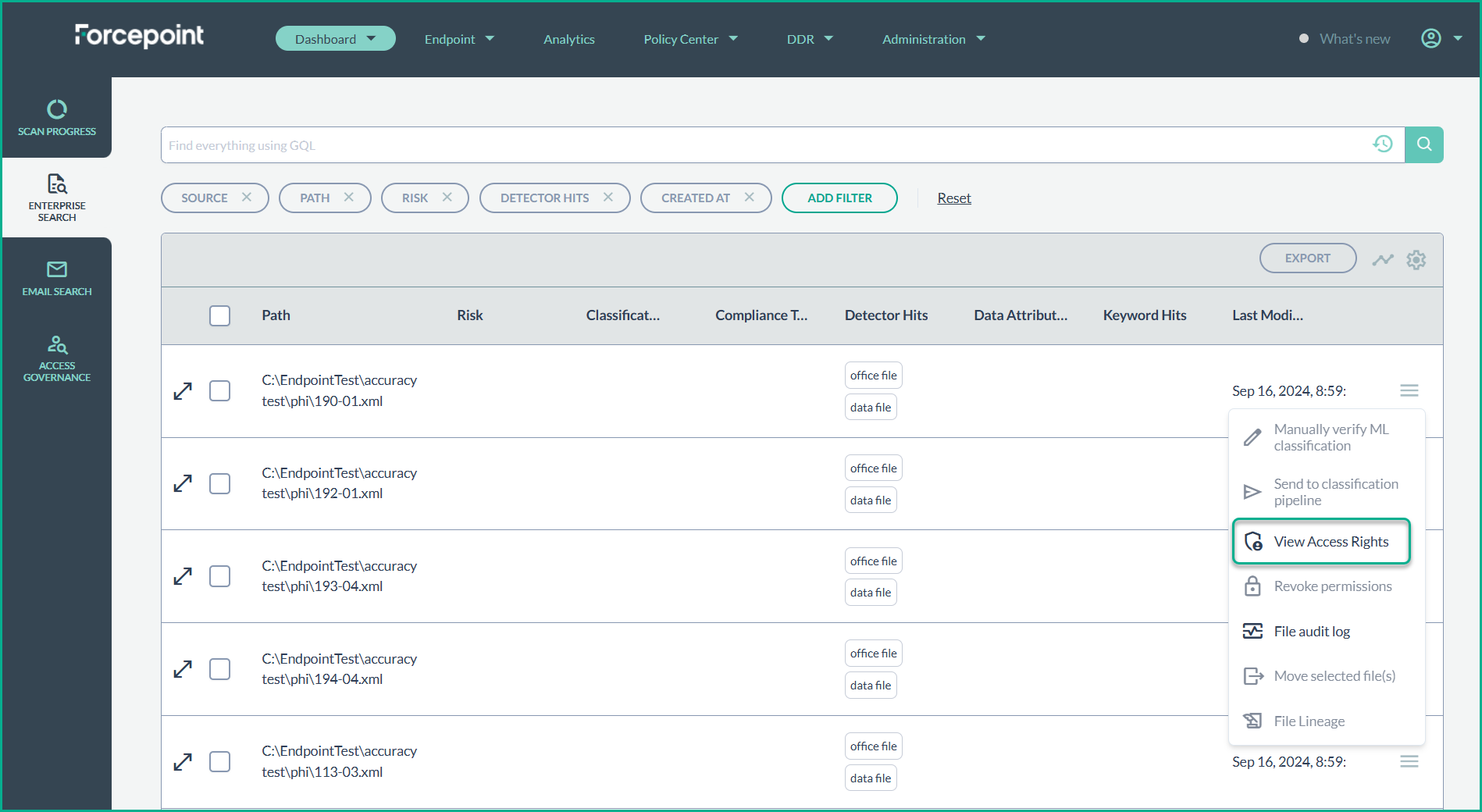
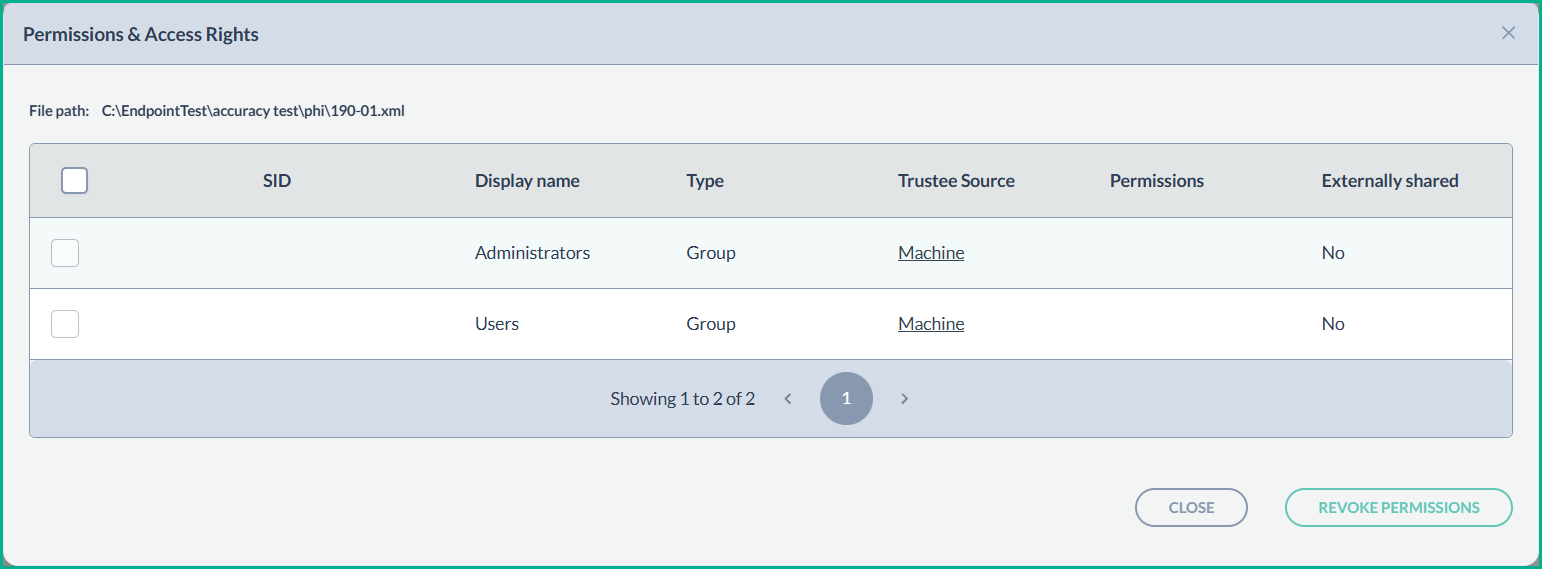
- To view or modify the permissions and access rights of a file, click on the Actions menu.
- A detailed list will appear showing the Security Identifier (SID), the common name associated with that SID, the organizational unit, domain, and the specific permissions granted.
Other Menu Options
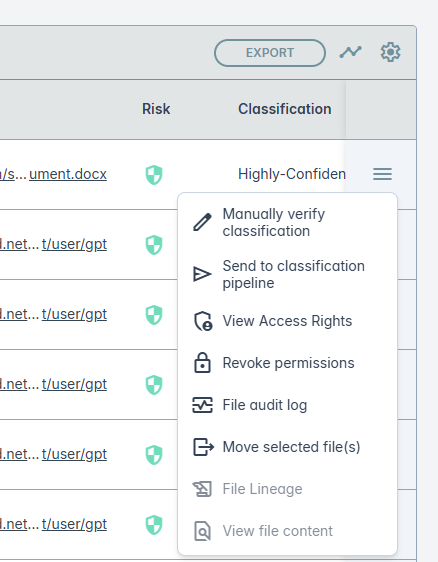
Under the hamburger menu, further menu options are supported:
Manually override classification
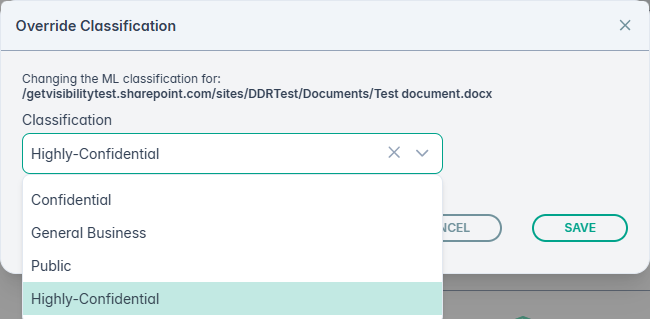
To adjust the machine learning classification of a file, click on the option Manually verify classification option from the hamburger menu. This opens the following window where you can modify the classification suggested by ML manually. After modifying the classification click SAVE.
View Trends
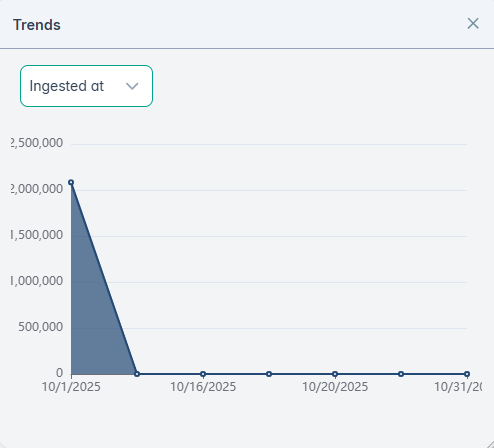
You can further view the classification trends by clicking the  icon. An example, is shown below: