
Connecting Microsoft Copilot Using a Client Secret
Connect Microsoft 365 Copilot to AI Security using the credentials from your Microsoft Entra app registration.
Before you begin
Before you start, make sure that you have:
- Completed every step in Checking the Prerequisites Before Connecting Microsoft Copilot.
- The application (client) ID from your app registration. See Finding Your Application Client ID in Microsoft Entra.
- The client secret value from your app registration. See Generating a Client Secret in Microsoft Entra.
- Your directory (tenant) ID. See Finding Your Directory (Tenant) ID.
You connect Microsoft Copilot from its card on the App Connectors page. The Connect App panel opens with Microsoft Copilot already selected, so you only need to name the connector and supply your credentials.
Steps
-
Go to Connector › App Connector.
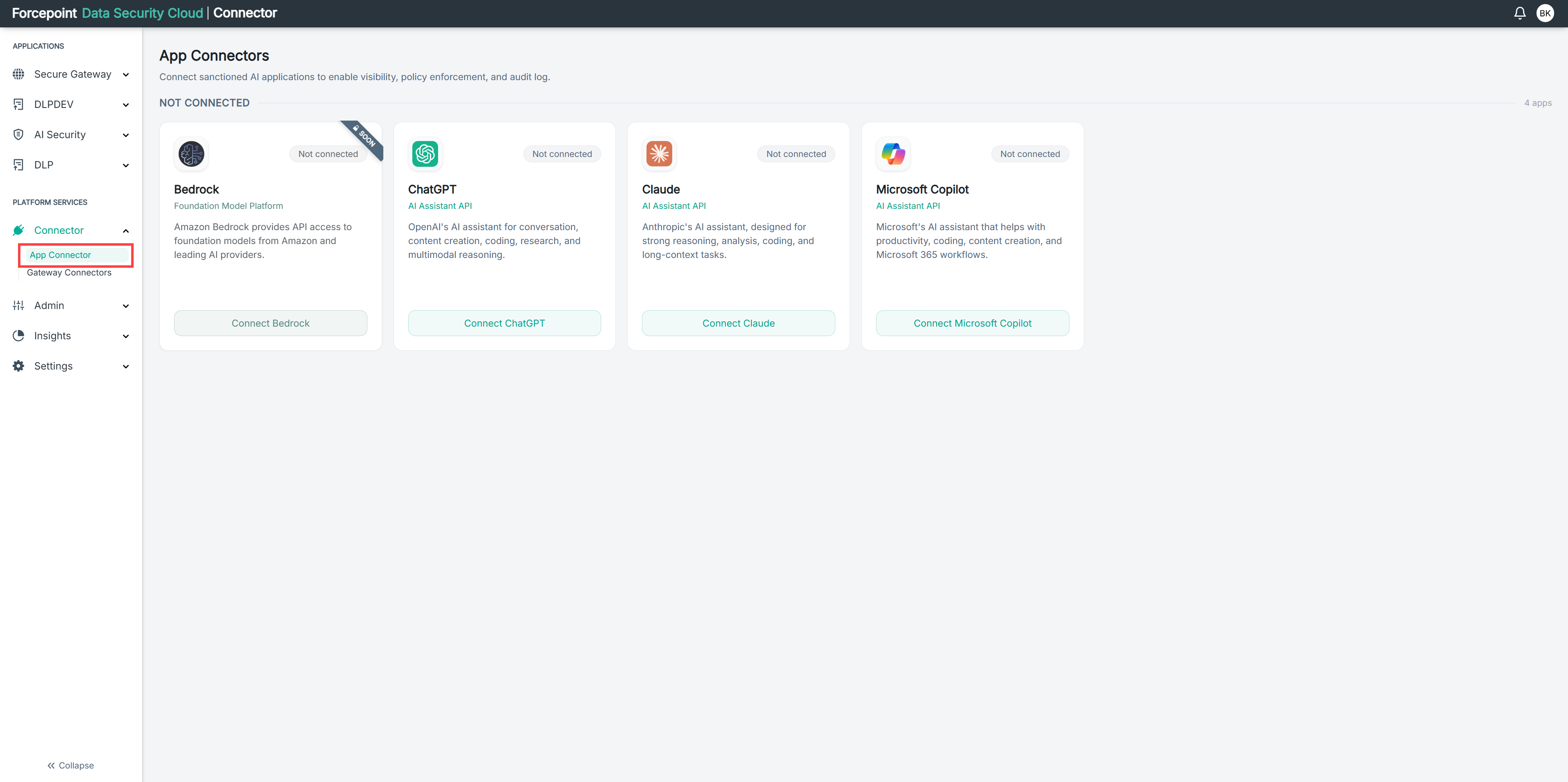
The App Connectors page opens, showing your connected applications under CONNECTED and the applications available to connect under NOT CONNECTED.
-
Under NOT CONNECTED, on the Microsoft Copilot card, select Connect Microsoft Copilot.
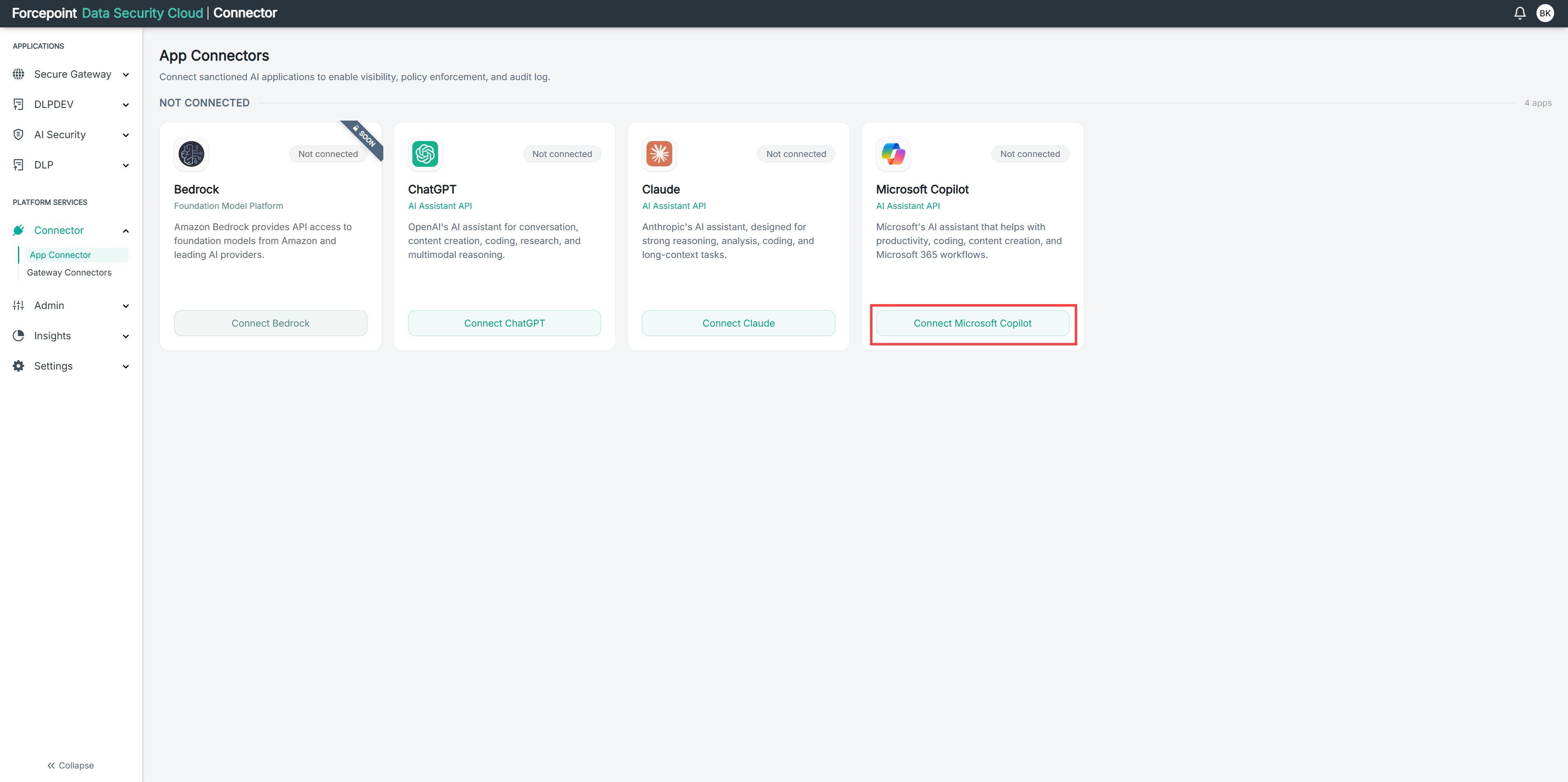
The Connect App panel opens on the right, with Microsoft Copilot shown at the top of the panel.
-
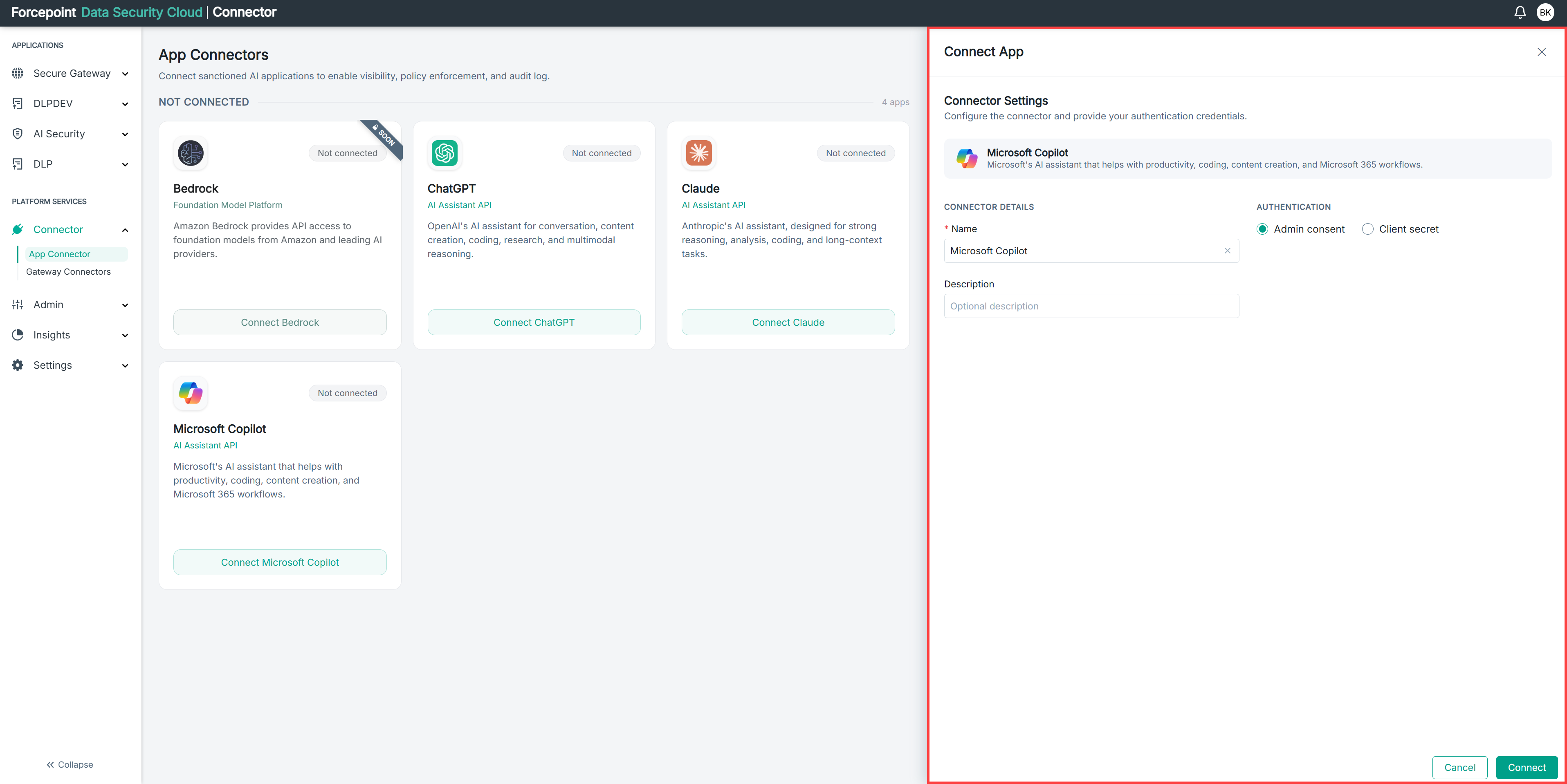
In Name, keep the default name Microsoft Copilot, or enter a name of your own.
The name identifies this connector on the App Connectors page and in your policies. Use a name your colleagues will recognize.
-
Optional: In Description, enter a description of the connector.
-
Under AUTHENTICATION, select Client secret.
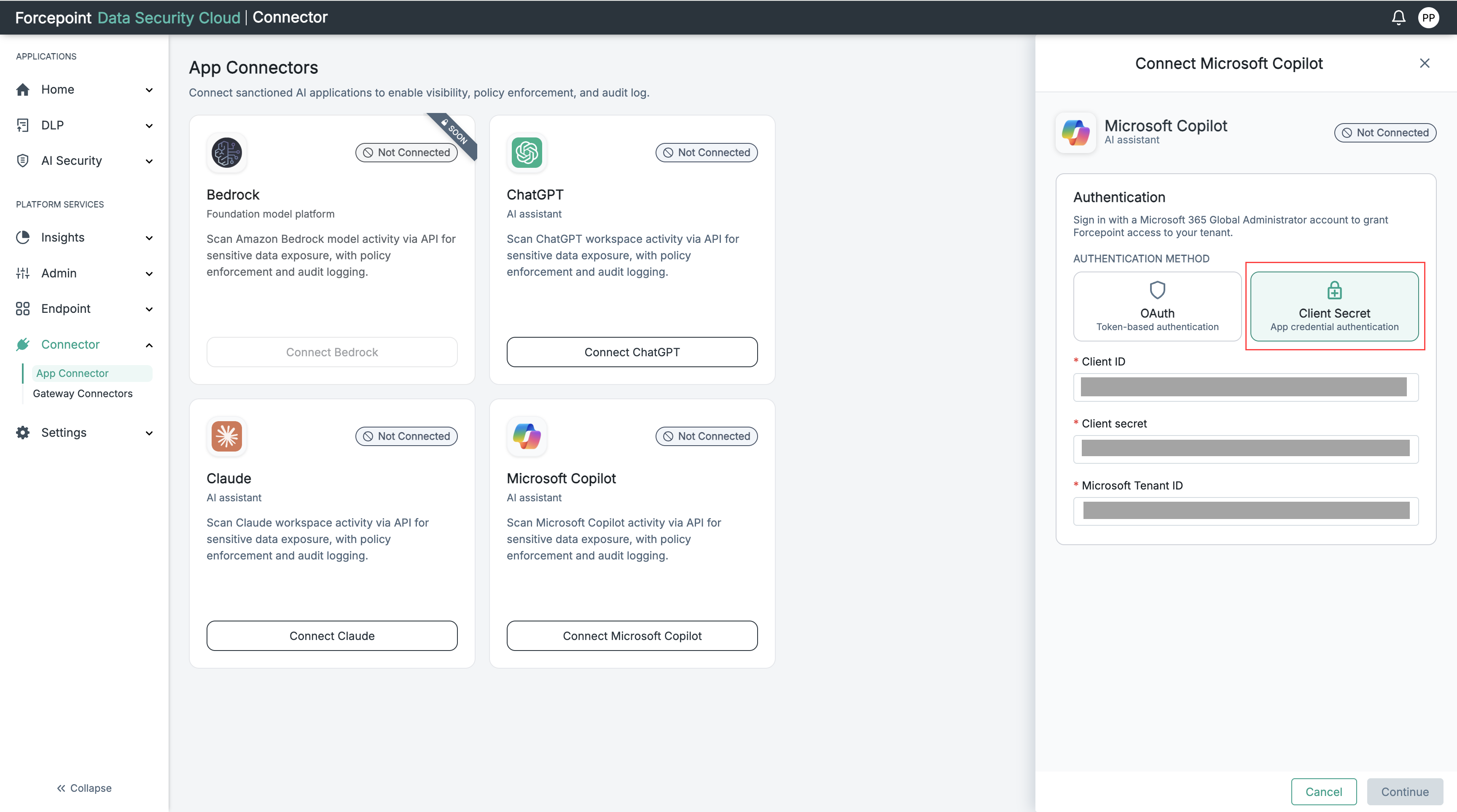
The Client ID, Client secret and Microsoft Tenant ID fields appear.
-
In Client ID, enter the application (client) ID from your app registration.
-
In Client secret, enter the secret value you generated.
-
In Microsoft Tenant ID, enter your directory (tenant) ID.
-
Select Continue.
Continue stays unavailable until Client ID, Client secret, and Microsoft Tenant ID all contain a value.
The scan settings open, with Scan Content at the top and Scan Configuration below it.
-
Check that the Scan Content toggle is set to Active.
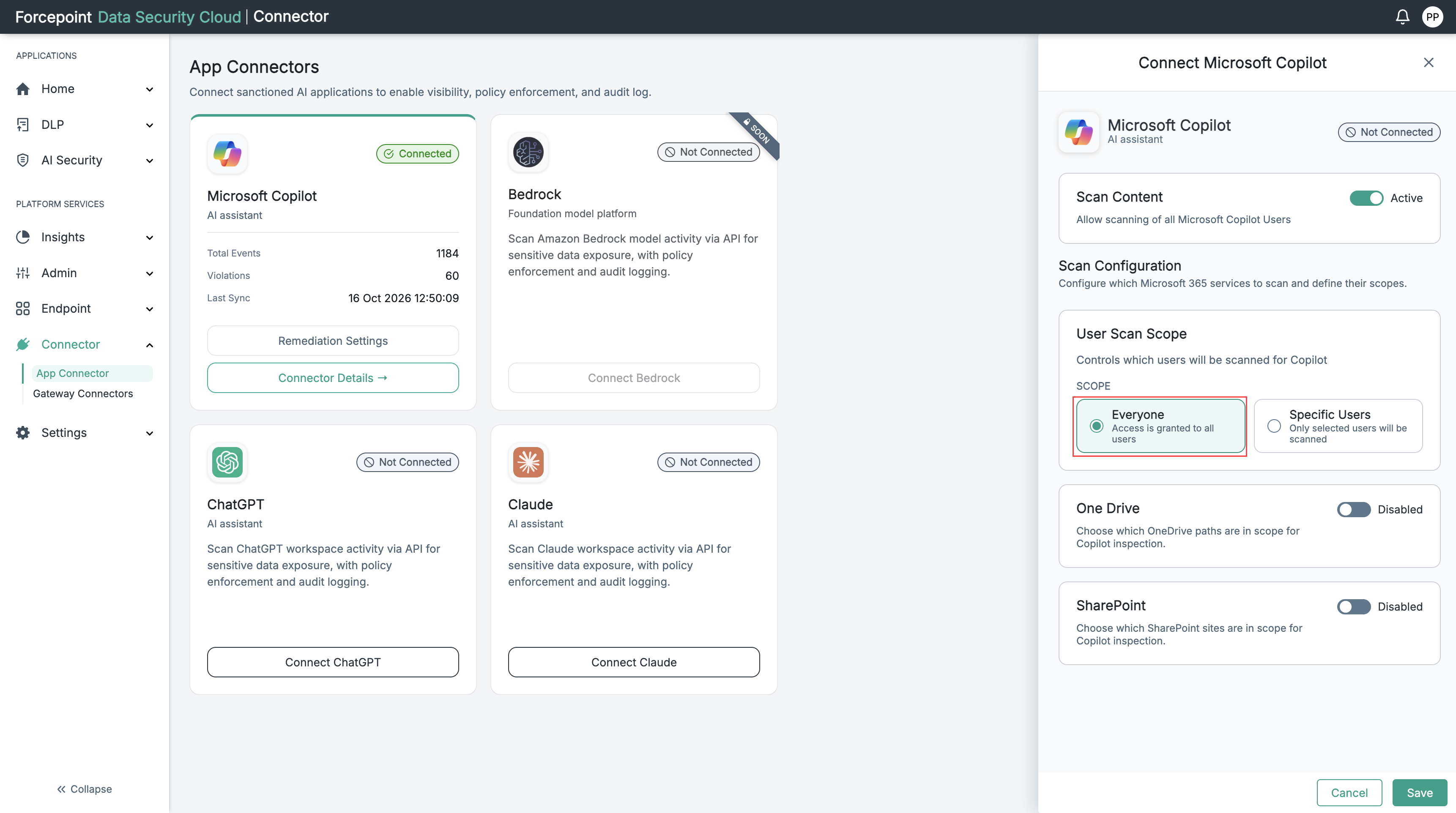
When Scan Content is active, AI Security scans the prompts and responses of the users in scope. Under Scan Configuration, the default scope is Everyone, and One Drive and SharePoint are Disabled. To keep these defaults, go to step 11.
The default scan settings are shown in the below image.
-
Optional: To scan only some users, set the user scan scope.
-
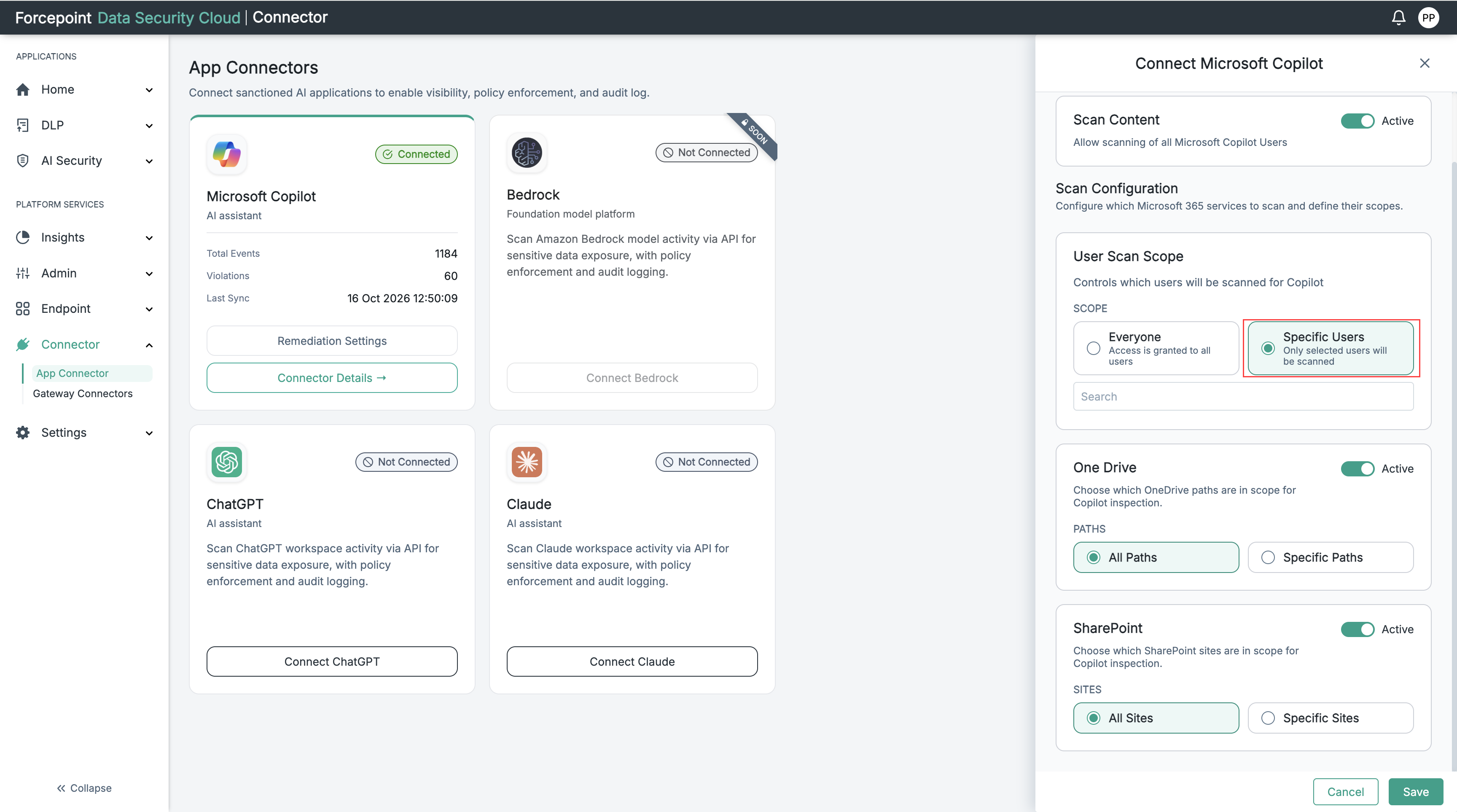
Under Scan Configuration › User Scan Scope, select Specific Users.
A search box appears below the scope options.
Specific Users selected is shown in the below image.
-
In the search box, type the name of a user.
A list of matching users appears.
-
Select the user from the list.
The user appears as a tag above the search box.
-
Repeat substeps b and c for each further user you want to scan.
-
-
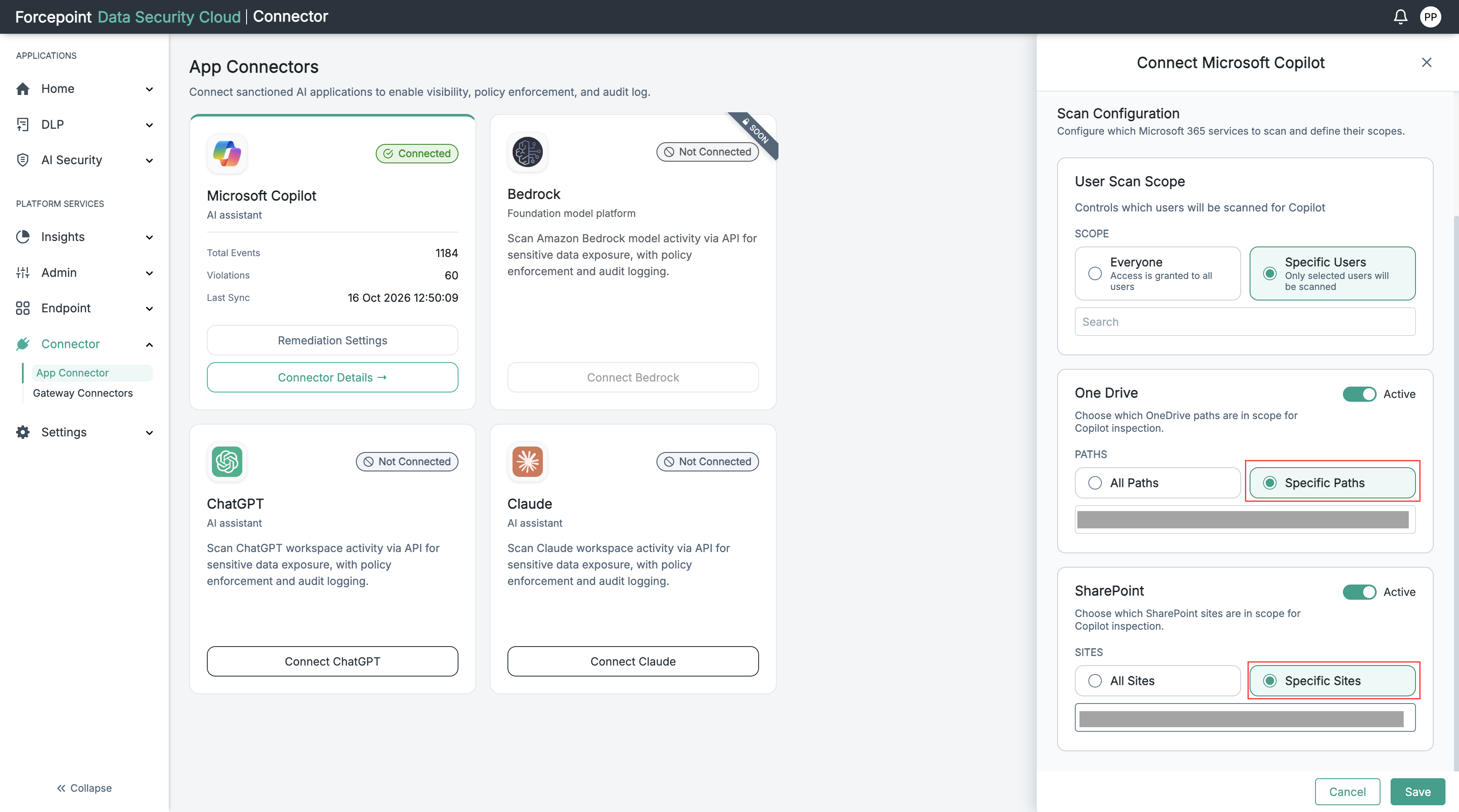
Optional: To scan Copilot activity in OneDrive or SharePoint, set which paths and sites are in scope.
-
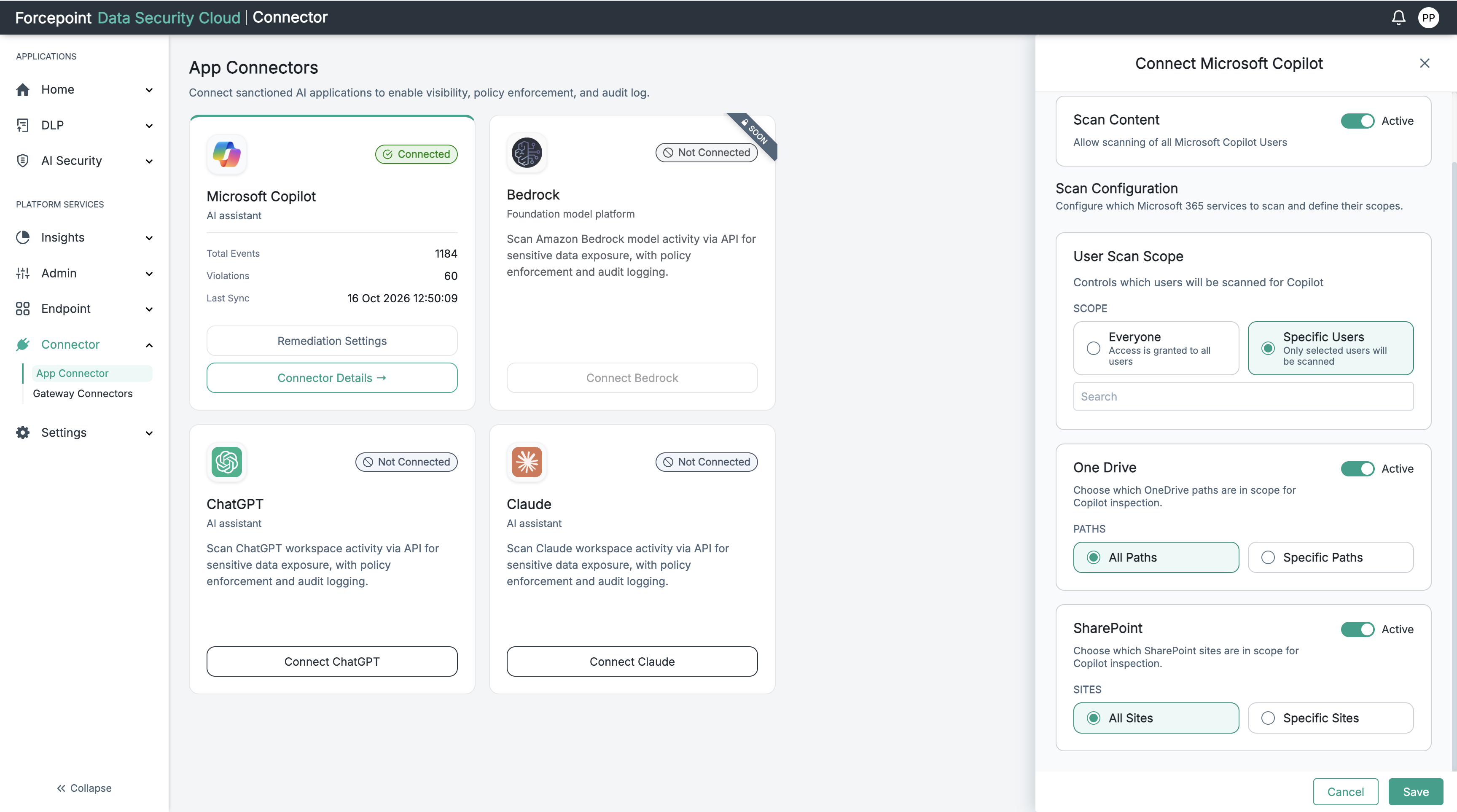
Set the One Drive toggle to Active.
The PATHS options appear, with All Paths selected.
-
Optional: To limit the scope to certain folders, select Specific Paths, and then enter the OneDrive path, for example
/Files/path. -
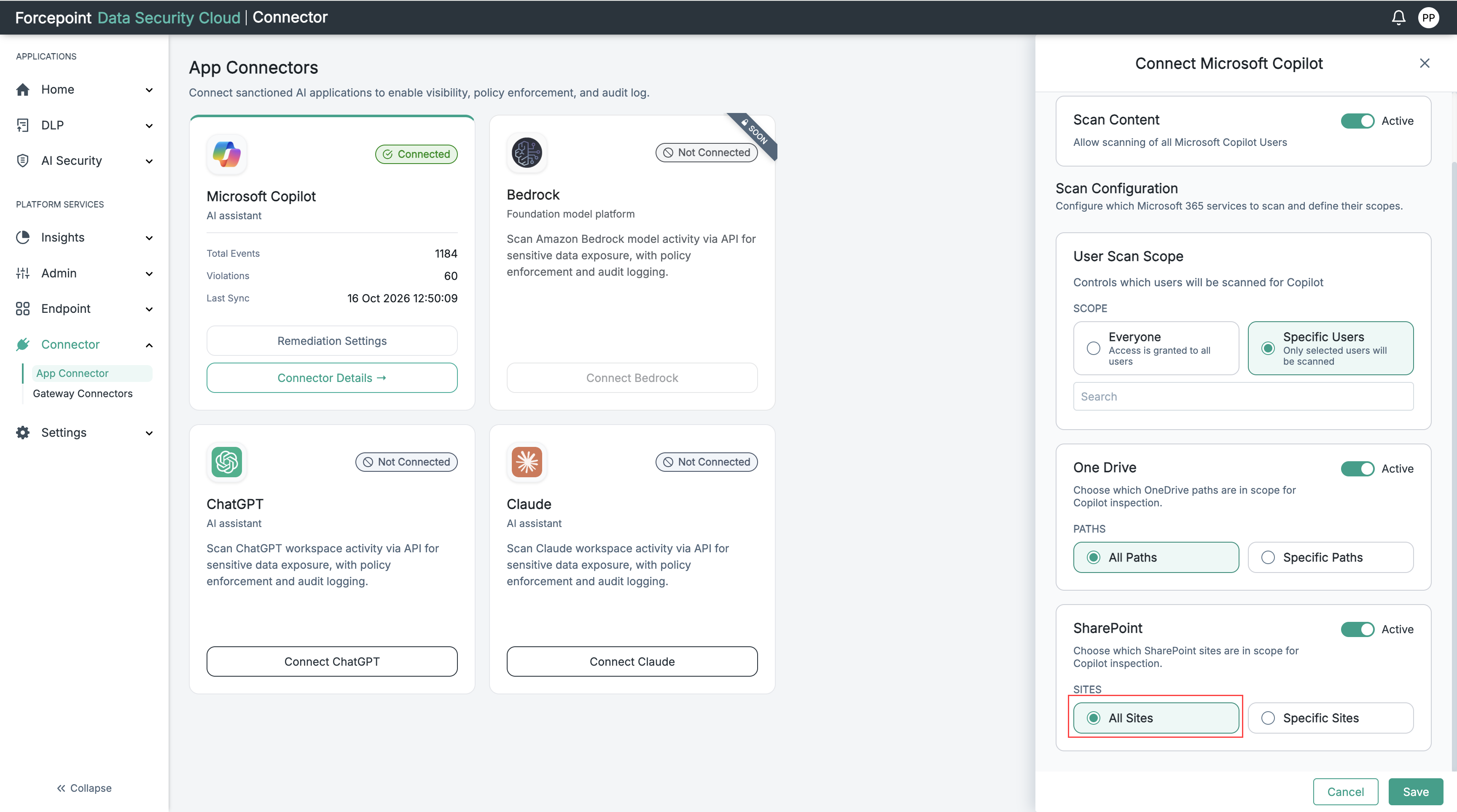
Set the SharePoint toggle to Active.
The SITES options appear, with All Sites selected.
-
Optional: To limit the scope to certain sites, select Specific Sites, and then enter the SharePoint site, for example
mysite.com/path.Specific paths and sites selected are shown in the below image.
-
-
Select Save.
Result
The Microsoft Copilot card shows a Connected badge. The card also shows the total events, the violations, and the time of the last sync.
Next steps
- To change the connector's settings later, select Manage connector on the Microsoft Copilot card.
- If the connection is rejected, see Resolving an Invalid Credential Error.