How to bypass DLP inspection problematic sites
Condition
If you experience a site being blocked by a content provider or a CDN such as Cloudflare, when DLP is being performed, then you need to bypass DLP scanning to restore access.
Resolution
Steps
-
Create a custom category for the relevant sites:
For example, DLP Bypass
-
Navigate to .
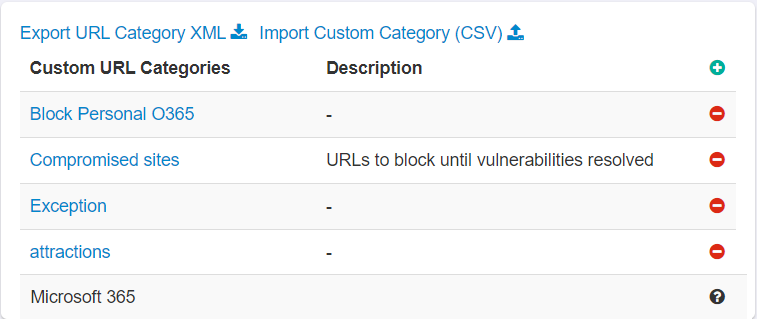
-
Enter a unique name for the custom URL category name.
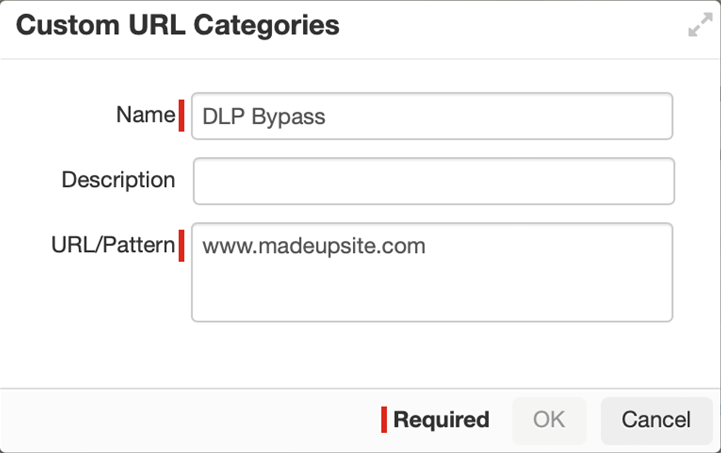
-
Navigate to .
-
Create a new SWG Content Policy rule and adjust the policy to met your requirement.
-
Configure notifications for download.
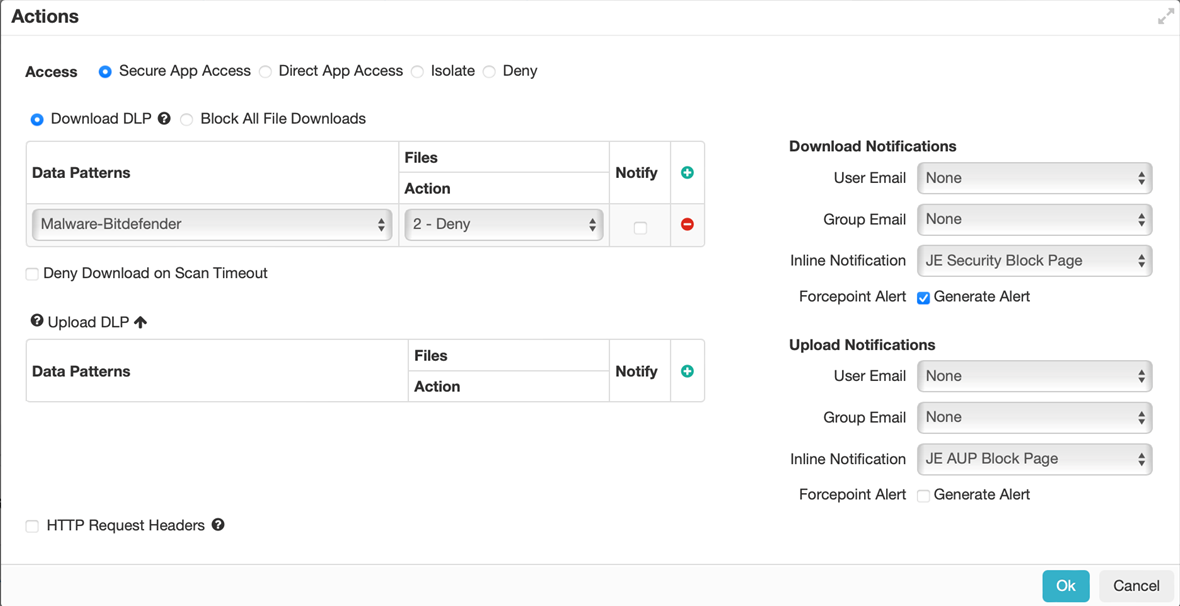
To understand the SWG Content policy in detail, refer to Configuring a SWG Content Policy.
-
Configure notifications for download.
-
Create an another SWG Content Policy rule and adjust the policy to met your requirement.
-
Configure notifications for download and upload.
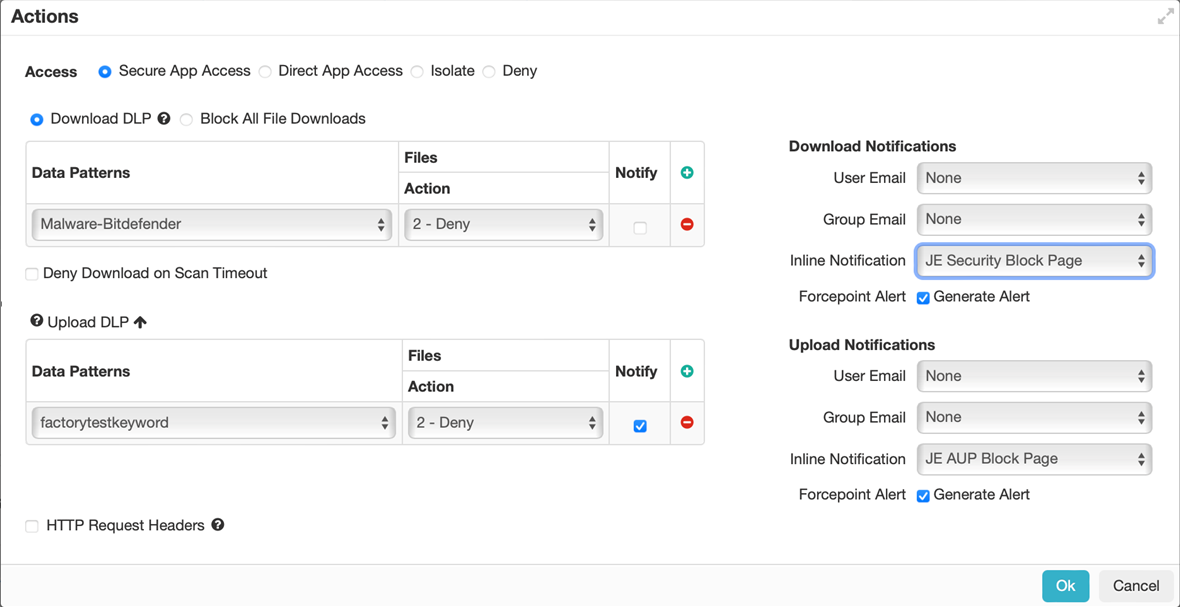
To understand the SWG Content policy in detail, refer to Configuring a SWG Content Policy.
-
Configure notifications for download and upload.
-
Make sure that the DLP bypass policy is placed above the policy enforcing DLP.
For example:
