Deploying the F1E Endpoint for macOS using Microsoft Intune
This section describes the process for installing the macOS F1E Endpoint using Microsoft Intune.
To deploy the Forcepoint DLP Endpoint (F1E) for macOS using Microsoft Intune, create the installer package, upload it to Intune, and then create the configuration profiles, as described in the following steps.
Steps
-
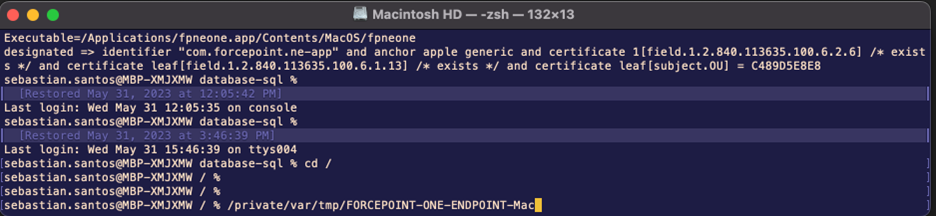
Open the terminal application and create a folder to place the package. You can choose a location of your preference.
-
Copy the installer files.
Copy the contents from the client package file from Forcepoint and paste the Endpoint Installer folder into the newly created folder at /private/var/tmp/FORCEPOINT-ONE-ENDPOINT-Mac.
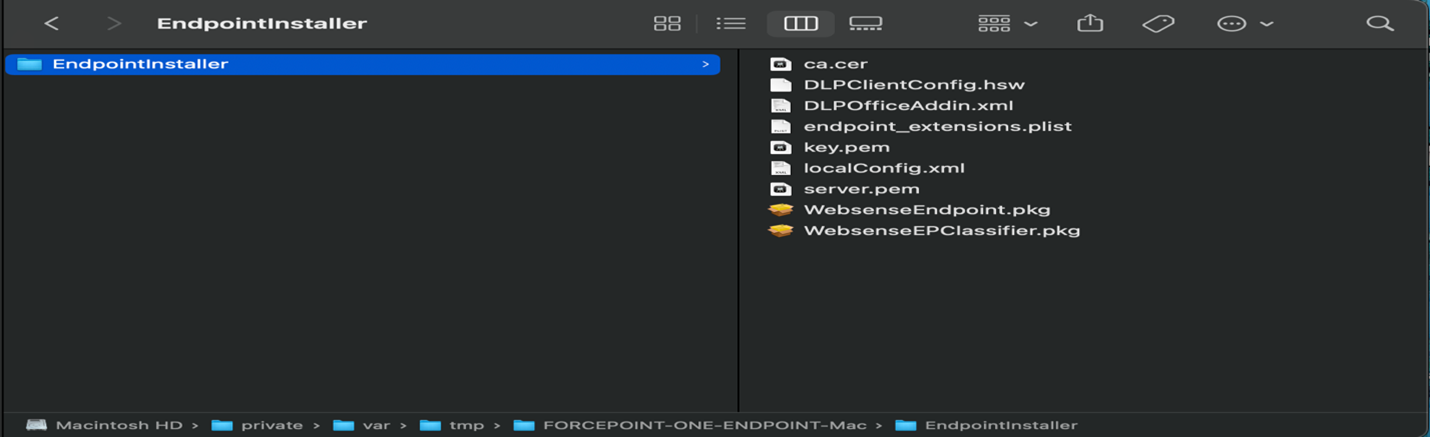
For information on generating the key.pem and server.pem files, see How to Create the Endpoint SSL Identity.
-
Create a postinstall script to automate the installation process. Following is an example script that you can modify as per your requirements:
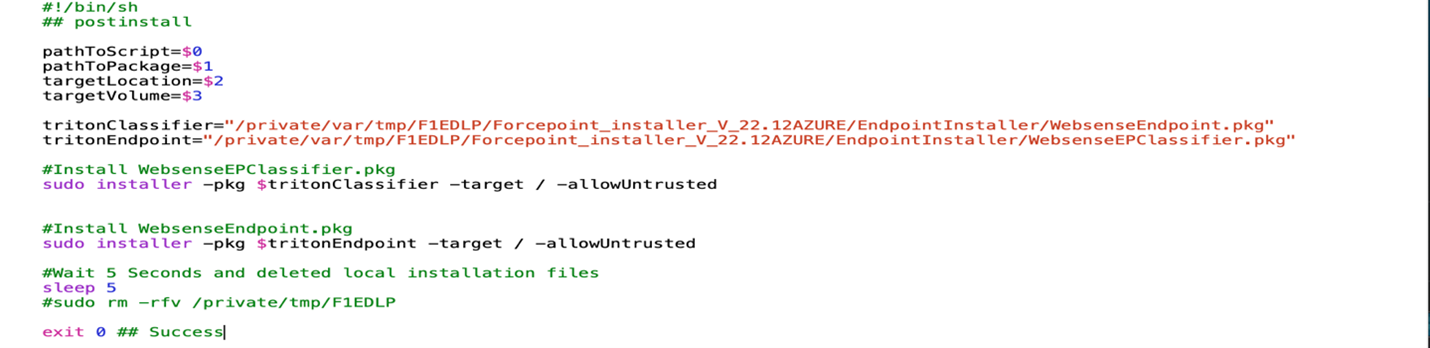
#!/bin/sh
## postinstall

pathToScript=$0
pathToPackage=$1
targetLocation=$2
targetVolume=$3

tritonClassifier="/private/var/tmp/F1EDLP/Forcepoint_installer_V_22.12AZURE/EndpointInstaller/WebsenseEndpoint.pkg"
tritonEndpoint="/private/var/tmp/F1EDLP/Forcepoint_installer_V_22.12AZURE/EndpointInstaller/WebsenseEPClassifier.pkg"

# Install WebsenseEPClassifier.pkg
sudo installer -pkg $tritonClassifier -target / -allowUntrusted

# Install WebsenseEndpoint.pkg
sudo installer -pkg $tritonEndpoint -target / -allowUntrusted

# Wait for 5 seconds and delete local installation files
sleep 5
# sudo rm -rfv /private/tmp/F1EDLP

exit 0 ## Success
The following screenshot is an example of the folder structure using Composer.
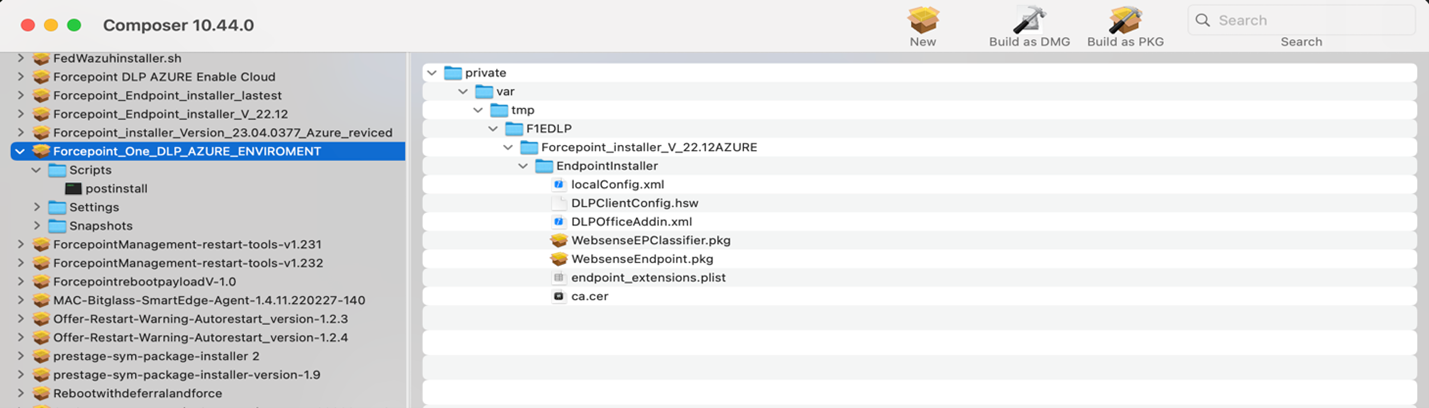
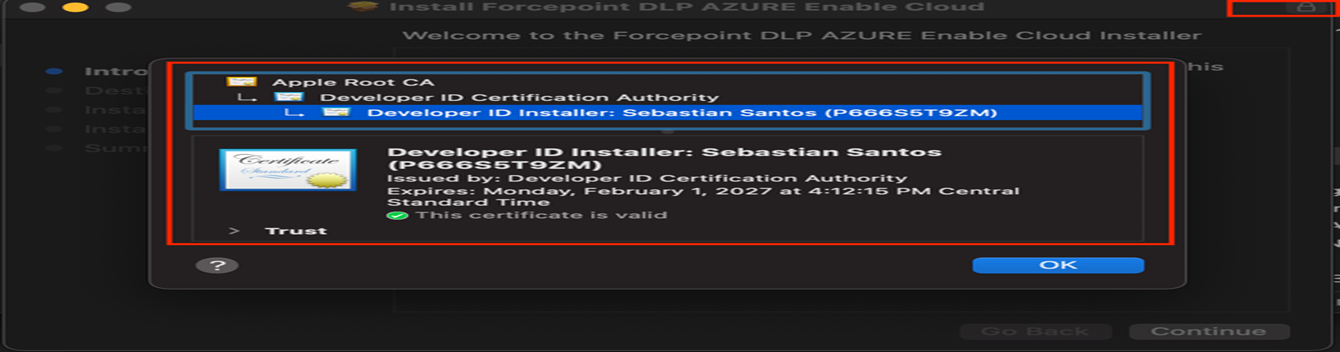
Ensure the package is signed with your developer ID. Double-click the package and click the padlock in the top right corner. Verify that it is properly signed before proceeding.
-
Navigate to Intune and upload the newly created package. Intune allows a .pkg file to be uploaded without the need for the Microsoft Intune wrapping
tool.
-
Upload the client app package (.pkg) to the Intune admin console (intune.microsoft.com) as a Line-of-business (LOB)
app.

-
In the Installed Apps section, remove all entries except for
com.websense.endpoint 23.04.0377. Ensure that this configuration is set correctly, but do not assign it yet.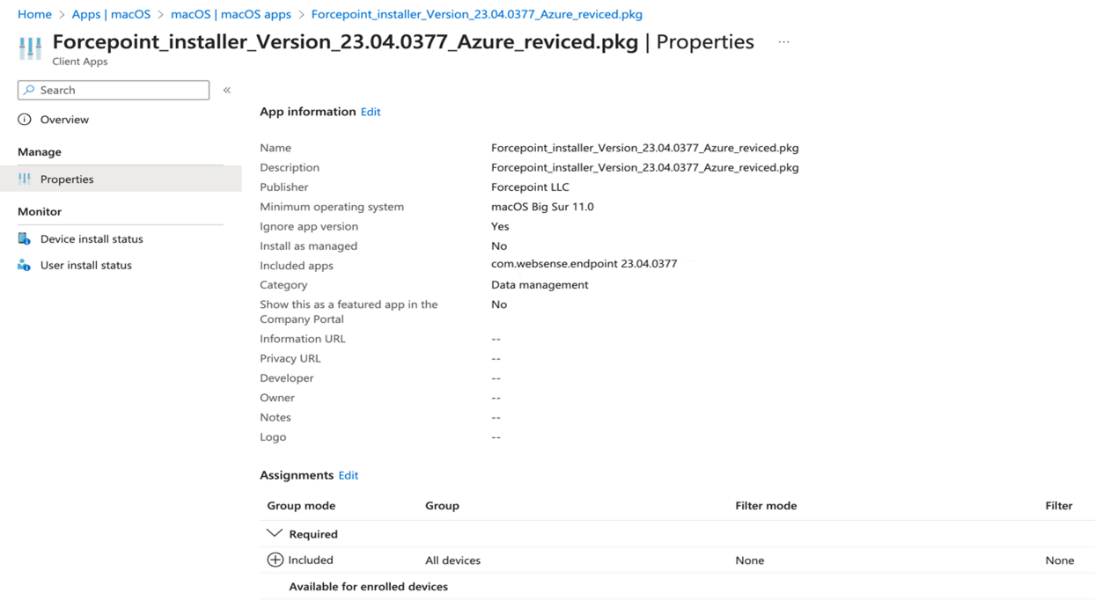
-
Upload the client app package (.pkg) to the Intune admin console (intune.microsoft.com) as a Line-of-business (LOB)
app.
-
Configure the System Extensions profile:
Forcepoint One uses a Network System Extension on macOS 11 or later, bundled into an application named Forcepoint Neo, which is installed under /Applications/fpneone catalog.
-
Add the following Allowed System Extensions (or Allowed System Extension Types - Network):
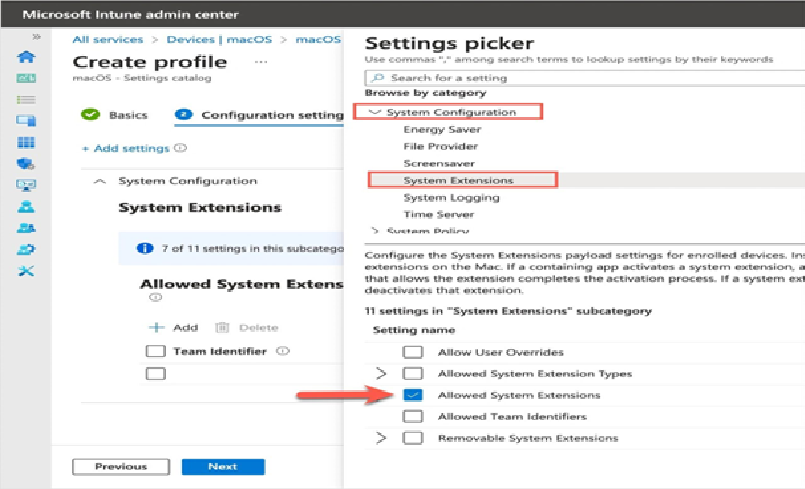
- Extensions:
com.forcepoint.ne-app,com.forcepoint.ne. - Team Identifier:
C489D5E8E8.
- Extensions:
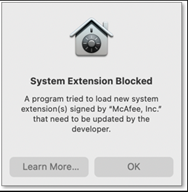
This configuration prevents users from receiving the prompt saying the system extension is blocked, as shown below.
-
Add the following Allowed System Extensions (or Allowed System Extension Types - Network):
-
Create a Web Content Filter profile:

After the Web Content Filter profile is installed on a device, users no longer see the pop-up message, and the content filtered by Forcepoint Neo is automatically allowed.
Note: After you complete the preceding steps, your configuration should look like this.
When the Web Content Filter profile is installed on a device, it prevents users from seeing this pop-up (the content is automatically allowed).
