Profiles
Profiles are a set of attributes that define the endpoint agent behavior. The Default profile can be configured by each tenant to support its specific needs. Profiles can also be used to set different behavior for different endpoint groups in the same tenant.
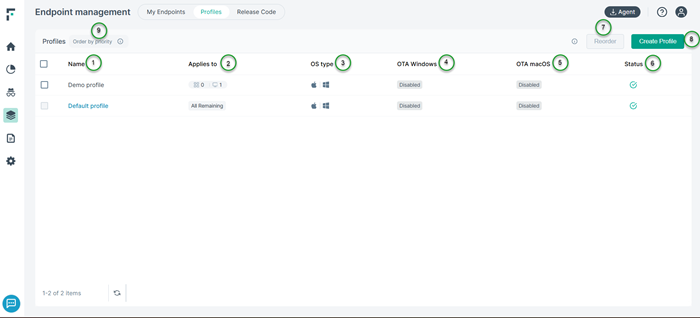
- 1
- Name: Each profile entry is stored using the specified name.
- 2
- Applies to: Specifies the endpoint or the organization unit to which the profile applies.
- 3
- OS type: Specifies the operating system(s) that this profile applies to.
- 4
- OTA Windows: Displays the current status of OTA Windows for the selected profile.
- 5
- OTA macOS: Displays the current status of OTA macOS for the selected profile.
- 6
- Status: Indicates whether the profile is enabled or disabled.
- 7
- Reorder: For a tenant there can be more than one profile created that applies for a given endpoint. The order of the profile sets its priority in this case. Click the Reorder and then drag the profiles up or down and then click Save.When scanning for the profiles to apply, the system checks from top to bottom in the list and selects the first profile that matches the organization the endpoint belongs to. In the above example, it may check if the endpoint belongs to the finance organization then allocates the first profile that is meant for the finance organization. If not, it checks if the endpoint belong to the IT department. If yes, then it allocates the second profile and it continues to check the next available profiles. If none of the profiles match, then the default profile is applicable.
- 8
- Create Profile: Administrators can create new profiles using the Create profile widget.
- 9
- Order by priority: Users can move the profiles up or down the list. Based on position in the list, the applicable profiles are applied. If no match is found, then Default profile is applied.