(Manual) Installing the agent for Hybrid DLP
Steps
-
Place the ca.cer and localconfig.xml files in the unzipped installer package folder containing the
WebsenseEndpoint.pkg and manifest.json.
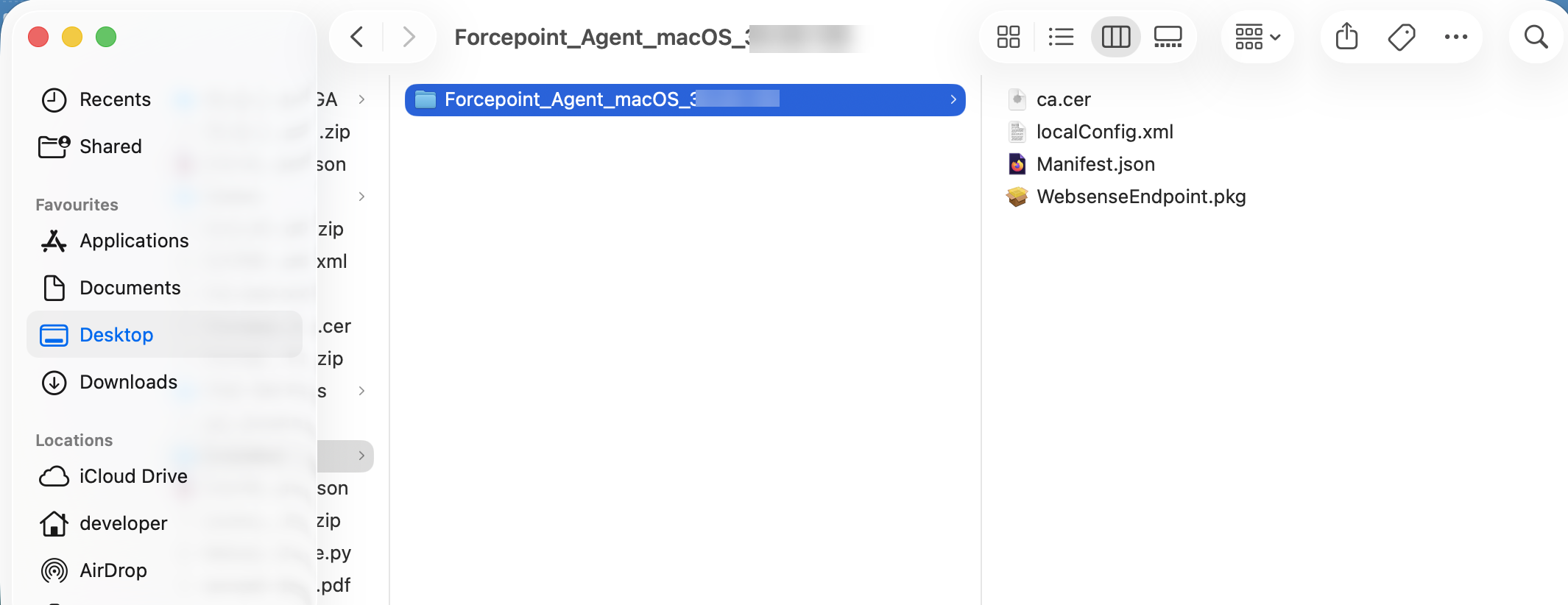 Note: If using a custom ca.cer with multiple certificates, ensure that the cert and key for the DLP manager are placed first in the ca.cer file and any other certs are placed after this.
 -
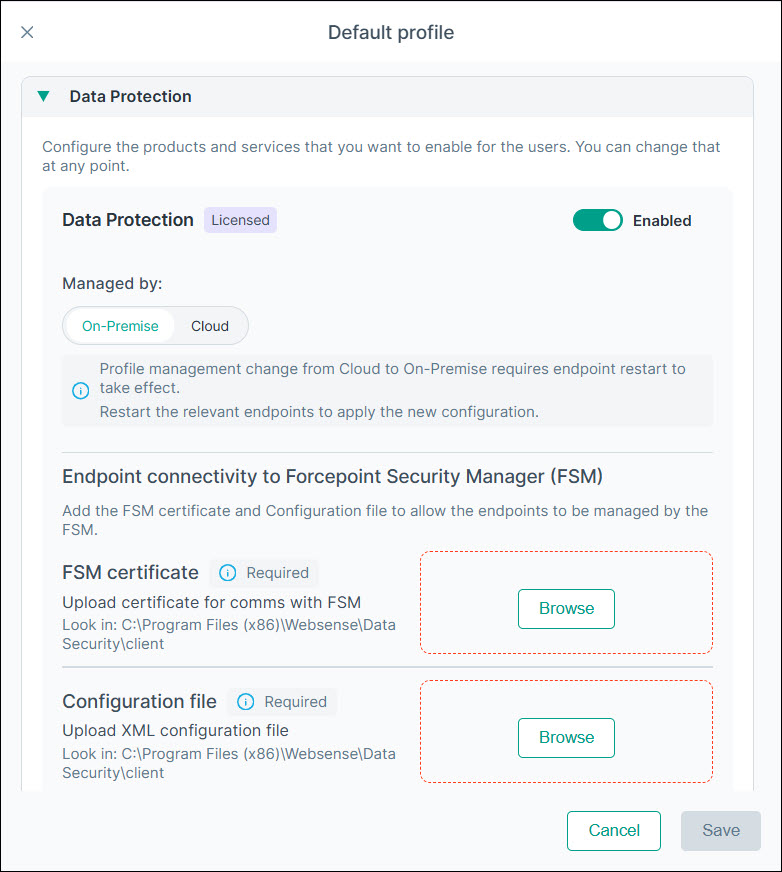
In the Forcepoint Portal, for the appropriate profile in , verify that the Managed by mode under Data Protection is set to On-Premise, and upload the same
ca.cer and localconfig.xml used in the installer package. Ensure this is done in the profile that contains the device on which the
agent will be installed.
-
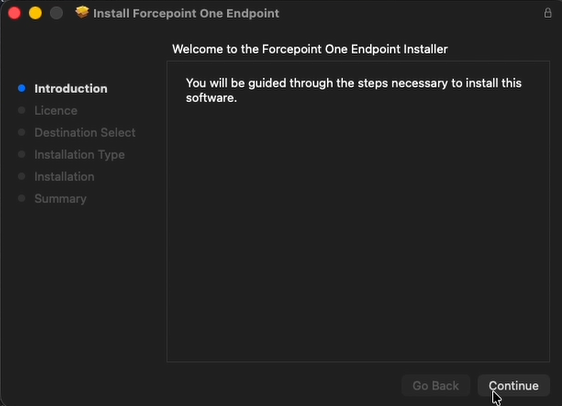
To begin the installation, click Continue.
-
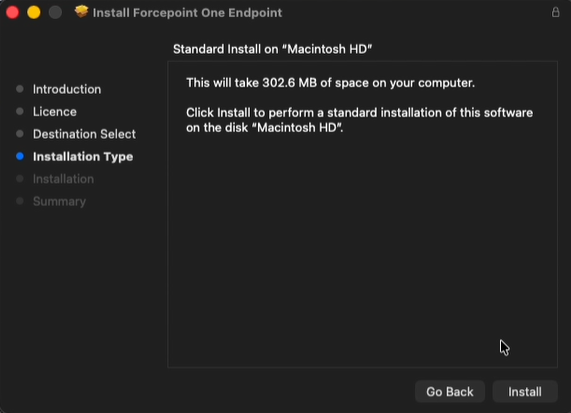
On the next screen, click Install.
-
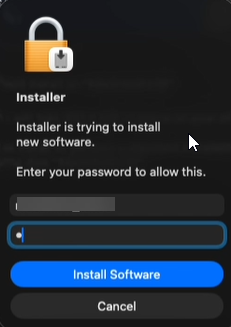
When prompted, enter the admin password and click Install Software:
-
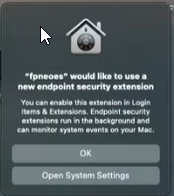
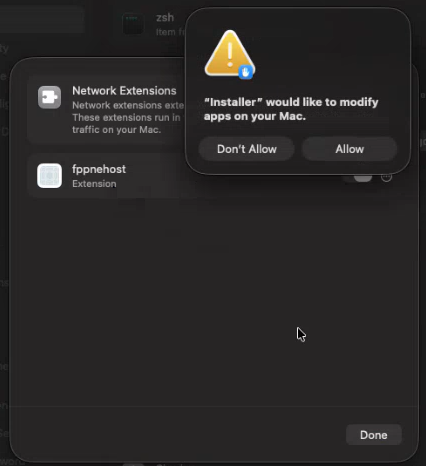
Click Open System Settings on the following window which opens the windows to enable the Network Extensions:
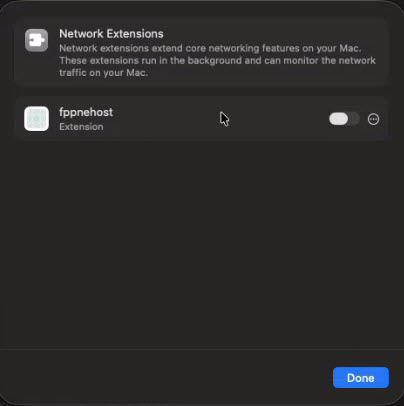 Turn on fppnehost and enter the credentials to enable it.
 -
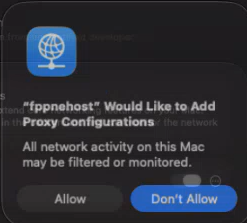
To add proxy configurations, click Allow.
-
Click Allow to modify apps on your mac and then click Done.
 A message appears to enable full disk access to the required files.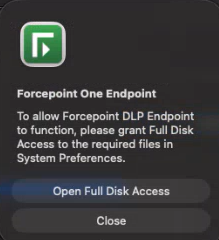
-
On the Full Disk Access tab enable the following applications:
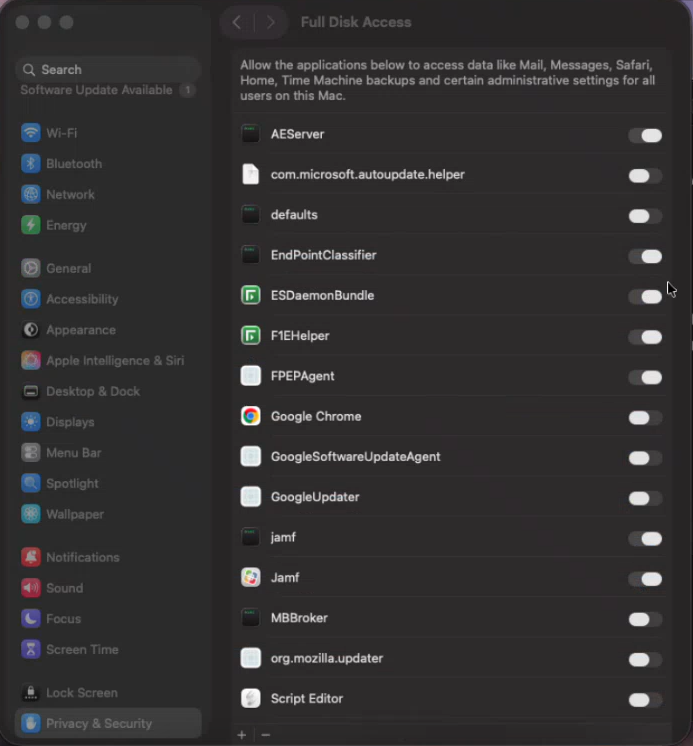
Application Path EndpointClassifier Library/Application Support/Websense Endpoint/EPClassifier/EndPointClassifier ESDaemonBundle Library/Application Support/Websense Endpoint/DLP/ESDaemonBundle.app AEserver System/Library/Frameworks/CoreServices.framework/Versions/A/Frameworks/AE.framework/Versions/A/Support/AEServer FPEPAgent Library/Application Support/Websense Endpoint/Cloud/FPEPAgent F1EHelper Library/Application Support/Websense Endpoint/F1E/F1E Helper.app Websense Endpoint Helper Library/Application Support/Websense Endpoint/DLP/Websense Endpoint Helper.app wsdlpd Library/Application Support/Websense Endpoint/DLP/wsdlpd fpprotectiond Library/Application Support/Websense Endpoint/Cloud/fpprotectiond fpbrokerd Library/Application Support/Websense Endpoint/Cloud/fpbrokerd -
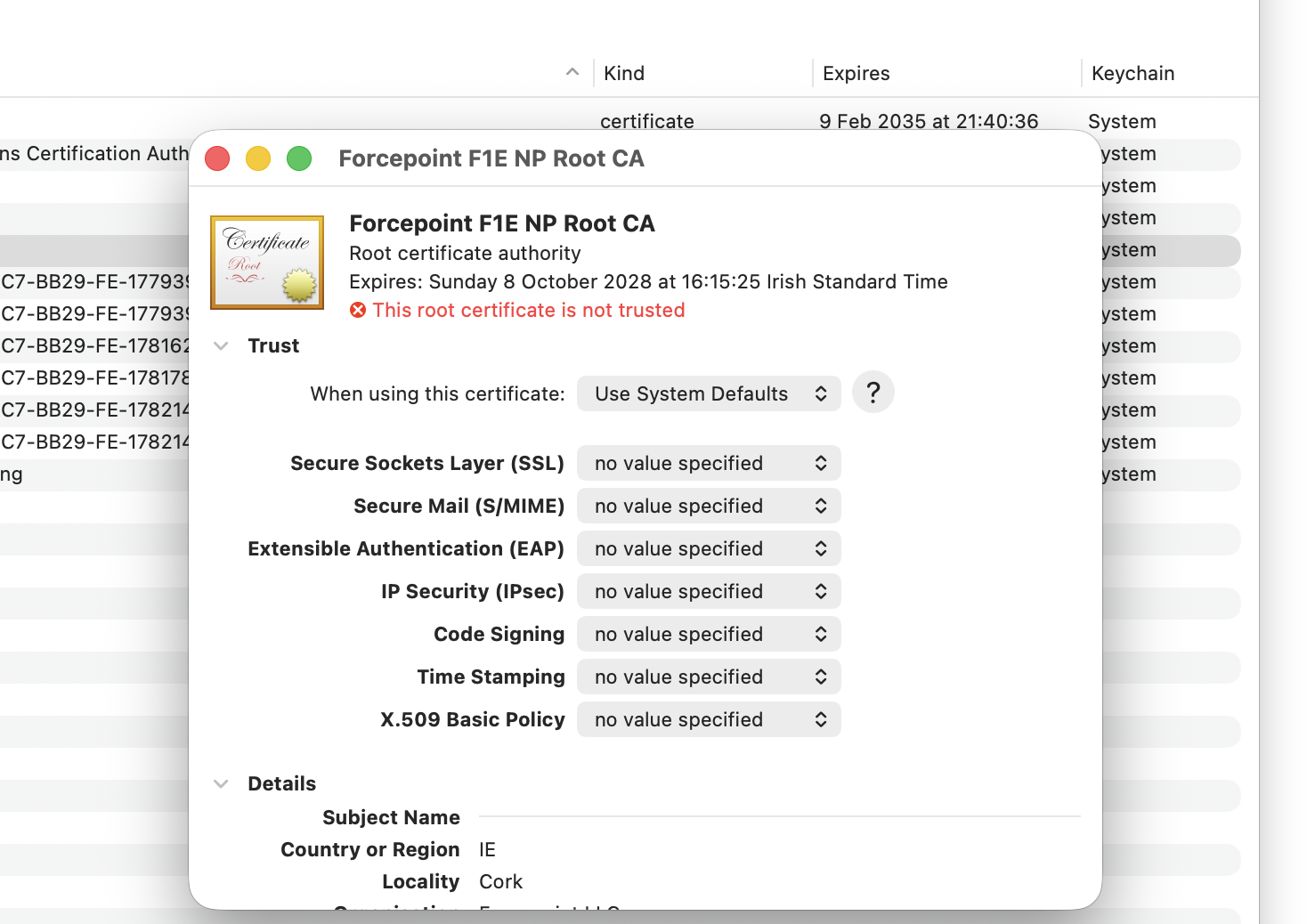
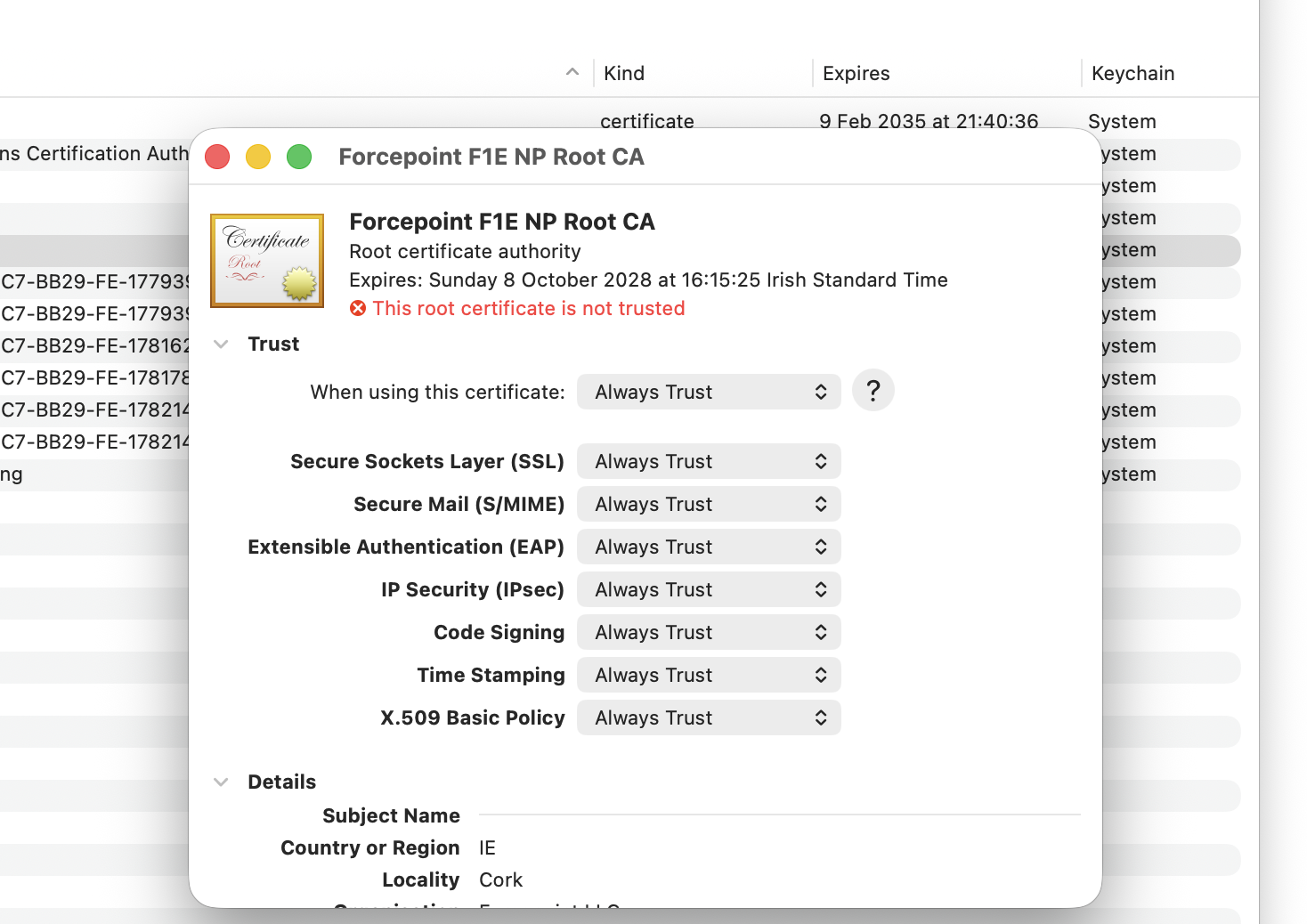
Once the agent is successfully installed, open the Keychain Access application, and trust the localhost certificate:
-
Double-click the localhost certificate, Forcepoint F1E NP Root CA.
-
Select Always Trust for all.
-
Double-click the localhost certificate, Forcepoint F1E NP Root CA.