SCIM
Forcepoint Data Security Cloud supports SCIM version 2.0 to automate the provisioning, updating, and deprovisioning users and groups into Forcepoint Data Security Cloud.
From the Admin application, click SCIM to access SCIM page.
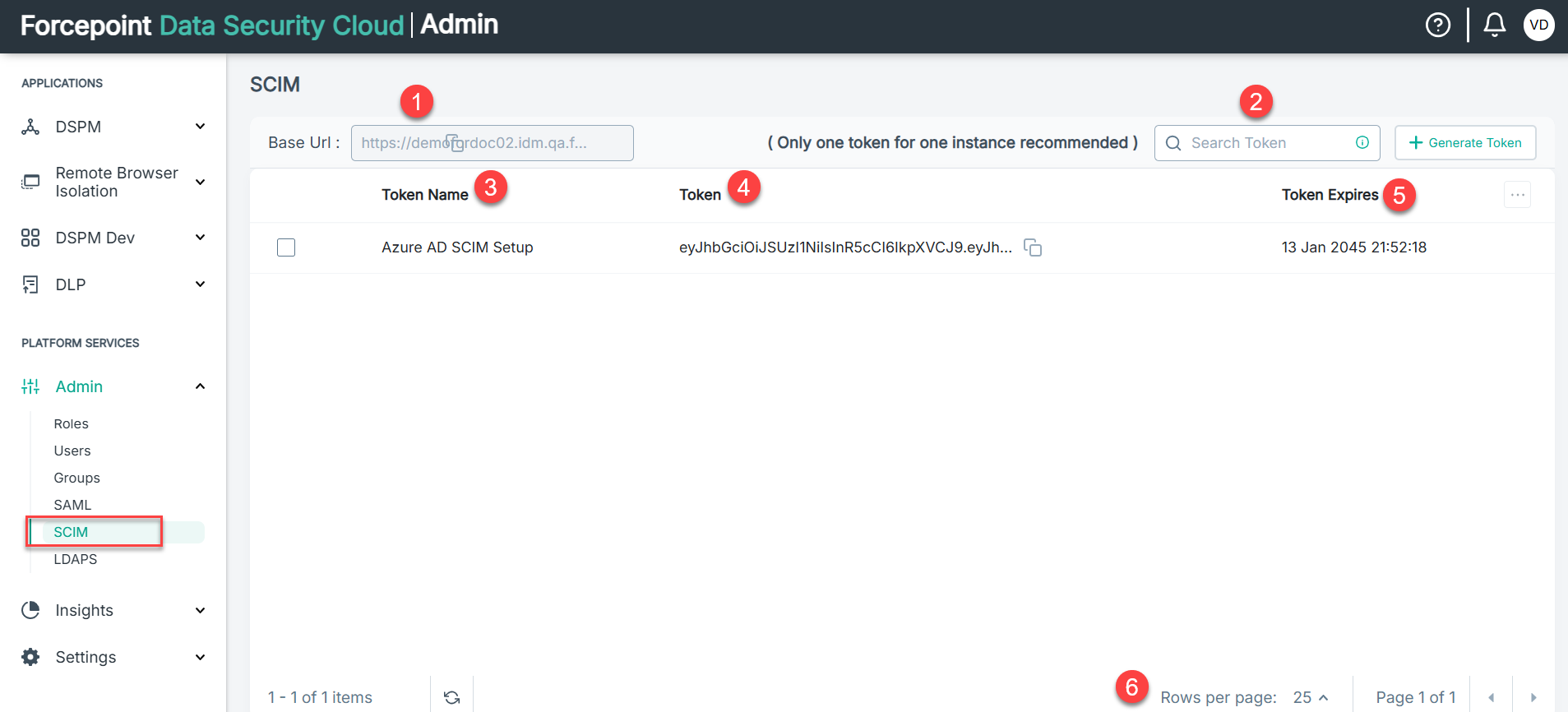
| S.No. | Column | Description |
|---|---|---|
| 1 | Base Url | Indicates Base URL of tenant needed for configuring SCIM application in Okta or Microsoft Entra ID. |
| 2 | Search Token |
You can search token based on its name by entering text in the Search Token field. |
| 3 | Token Name | Name of the token. |
| 4 | Token | Indicates the generated Token needed for configuring SCIM application in Okta or Microsoft Entra ID. |
| 5 | Token Expires | Displays the token expiry time stamp. The token expiry date is set to 20 years from the token created date. |
| 6 | Rows per page | Choose to show either 25, 50, or 100 rows in the table per page. |
Setting up SCIM to provision users into Forcepoint Data Security Cloud is a two-step process:
- Setup SCIM access token in Forcepoint Data Security Cloud.
- Create an application inside the SCIM service provider, such as Microsoft Entra ID or Okta using an unique token that you generated and base URL.
View SCIM token details and recent sync activity
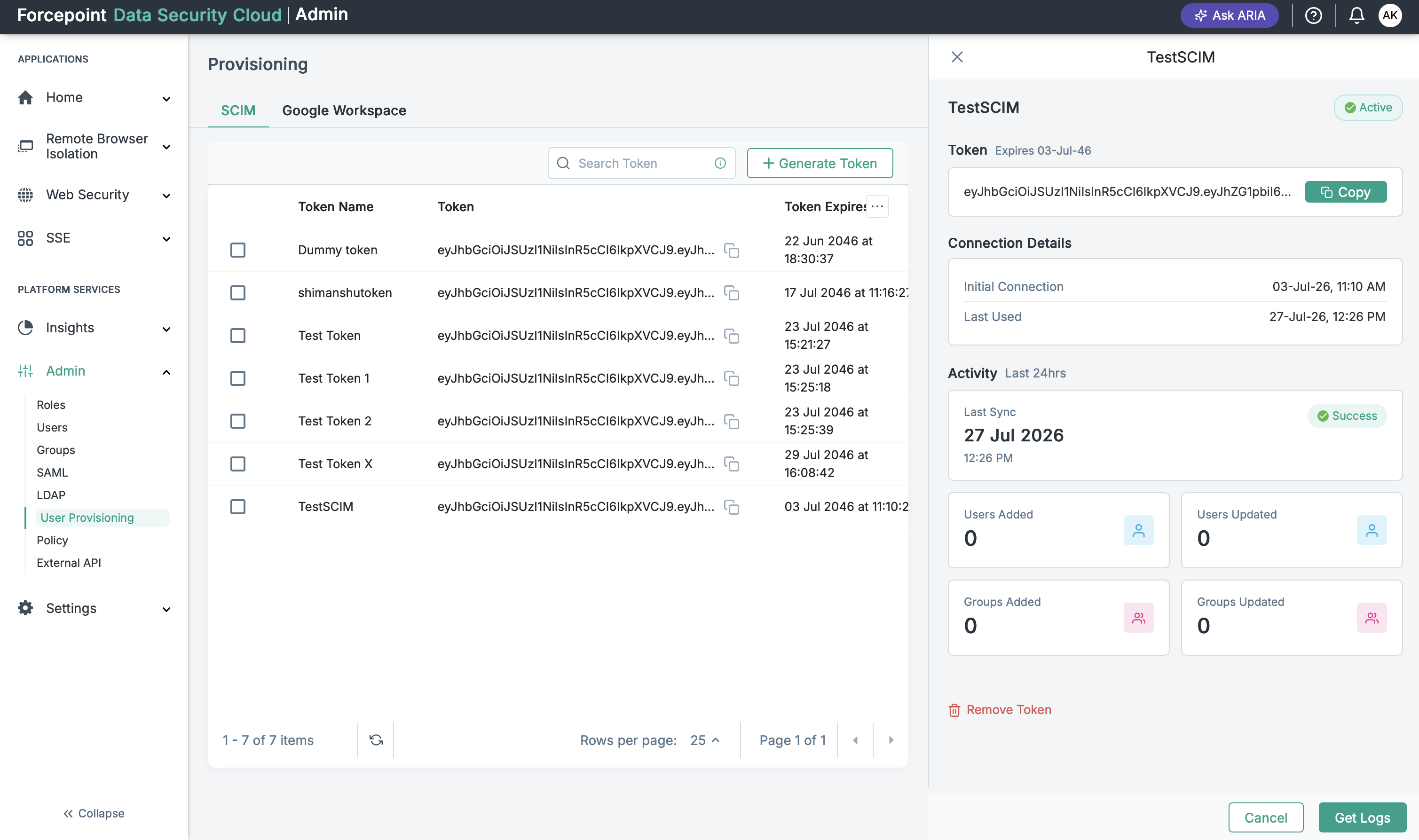
After you create a SCIM token, you can click the token entry to open a details panel. This panel provides quick visibility into the token configuration and recent provisioning activity as shown
below.
-
Token information: View the token name, whether the token is active or inactive, and its expiry date.
-
Connection details: See when the token was first used and when it was last used.
-
Recent sync activity: Review the last 24-hour activity for users and groups, including added and updated counts.
-
Last sync status: Check whether the most recent sync completed successfully.
Note: The activity count shown in the token details panel represent the current sync activity, not a running cumulative total over time.