Google Workspace
This section outlines how Google Workspace is integrated to provision users and groups.
This integration supports the synchronization of Users, User Groups, and all associated attributes, including custom attributes, directly within the platform. Administrators can also leverage built-in Attribute Mapping capabilities to align Google Workspace attributes with Forcepoint’s identity model, ensuring accurate and efficient provisioning without external tools.
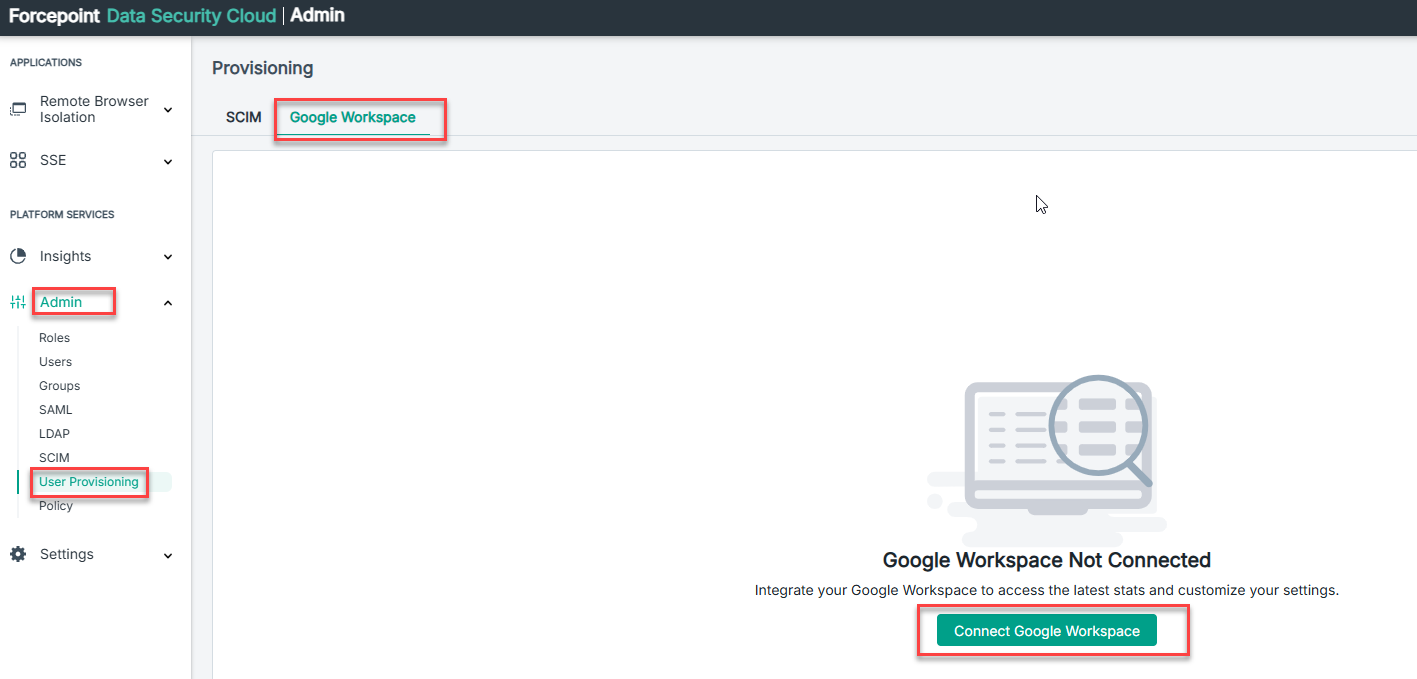
- Navigate to and click Connect Google Workspace.
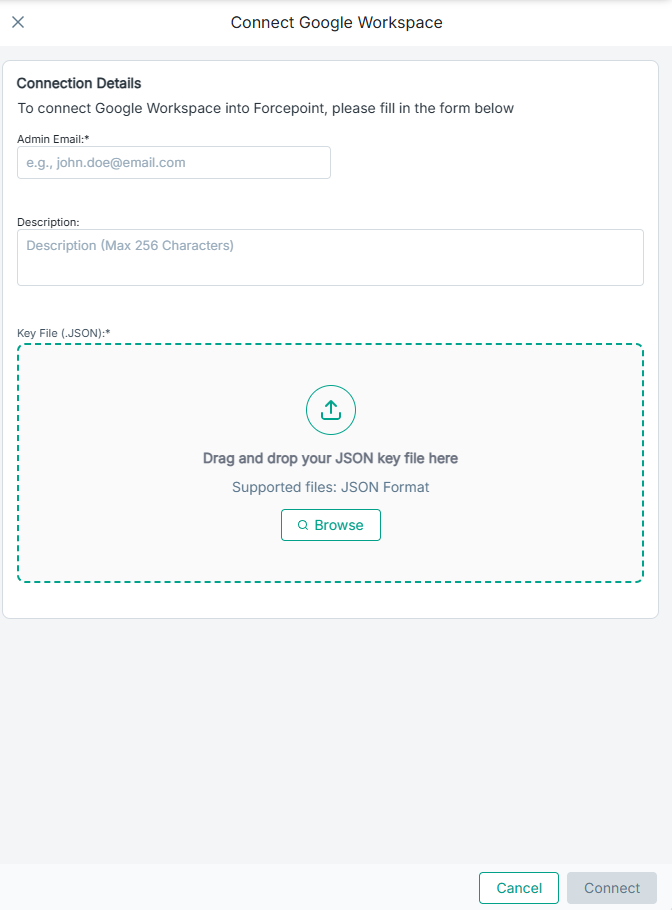
- Fill in the form with Google Workspace Admin User email address, Description, attach the JSON key file and click Connect.
Steps to generate the JSON License Key in Google Workspace
- Enable Admin SDK API
- In Google Cloud Console, enable Admin SDK API for your project.
- Create a Service Account
- Go to , create a new account, and assign a suitable role (e.g., Project Editor).
- Generate JSON Key
- In the service account, create a new key in JSON format and download it — this is your license key.
- Enable Domain-Wide Delegation
- In the service account settings, enable Domain-wide delegation and copy the Client ID.
- Authorize OAuth Scopes in Admin Console
- In , add the Client ID and authorize these scopes:
- https://www.googleapis.com/auth/admin.directory.group.readonly
- https://www.googleapis.com/auth/admin.directory.group.member.readonly
- https://www.googleapis.com/auth/admin.directory.user.alias.readonly
- https://www.googleapis.com/auth/admin.directory.user.readonly
- https://www.googleapis.com/auth/admin.directory.userschema.readonly
- https://www.googleapis.com/auth/admin.reports.audit.readonly
- In , add the Client ID and authorize these scopes:
- Enable Admin SDK API
- Test the connection using the Test Connection button to ensure the setup is correct.
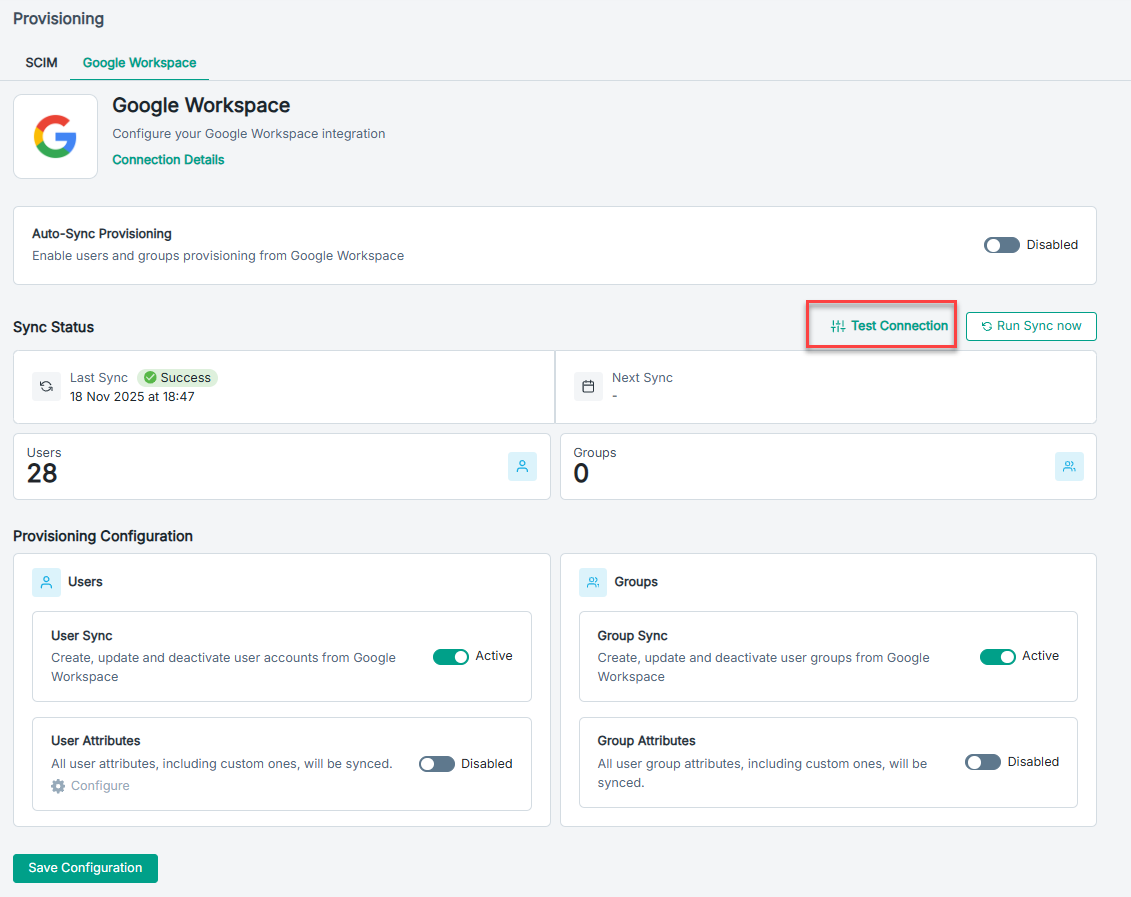
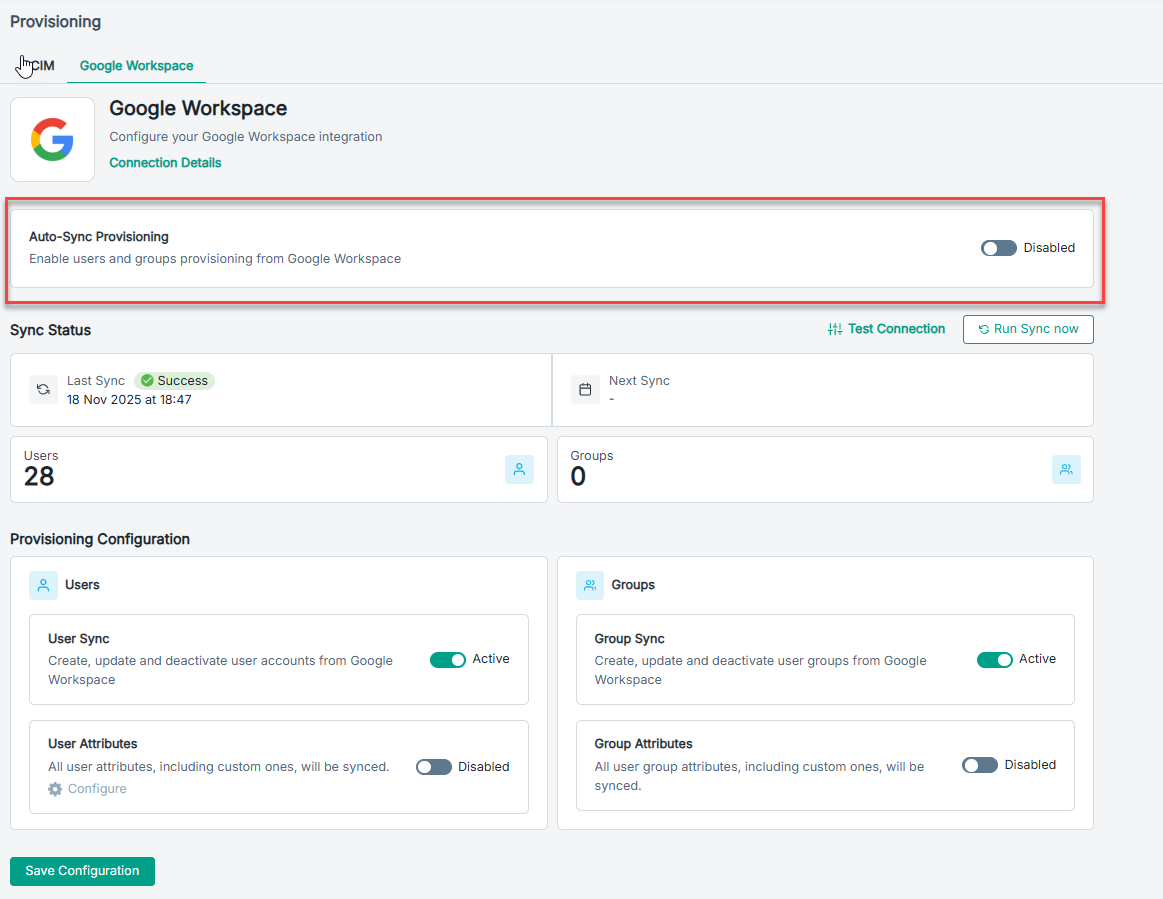
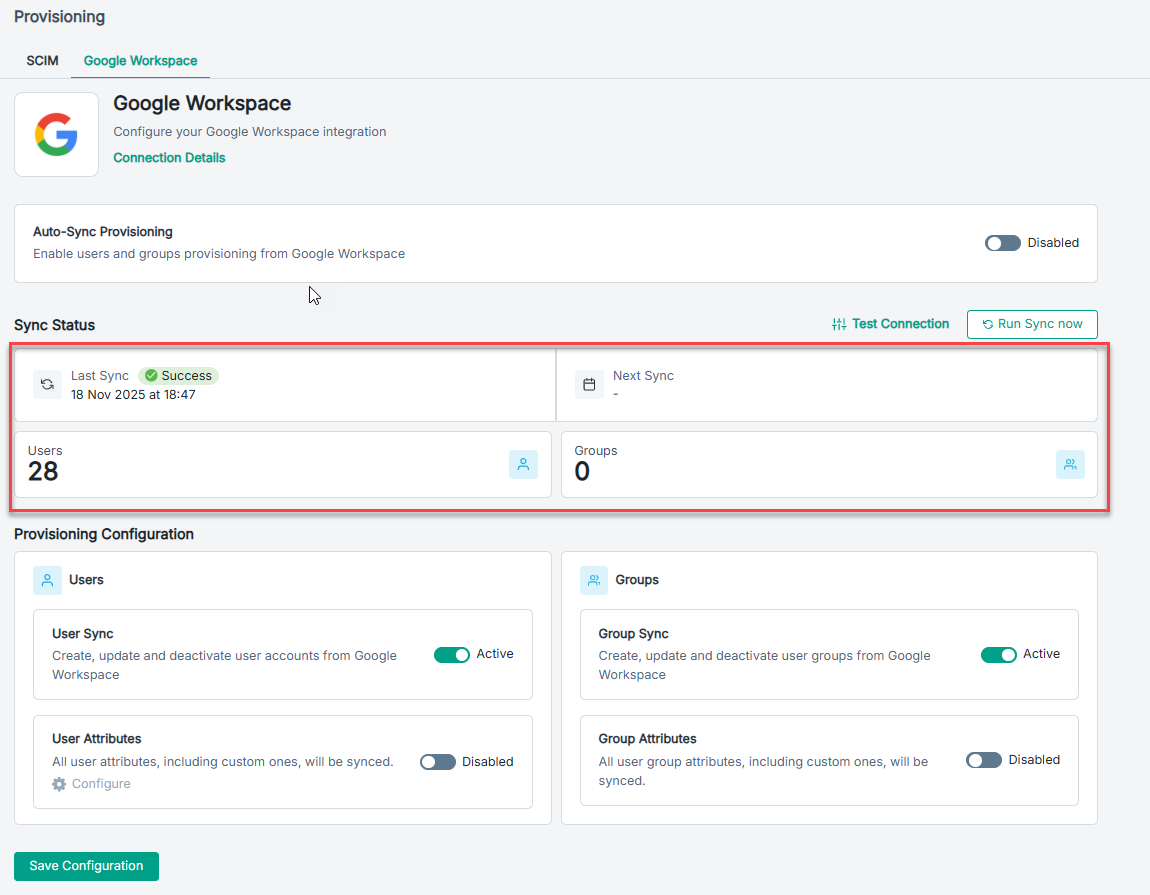
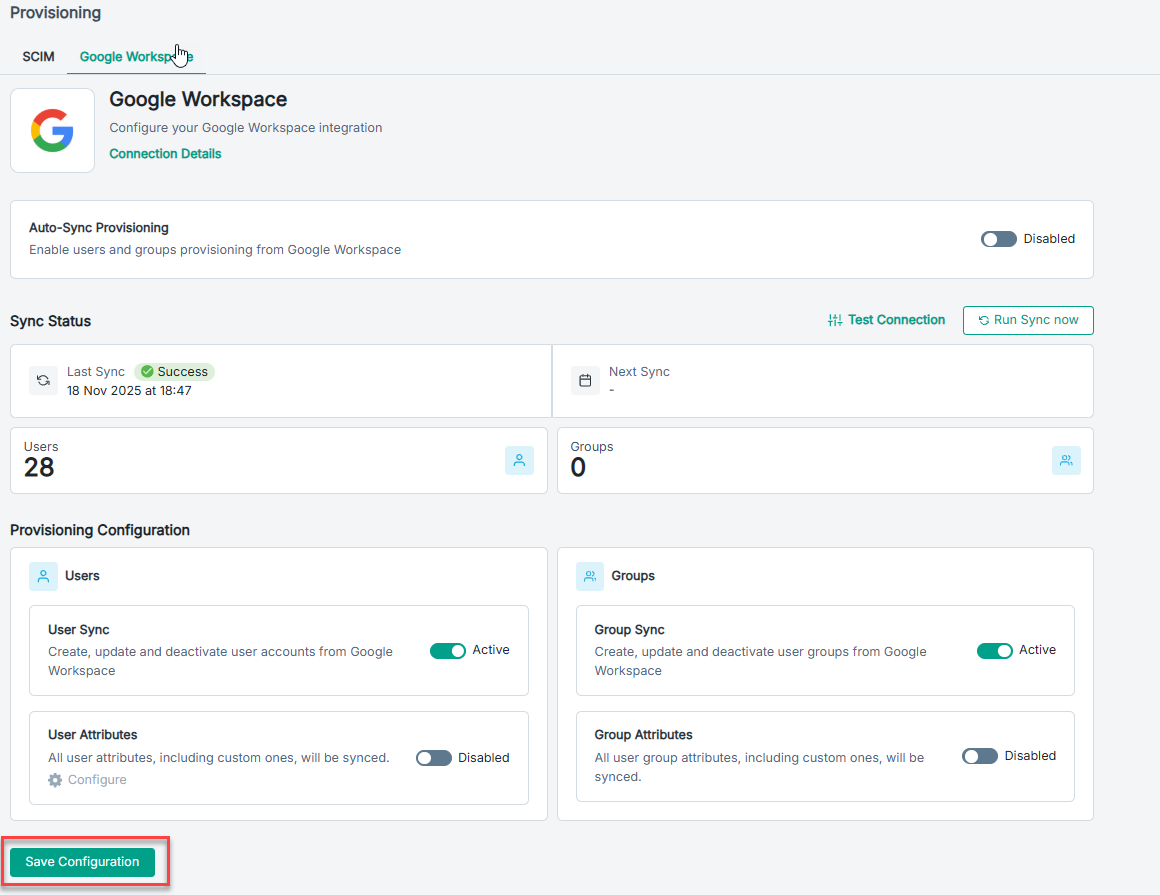
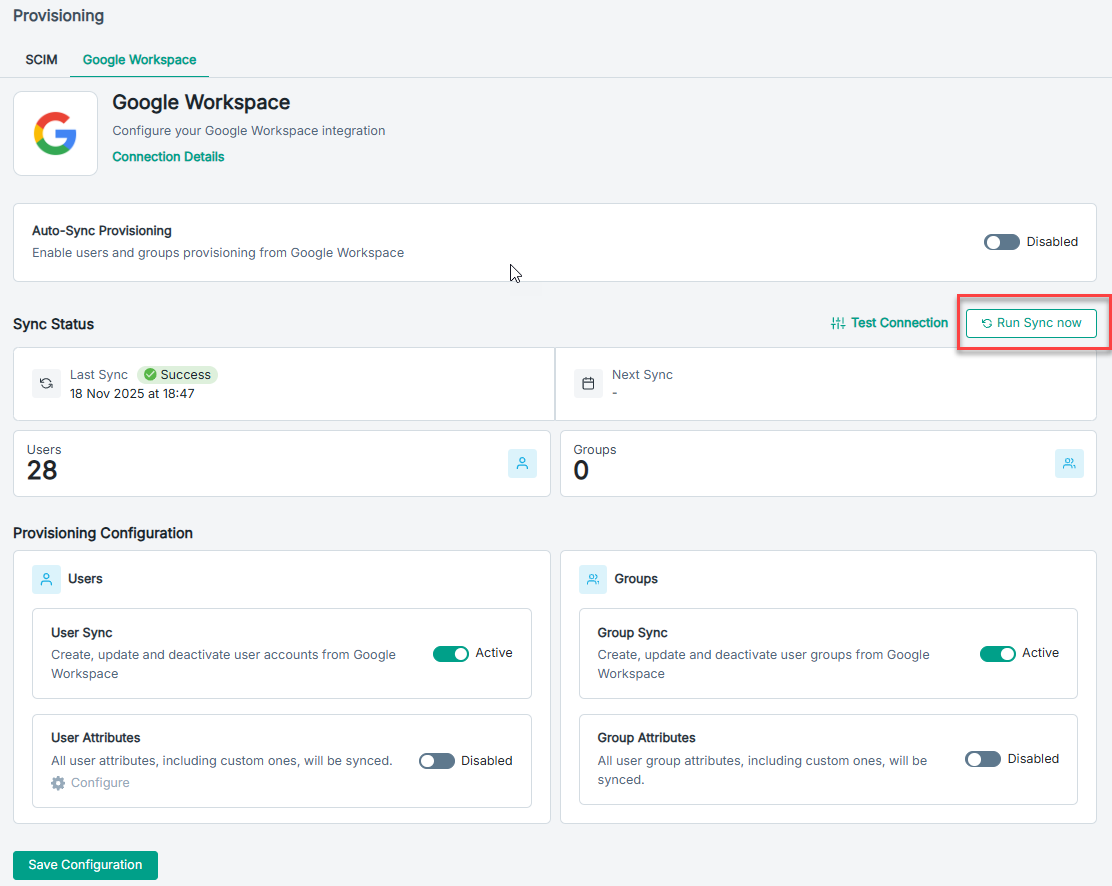
Sync Status: Provides the Last Sync information, Next Sync information, displays the number of synced Users and groups.
Provisioning Configuration:
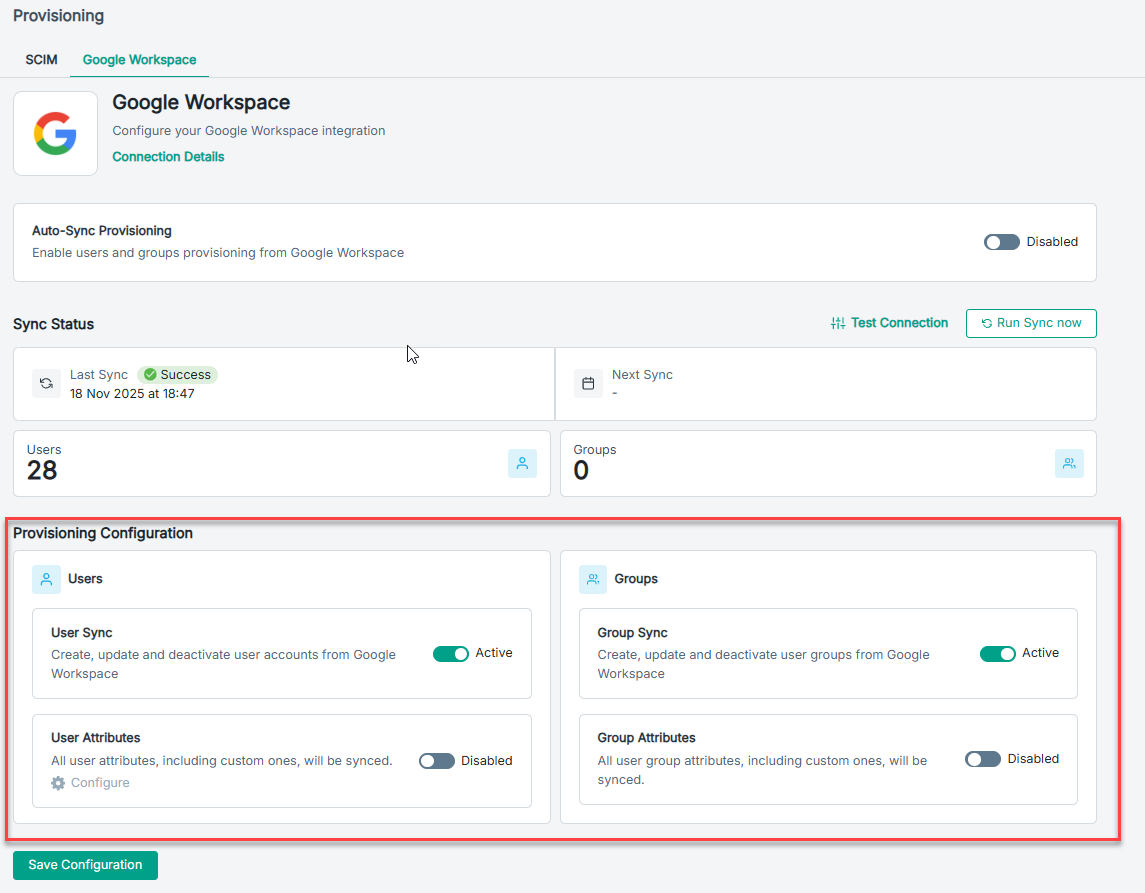
- User Sync: Toggle to Active to allow synching user accounts from Google Workspace.
- User Attributes: Enable User Attributes to configure the Source Attribute (Google Workspace) and map it to the
corresponding Company attribute [Map].
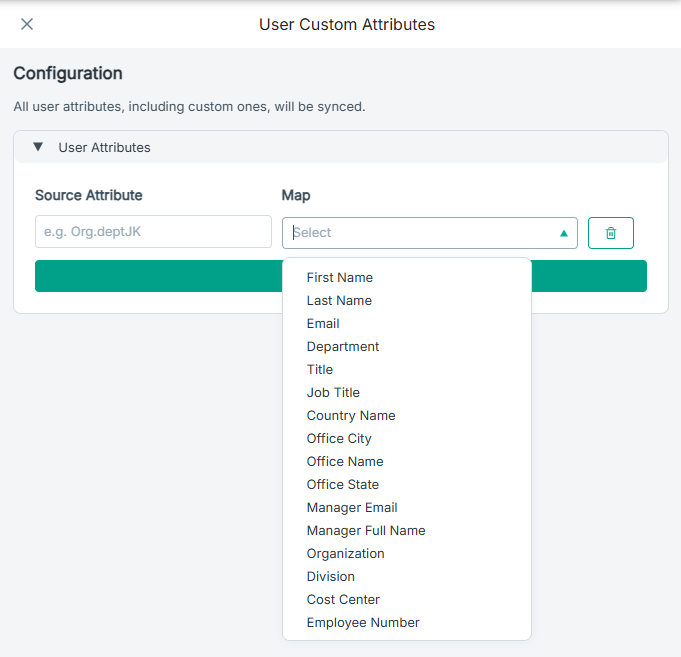
The existing attribute in Google Workspace (for example: OrgDepartment, employeeID, etc.) is mapped to a Company provided attribute (for example: Department, EmployeeCode, etc.). When a Google Workspace attribute (Source Attribute) is paired with a Company attribute (Map), the system copies the value from Google Workspace and writes it into the corresponding Company attribute.
To Add Attribute: Key in the Source Attribute, select the corresponding Map [Company attribute] and click Save.
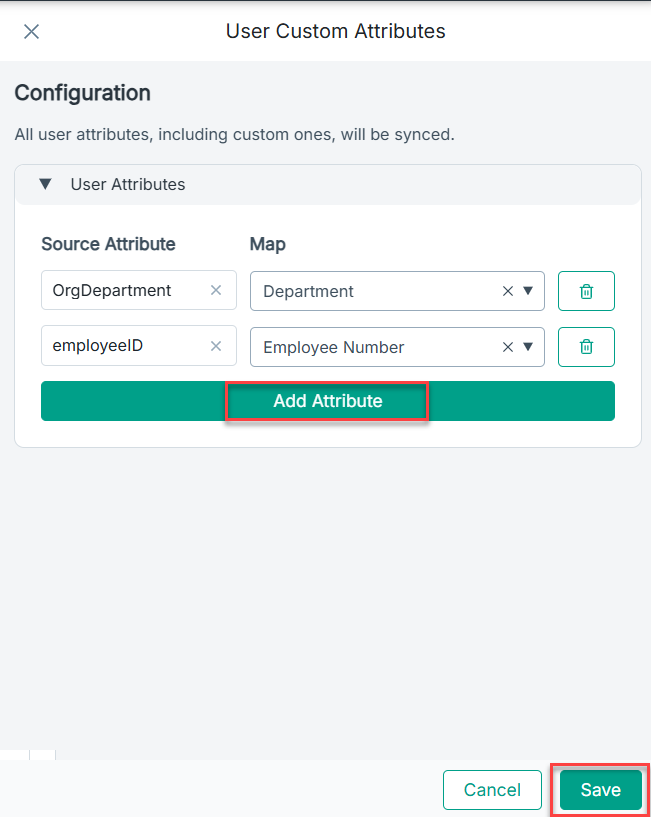 Note: A maximum of ten custom attributes can be added.
 - Group Sync: Toggle to Active to manage user groups.
- Group Attributes: Enable if you want to sync additional group details.
Save Configuration: Click Save Configuration to apply all changes.
Run Sync now: To sync immediately, click Run Sync now.
Platform documentation now has detailed steps for configuring SAML profile for Google Workspace.