Creating a new group
Add new user group through the Groups page.
Steps
-
From the left Navigation Pane, click Groups.
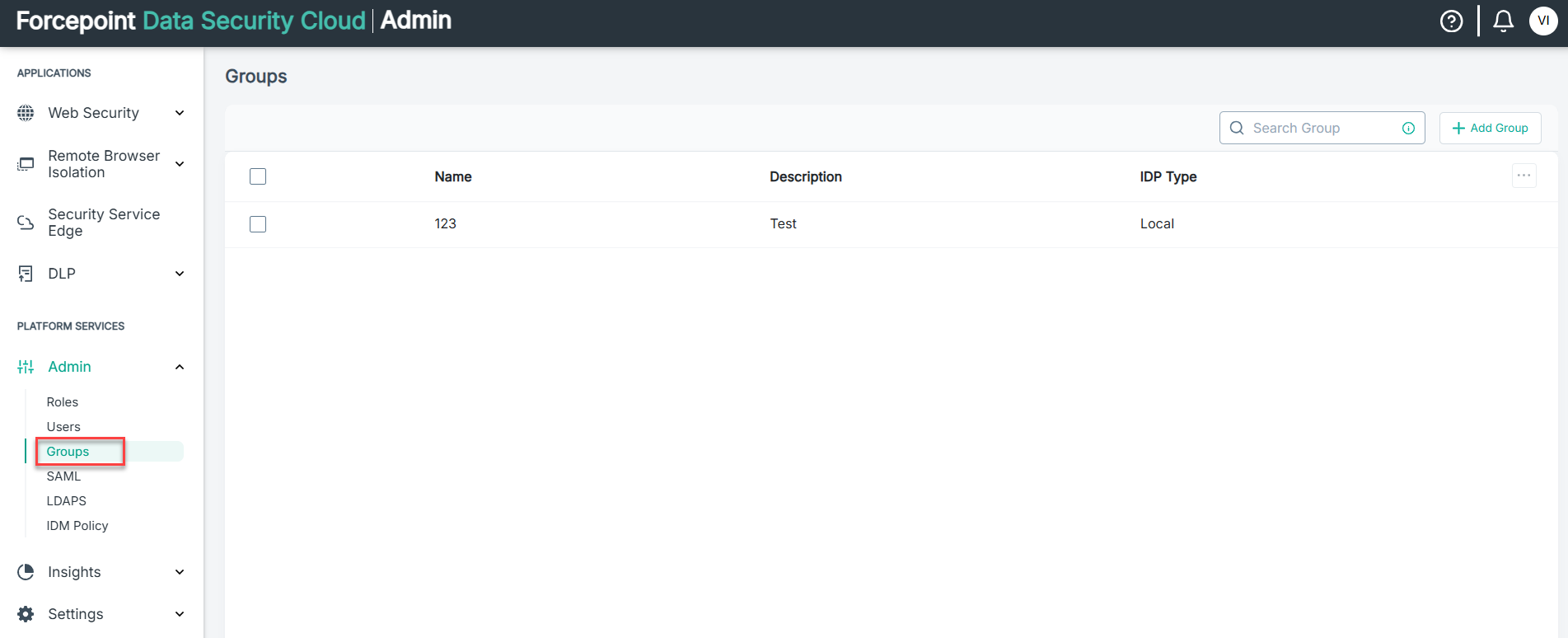
-
On the Add Group pane, enter:
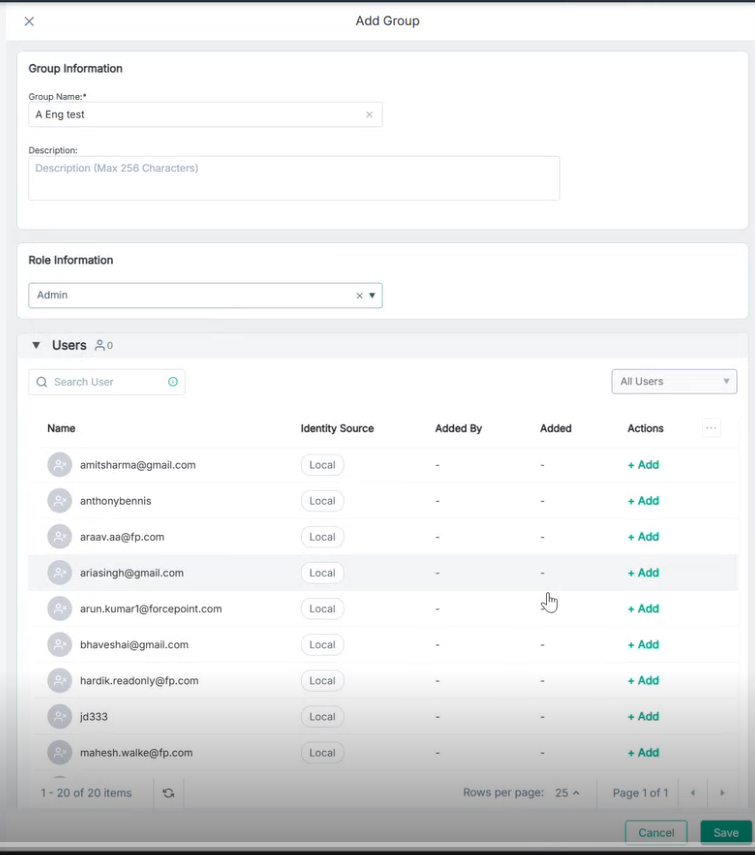
- Group Name: Enter unique name of the group. Test.
- Description: In max characters 256, provide a description for the group.
- Role Information: Select from one of the listed roles in the drop-down.
- Users: By default, the table displays all users. You can:
- Search for specific users by name or email.
- Add users by clicking the + Add button next to each user.
- Paginate through the user list if there are many users.