Once your service is activated on your tenant, Technical Contact Admin will receive a Welcome email. Click the hyperlink in the email to provide necessary details and sign in for the
first instance.
Steps
-
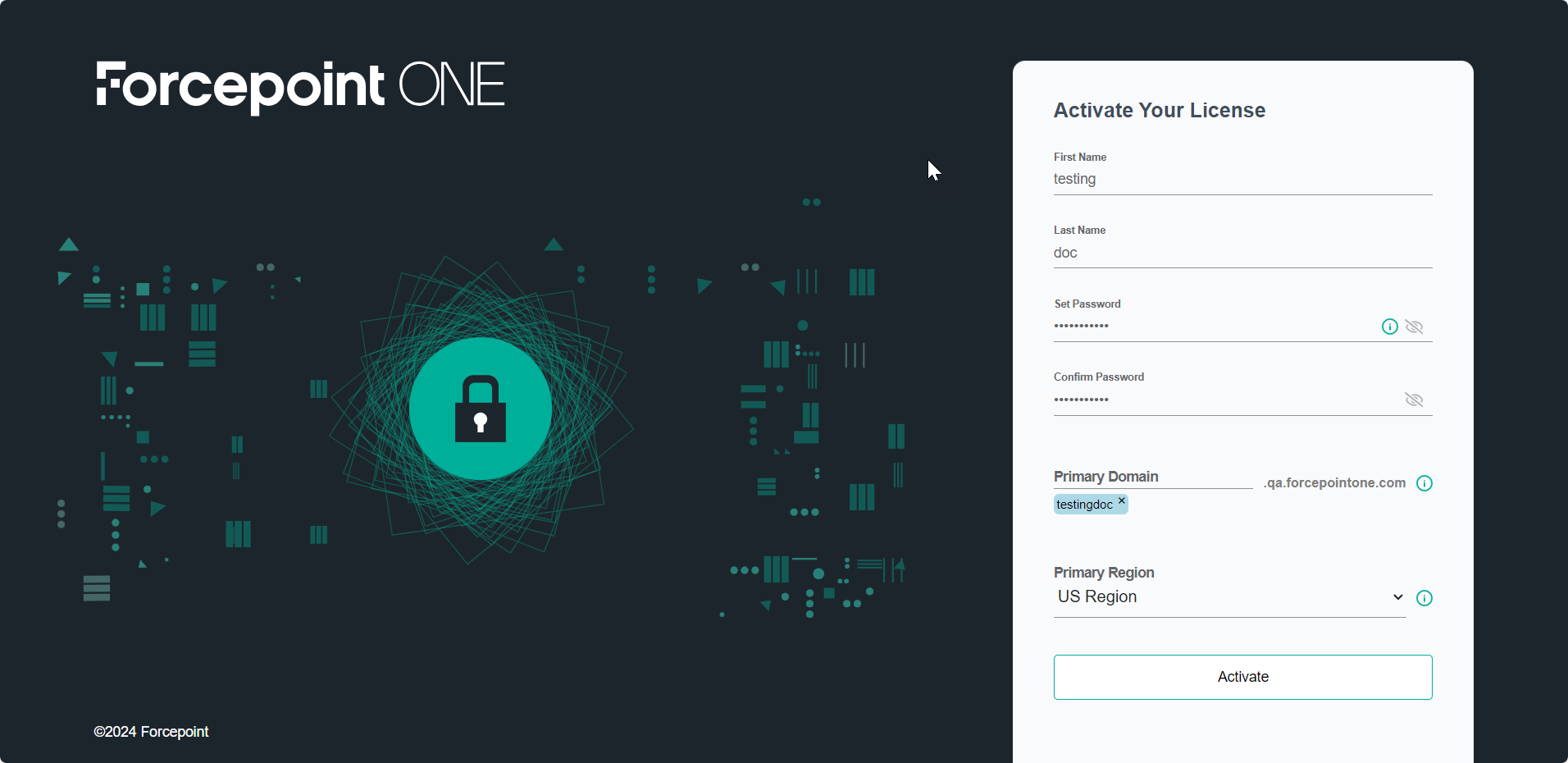
From the Welcome email, click the Access your Account link to access the We've been expecting you page.
-
In the First Name and Last Name fields, enter first name and last name of the tenant respectively.
-
In the Set Password field, enter a password of your choice that meets the following conditions.
- Minimum 8 characters and maximum 20 characters
- At least one upper and one lower case letter
- At least one digit
- At least one special character from the following set. ! @ # $ % & ? = [ ] < > { }
-
In the Confirm New Password field, enter the same password that you entered in the Password field.
-
In the Primary Domain field, enter the domain name through which you would access your tenant and press Enter.
-
From the Primary Region drop-down, select the primary region where your data should reside.
-
To access the tenant with entered details, click Access Account.
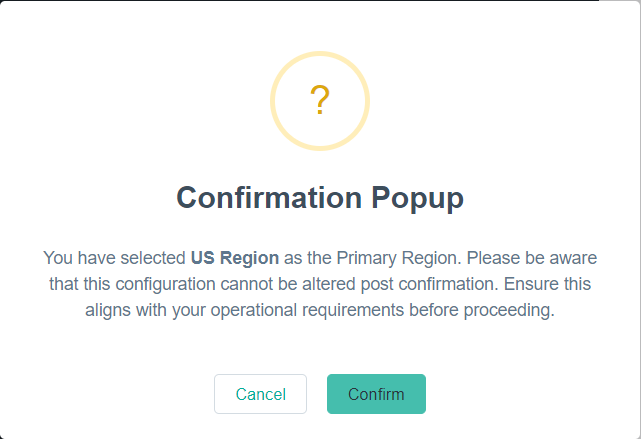
A Confirmation Popup opens displaying that the Primary Region selection cannot be changed once confirmed.
-
On the Confirmation Popup, click Confirm to access your tenant.
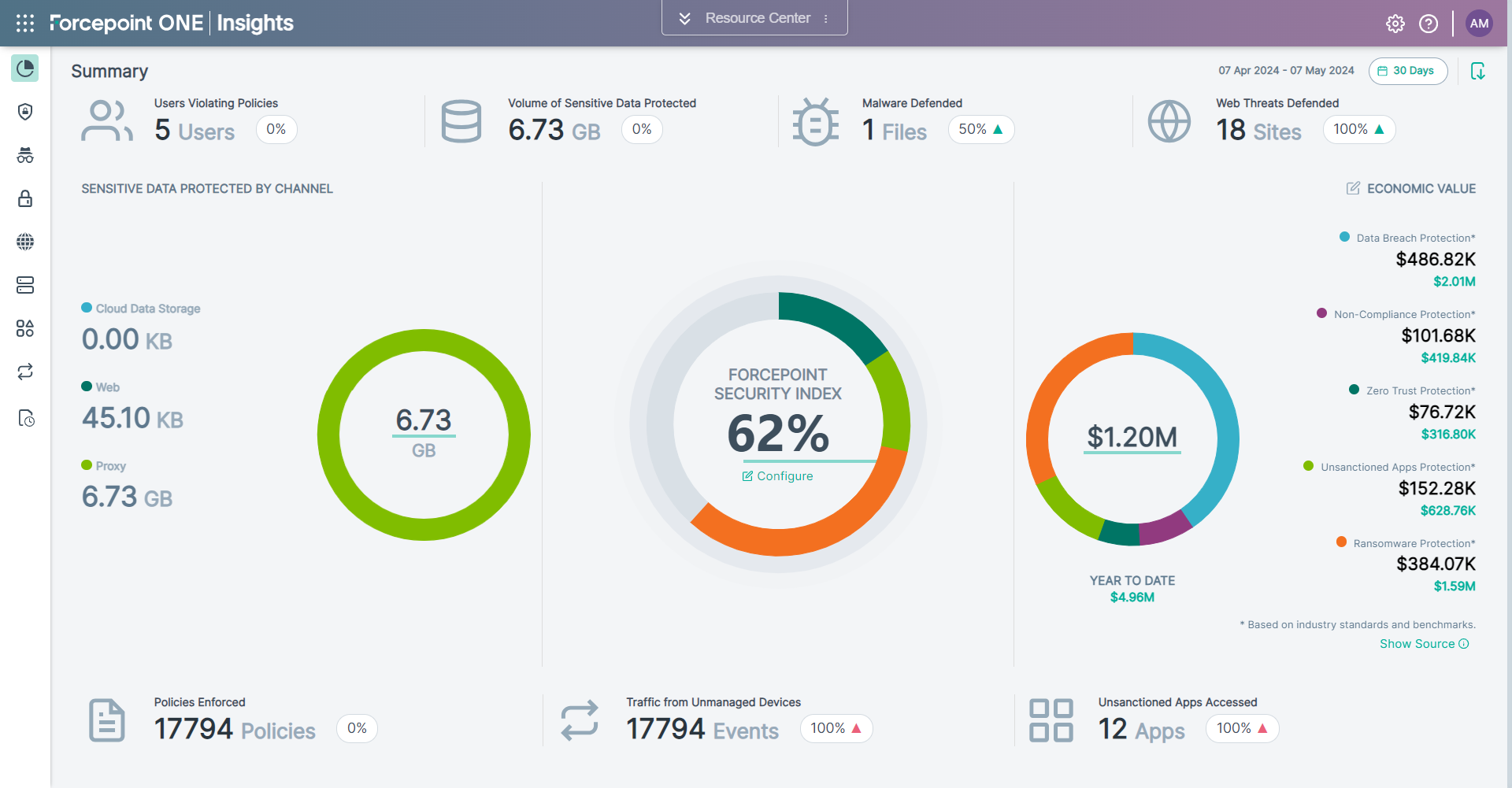
Once provisioned, you will be redirected to Insights application, where you can view dashboards for all the applications enabled on your tenant.