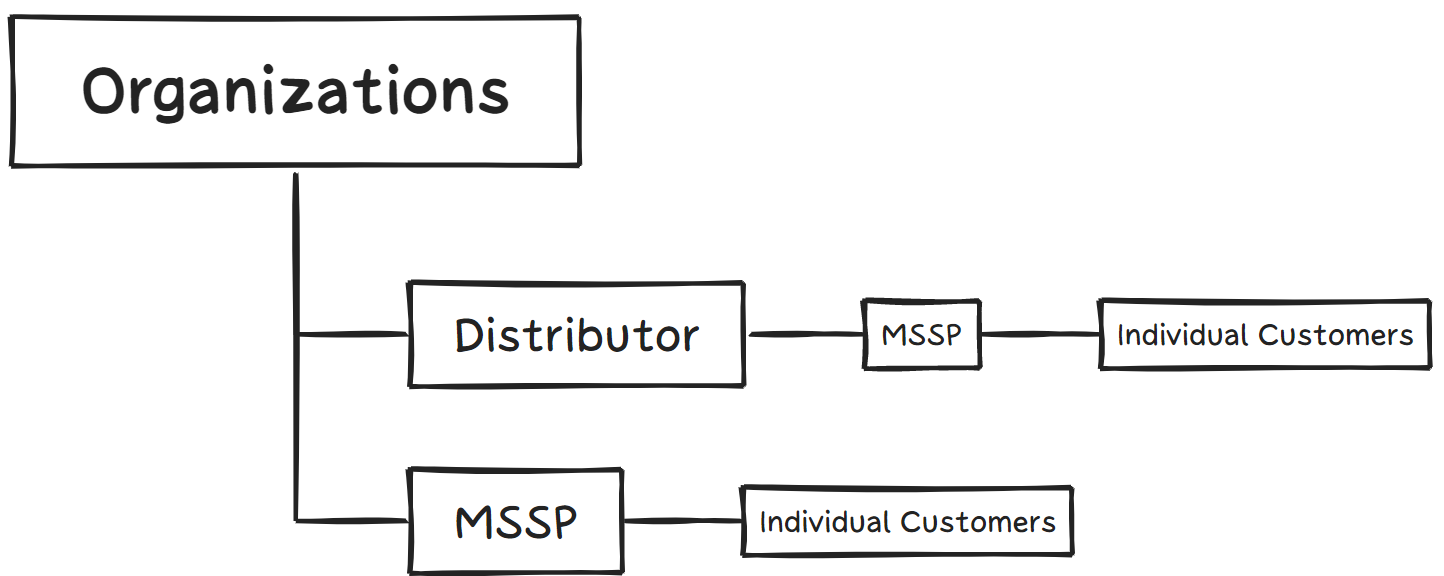
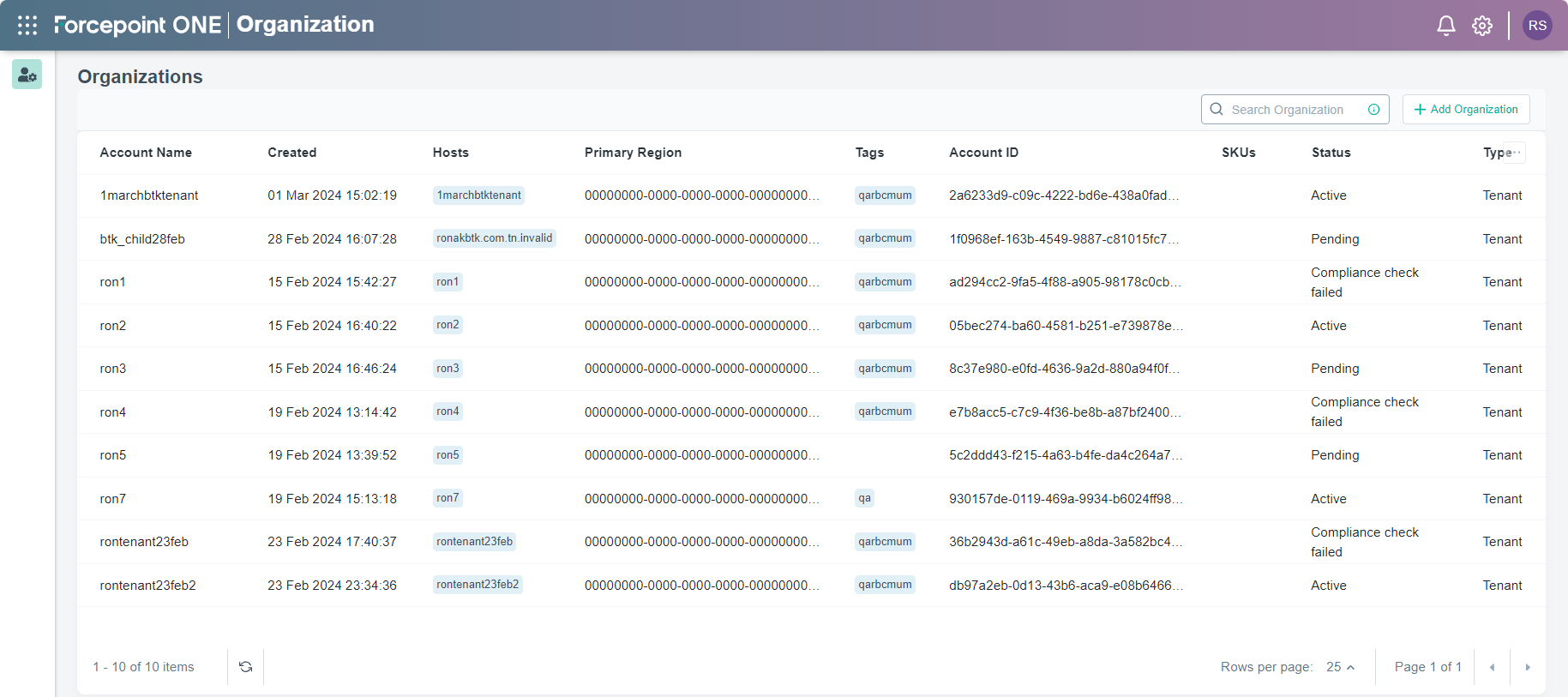
The Organizations page enables Super Adminsyou, MSSP or Distributor, to manage tenants and entitlements
(Licenses) for those tenants.
Under the
Organizations page:
- If you are a distributor, then you can onboard MSSPs.
- If you are a MSSP, then you can onboard individual customers.
You can search organizations based on Account Name, Status, and Account ID by entering text in the Search Organization field.
You can sort the organizations in ascending or descending order by clicking one of the following column names:
- Account Name
- Created
- Account ID
- Status
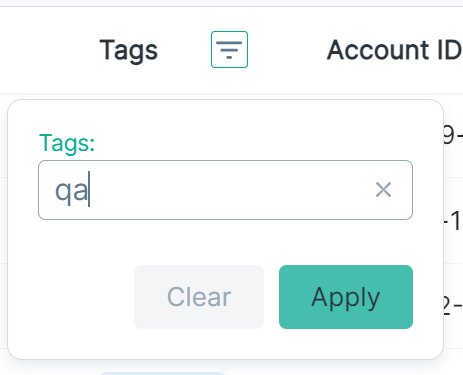
You can also filter organizations based on the Tags column. Place the mouse pointer on the Tags column, click the  icon and then enter tag name in the Tags field. Click Apply to filter organizations based on entered
tags.
icon and then enter tag name in the Tags field. Click Apply to filter organizations based on entered
tags.
The
Organizations page displays the following columns:
| Column |
Description |
| Created |
Displays time stamp when account was created. |
| Hosts |
Displays hosts names using which customers can access Forcepoint ONE. |
| Primary Region |
Displays the primary region where the customer's data resides. |
| Tags |
Displays tags associated with the account. |
| Account ID |
Displays global tenant ID of the account. |
| SKUs |
Displays products and services SKUs purchased by a customer. |
| Status |
Once the tenant is created on the Organizations page, the Status of the tenant displays as follows:
- Pending - As soon as a tenant is created, the Status of the tenant is set to Pending.
On the backend, the
IT Orchestrator performs the necessary compliance checks and approves the new tenant if all the required details are present.
- Active - Once the IT Orchestrator approves the tenant and if the license's Start Date was in the past, then the
Status of the tenant changes to Active.
Once the tenant's Status is Active, you can
assign Entitlements as per your customer's needs.
- Approved - Once the IT Orchestrator approves the tenant and if the license's Start Date is in future, then the
Status of the tenant changes to Approved.
Once the tenant's Status is Approved, you
can assign Entitlements as per your customer's needs.
- Compliance check failed - If the tenant failed to pass the compliance check, then tenant Status changes to Compliance
check failed.
- Recheck - The tenant Status changes to Recheck after you saved the tenant changes.
- Recheck failed - If the tenant failed to pass the compliance check after you saved the tenant changes, then tenant Status changes to
Recheck failed.
- Failed - If the tenant failed to pass the compliance check and unattended for long time, then tenant Status changes to
Failed.
- Expired - If all the licenses associated with the tenant expired, then the Status of the tenant changes to
Expired.
|
| Type |
Displays type of the account:
- Tenant - If you are a MSSP, then you can onboard individual customers.
- MSSP - If you are a distributor, then you can onboard MSSPs.
|
| Switch Context |
Click the  icon to access customer's tenant: icon to access customer's tenant:
- Troubleshooting purpose
- Help customer while configuring
|