Using ARIA: Actions and Workflows
ARIA supports two types of interactions: queries that retrieve information, and actions that make changes to your environment. Understanding the difference helps you use ARIA effectively and securely.
Usage Limits & Token Optimization
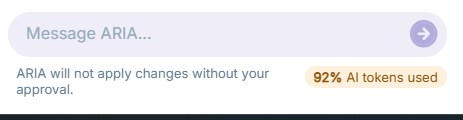
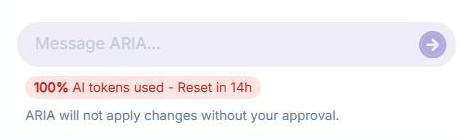
Each user has a daily token limit for ARIA interactions. The ARIA chat interface displays your current token usage below the message input field. When usage exceeds 75%, a warning indicator is displayed (shown in orange). Once 100% of tokens are consumed, ARIA becomes temporarily unavailable, and the indicator shows the remaining time until the limit resets (shown in red). The daily limit resets automatically.
Examples:
- "List all my users"
- "Show me DLP incidents from the last 7 days"
- "What are my current DLP policies?"
- "Who are the top data risk users in my organization?"
- "Show me the alert timeline for user john.smith@company.com"
- "How do I set up LDAP for Entra ID?"
These queries are processed instantly and displayed in the chat. No approval card is required.
Action-Based Interactions (Write & Destructive)Action-based interactions modify your environment, such as creating, editing, or deleting users, groups, roles, or policies. ARIA requires explicit approval before executing any action.
Examples:
- "Create a Dynamic User Group rule, so all users with department Legal are added to "DynamicLegalUserGroup""
- "Delete this user account"
- "Update the last name for user Sreejith"
- "Add these users to the Engineering group"
- "Clone the HIPAA predefined policy to my tenant"
- "Delete the outdated credit card policy"
ARIA is not restricted by which page you are currently viewing in the Forcepoint Data Security Cloud Platform. However, being on a relevant page provides more context to ARIA and helps it understand your intent better. The following table shows available actions by area:
| Area | Supported Actions |
|---|---|
| Users | Create user, Edit user attributes, Delete user |
| Groups | Create group, Edit group details, Delete group, Add users to group, Remove users from group |
| Roles | Create role, Edit role permissions, Delete role, Assign role to user or group |
| SAML | Add SAML profile, Edit SAML configuration, Delete SAML profile |
| DLP Policies & Alerts | View predefined DLP policies, Clone a policy to your tenant, View DLP incidents and alerts, View alert evidence and sensitive data snippets, Update alert status and assignee, View top risk users, View user alert timeline |
| Documentation & Help | Retrieve product documentation, Get step-by-step instructions for common tasks |
Your Security & Access Rules Apply to ARIA
- Role-Based Access Control (RBAC):ARIA inherits the same RBAC permissions as the logged-in user. It cannot view, modify, or perform actions on any user or policy that the logged-in user does not have access to.
- Approval Requirements: All write and destructive operations require your explicit approval.
- Audit Logging: Every action ARIA performs is logged in Forcepoint's audit log.
- Tenant Isolation: Your data is isolated from other organizations; ARIA only accesses resources within your tenant.
- Scope Enforcement: ARIA is automatically restricted to the data and resources your role permits.
What ARIA Cannot Do
- Perform operations unavailable in the standard user interface
- Bypass network restrictions or VPN requirements that apply to your account
- Guarantee 100% accuracy on AI-generated recommendations (always review before applying)
Best Practices
- Review before approving: Always read the Approval Card details before clicking Approve
- Verify context: Ensure ARIA understands what you're asking (e.g., "Delete the user named Smith in group Engineering")
- Check results: Confirm the action completed as expected by reviewing the result message or checking the console manually
- Report issues: If ARIA cannot access data you expect it to see, verify your role has the required permissions
| Issue | Possible Cause | Solution |
|---|---|---|
| ARIA cannot see users I have access to | Role lacks user:read scope |
Contact your administrator to add the required entitlement |
| Approval Card doesn't appear for my action | Action may be read-only | Not all queries require approval. ARIA will proceed if no changes are needed |
| ARIA says "Permission denied" | Your role lacks permission for this action | Verify your role has the required scope (e.g., user:delete to delete users) |
| ARIA recommends something that doesn't apply to my environment | AI-generated output requires review | Always validate recommendations against your actual policies and business rules |