Setting an expiry date for category exceptions
When you add or edit a category exception, you can specify whether the exception should expire on a particular date. Once the expiry date passes, the exception is automatically disabled and marked as expired in the exception list. This eliminates stale rules without requiring manual intervention.
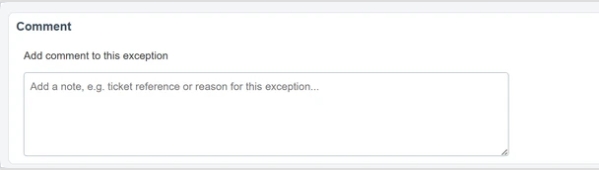
The exception edit page also includes a Comment field where you can record ticket references, approval notes, or handoff context for other administrators.
Note: This feature is enabled on a per-account basis. If the Expiry section is not visible in your category exception settings, contact your Forcepoint administrator.
When you open a category exception for editing, the following new sections are available:
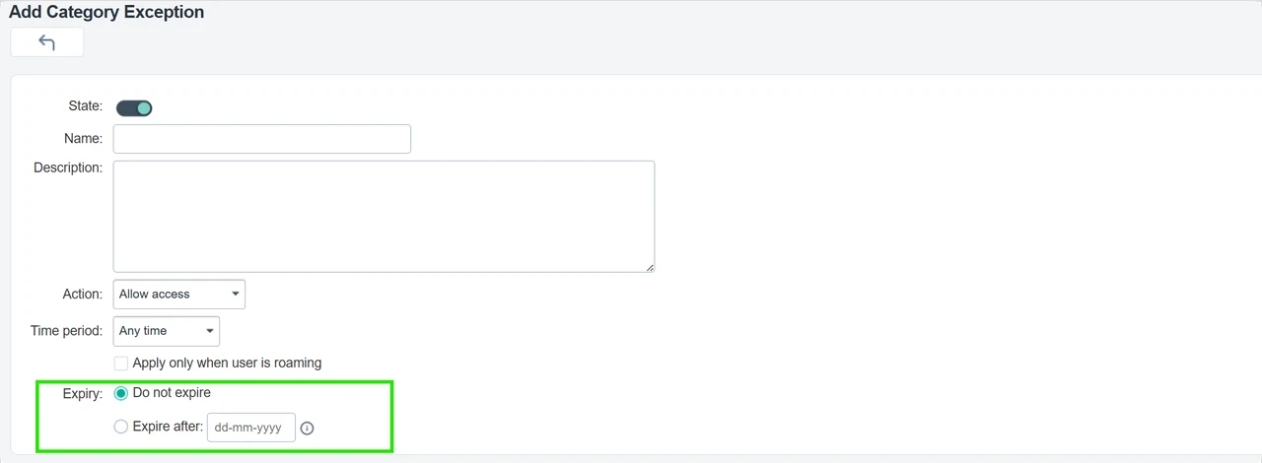
Expiry section
Two options are available:
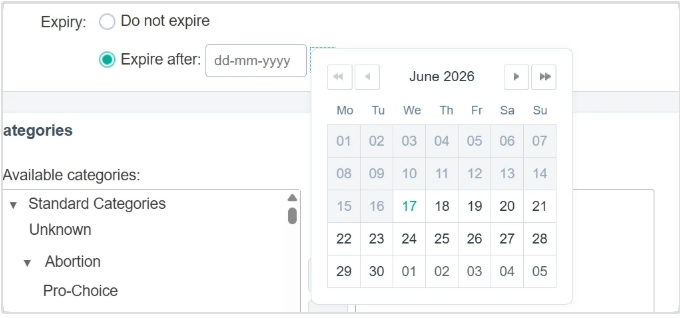
- Do not expire (default) — The exception remains active until an administrator manually disables or deletes it.
- Expire after — Select a specific date using the calendar picker. The exception is automatically disabled at the start of the calendar day after the selected date, based on the policy's timezone.
Categories: dual-pane picker
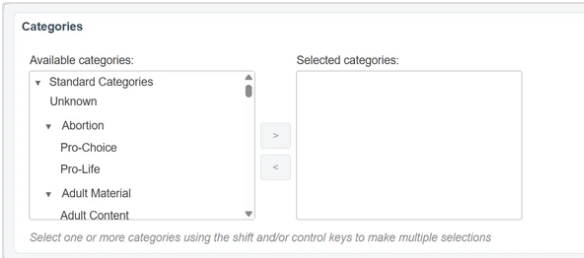
The category selector uses a two-pane Available categories / Selected categories layout. Move categories between panes using the arrow buttons or by double-clicking an entry as
shown below:
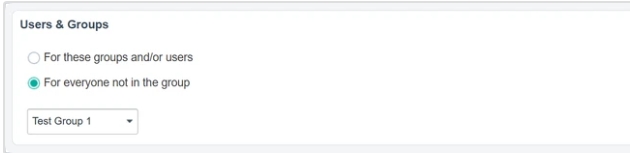
Users & Groups: new layout
The For these groups and/or users option shows two side-by-side panes- Available groups / Selected groups on the left, and a Users text area on the right, separated by an
AND / OR connector. Groups are moved between panes using the > / < buttons or by double-clicking an entry.
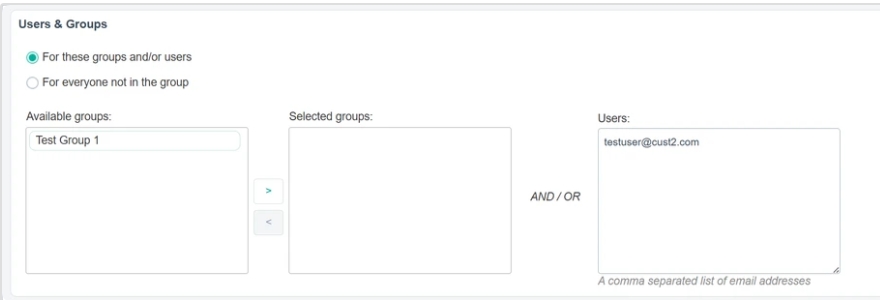
The For everyone not in the group option hides the dual-pane and the Users box, and shows a single group dropdown.
Comment section
A free-text Comment box at the bottom of the edit form. Use it to record ticket references, approval notes, or context for the next administrator. The comment persists
across edits and is visible to anyone with edit access to the policy.
Changes on the exception list page
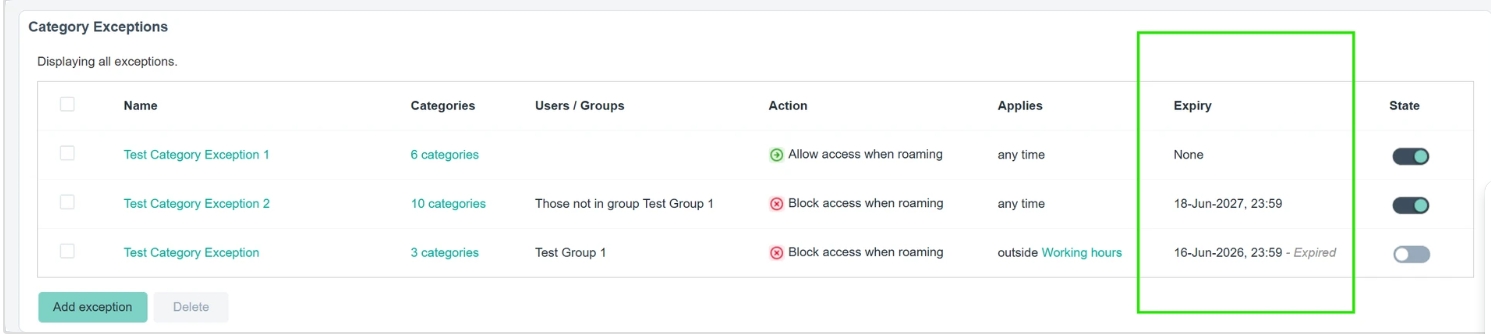
- A new Expiry column shows each exception's expiry date in
dd-Mon-yyyy, HH:MMformat (policy timezone). Exceptions without an expiry display None. Exceptions whose expiry has passed display the date followed by - Expired. - When the list page loads, any exception that has crossed its expiry while still enabled is automatically disabled. The State slider reflects this change.
- The list is grouped in the following order: exceptions with no expiry, exceptions with a future expiry, and expired exceptions.
Note: You cannot re-enable an expired exception directly from the list. If you click the State
slider on an expired row, an inline message is displayed: Please visit the edit exception page and update the expiry date to the future or set "Do not expire" before enabling this
exception.
Time-zone Behavior
- The picked date is interpreted as end-of-day in the policy's timezone at the moment of save. Internally it is stored as an absolute moment in time.
- If the policy timezone is changed after the exception is saved, the displayed date on the edit page and in the list may shift by one day, but the actual moment of expiry remains the same.