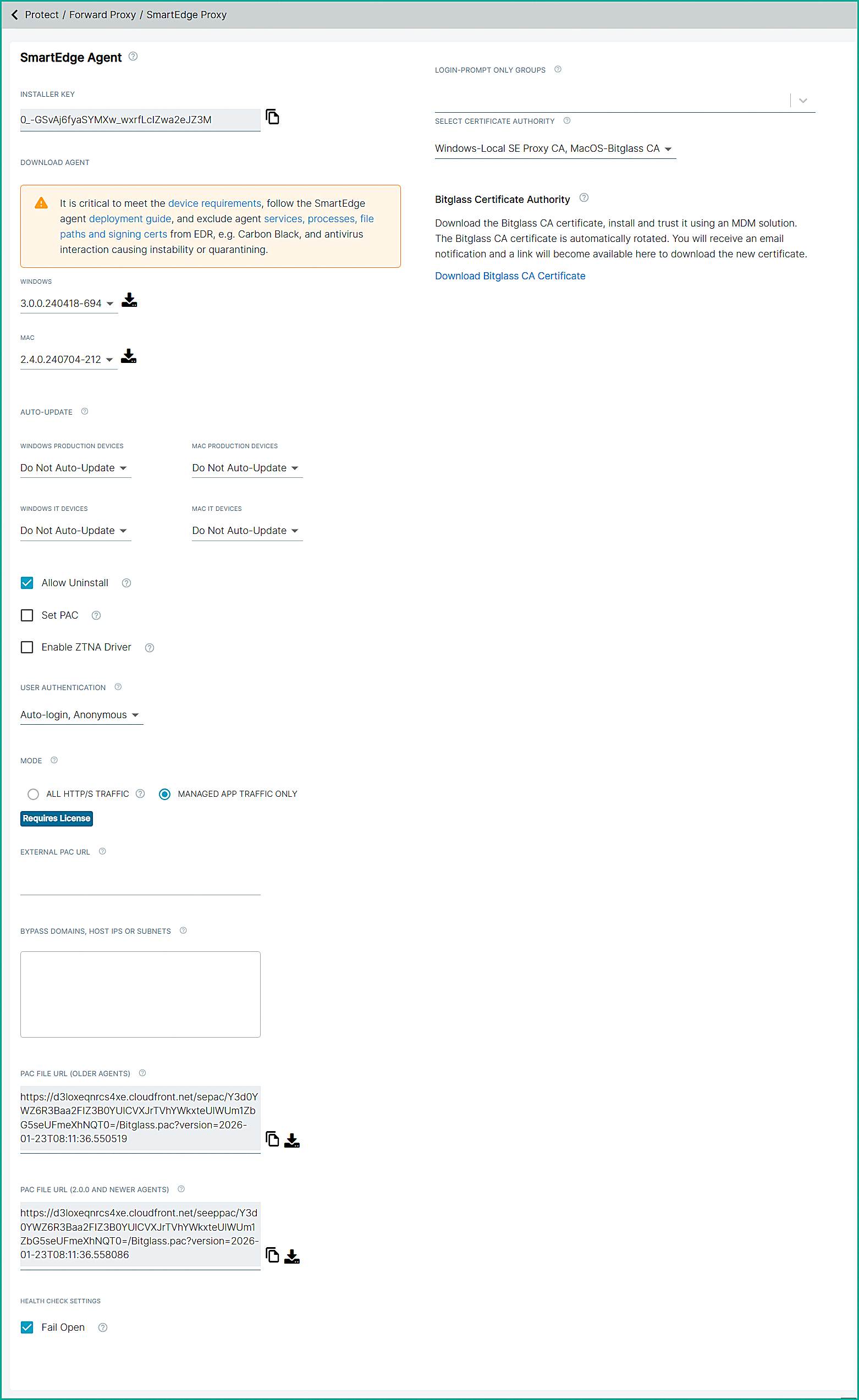
This section describes the steps to configure Forcepoint Data Security Cloud | SSE portal to enable F1E-SEA agent co-existence.
Before you begin
- You must have access to the Forcepoint Data Security Cloud | SSE portal.
- You must enable the functionality in Forcepoint Data Security Cloud | SSE for allowing the co-existence of F1E and SEA.
- To enable the functionality, you must configure the SmartEdge proxy setting.
You must have access to the Forcepoint Data Security Cloud | SSE portal. You must also enable the functionality in Forcepoint Data Security Cloud | SSE to allow
the coexistence of F1E and SEA. To enable this functionality, you must configure the SmartEdge Proxy settings.
Steps
-
Log in to Forcepoint Data Security Cloud | SSE portal.
-
Navigate to . Opens the SmartEdge Proxy page.
-
If selected, clear Fail Open.
Note: Fail Open is not supported when operating in the interoperability mode. The SmartEdge agent will attempt to restart the SE Proxy service using a
watchdog mechanism but will not fail open.
-
Do the following:
- Clear Set PAC.
- Clear Enable ZTNA Driver.
- In MODE, select MANAGED APP TRAFFIC ONLY.
Note:
- The External PAC URL value is ignored.
- If the Bypass Microsoft 365 feature is enabled in SSE it will be ignored, and the Web Security Cloud settings will be applied instead.