Deleting a saved view
You can delete a saved view while viewing it, if it is no longer needed.
Steps
-
On the left navigation pane, click Catalog to open the Catalog page.
The Catalog page opens displaying the Dashboards tab details.

-
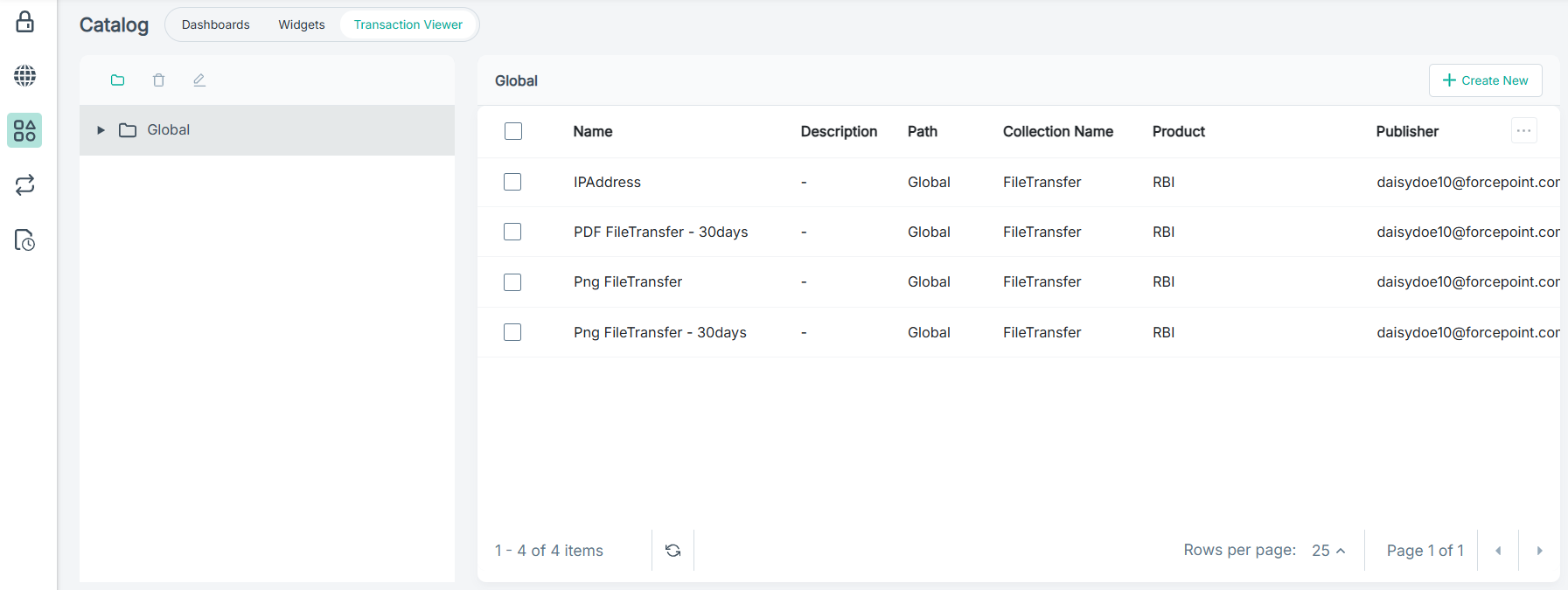
To view the saved transaction views, click the Transaction Viewer tab.
-
To expand the Global folder and view the sub-folders, click the expand
 icon.
-
To view the log details, click the transaction view.
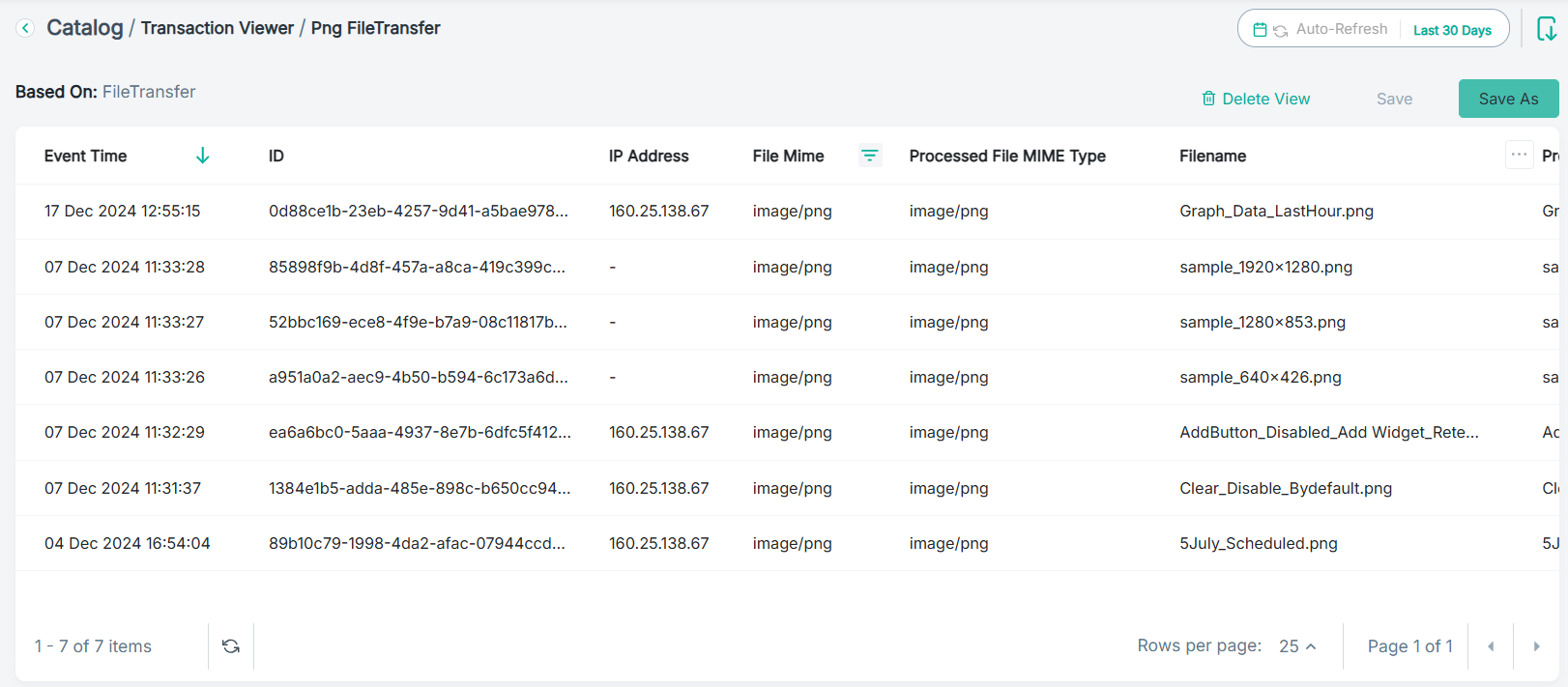
The Transaction Viewer page opens displaying logs for the selected view.
-
To delete a view, click Delete View.
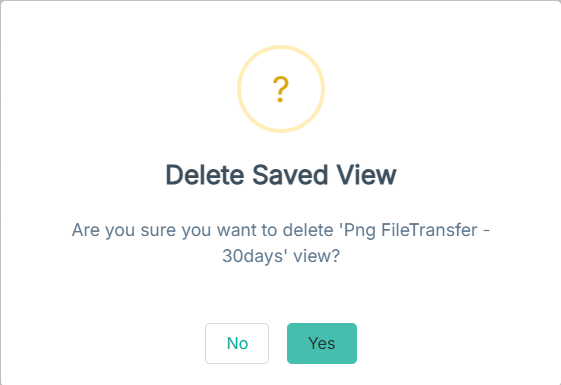
A confirmation dialog opens.