Saving the Initial Configuration
Select a default security policy and download the engine configuration file (engine.cfg).
Steps
-
In the Initial Configuration window, select the default security policy. Optionally, set the local time zone, keyboard layout, and a password.
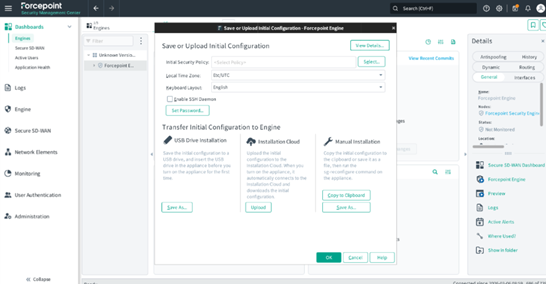
-
Click the Select button.
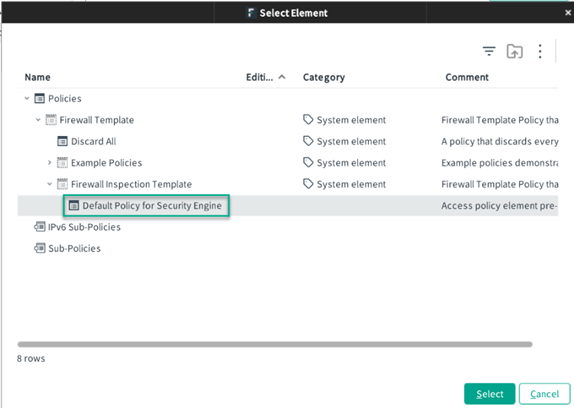
-
Under Manual Installation, click Save As to download the engine configuration file (engine.cfg).
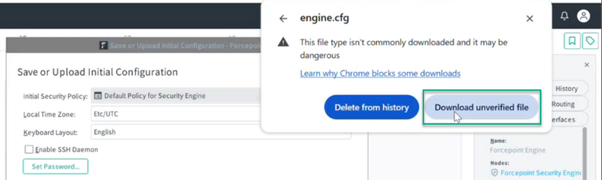
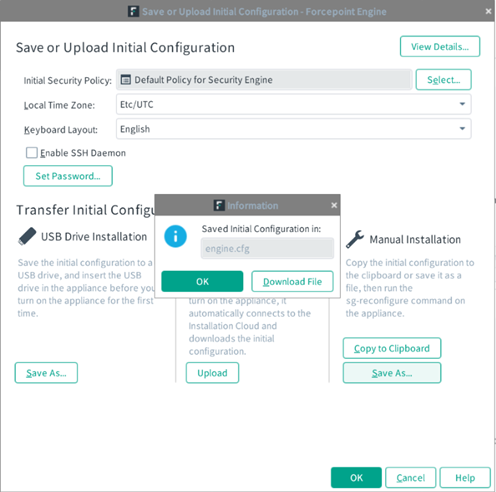 Note: While downloading the engine.cfg file, you may encounter a "download blocked" pop-up if your web browser policy restricts file downloads. Expand the Unverified download blocked pop-up and click Download unverified file to proceed.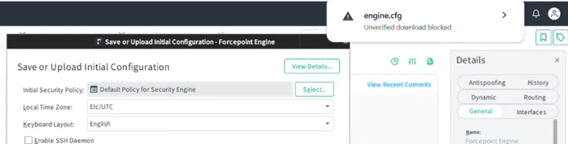
-
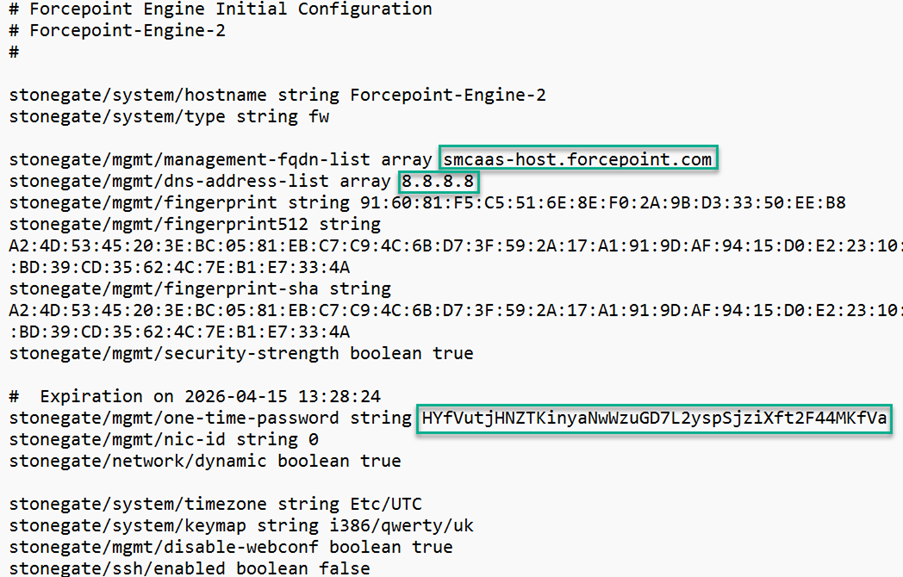
On your local machine, open the engine.cfg file in a text editor and make a note of the SMC Cloud Service FQDN, OTP, and Fingerprints. These will be required when configuring the connection.
 Note: In addition to the manual installation method described in this guide, an alternate USB installation is also supported. For more information, refer to Physical Appliance Install.