Deploying Chrome and Edge extensions
You can deploy Chrome and Edge extensions to manage extensions alongside the F1E Endpoint agent installation.
To deploy the Chrome and Edge extensions for Forcepoint DLP Endpoint using Jamf, do the following. Each browser has its own configuration profile; repeat the upload and scope steps for each profile you want to deploy.
Steps
-
To verify, open the Profiles preference page in the Settings application on the target.
If the profile loads successfully on the target, the policy appears.
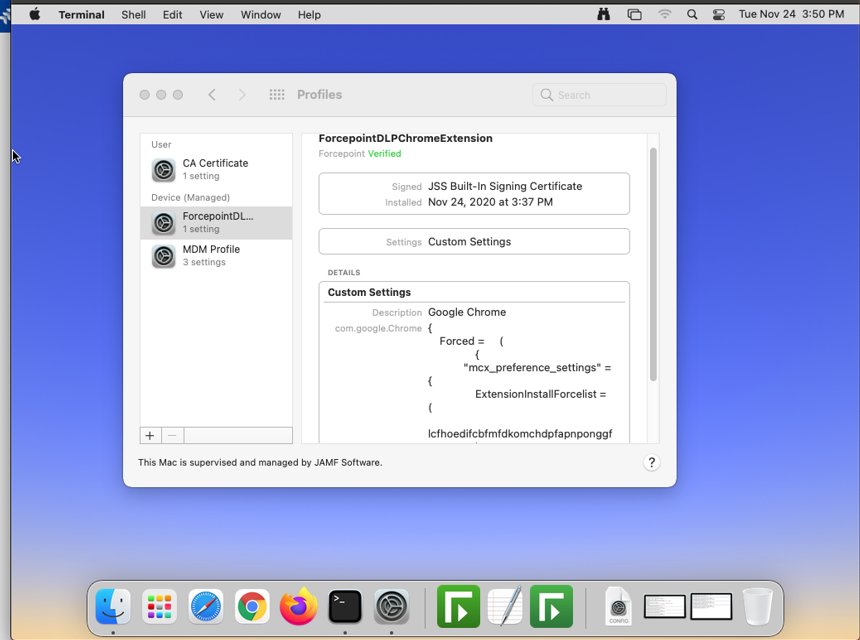
See Disable/Enable Chrome Extension in DLP Endpoint (Windows and macOS) for steps to disable the automatic installation of the Forcepoint Chrome Extension.
For information on deploying the Chrome extension for Forcepoint DLP Endpoint using Intune, see Deploying the Forcepoint Chrome Extension Using Intune.