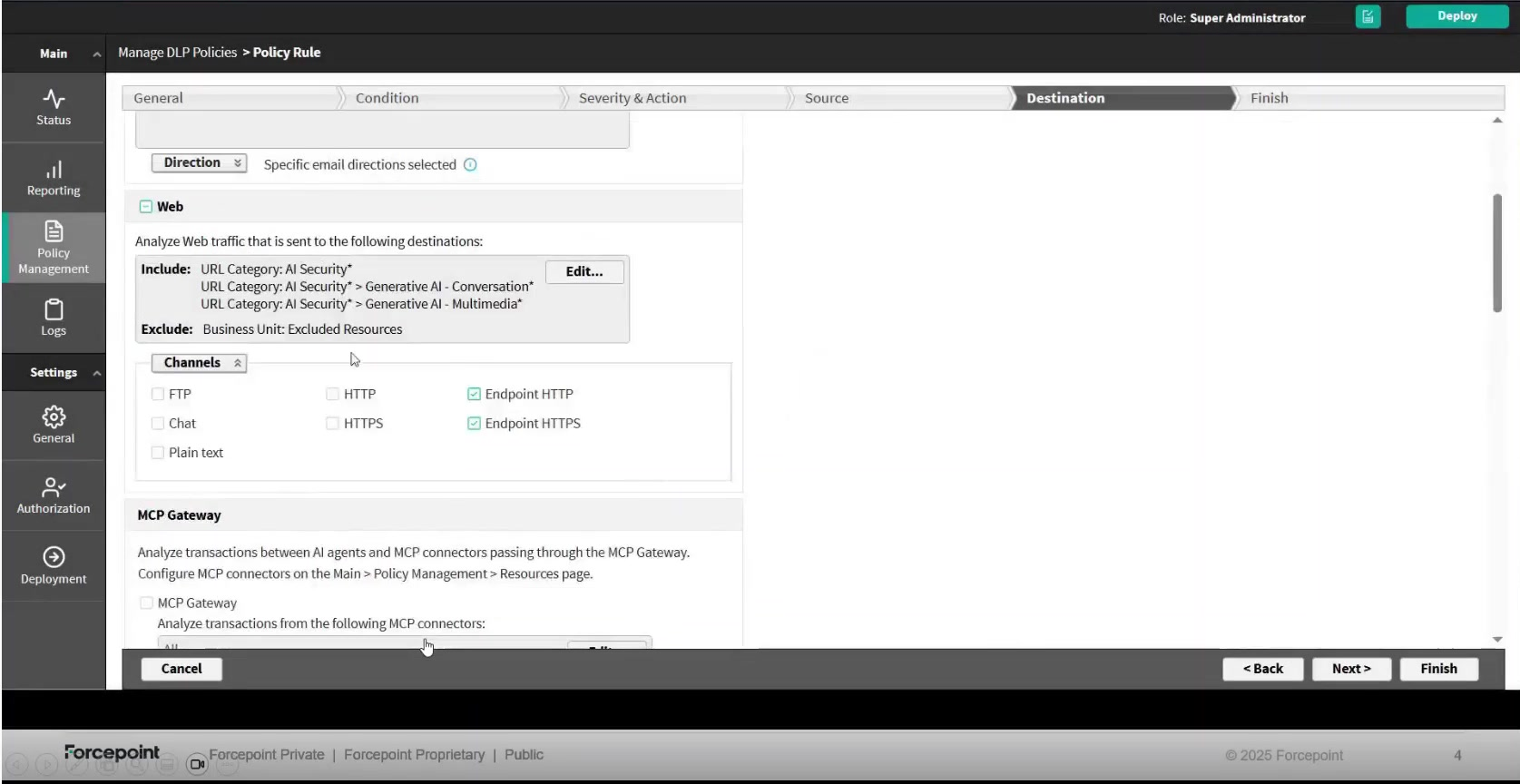
Step 5: Configuring a policy rule for URL categories
Add a rule that analyzes web traffic and select URL categories to apply.
Before you begin
Import the URL categories first. See Step 2: Import the URL categories.
Steps
-
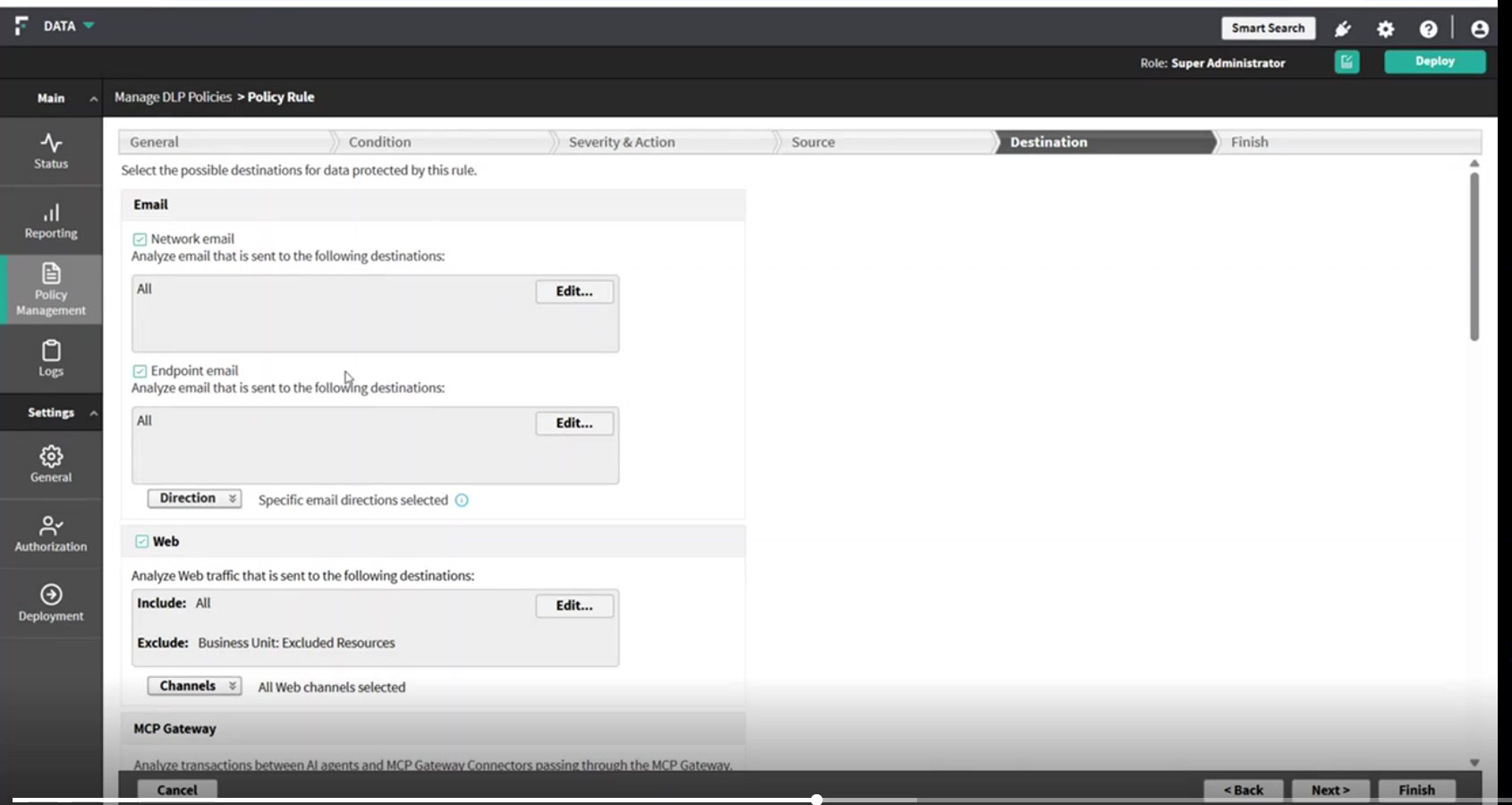
Select Channels and confirm which channels the rule applies to.
All web channels are selected by default, including Endpoint HTTP and Endpoint HTTPS. Those two carry the HTTP and HTTPS traffic seen by the endpoint agent. Clear any channel that the rule should not cover.
-
In the Select an Element dialog box, set Display to URL categories.
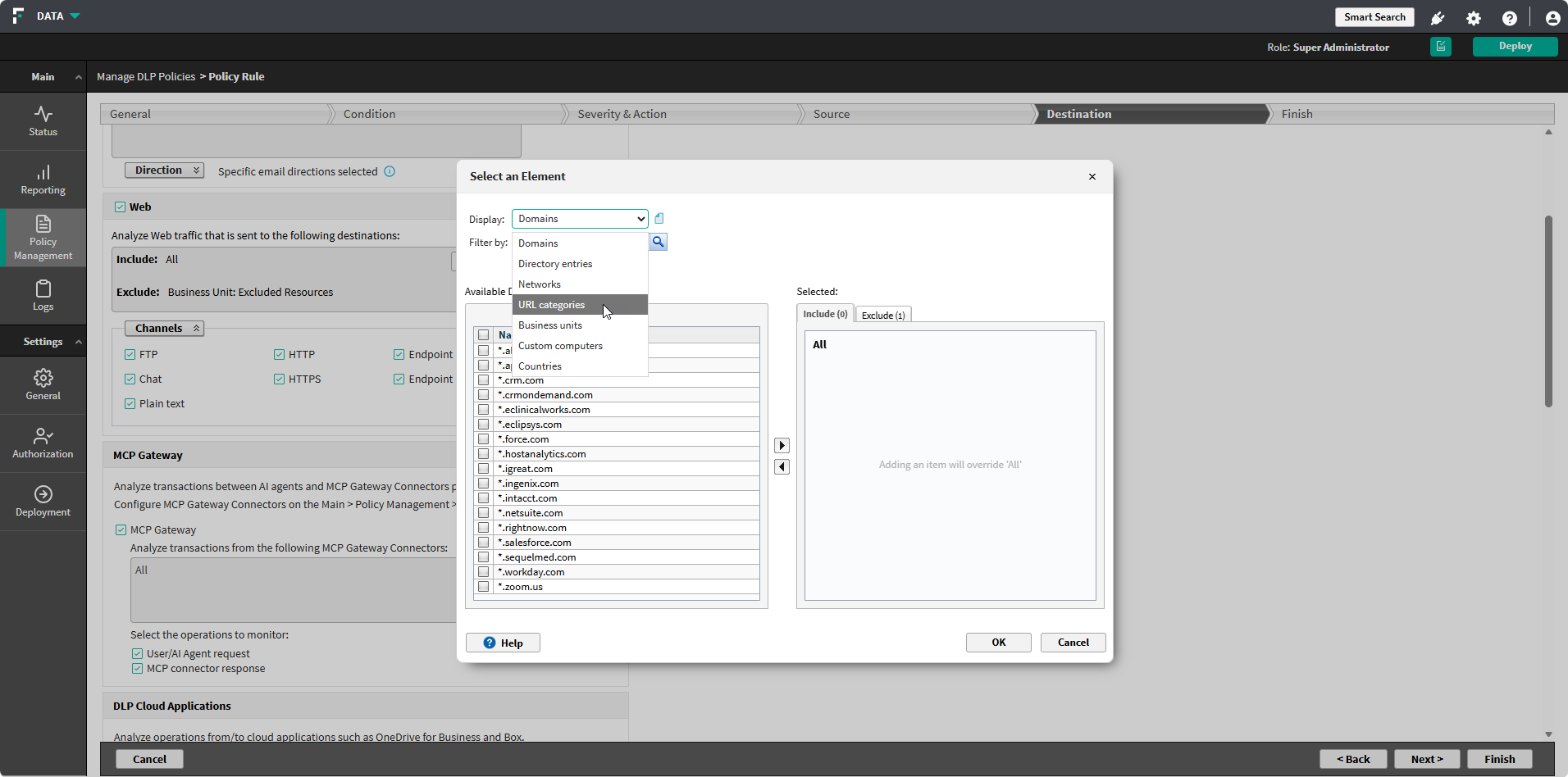
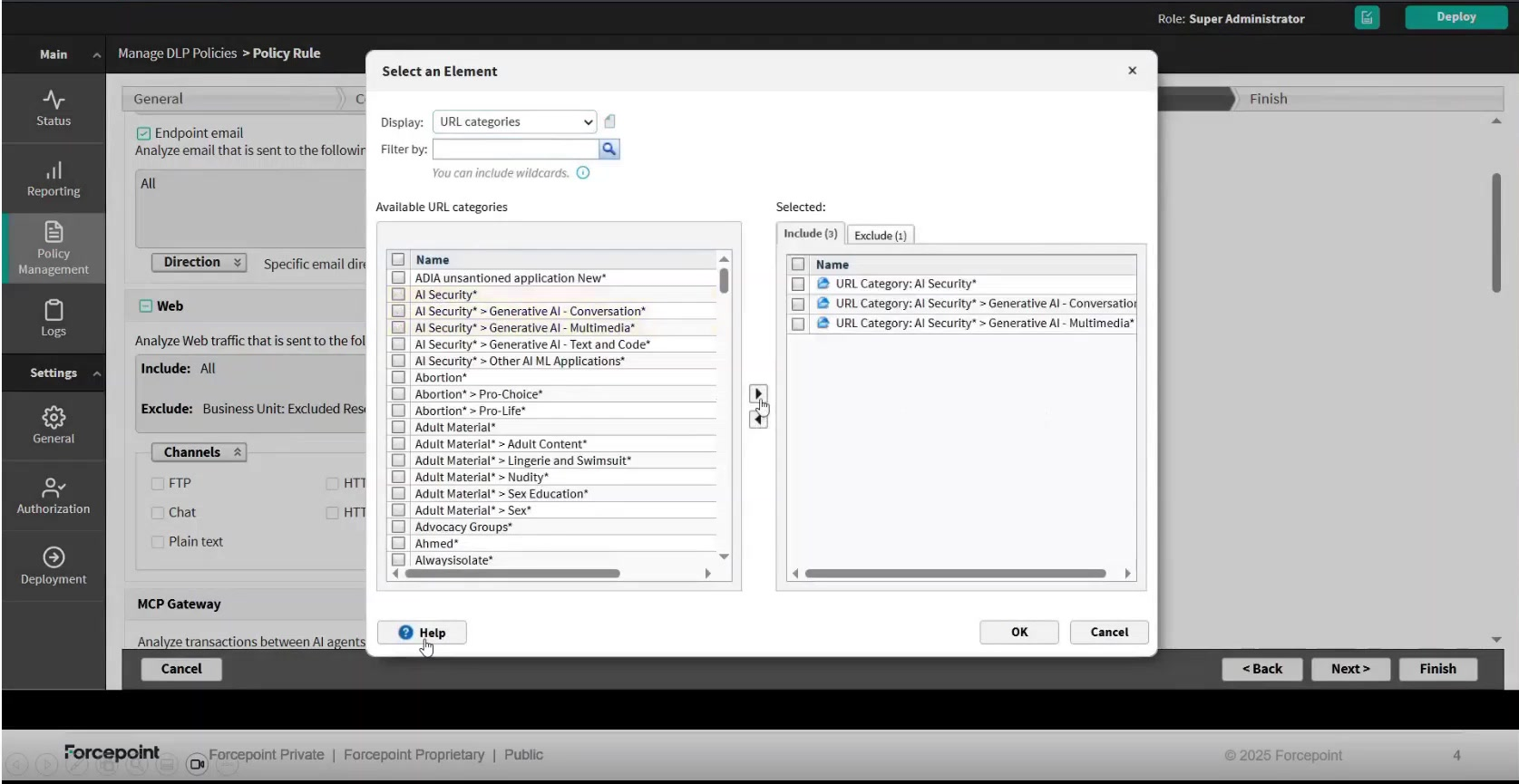
Available URL categories lists the imported categories. Use Filter by to search; wildcards are supported. Categories that sit beneath a parent are shown as parent and child, separated by a chevron, for example AI Security* > Generative AI - Conversation*.
To cover AI sites, select the AI Security parent category to include every kind of AI service, or select individual categories beneath it to narrow the rule. Any other imported category can be selected in the same way.
-
Select the categories to analyze and move them to Include, then select OK.
Adding any item overrides the default value of All. Categories can also be moved to Exclude to omit them from an otherwise broad rule.
The selected categories are listed against Include on the Destination tab, each prefixed with URL Category:.