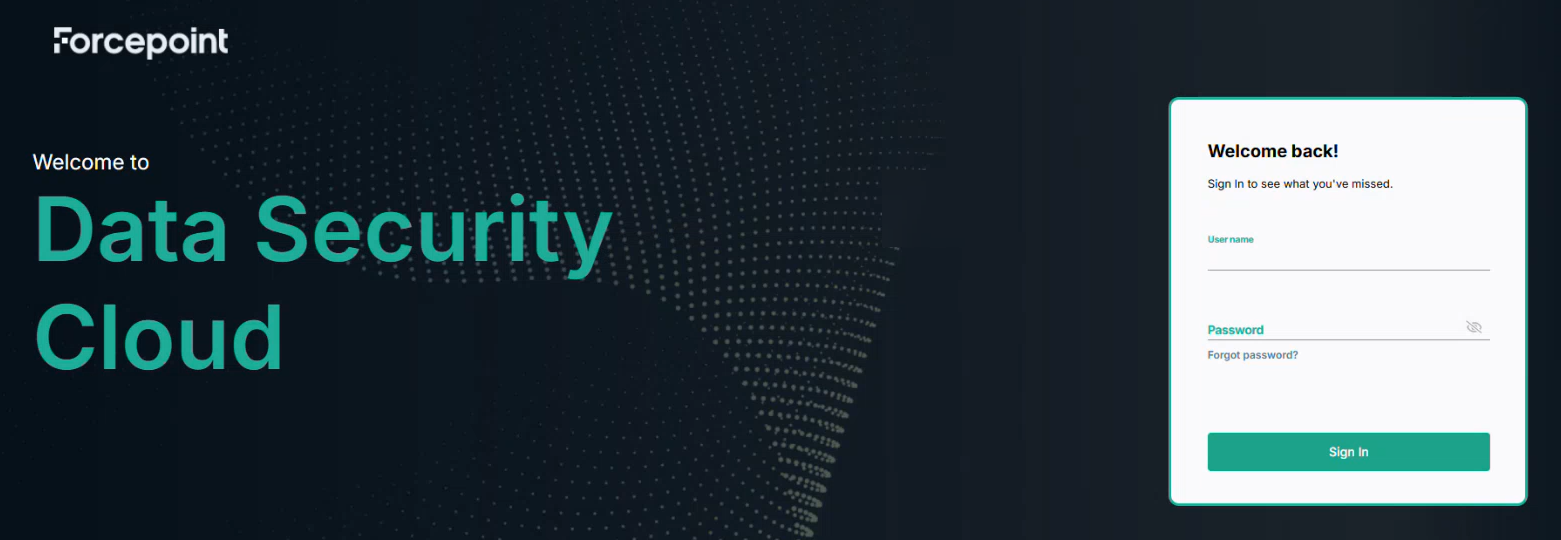
Step 2: Register and Access the Cloud Tenant
Steps
-
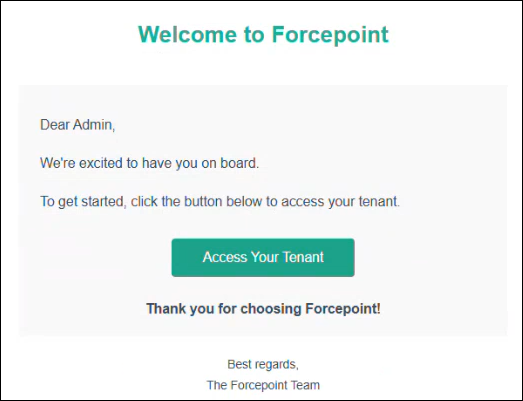
Open the registration email, and then select Access Your Tenant.
 A user or administrator new to the Forcepoint Data Security Cloud Platform will be taken to the Forcepoint Data Security Cloud Platform sign-in page.
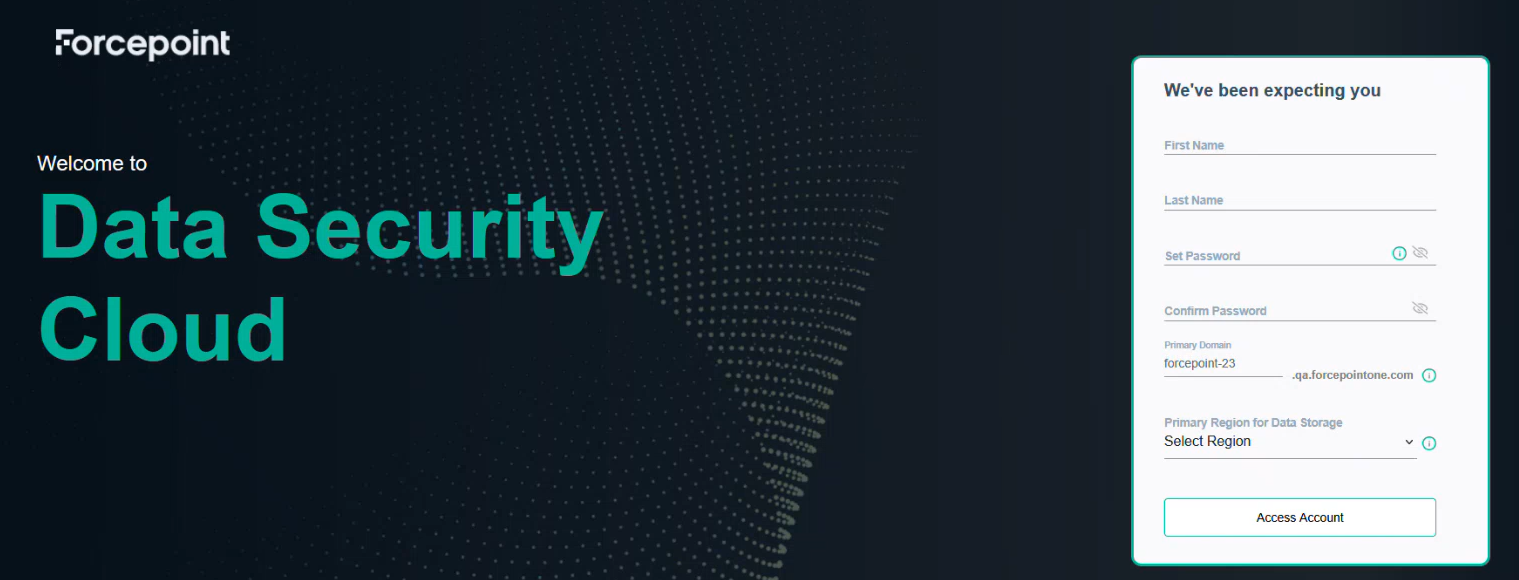 Note: A user or administrator who already has a Forcepoint Data Security Cloud Platform account, is taken to the login page. If you already have an account, skip to step 6 in this instruction set.
 -
Click Access Account.
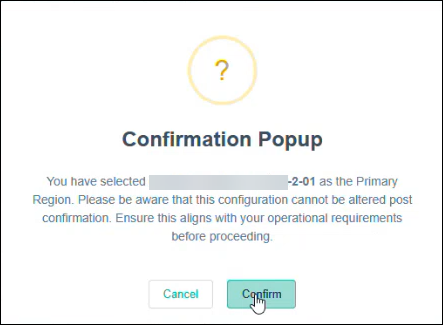
A message confirms successful tenant access.
-
To onboard the tenant, click OK.
The Forcepoint Data Security Cloud Platform login page opens.