Step 4: Add User

To enable the Executive Overview dashboard access to a user, the Global Security administrator must assign the user role to the relevant user or administrator.

Steps

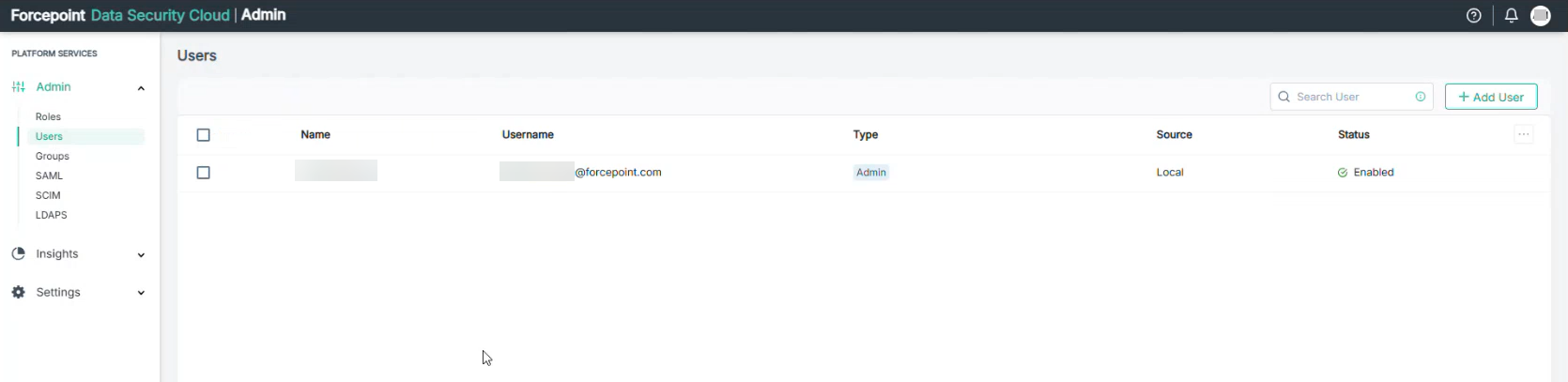
  1. Log in to Forcepoint Data Security Cloud Platform.
  2. Go to Admin > Users.

  3. Click Add User.
    The Add User view opens.
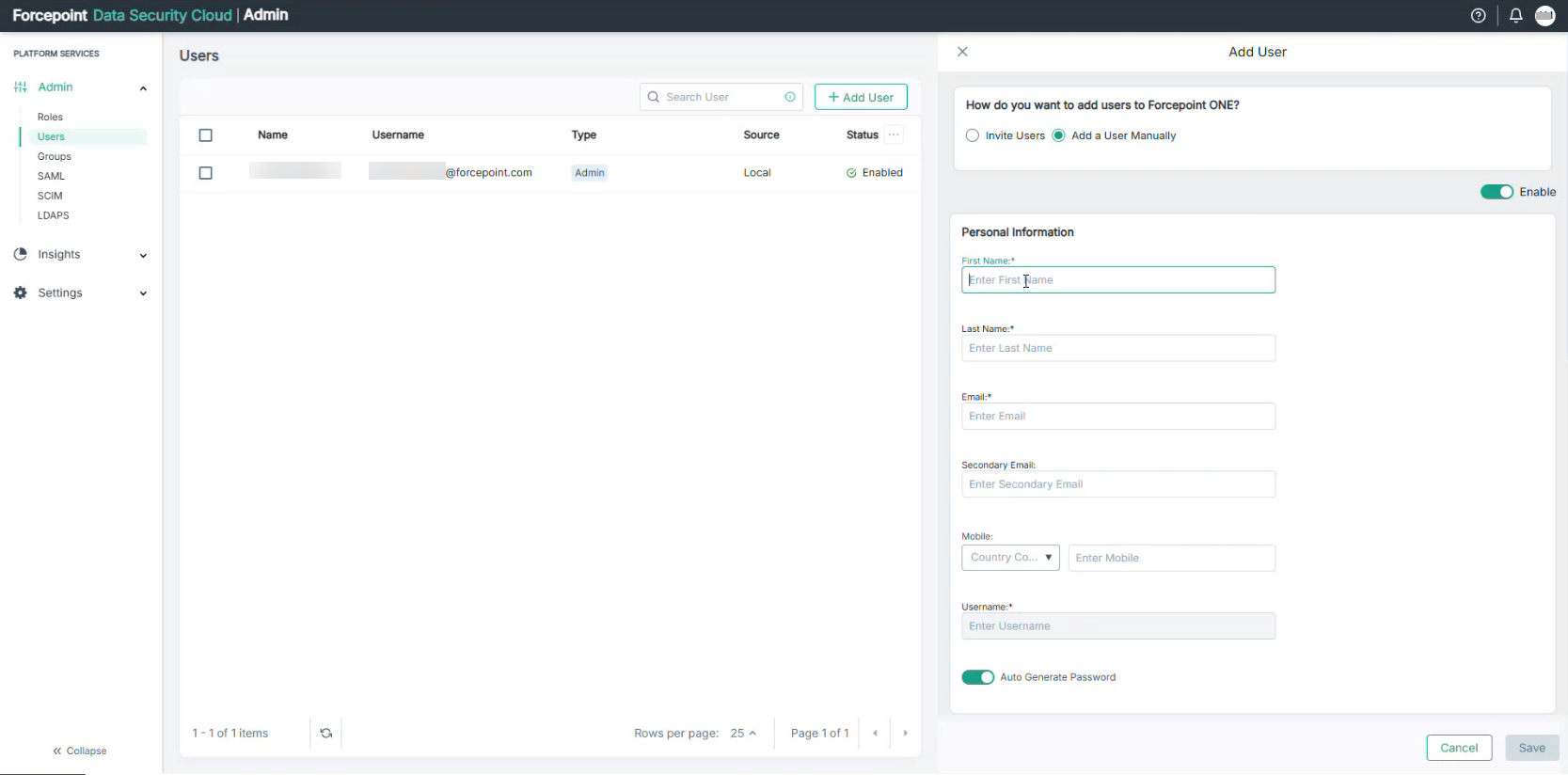
  4. Select Add a User Manually.
  5. Enter the following details of the user in the Personal information section.
    • First and last name
    • Email address
    • Secondary email address(optional)
    • Mobile number with country code(optional)
    • Username
  6. In Additional Information, you can enter the following details:
    • Job Title
    • Office Name
    • Office Street
    • Office City
    • Office Zipcode
    • Country name
    • Department
    • Manager email address
    • Manager full name
  7. If required, add groups.
  8. In Roles, search for the relevant role and add it to appear in the Applied Roles list.
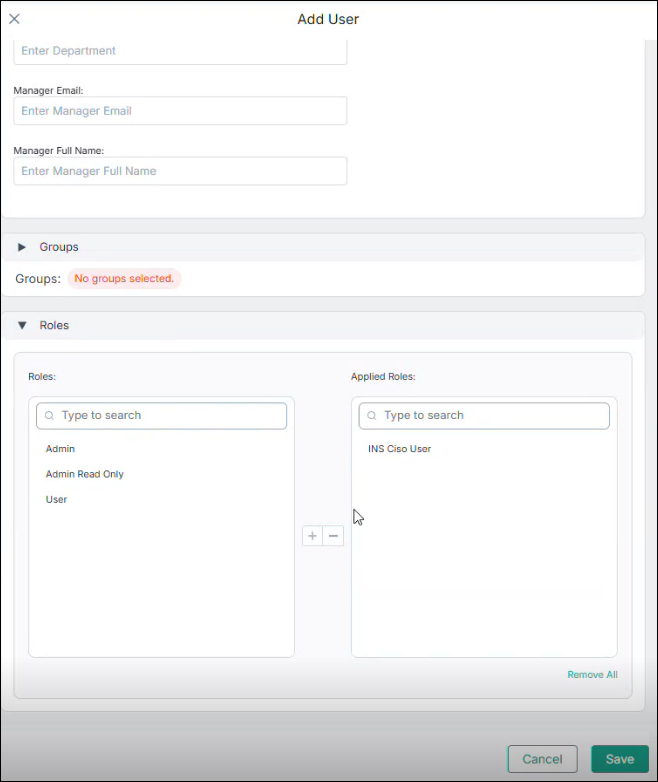
    By assigning only the user role under the Applied Roles section, the user can focus on viewing only the Executive Overview menu in their Forcepoint Data Security Cloud Platform tenant.

  9. Click Save.
    The user is added and a registration email containing the login credentials is sent to the user for account activation.
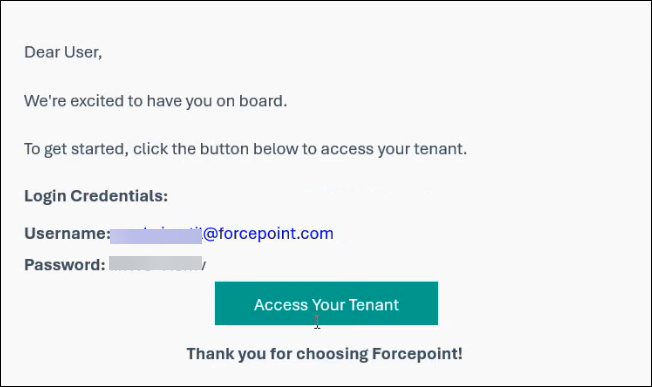
  10. Follow the registration sign-in procedure and then log back in to the Forcepoint Data Security Cloud Platform.
    The Executive Overview menu now appears under Insights.
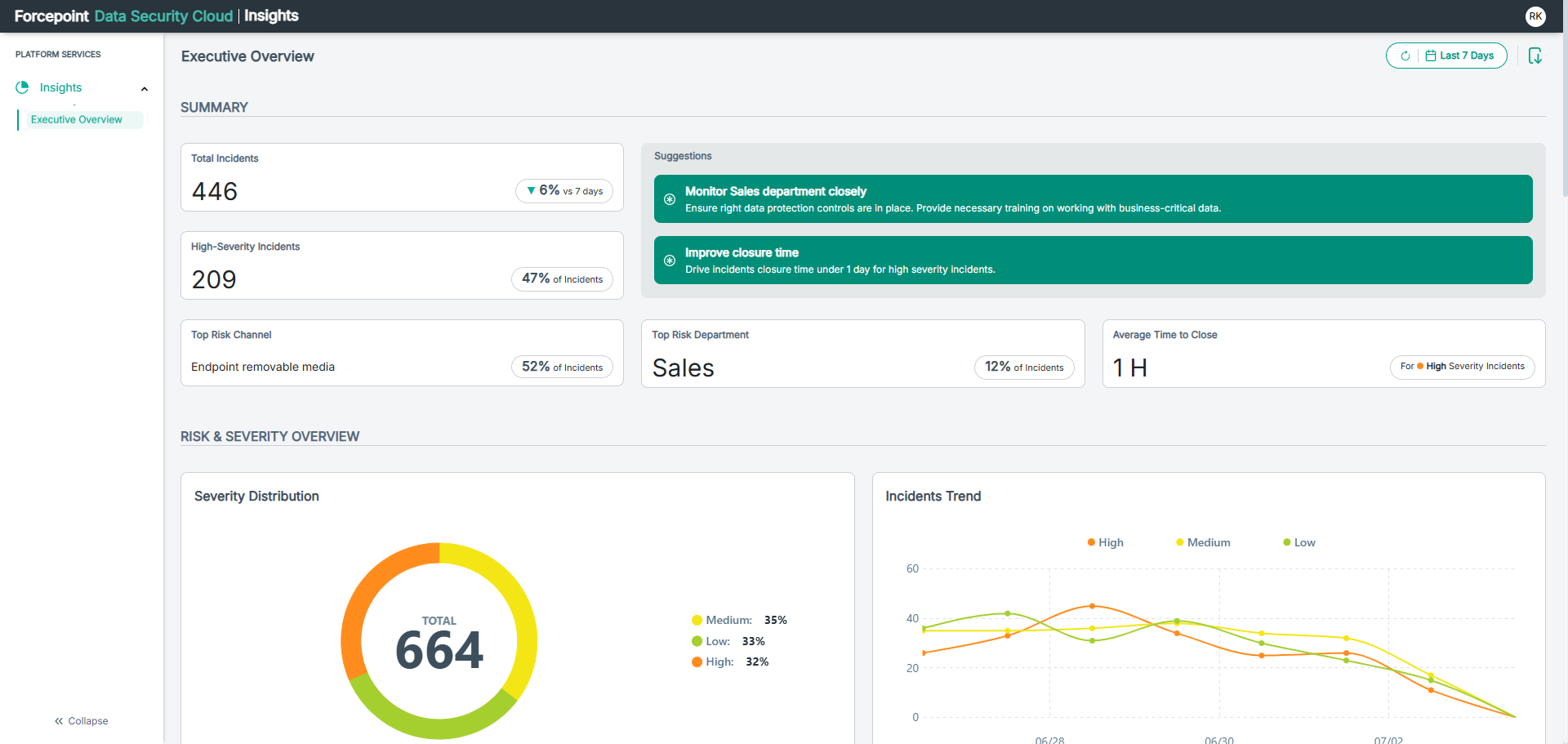
    Once the connection is established, the data from Forcepoint Security Manager starts generating under Executive Overview.