Setting up the Databricks Workspace Datasource Connector for Unstructured Data
Prerequisites
- The datasource must be reachable from the network where the product is deployed (for example, via a private DNS name or a routable IP address).
- If a firewall is in place, ensure the required port is open.
- Create a user account with read access to the datasource metadata for the product to run the scanning process.
Creating Database Credentials
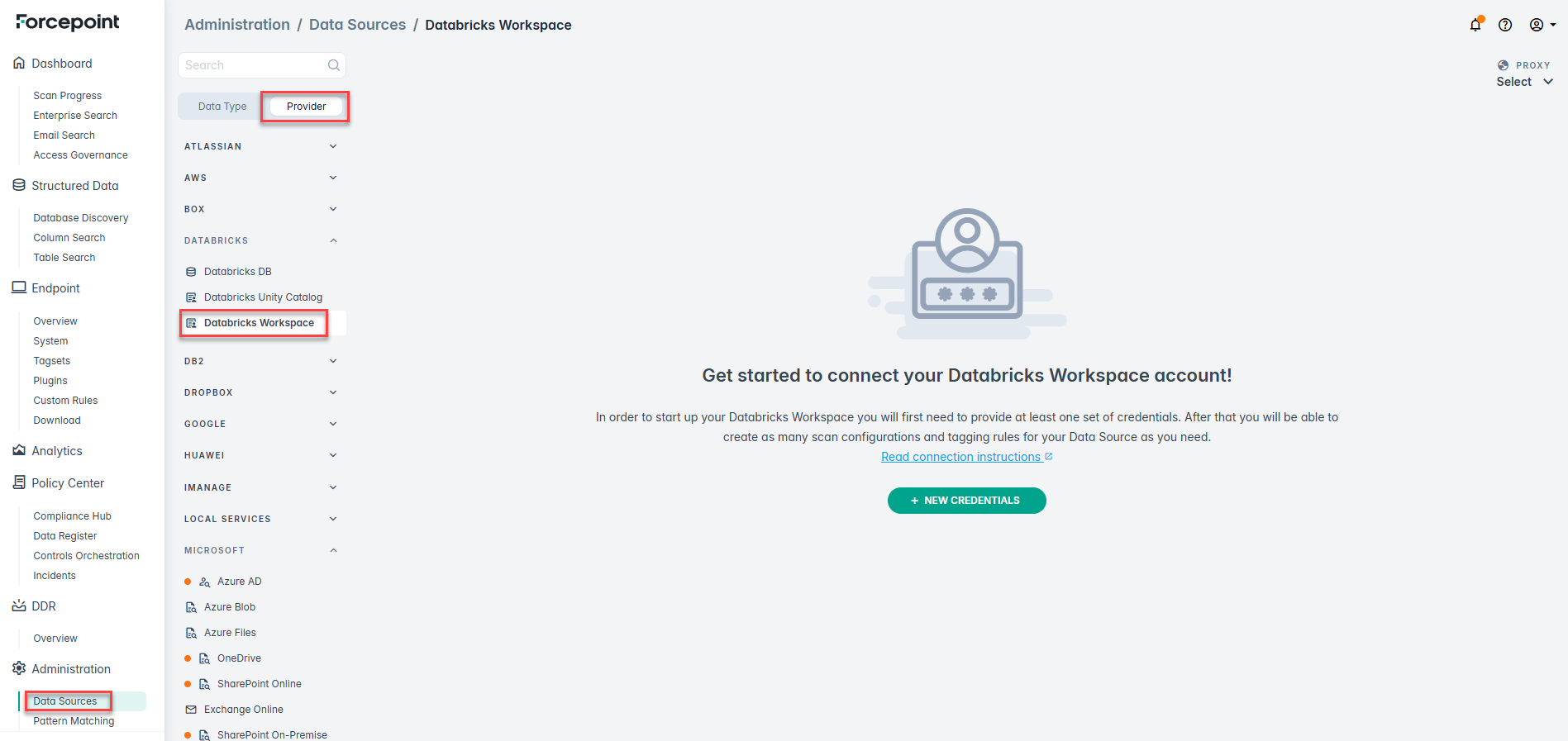
- Navigate to and choose Databricks Workspace from the DATABRICKS provider.
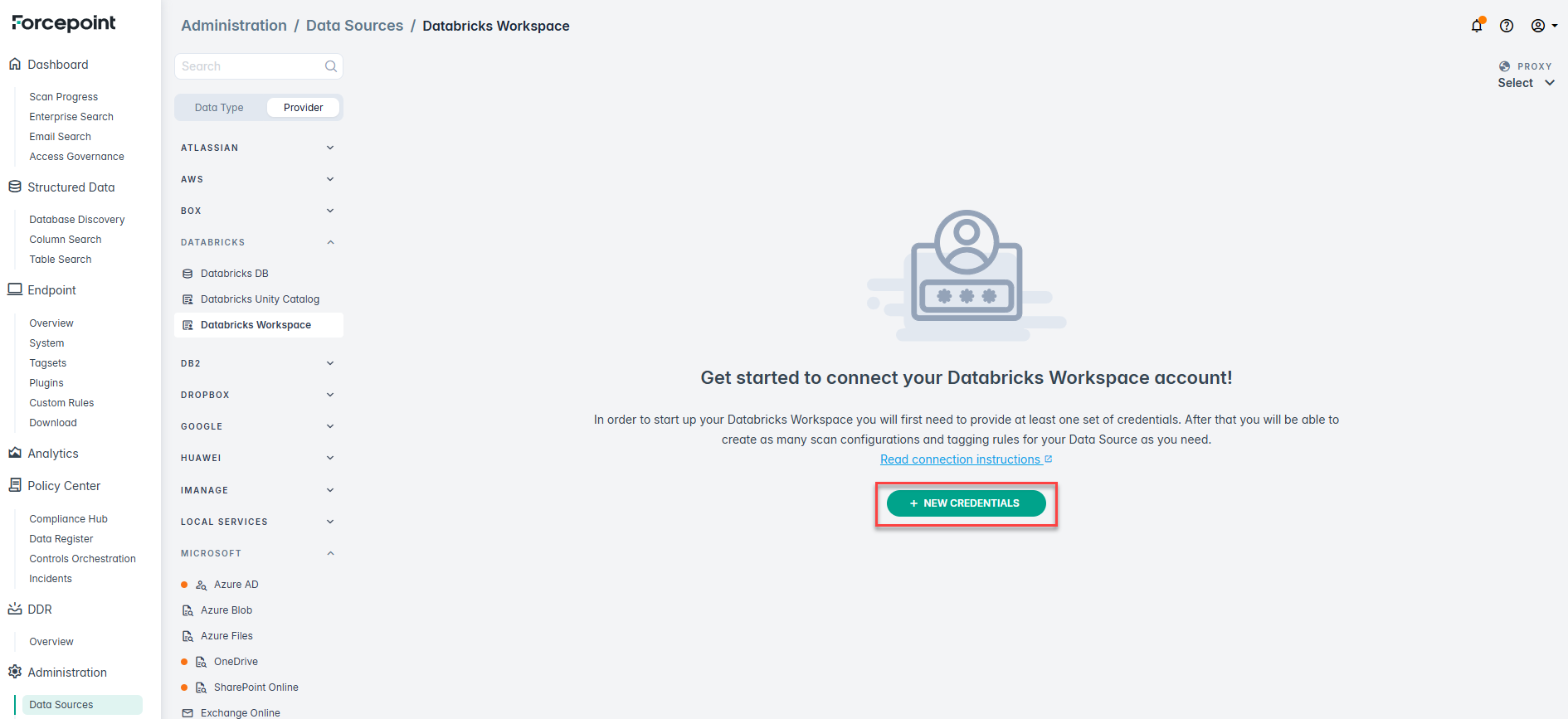
- Click NEW CREDENTIALS to create a new credential for Databricks Workspace.
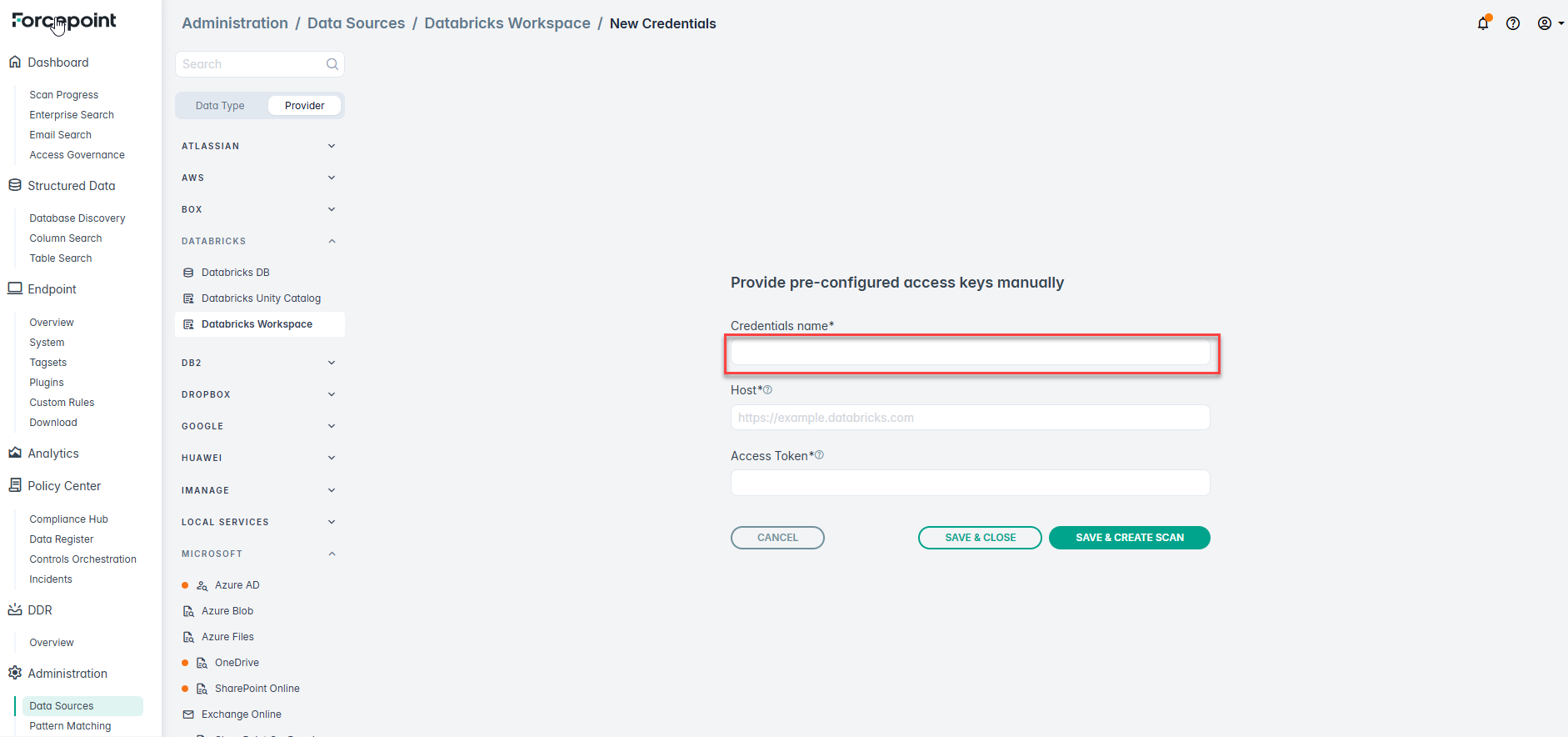
- Provide Credentials name.
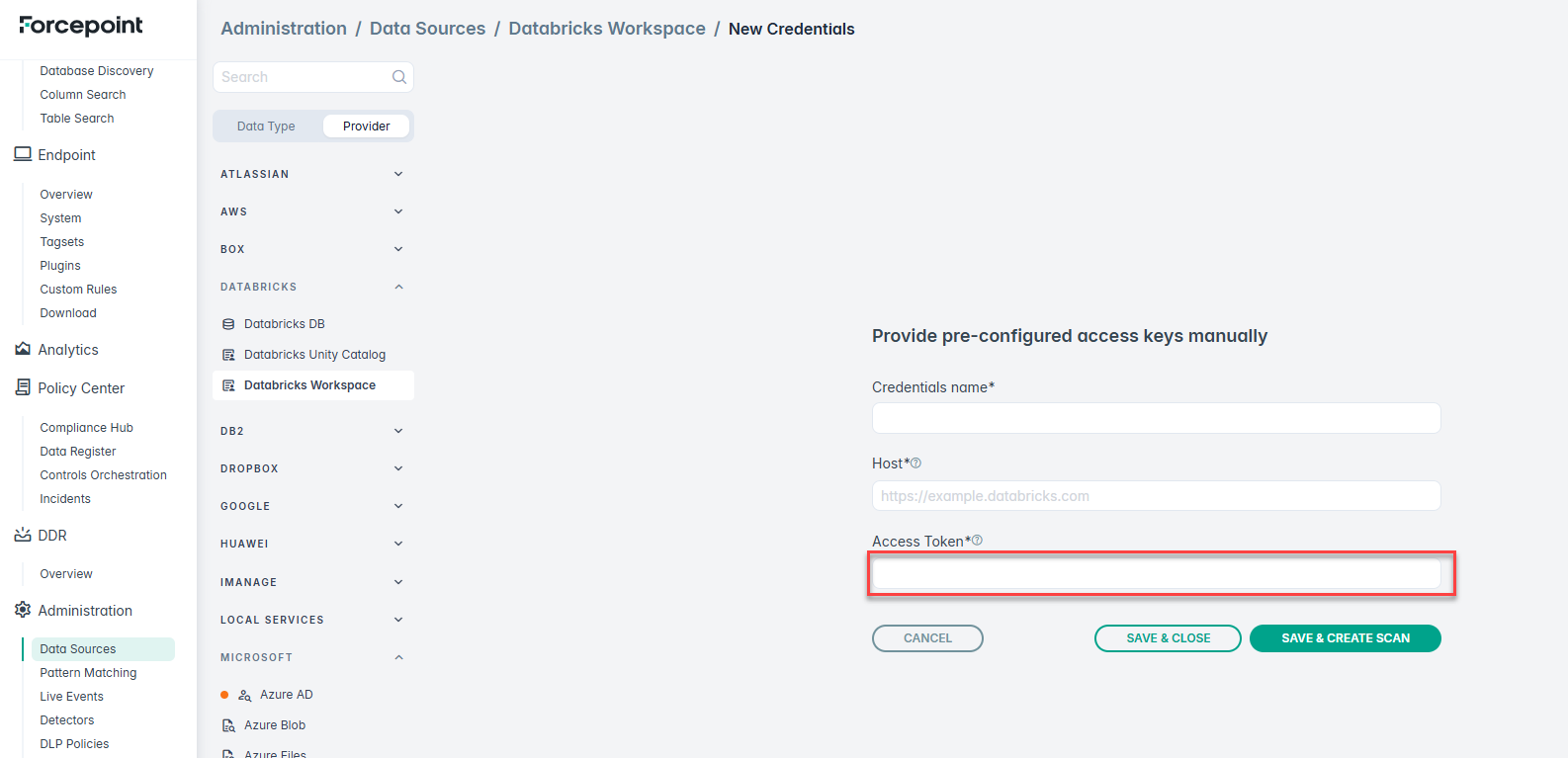
- Provide Host information. To find the Host [Databricks workspace URL], follow the below mentioned steps.
- Log in to your Databricks account and from the left navigation menu, select Workspaces and Click on the workspace you want to connect.

- In the Configuration tab, locate the URL field and copy the complete workspace (Host) URL.
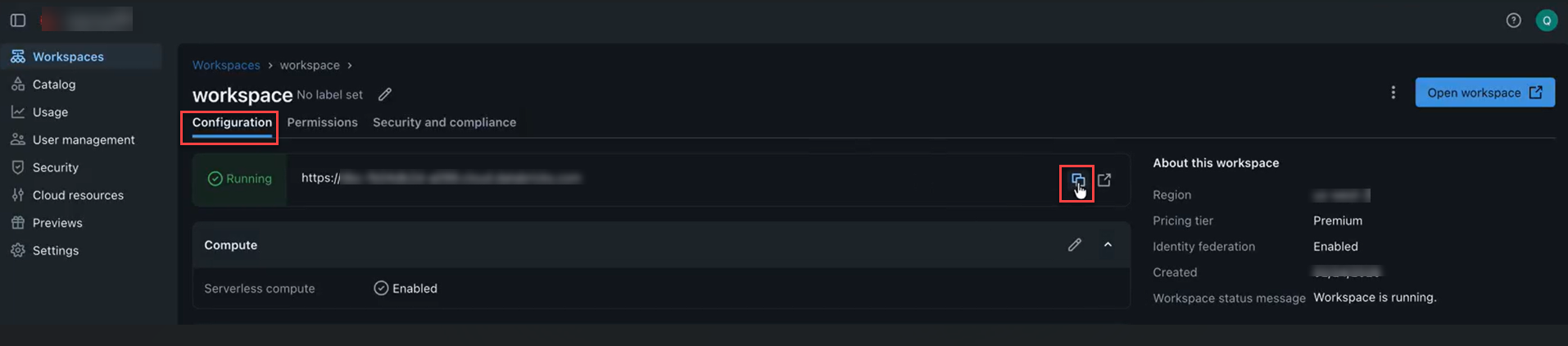
- Paste the copied workspace (Host) URL in the Host field.
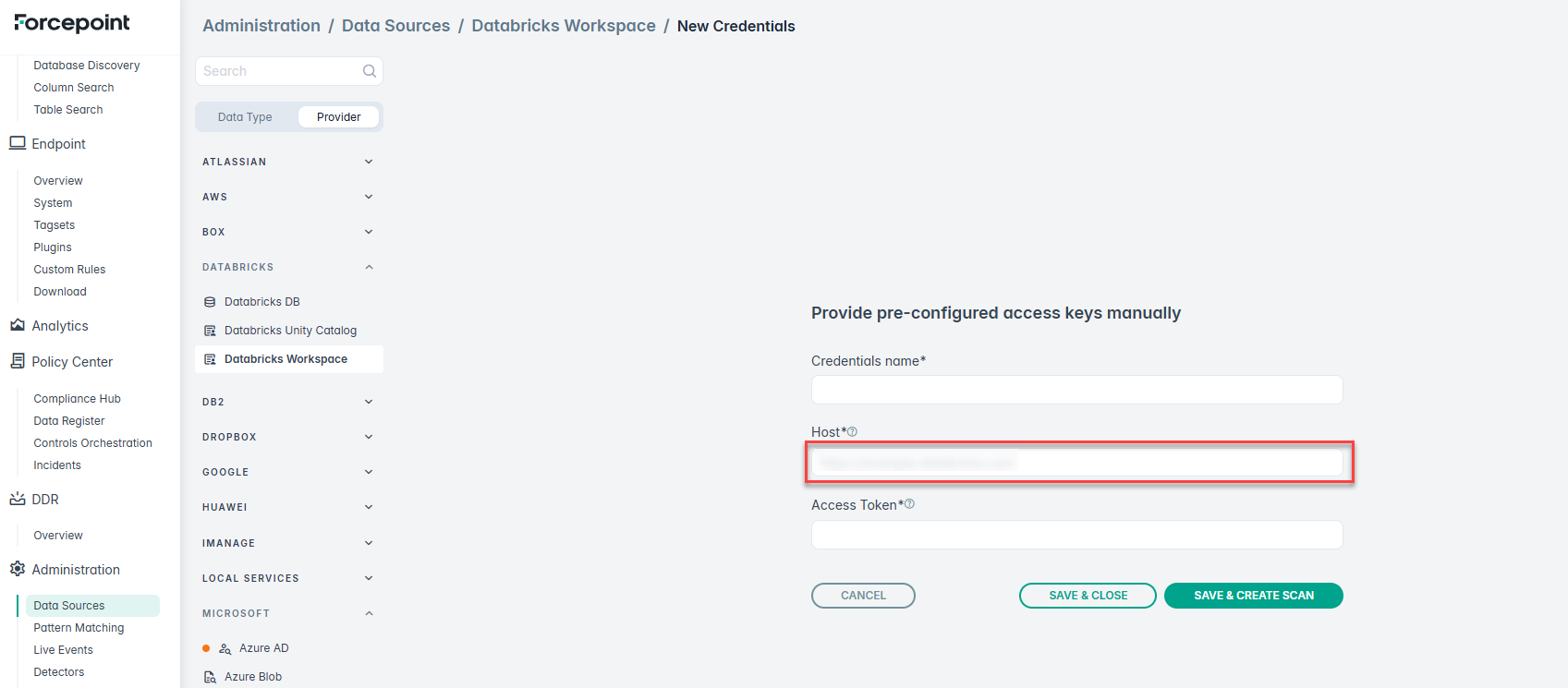
- Log in to your Databricks account and from the left navigation menu, select Workspaces and Click on the workspace you want to connect.
- Provide Access Token. To generate the Access Token follow the below mentioned steps.
- In the Databricks workspace, click your user profile icon in the top-right corner and go to settings.

- Under User settings, click Developer and click Manage to open the Access tokens screen.
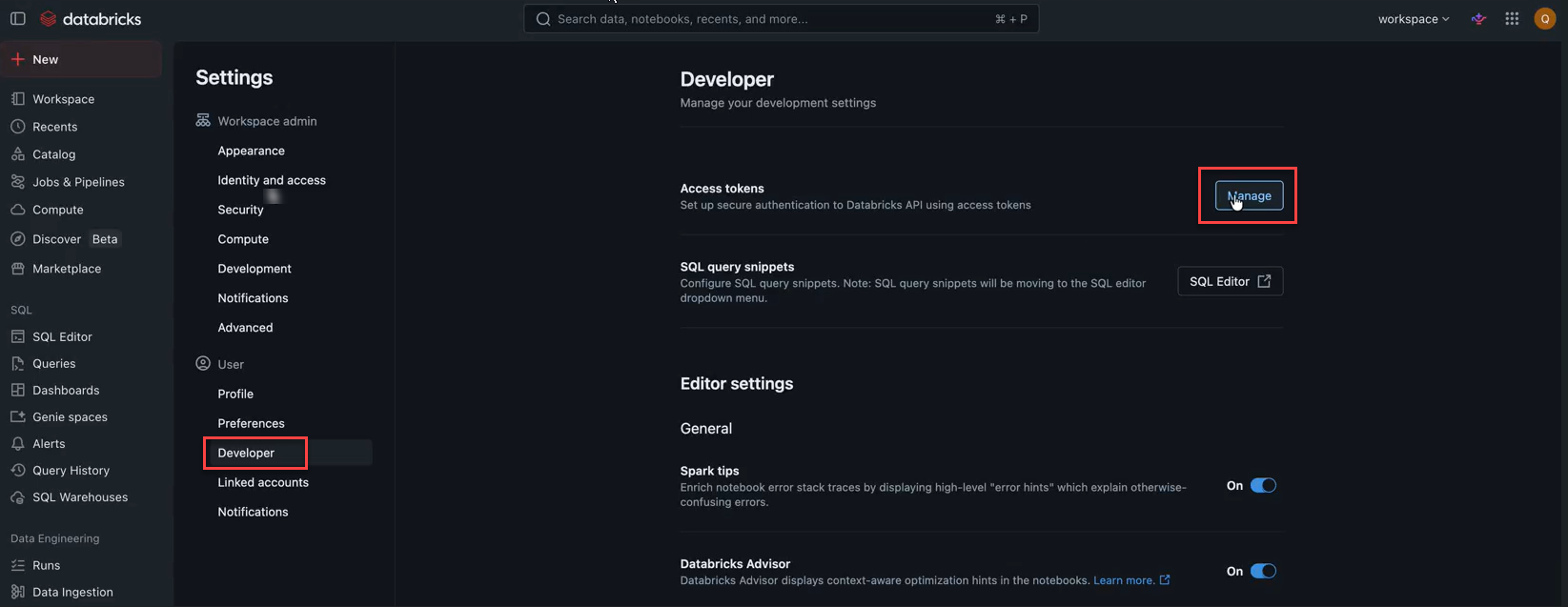
- Click Generate new token.

- Enter a comment to identify the token.
- Specify the token Lifetime (days) as required.
- Under Scope, select Other APIs.
- Under API scope(s), add the following scopes: files, scim, access-management, and workspace.
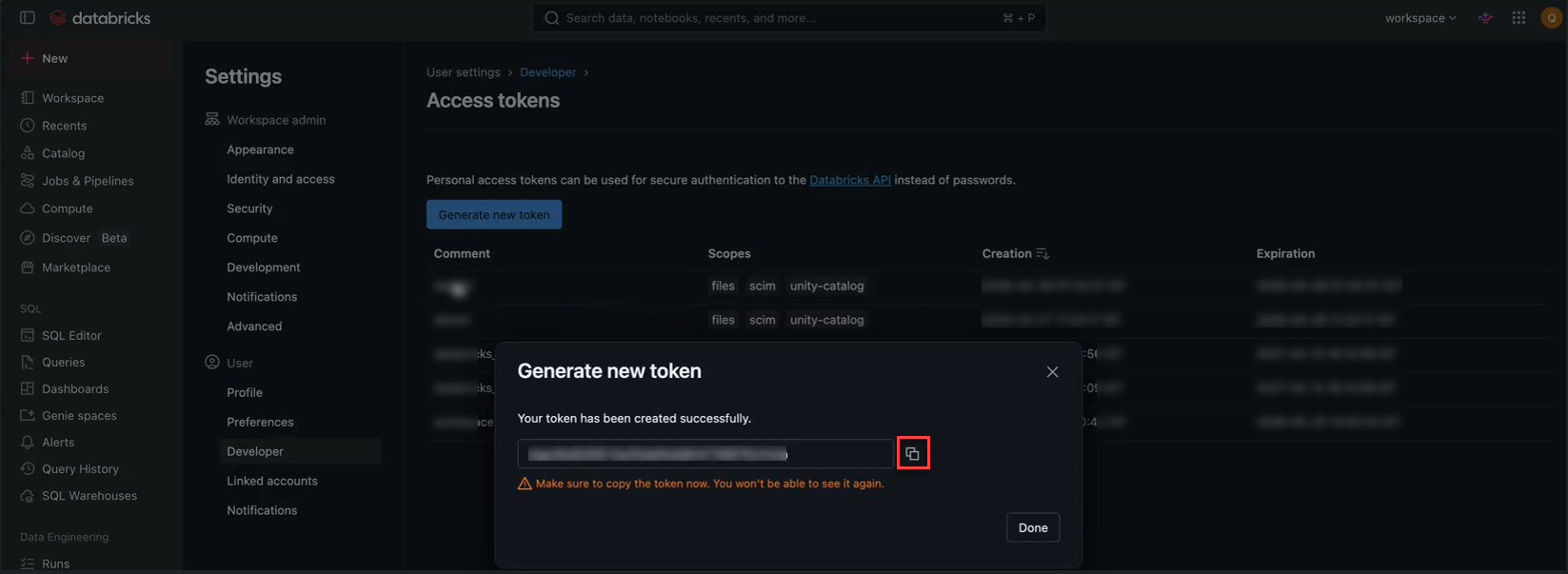
- Click Generate.
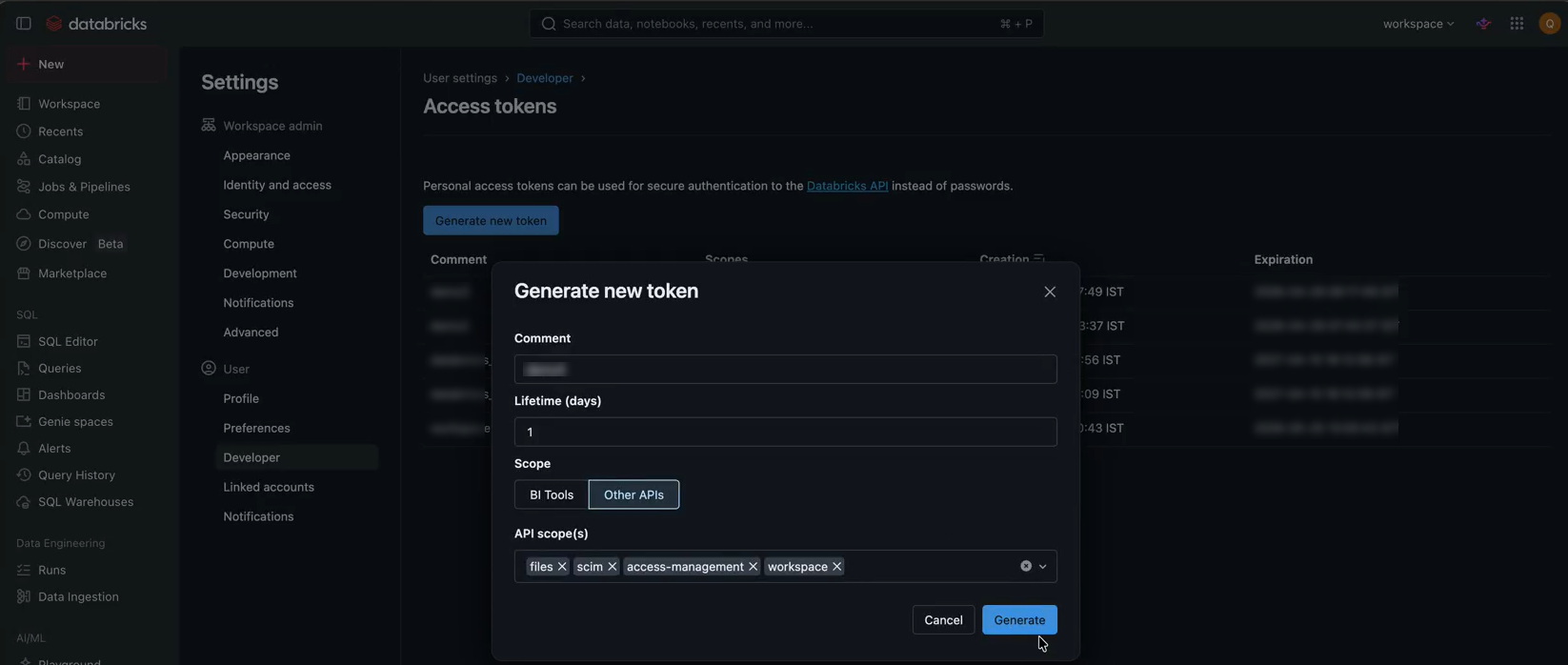
- Copy the generated token immediately.Note:
The token will not be visible again after this step.
- In the Databricks workspace, click your user profile icon in the top-right corner and go to settings.
- Paste the copied token into Access Token field and click SAVE & CLOSE.