Installing for Hybrid DLP

To install the Forcepoint agent in Hybrid DLP mode, an administrator must configure the installation package with files from the Forcepoint Security Manager (FSM) before running the installer. Follow the steps below:

Steps

  1. Unzip the downloaded installer. The following files should be present in the unzipped folder.
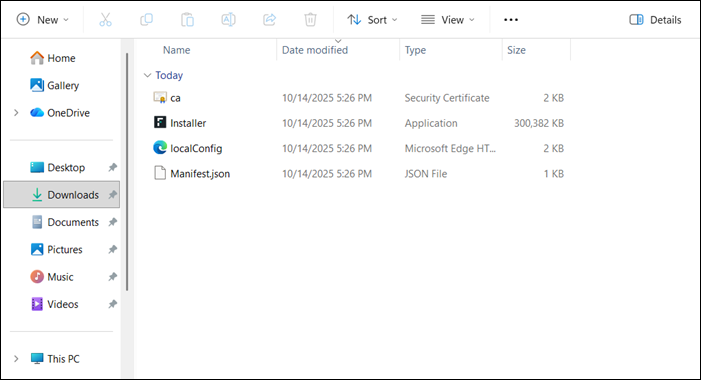
  2. Obtain the ca.cer and localconfig.xml files from the DLP manager in FSM, located at C:\Program Files (x86)\Websense\Data Security\client.
  3. Replace the ca.cer and localconfig.xml in the unzipped installer package with the ones obtained from the FSM.
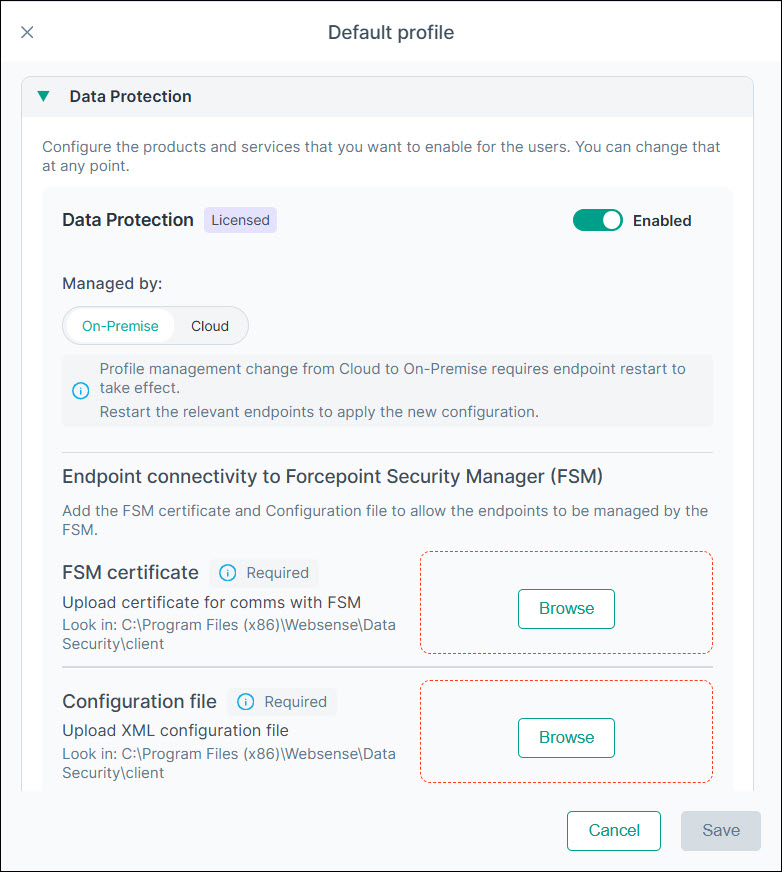
  4. In the Forcepoint Portal, for the appropriate profile in Endpoint management > Profiles, verify that the Managed by mode under Data Protection is set to On-Premise, and upload the same ca.cer and localconfig.xml used in the installer package. Ensure this is done in the profile that contains the device on which the agent will be installed.
  5. Run the installer file.
    The Forcepoint Agent Setup window opens.
  6. Select I agree to the license terms and conditions and click Install.
    The installer displays a confirmation message indicating that the installation has successfully completed. Upon completion, the files are installed in the C:\Program Files\Forcepoint\Forcepoint Agent directory.
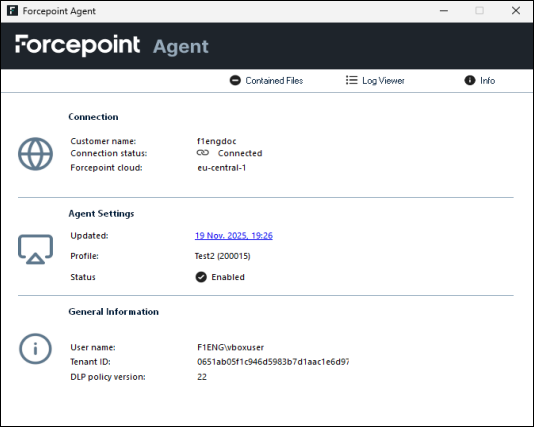
  7. Go to the Task bar, right-click the Forcepoint icon and select Forcepoint Agent to validate the installation.