Deploy using MDM-supplied UPN (certificate-free)
This section explains how to deploy Forcepoint Mobile Endpoint Agent using Microsoft Intune without requiring certificates. This certificate-free method uses username/password authentication and delivers the user's User Principal Name (UPN) through an app configuration policy.
Note: Forcepoint has validated the steps below using Microsoft Intune. While similar configurations may be possible with other MDM solutions, Forcepoint has not verified them.
Steps
-
Step 1: Add the Mobile Endpoint Agent application.
-
Select iOS store app from the App type dropdown, then click Select.
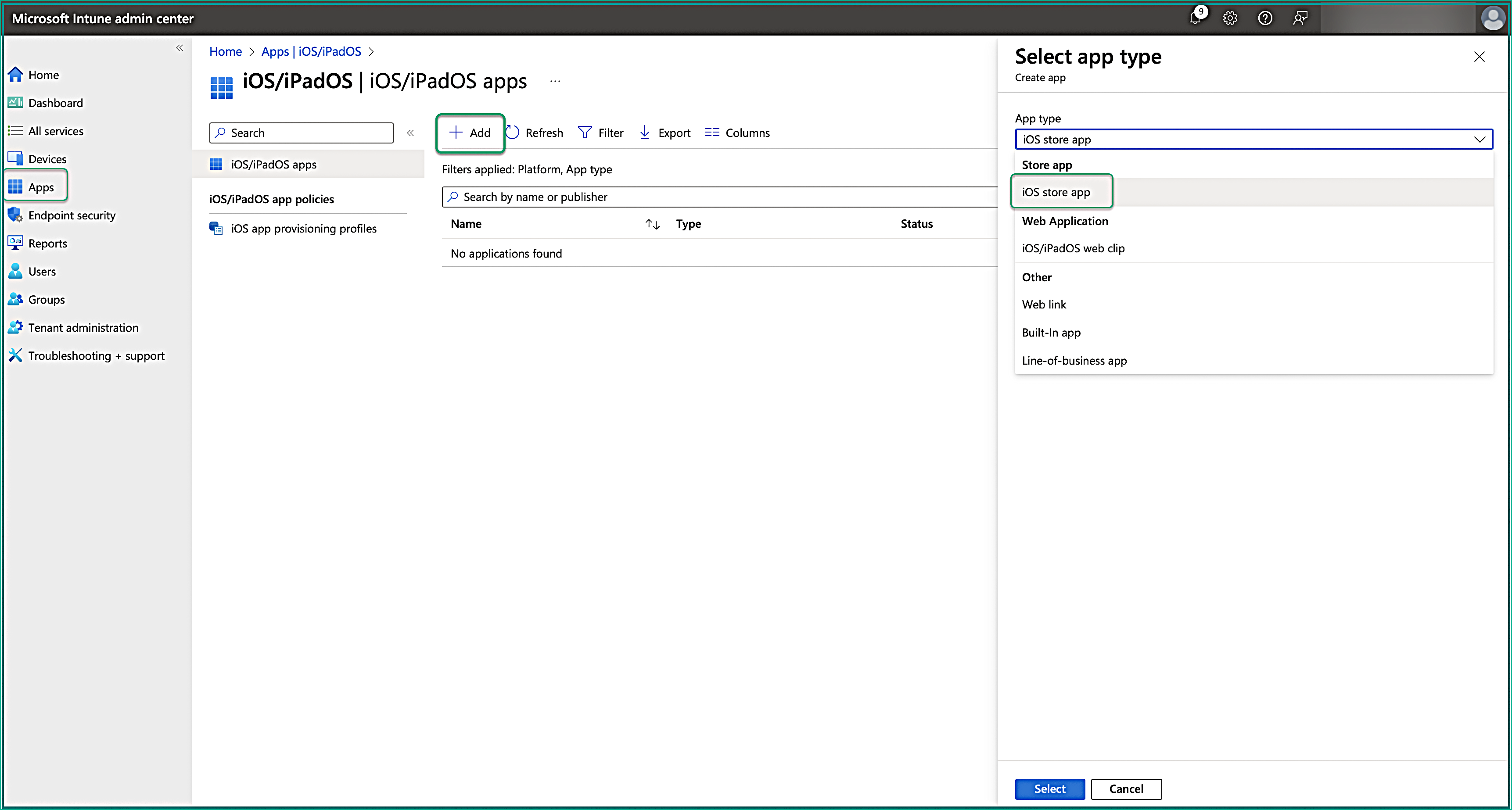
-
Click Search the App Store and search for Forcepoint Mobile. Then select the application.
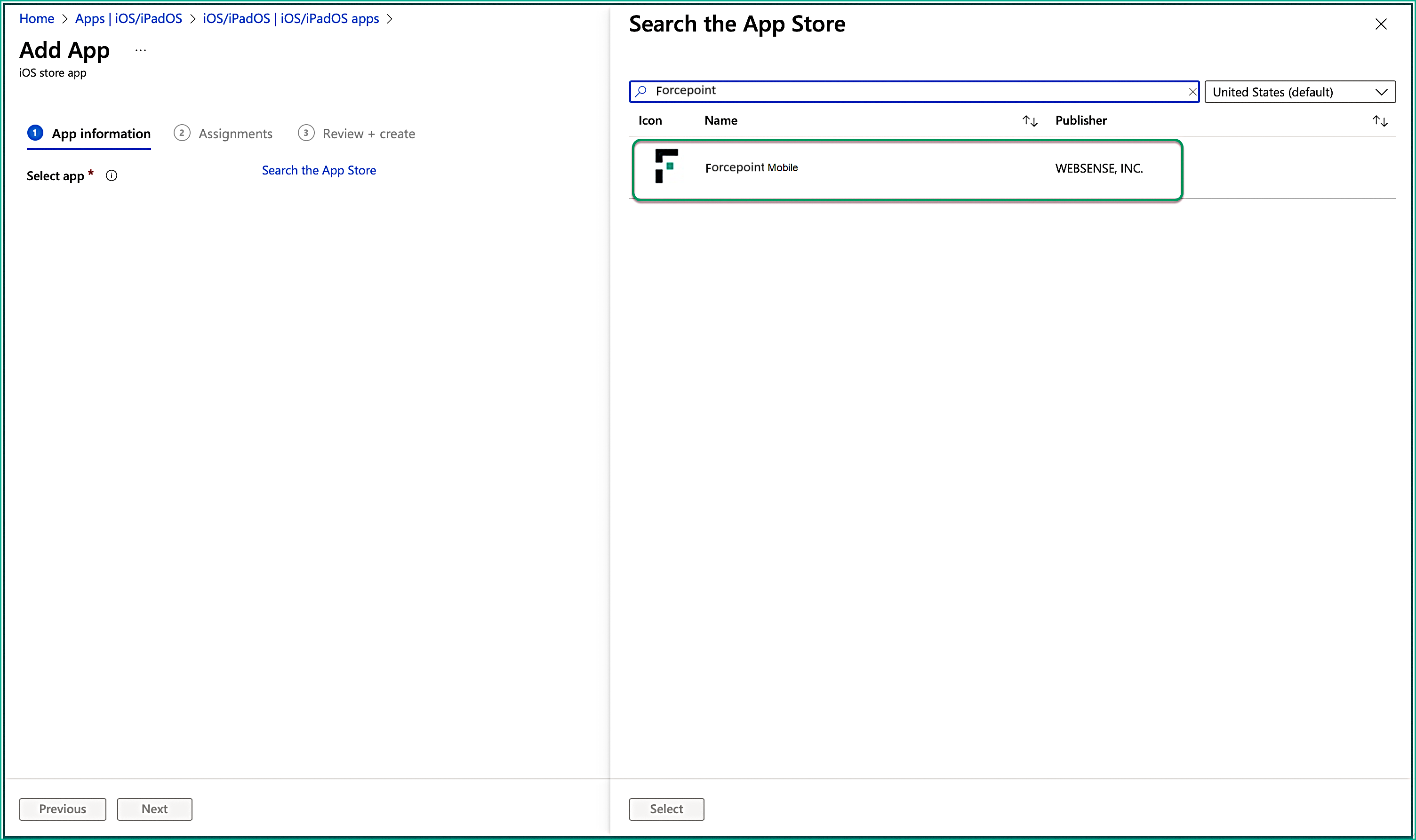
-
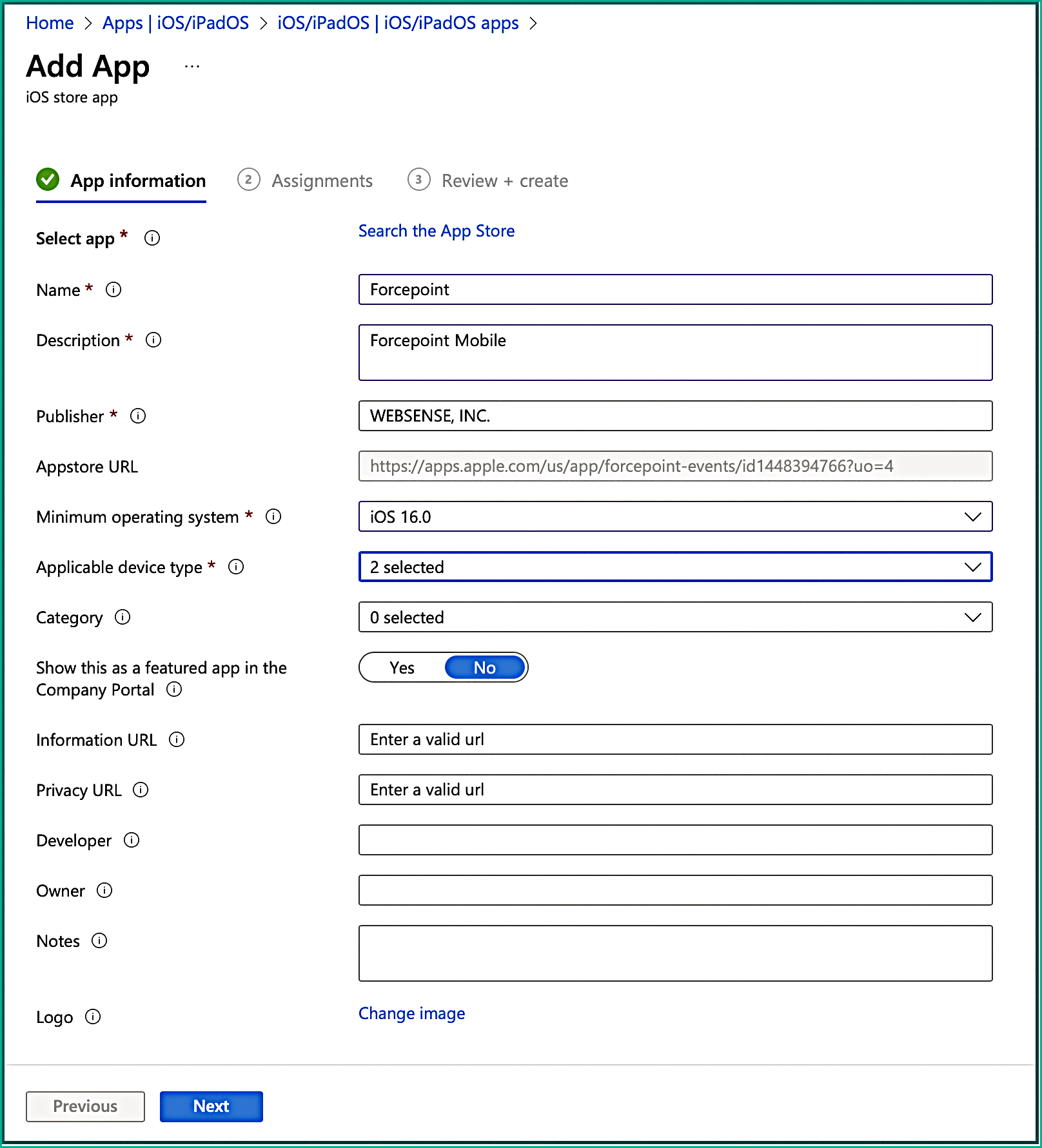
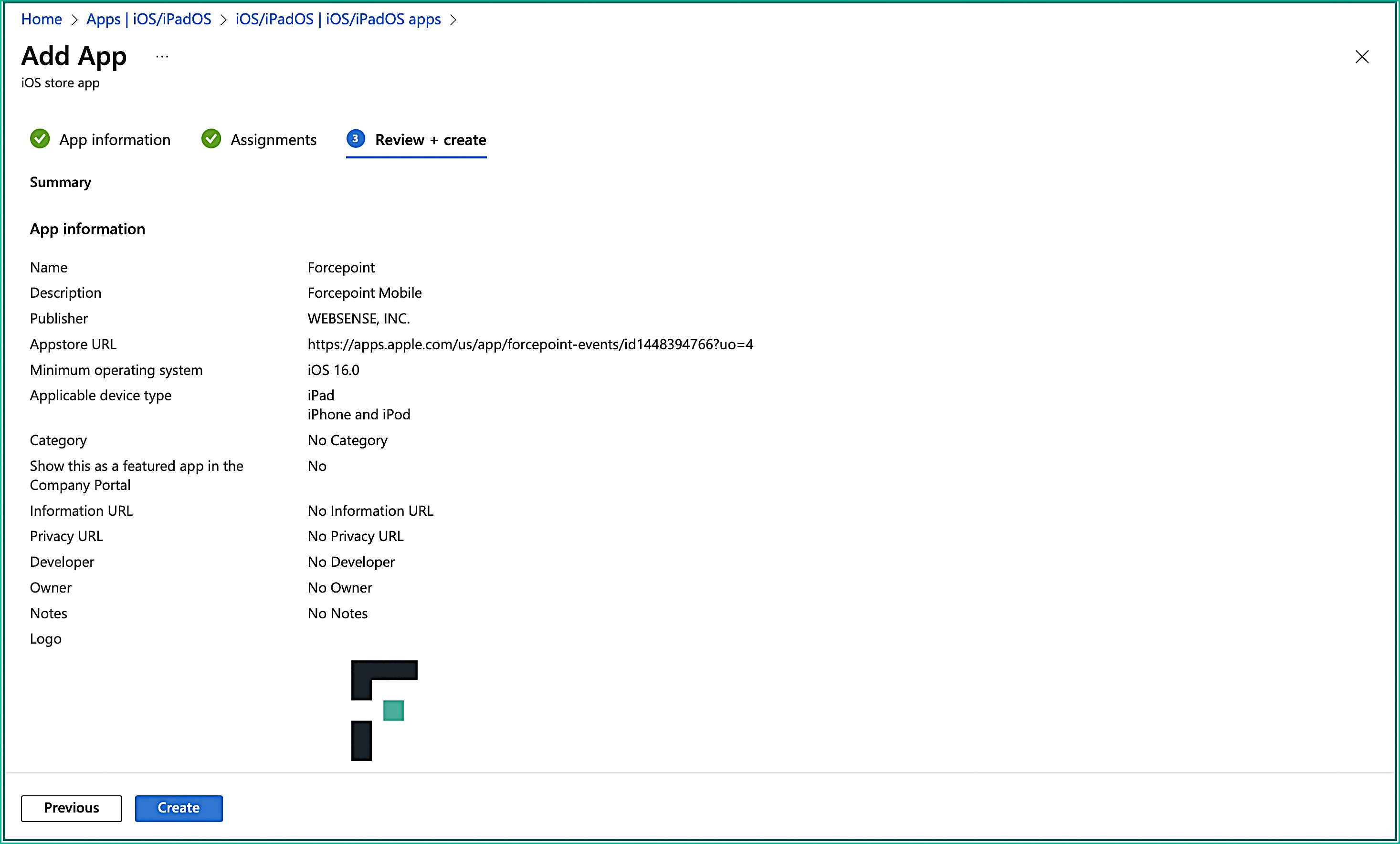
On the App Information tab, you must populate the app metadata fields such as the name, description, publisher, applicable device type, and minimum
operating system. You are only required to fill out the mandatory fields. Click Next.
Following is an example of information that you can enter in the mandatory fields:
-
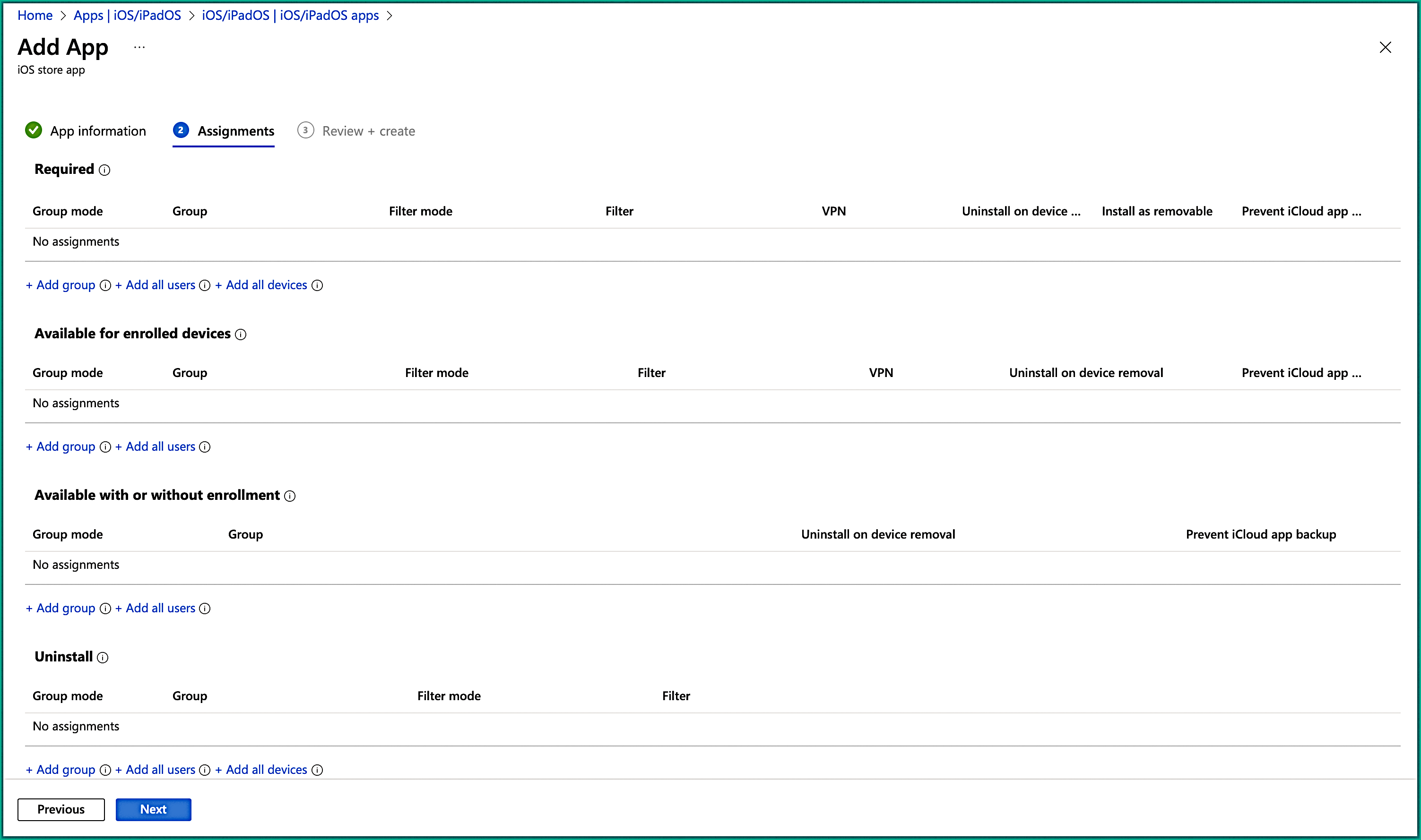
On the Assignment tab, under the Required section, select the groups that will receive this application. You can select user
groups, device groups, all users, or all devices. Click Next.
-
On the Review + create tab, verify your settings, then click Create. The application is added to Intune.
-
Select iOS store app from the App type dropdown, then click Select.
-
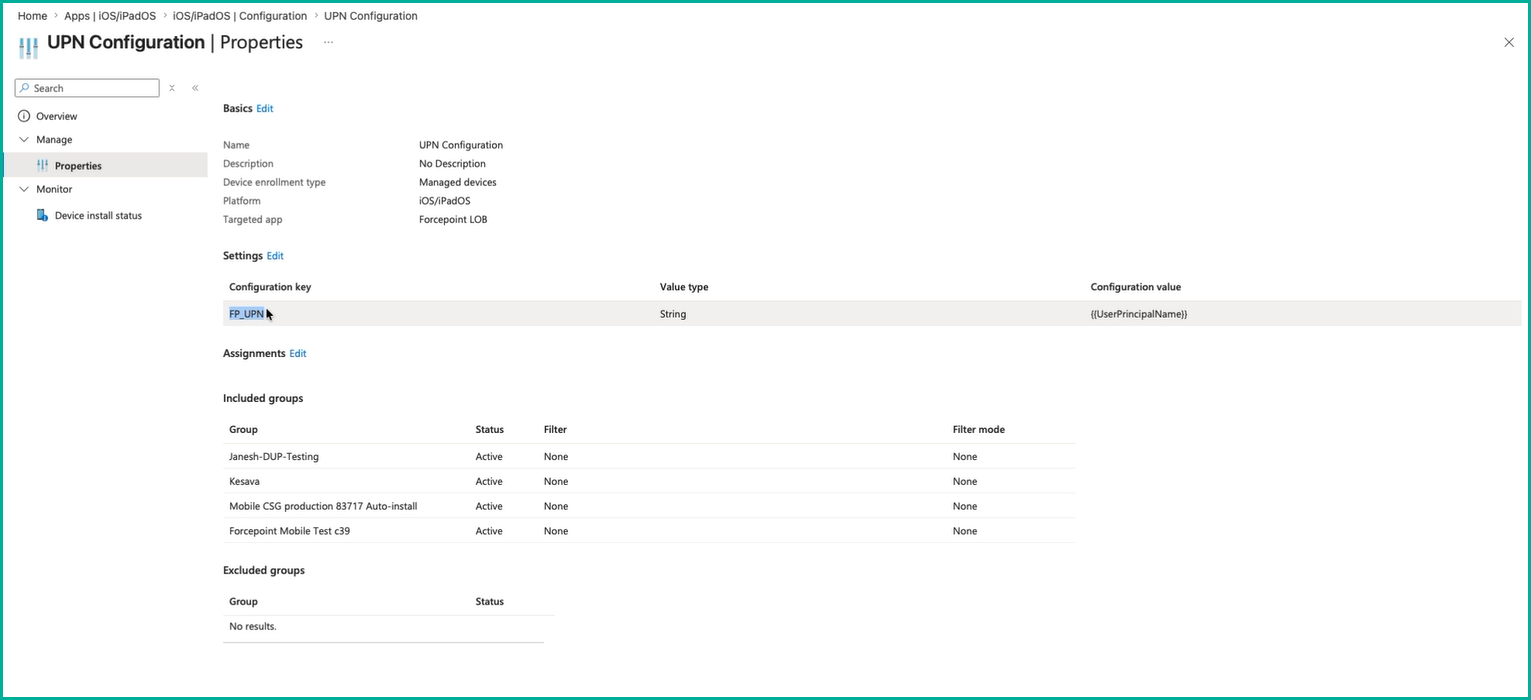
Step 2: Create an App policy to deliver the UPN.
-
On the Review + create tab, verify your settings, then click Create. Your changes are saved, the profile is assigned, and it
appears in the profiles list.
Following is an example of an app policy to deliver the UPN.
-
On the Review + create tab, verify your settings, then click Create. Your changes are saved, the profile is assigned, and it
appears in the profiles list.
-
Step 3: Create a VPN profile.
-
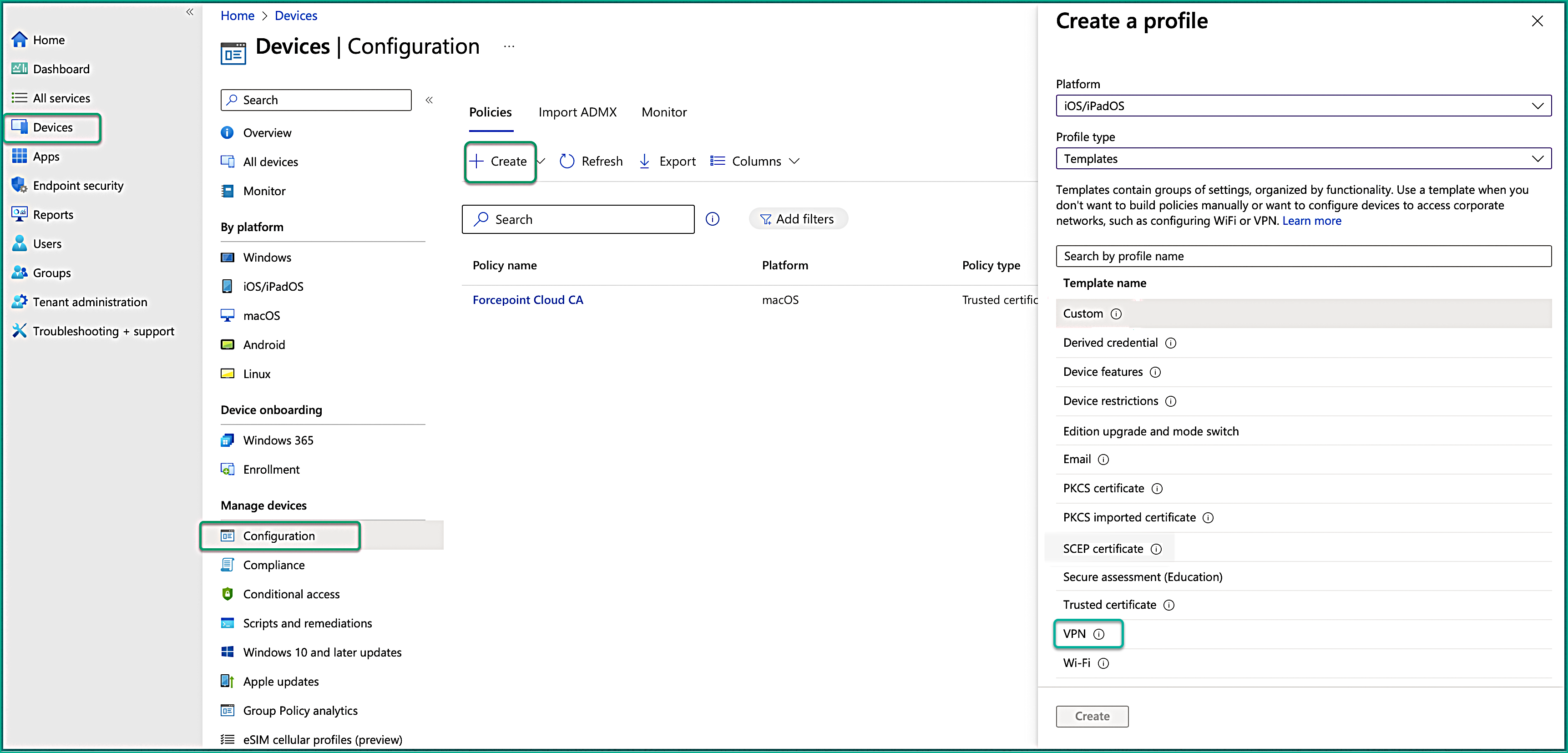
Set the following properties and select Create:
- Platform: Select iOS/iPadOS.
- Profile type: Select Templates.
- Template name: Select VPN.
-
Before entering values, open the Forcepoint Data Security Cloud portal and navigate to . Copy and save the following values:
- Registration URL
- Installer Key
- Tenant ID (from )
- Logging URL
- VPN Server Address
- VPN Identifier
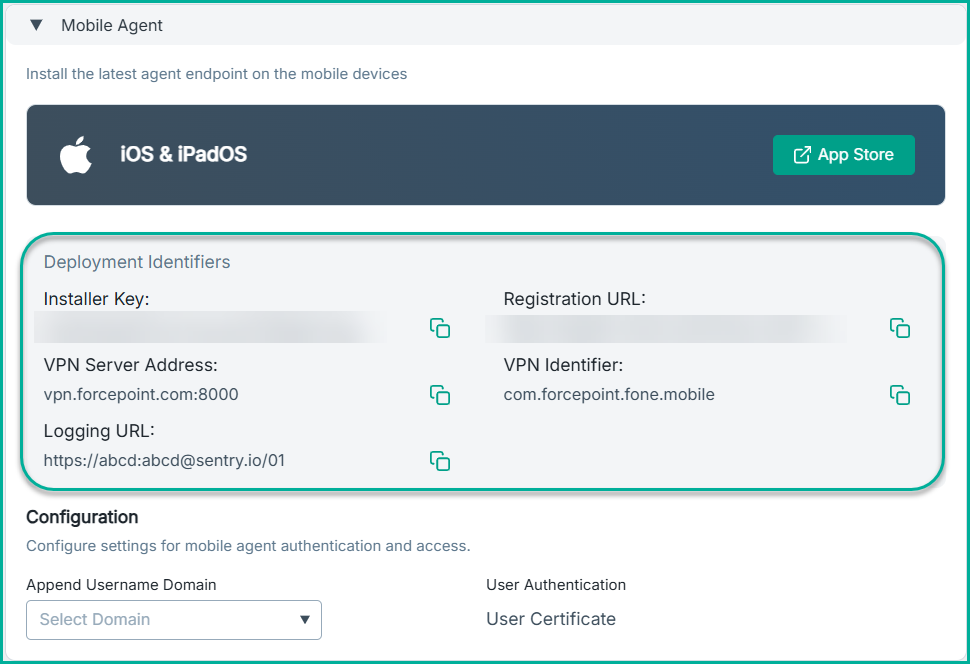
For more details about these fields, see the Global Settings page.
-
Configure the following Base VPN settings:
Table 3. Key Value Connection name Enter a meaningful name (for example, "Forcepoint Mobile VPN") VPN server address Enter VPN Server Address Authentication method Select Username and Password VPN identifier Enter VPN Identifier Enter key and value pairs for the custom VPN attributes FP_BACKEND Enter Registration URL FP_INSTALLER_KEY Enter Installer Key FP_DS_TENANT_ID Enter Tenant ID (from ) FP_SKIP_STARTUP_SCREEN Select false to allow users to manually log in by displaying the login page. Users will be required to enter their credentials to access the application. FP_LOG_URL Enter Logging URL Note: Intune does not prompt for username or password values when you select Username and password authentication. This setting only configures a flag in the profile. The app handles authentication automatically.Following is an example of information that you can enter in the mandatory fields:
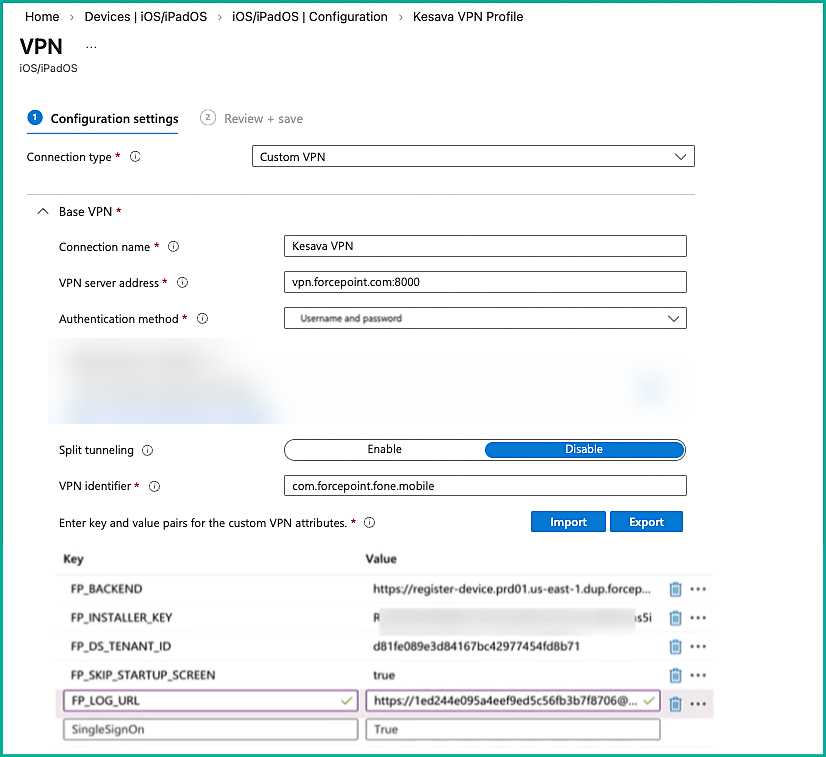
And click Next.
-
Set the following properties and select Create: