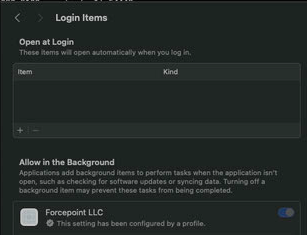
Forcing the allowance for the agent to run in the background
To ensure the Forcepoint Agent runs in the background, is forced and cannot be manually disabled by end users, you must add the Team Identifier to the Managed Login Items section of your pppc profile.
Steps
-
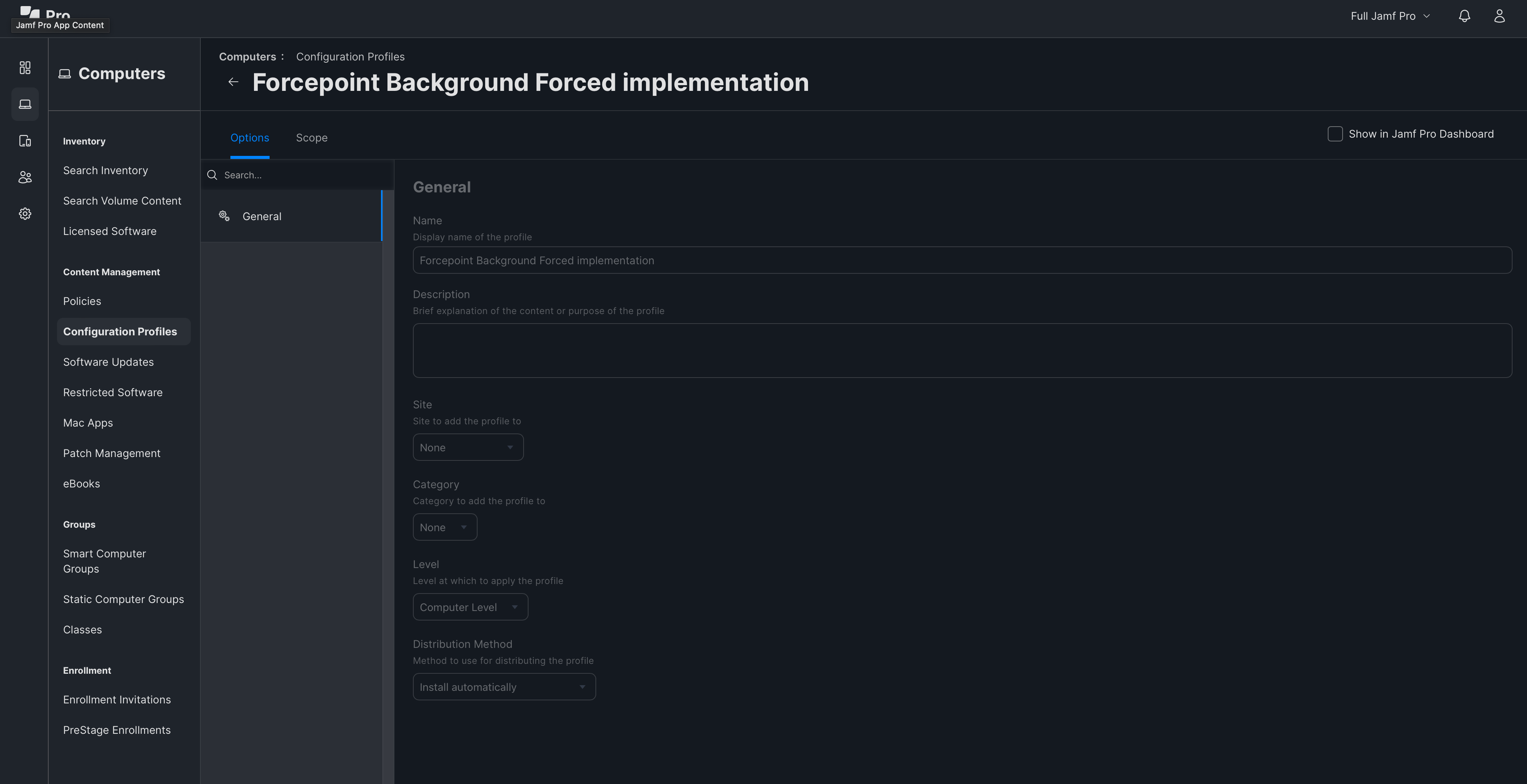
Create a new profile and enter the appropriate name.
-
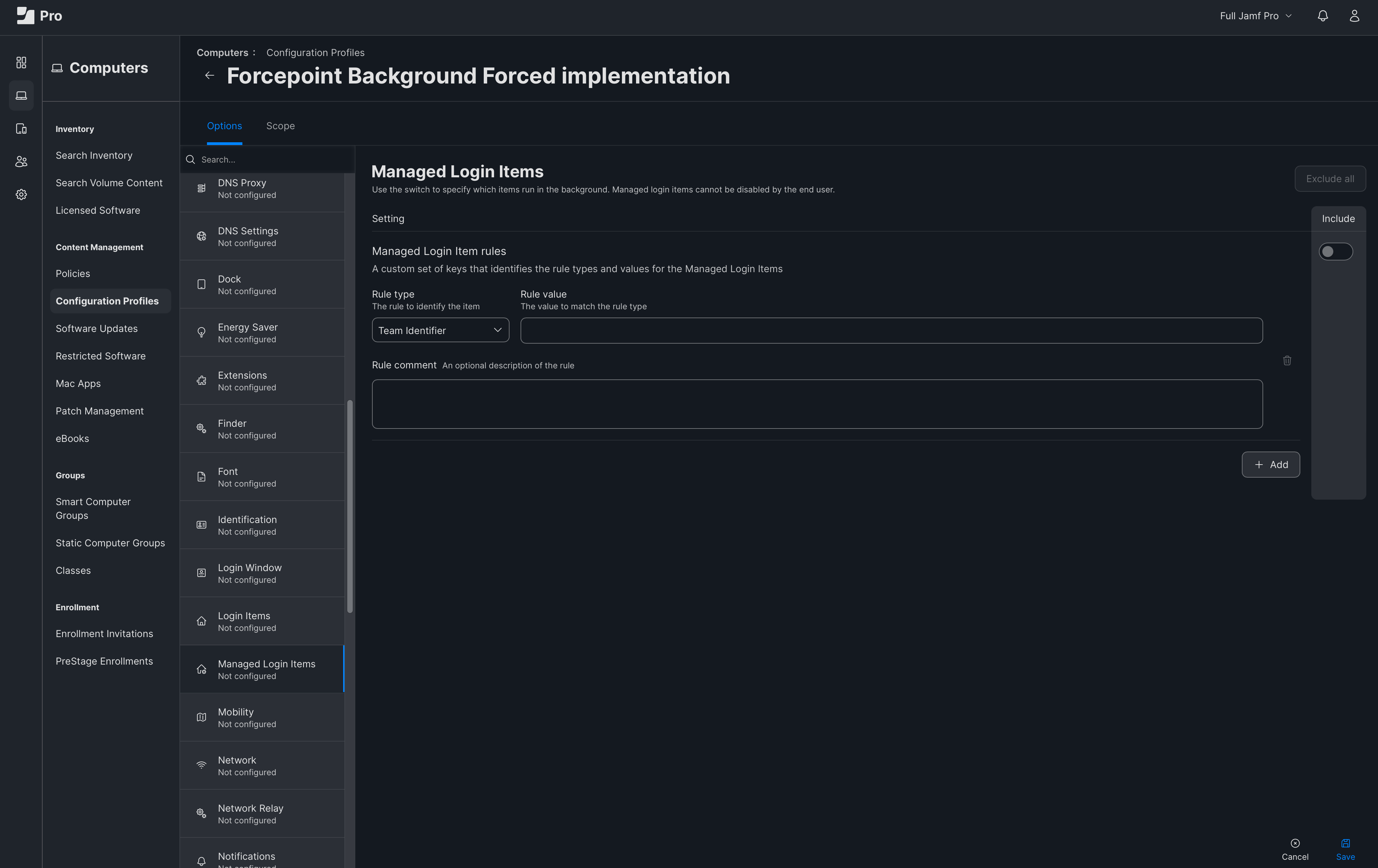
In the sidebar, locate and select the Managed Login Items section.
The Managed Login Items section opens.
-
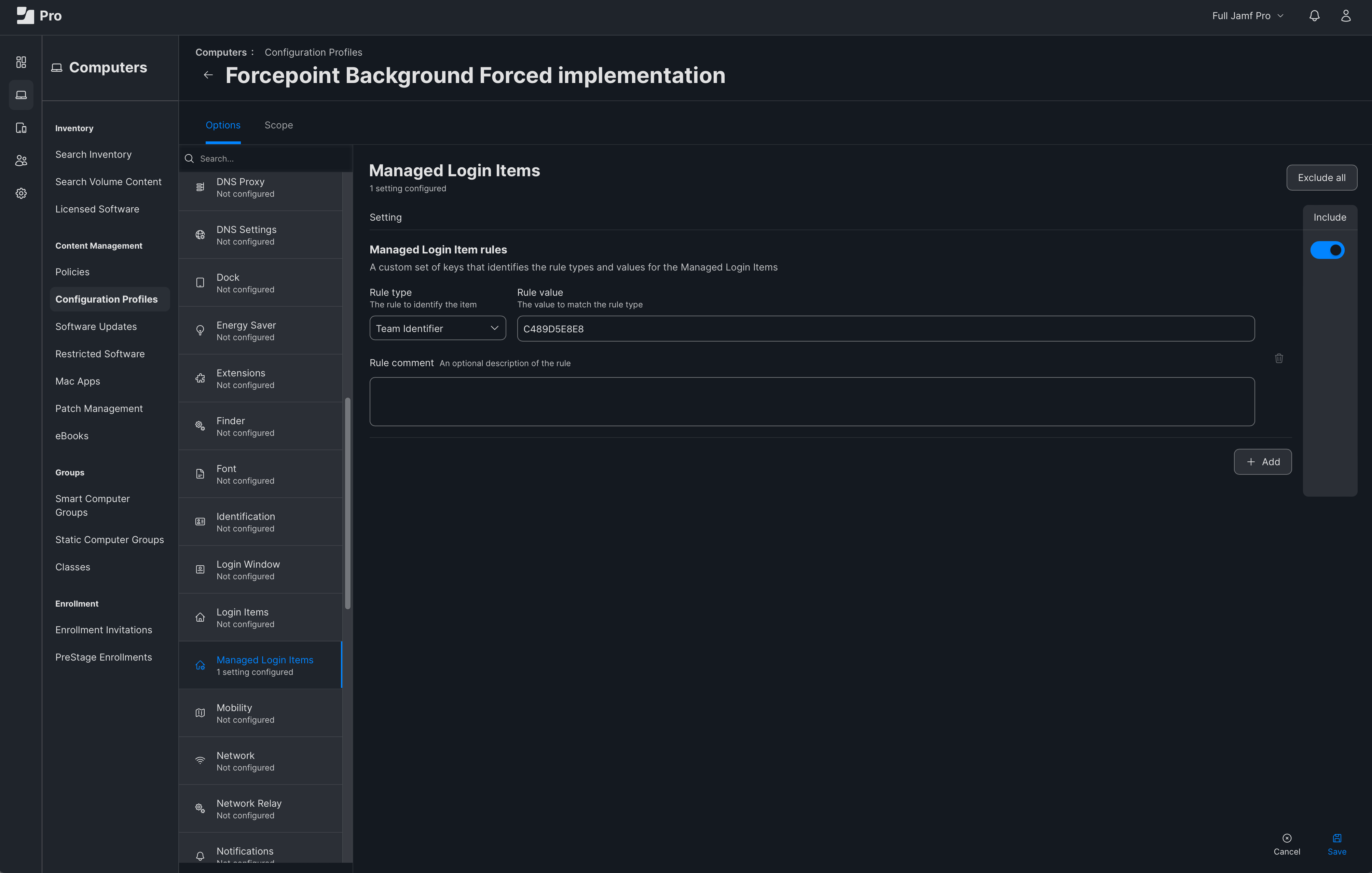
In Rule Value, enter the team identifier ID as C489D5E8E8.
You can also copy the team identifier ID from the System Extensions tab, and then paste it in Rule Value.
-
Click Save.
On deploying the profile, the Forcepoint Agent switch is enabled in Allow in the Background.