Deploying the certificates
For macOS endpoint installations, you might have to deploy _ca.cer and server.der certificates using Jamf.
To obtain the _ca.cer file, access the generate_root_ca tool from here. You can run the chmod +x /Users/<username>/Downloads/generate_root_ca (replace <> with your user name) command to convert the downloaded file to .exe format, and then run the generate_root_ca.exe file in the terminal. This will generate the _ca.cer certificate along with the fpnpd.dat file in the installer folder.
The agent requires a root CA to issue session certificates for the inline proxy, enabling TLS termination of web connections for Web channel (DLP or Web Security) policy enforcement.
To avoid requiring users or administrators to manually trust the root CA on each device, use an MDM solution to deploy the certificate. When the certificate is deployed through MDM, it is automatically trusted.
Steps
-
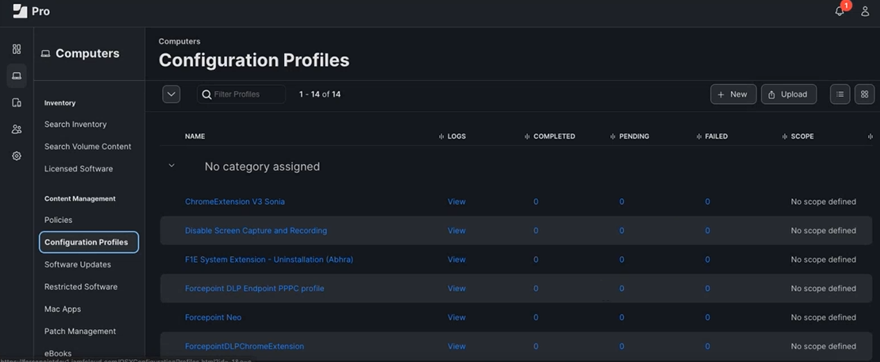
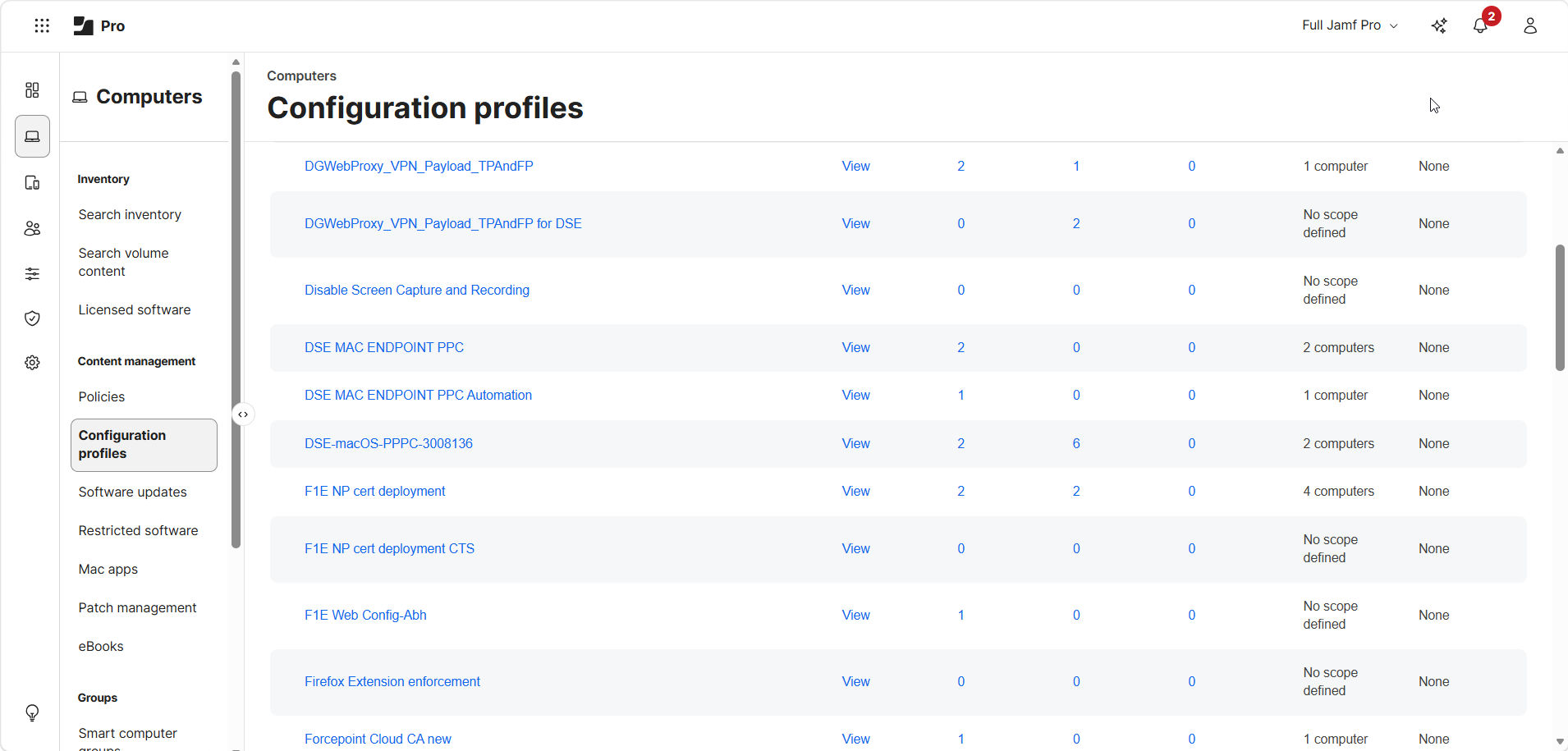
On the Computers tab, select Configuration Profiles.
-
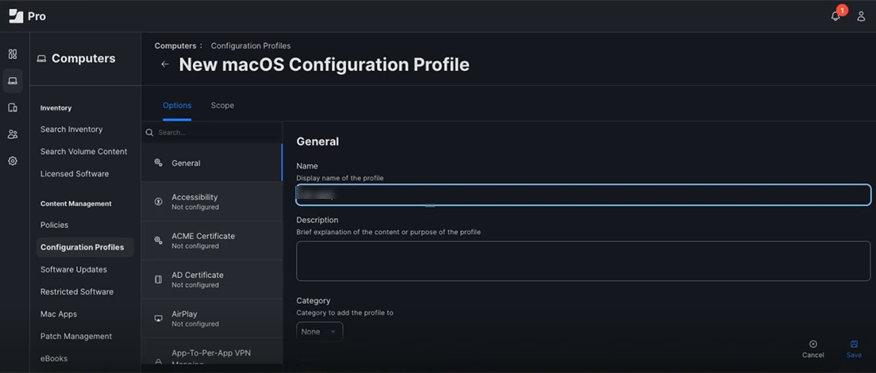
In Name under , enter the name for your configuration profile, and then click Save.
-
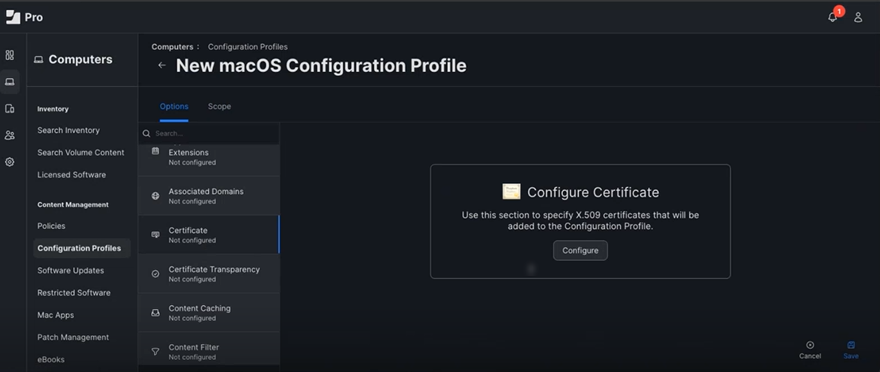
In , click Configure under Configure Certificate.
-
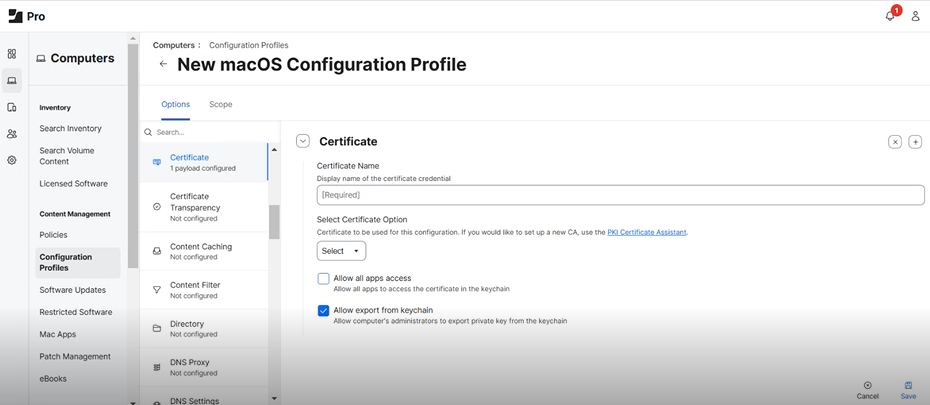
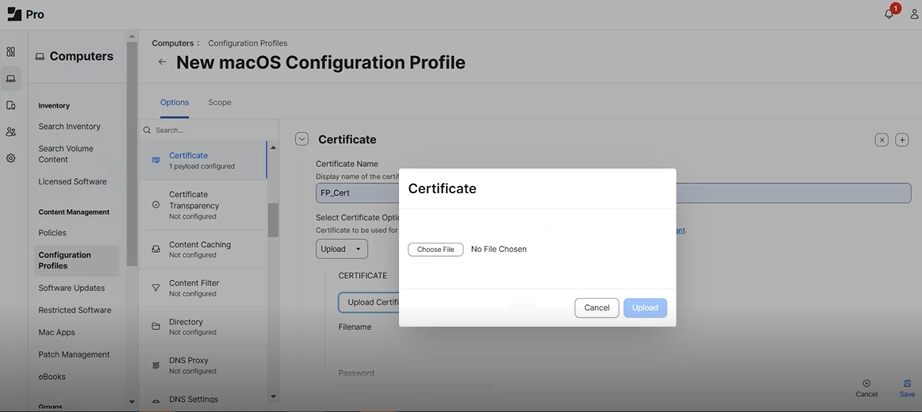
In the Certificate pane, enter the certificate name.
-
In Select Certificate Option, select Upload.
-
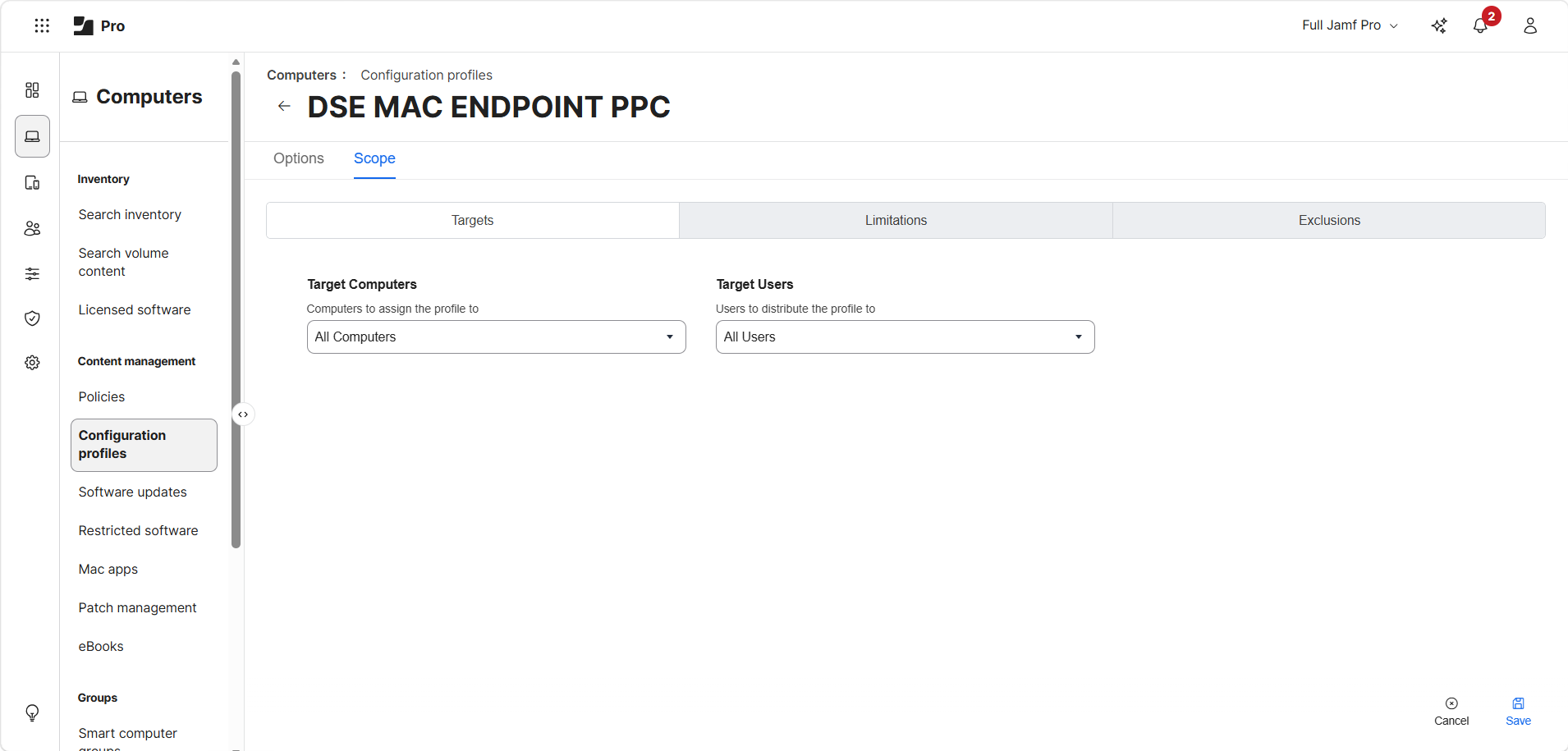
Set the profile scope to be delivered to all macOS endpoint machines.
- On the Computers tab, select Configuration Profiles, then select the configuration profile created.
- On the Scope tab, click Edit, and then select All Computers and All Users.
Alternatively, specify certain individuals or groups to receive this profile.
- Click Save.
The configuration profile is pushed to the endpoint. To verify, you can got to and check the profile status. - On the Computers tab, select Configuration Profiles, then select the configuration profile created.