Deploying Privacy Preferences Policy Control (pppc) profile
You must deploy a Privacy Preferences Policy Control (PPPC) profile to automatically enable Full Disk Access (FDA) and the fpneone process.
Deploying the attached PPPC profile will configure Full Disk Access (FDA) for files required for Forcepoint Agent to function and enables the fpneone process in System Preferences.
Steps
-
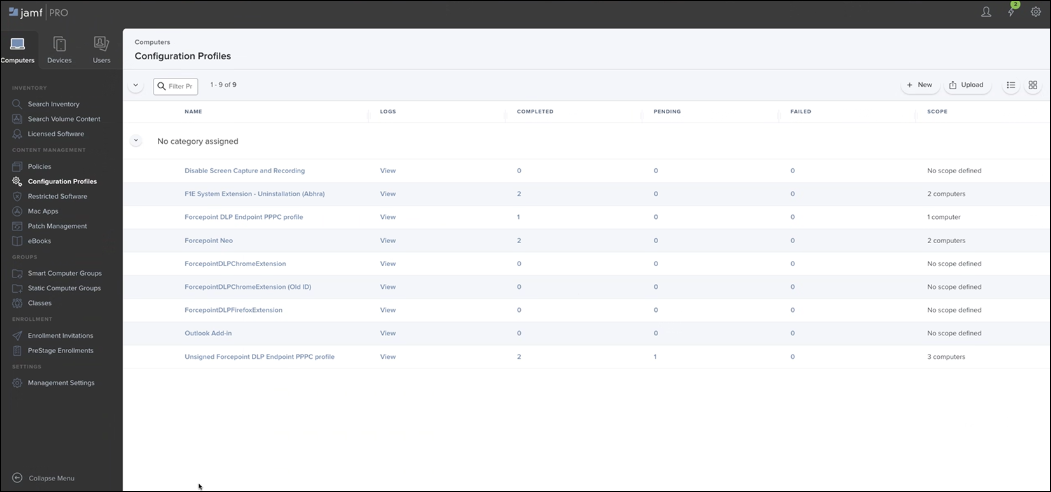
On the Computers tab, select Configuration Profiles, then click Upload.
-
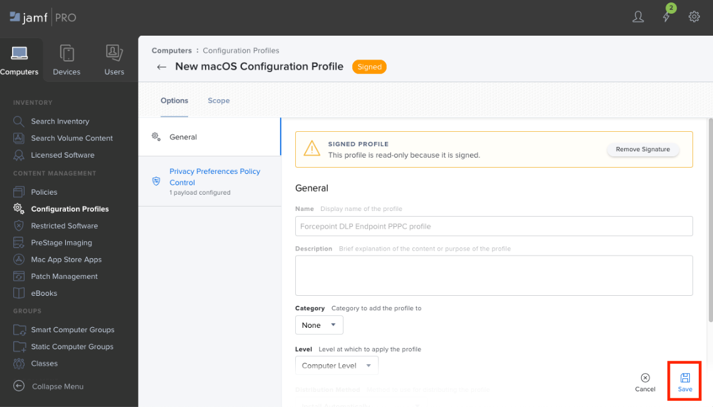
Select the DSE_macOS_PPPC.mobileconfig file that has been downloaded from above, and then click Save.
-
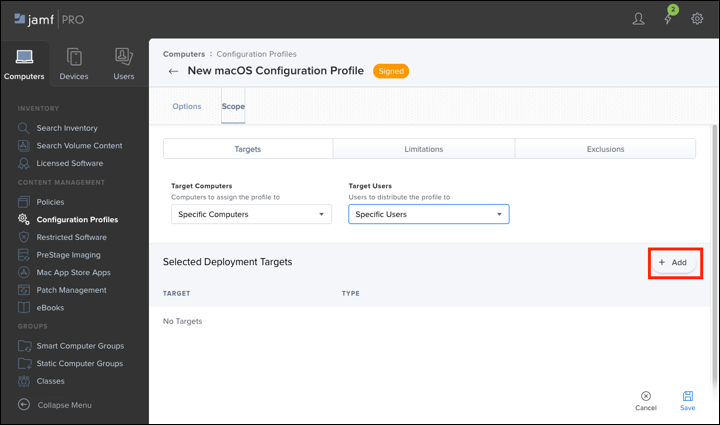
After the file has been uploaded successfully, select the Scope tab, and click Add to add one or more enrolled targets (i.e. endpoint
machines) to use this policy.
-
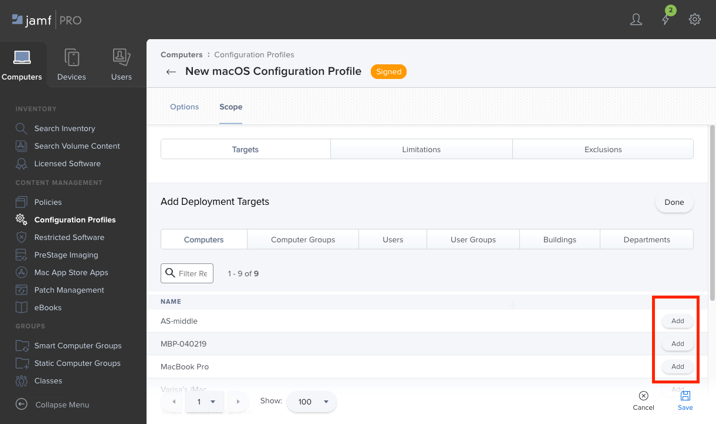
On the Add Deployment Targets screen, click Add next to each target machine to enroll in the policy.
-
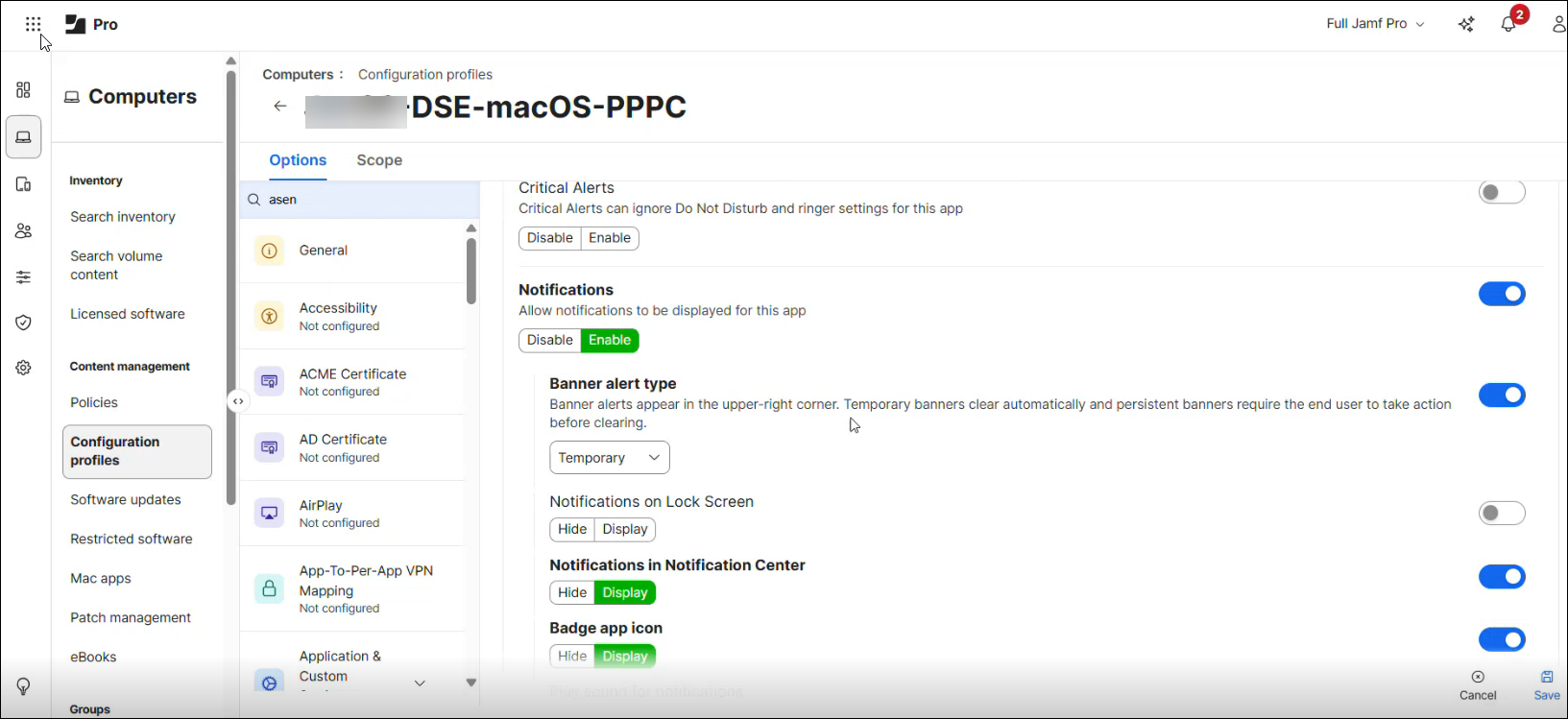
To ensure all notifications are displayed in the macOS Notification Center, follow the below steps:
-
Under Notifications in Notification Center and Badge app icon, turn on the Display toggles.
The configuration profile is pushed to the endpoint. To verify, you can go to and check the profile status. -
Under Notifications in Notification Center and Badge app icon, turn on the Display toggles.