Setup instructions
Provides instructions for first-time users on how to set up the Forcepoint Data Security Cloud | SSE.
The following image is a visual representation of the key steps to complete setup, enhance security, and initiate activity monitoring. There are eight steps to complete the configuration.
Clicking on each step in the image will take you to detailed instructions. By configuring this, you can successfully set up Forcepoint Data Security Cloud | SSE. 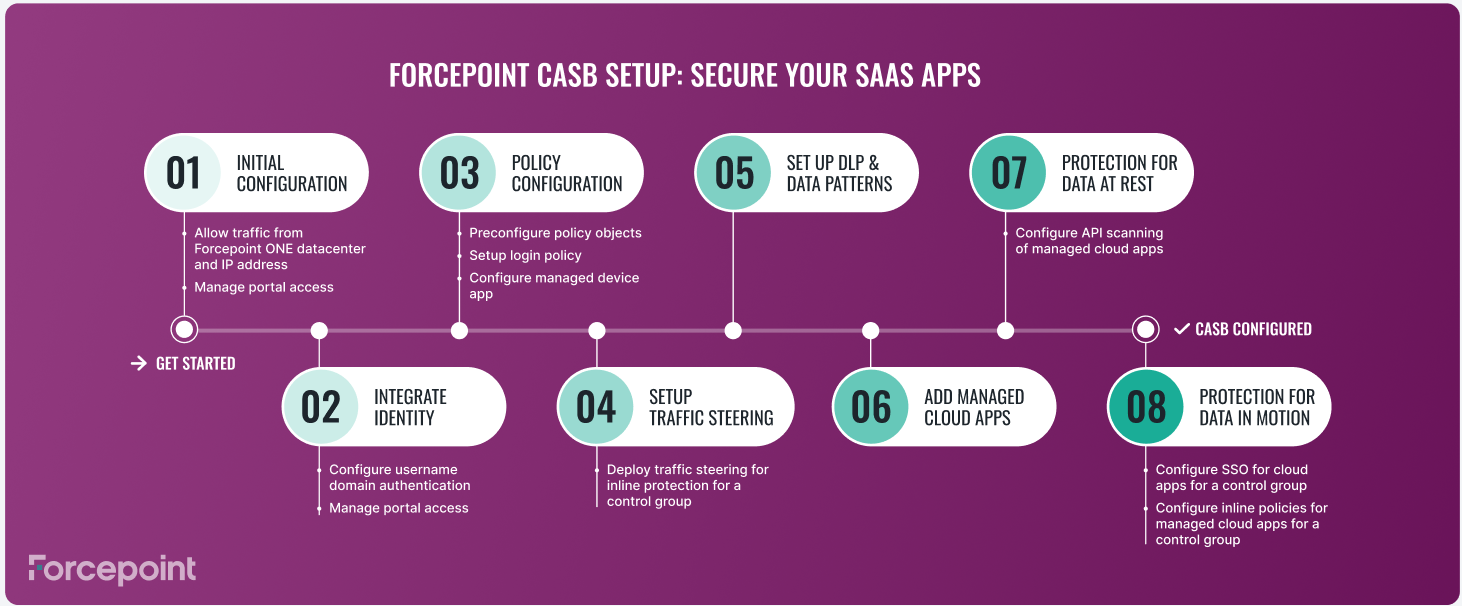
Initial Configuration
- Verify access to the Forcepoint Data Security Cloud | SSE: Follow the steps in the Signing in to Forcepoint Data Security Cloud section. Once you have logged in, select App Security from the left navigation menu.
- Allow traffic from Forcepoint Data Security Cloud | SSE datacenters and IP addresses:
- Allow traffic between Forcepoint Data Security Cloud | SSE AWS server IP addresses and corporate security devices.
- Accept the use of Forcepoint Data Security Cloud | SSE domains for SmartEdge agent as required.
- Configure API calls to pull updated IP address and datacenter details.
- Manage portal access: To manage users, groups, user roles, and SAML or Active Directory (AD) configurations, refer to the Admin section.
Integrate Identity
To manage users, groups, user roles, and SAML or Active Directory (AD) configurations, refer to the Admin section.
Policy Configuration
- Preconfigure policy objects:
- Configure custom inline popup notifications, user email or group email notifications, and other messages notifications.
- Configure custom notification files.
- Add custom locations.
- Set up login policies
- Configure a delay login policy.
- Configure a block login policy.
- Set up multi-factor authentication.
- Configure an expire session policy.
- Test the policies and update policy configuration if necessary.
Note: At this point in time, these policies will apply to Forcepoint Data Security Cloud | SSE only. The policies will also apply to managed cloud applications, once configured. - Set up automatic log collection for Shadow IT reporting:
Manually upload logs for Shadow IT discovery.
OR
- Set up one of the following methods for automatic log collection:
- Configure Downloadable OVA.
- Configure Syslog-ng relay.
- Configure Rsyslog.
- Map forwarded logs to Forcepoint Data Security Cloud | SSE fields.
- Review the reports generated in preparation for policy planning.
- Set up one of the following methods for automatic log collection:
- Configure managed device identification:
- Discover the methods to distinguish managed devices.
- Select the managed device identification method you want to use.
- Configure managed client certificates.
- Set up SmartEdge agent custom device profiles.
- Configure SAML attribute match.
Setup traffic steering
Configure and deploy traffic steering for inline protection through SmartEdge Agent for a control group.
Setup DLP and data patterns
Configure DLP and data patterns.
You can integrate with Forcepoint Data Security Cloud | DLP and Forcepoint DLP to enforce DLP policy in Forcepoint Data Security Cloud | SSE:
- Integrate with and leverage Forcepoint Data Security Cloud | DLP policies:
- Import your JSON file to Integrate Forcepoint Data Security Cloud | SSE with the Forcepoint Data Security Cloud | DLP Protection Service.
- Apply Data Security policy actions to flagged traffic to or from managed cloud applications.
- Apply Data Security policy actions to data discovered at rest on cloud applications using the cloud API.
- Integrate with and leverage Forcepoint DLP policies:
- Import your JSON file to Integrate Forcepoint Data Security Cloud | SSE with Forcepoint DLP policies.
- Apply FSM based policy actions to flagged traffic to or from managed cloud applications.
- Apply FSM based policy actions to data discovered at rest on cloud applications using the cloud API.
Add managed applications
- Add pre-defined cloud applications as managed applications.
- Add custom cloud applications as managed applications.
Protection for data at rest
- Set up API access.
- Set up API scanning in Forcepoint Data Security Cloud | SSE.
- Configure policy actions for data at rest.
Protection for data in motion
- Configure SSO for cloud applications for a control group:
Review this video for more information.
- Select and deploy the SSO method appropriate for your application and organization.
This may be SAML relay or SAML ACS proxy.
- Verify access to the cloud application.
- Select and deploy the SSO method appropriate for your application and organization.
- Configure inline policies for managed cloud applications for a control group:
- Configure contextual access control and set proxy policy actions.
- Test the inline policies.
- Update policy configurations if necessary.