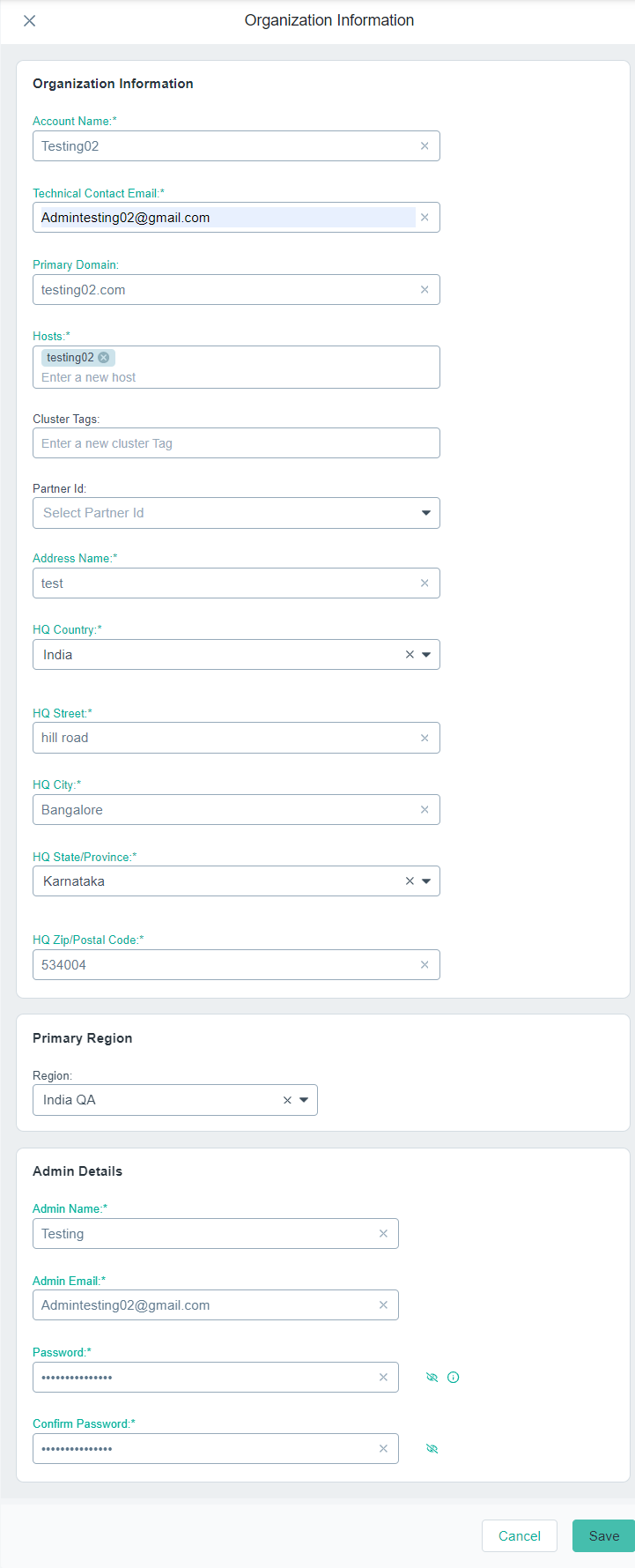
Steps for manually adding a tenant on the Organizations page.
Steps
-
On the Organizations page, click Add Organization.
The Organization Information form appears to the right of the page.
-
Under the Organization Information section:
-
In the Account Name field, enter an unique account name for the organization.
-
In the Technical Contact Email field, enter the customer's technical contact email address.
-
In the Primary Domain field, enter the customer's root domain name of the organization.
-
In the Hosts field, enter the hosts names using which customers can access Forcepoint ONE.
-
In the Cluster Tags field, enter the cluster tags.
-
From the Partner Id drop-down, select the partner.
-
In the Address Name field, enter the customer's organization door number.
-
From the HQ Country drop-down, select the country where the organization's headquarter is located.
-
In the HQ Street field, enter the street name where the organization's headquarter is located.
-
In the HQ City field, enter the city where the organization's headquarter is located.
-
From the HQ State/Province drop-down, select the state/province where the organization's headquarter is located.
-
In the HQ Zip/Postal Code field, enter the postal code of the organization's headquarter is located.
Important: Make sure that you enter valid customer's organization details. If not, tenant will fail to pass the compliance check and then the tenant
Status changes to Compliance check failed when saved.
-
Under the Primary Region section, select the primary region where the customer's data should reside from the Region drop-down.
-
Under the Admin Details section:
-
In the Admin Name, enter the name of the administrator.
-
In the Admin Email field, enter the email address of the administrator.
The Admin Email field gets auto-populated with the Technical Contact Email field value.
-
In the Password field, enter the password for the Admin account.
Password must contain:
- Minimum 8 characters and maximum 20 characters
- At least one upper and one lower case letter
- At least one digit
- At least one special character from the following set. ! @ # $ % & ? = [ ] < > { }
-
In the Confirm Password field, enter the same password that you entered in the Password field.
-
To create a tenant with entered details, click Save.
The tenant gets created and will be available on the Organizations page with Status set to Pending.
On the backend, the IT Orchestrator performs the necessary compliance checks and approves the new tenant if all the required details are present.
Note: On the Organizations page, click the tenant that you just created and scroll down to Global ID section to copy the Global ID.
The Global ID is the unique Identifier for Tenants.
Next steps
For approved tenants, system adds Alternate IDs and Entitlements for Identity and Access Management (IDM) and Insight (INS). You can then
add additional entitlements (Licenses).