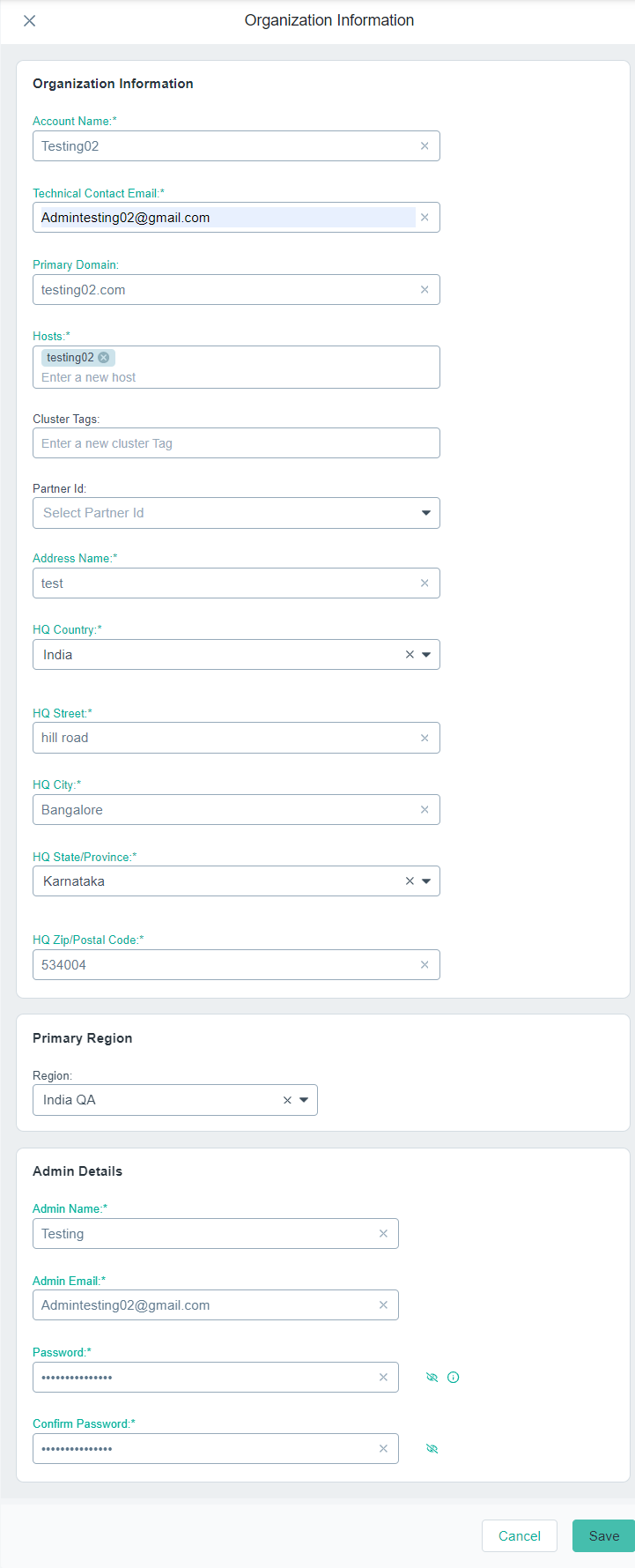
You can update tenant details to capture updated information of your customer. You can modify all the details of customer except the values of Primary Domain and
Partner Id fields.
Steps
-
On the Organizations page, click the tenant for which you want to modify the details.
The Edit Organization form appears to the right of the page.
-
Under the Organization Information section, if needed:
-
In the Account Name field, enter an unique account name for the organization.
-
In the Technical Contact Email field, enter the customer's technical contact email address.
-
In the Hosts field, enter the hosts names using which customers can access Forcepoint ONE.
-
In the Cluster Tags field, enter the cluster tags.
-
In the Address Name field, enter the customer's organization door number.
-
From the HQ Country drop-down, select the country where the organization's headquarter is located.
-
In the HQ Street field, enter the street name where the organization's headquarter is located.
-
In the HQ City field, enter the city where the organization's headquarter is located.
-
From the HQ State/Province drop-down, select the state/province where the organization's headquarter is located.
-
In the HQ Zip/Postal Code field, enter the postal code of the organization's headquarter is located.
Important: Make sure that you enter valid customer's organization details. If not, tenant will not pass the compliance check and then the tenant
Status changes to Recheck failed when saved.
-
Under the Primary Cluster section, select Primary Cluster for each Application.
By default, primary clusters are defined for the Insights (INS) and Identity Access Management (IDM) applications.
-
Under the Alternate IDs section, you can view Alternate IDs (application IDs) for all the applications for which customers are licensed.
By default, the Alternate IDs for the INS and IDM applications are displayed without adding entitlements.
-
From the Entitlements section, add, modify and delete the licenses. Refer to the following sections.
-
To update the tenant with entered details, click Update.
The tenant details get updated with Status set to Recheck and then to Active if the tenant pass the
compliance check. If not, the Status will be set to Recheck failed.