Uninstall via Microsoft Intune
This task explains how to uninstall the Mobile Endpoint Agent from managed iOS and iPadOS devices using Microsoft Intune.
Note: The steps outlined below have been validated using Microsoft Intune. While similar configurations may be possible with other MDM solutions, they have not been verified.
Steps
-
Step 1: Remove the app assignment.
-
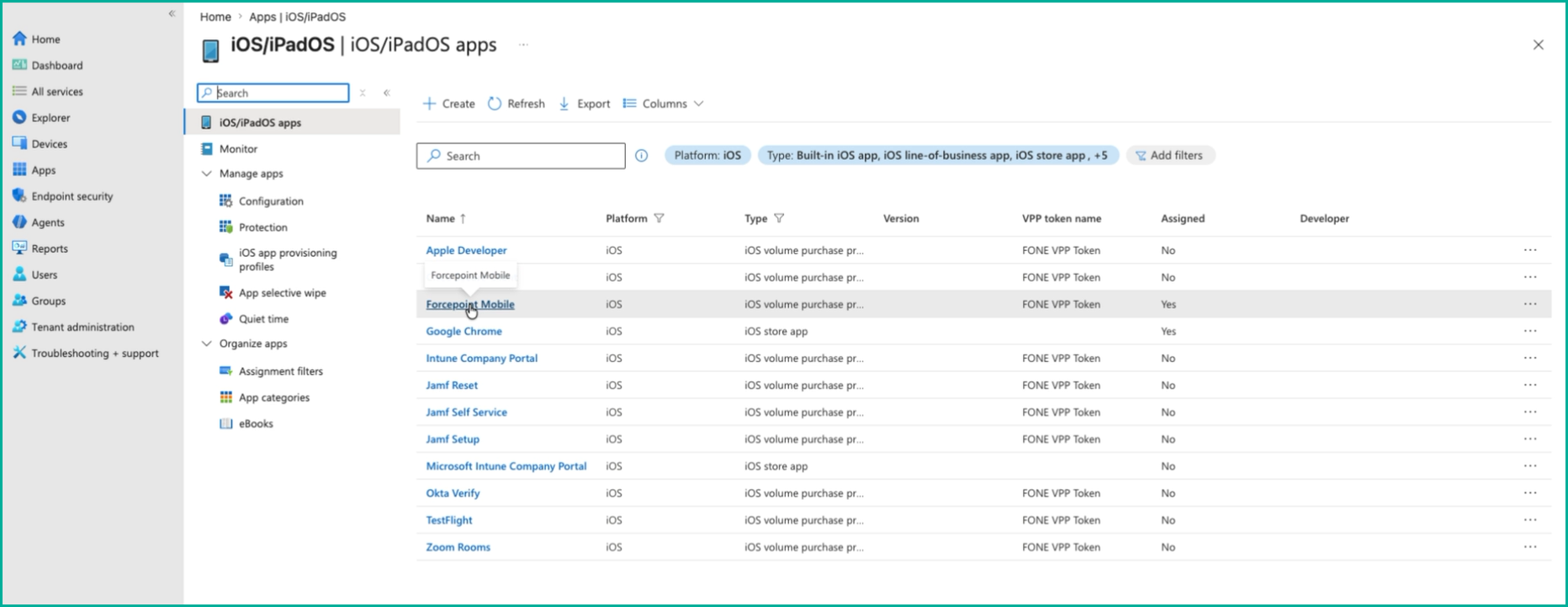
From the iOS/iPadOS apps list, select Forcepoint Mobile.
-
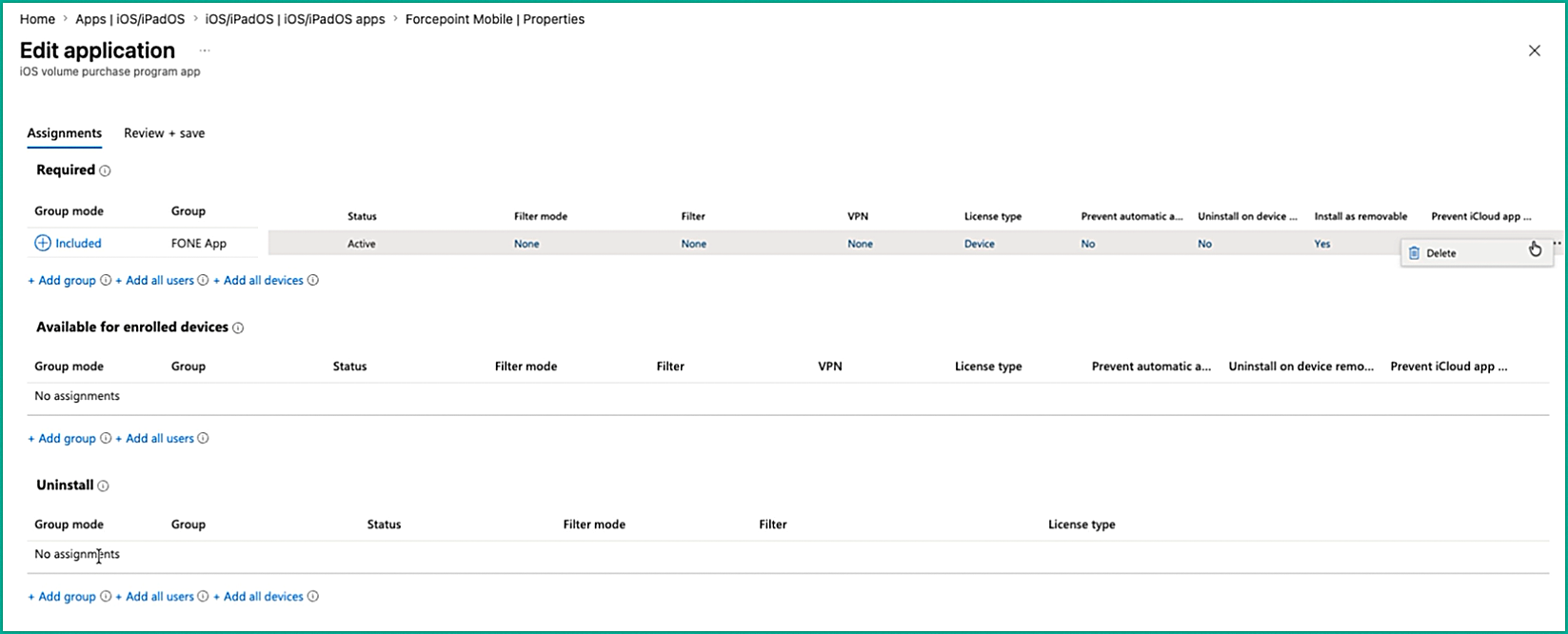
Under the Required section, delete the existing group assignment.
-
From the iOS/iPadOS apps list, select Forcepoint Mobile.
-
Step 2: Assign the app for uninstallation.
-
In the Select groups panel, search for, and select the required device group, then click Select.
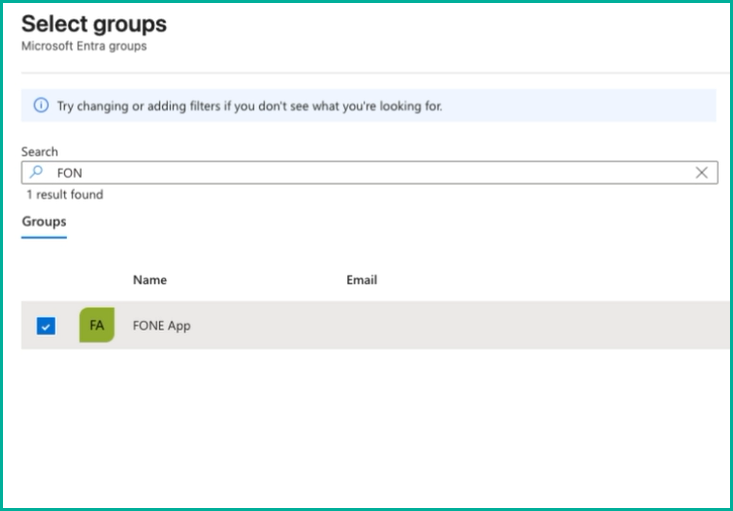
The selected group appears under the Uninstall section with Active status.
-
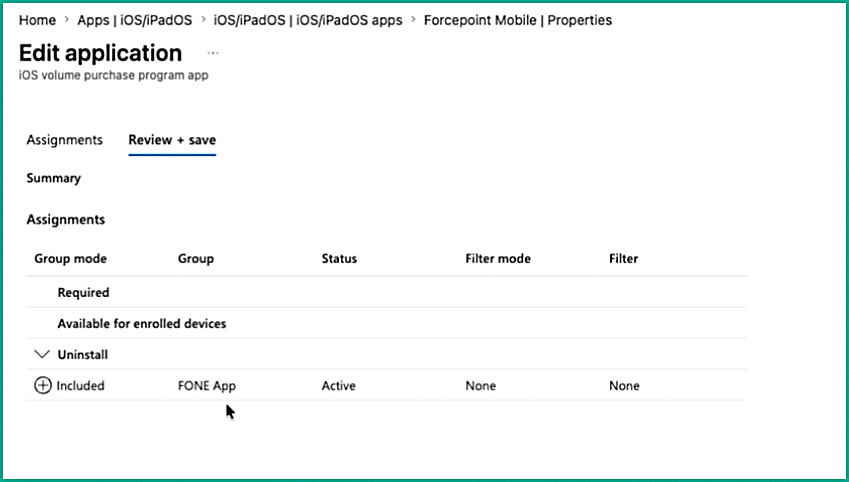
On the Review + save tab, confirm that the group is listed under Uninstall in the summary.
-
In the Select groups panel, search for, and select the required device group, then click Select.
-
Step 3: Verify the uninstallation on the device.
-
Click Sync to initiate a device sync. When prompted, click Yes to confirm.
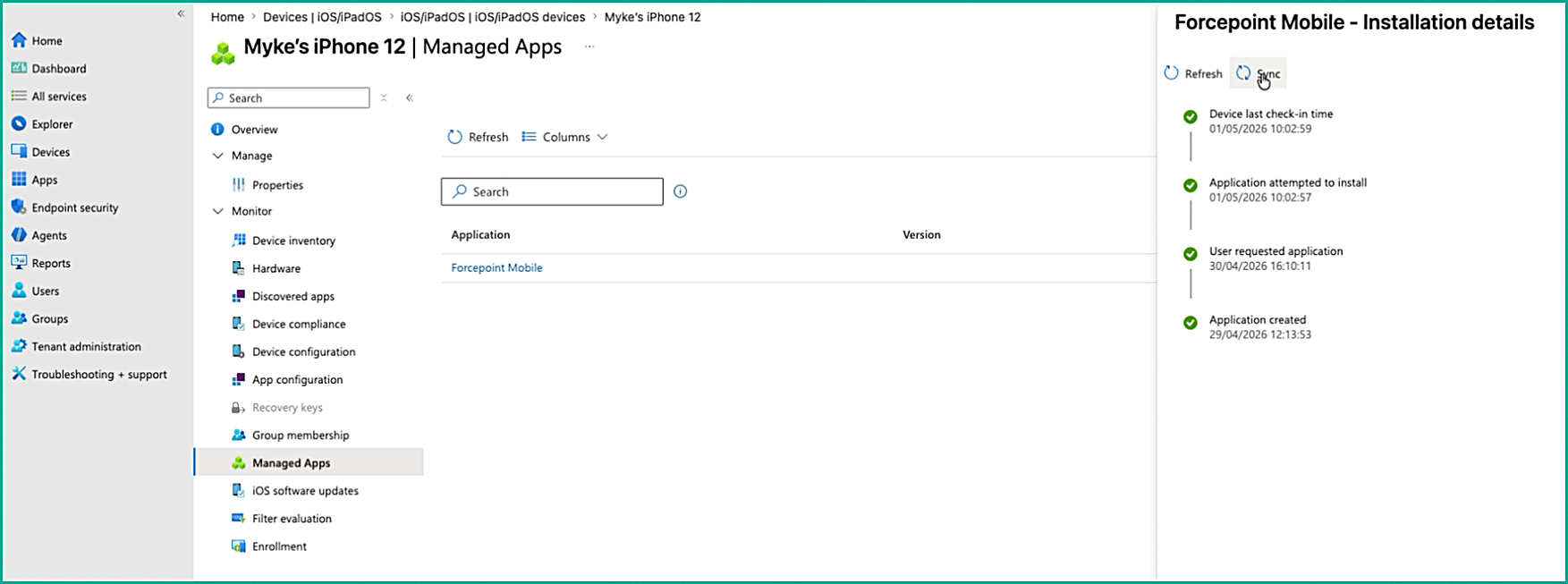
Intune checks in with the device and pushes the uninstall action.
-
Click Sync to initiate a device sync. When prompted, click Yes to confirm.