Create custom profile
The Create Profile editor can be used to create custom profiles.
A custom profile is a configuration template created by an administrator to control how the Mobile Endpoint Agent behaves on specific devices or user groups. Custom profiles allow organizations to tailor settings such as OS specific behavior, VPN toggle visibility, mobile bypass rules, and DNS bypass lists.
While Default Profile applies to all remaining endpoints, custom profiles provide granular control by letting administrators target specific users, groups, or devices with unique configuration requirements.
Profile Details
Defines basic information about the profile.
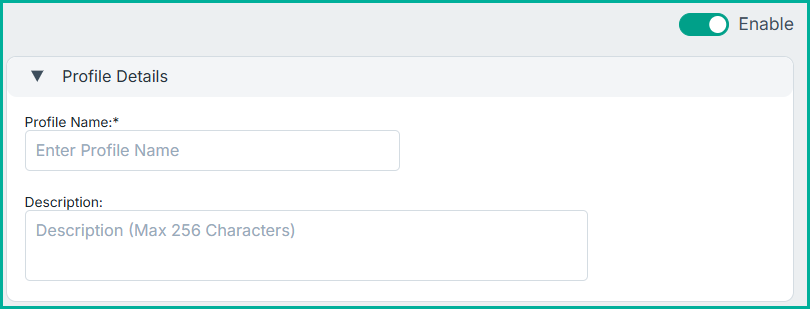
- Profile Name: A mandatory name used to identify the custom profile.
- Description: A brief explanation of the purpose or configuration included in the profile.
- Enable Toggle: Allows administrators to enable or disable the profile. Disabled profiles do not apply to any endpoints.
Applies to
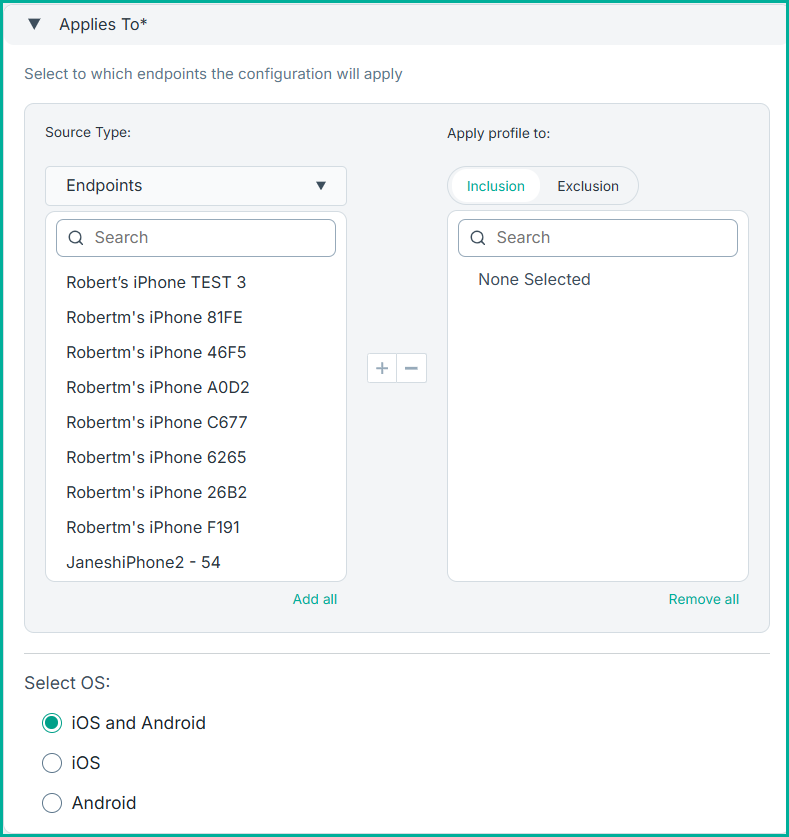
- Select to which endpoints the configuration will apply: Determines which Endpoints or Organization Units (OUs) the profile should target.In the Search option, enter the resource name, then click
 to add to
the list for either inclusion or exclusion. You can also use the Add all or Remove all options to remove or add multiple entries.
Similarly, you can use the
to add to
the list for either inclusion or exclusion. You can also use the Add all or Remove all options to remove or add multiple entries.
Similarly, you can use the  to remove entries that were added earlier for either
exclusion or inclusion.Note: You must have at least one device in the Applied profile to section in order to save or update the profile.
to remove entries that were added earlier for either
exclusion or inclusion.Note: You must have at least one device in the Applied profile to section in order to save or update the profile.When including an OU or endpoint in the Include list, all other OUs and endpoints are excluded. The Exclude list overrides the Include list. It is used, for example, to select an OU but exclude specific endpoints that belong to this OU.
Note: It is not possible to select the same OU or endpoint to both lists. If you include endpoints and exclude an OU they belong to, these endpoints will not be included since the exclusion of them as part of the excluded OU, overrides the inclusion. - Select OS: Select the operating system running on the endpoint machine.
Display VPN On/Off Toggle
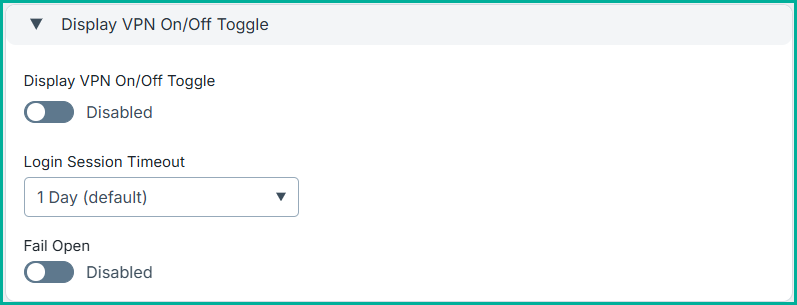
- Display VPN On/Off Toggle: Allow the admin to configure a toggle button for the application.
- When enabled, a visible On/Off toggle button will appear, allowing the user to activate or deactivate the inspection service.
- Selecting On activates the VPN, and the application will inspect all network traffic. This means the device will use the configuration from the server to decide whether to proxy or send the traffic directly to the internet.
- Selecting Off means the application will bypass all traffic and send it directly to the internet.
- When disabled, the application will not display this toggle button, and all traffic will be subject to inspection by the application.
For more details, see the Using Forcepoint Mobile application page.
Note: This feature works only when the auto‑start parameter is disabled in the MDM configuration.
- When enabled, a visible On/Off toggle button will appear, allowing the user to activate or deactivate the inspection service.
- Login Session Timeout: Set the duration after which the user login credentials need to be re-validated.
- Fail Open:
- When enabled, the solution will send traffic directly to the internet if the Forcepoint cloud service is down.
- When disabled, the solution will block web traffic when the Forcepoint cloud service is unavailable.
Bypass Domains, Host IPs, or Subnets
Use this setting to specify domains, host IP addresses, or subnets that should bypass inspection by the Mobile Endpoint Agent on the device. Traffic to these destinations is sent directly from the mobile device without being processed by the agent.
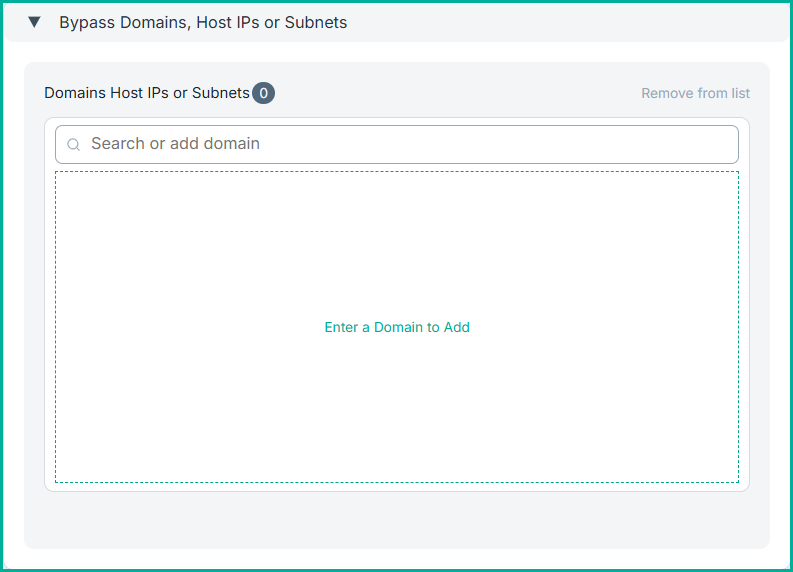
To add an entry, search for the required domain, IP address, or subnet, and click Enter to add it to the list. To remove an entry, select it from the list and click Remove from list.
Example: When a domain such as xyz.com is added to the bypass list, traffic to that domain is sent directly to the internet and is not inspected by the Forcepoint cloud.
Bypass Corporate Networks for Mobile Bypass
Use this setting to define URLs that identify your corporate network. These URLs must be internally accessible only and not reachable from outside the corporate environment.
When a mobile device connects to a network (for example, after switching WiFi or network connections), the Mobile Endpoint Agent checks whether the configured internal URL is reachable. If the URL can be accessed, the network is identified as a corporate network.
When the device is connected to a recognized corporate network, traffic bypasses the Mobile Endpoint Agent and is handled by existing corporate security mechanisms such as IPsec, GRE tunnels, or internal proxy solutions. When the device leaves the corporate network, the agent automatically resumes inspection for off‑network traffic.
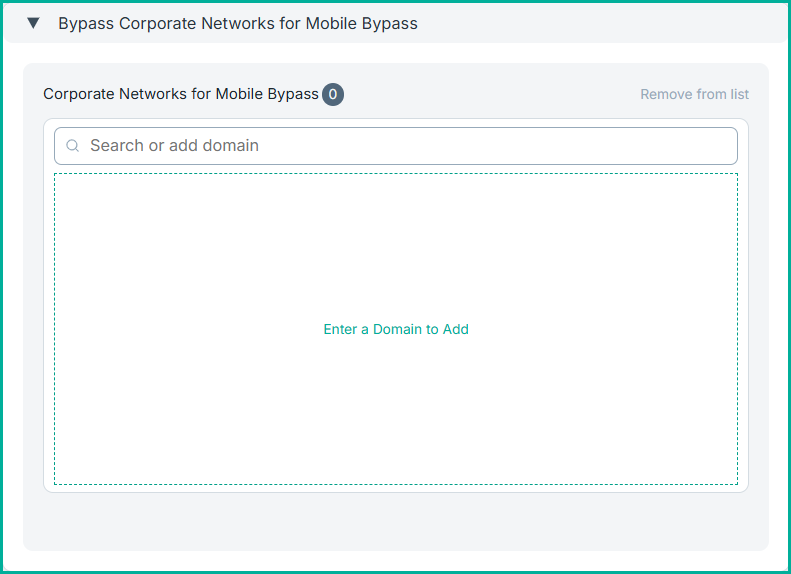
Example: When internal URLs such as otherURL.companyname.com and pingURL.companyname.com are added to the corporate bypass list, and the device connects to the corporate network where these URLs are reachable, the network is identified as internal and mobile traffic bypasses the Mobile Endpoint Agent.
Bypass DNS Bypass List
Use this setting to specify domains or IP addresses whose DNS queries should bypass the DNS handling used by the Mobile Endpoint Agent. This allows selected DNS requests to be resolved directly by the network’s DNS infrastructure without being intercepted.
To bypass a specific DNS server, enter its IP address using the DNS prefix followed by the IP address. DNS traffic sent to the specified server is excluded from Mobile Endpoint Agent processing.
This option is useful when your network uses internal or trusted DNS servers that the Mobile Endpoint Agent should not process.
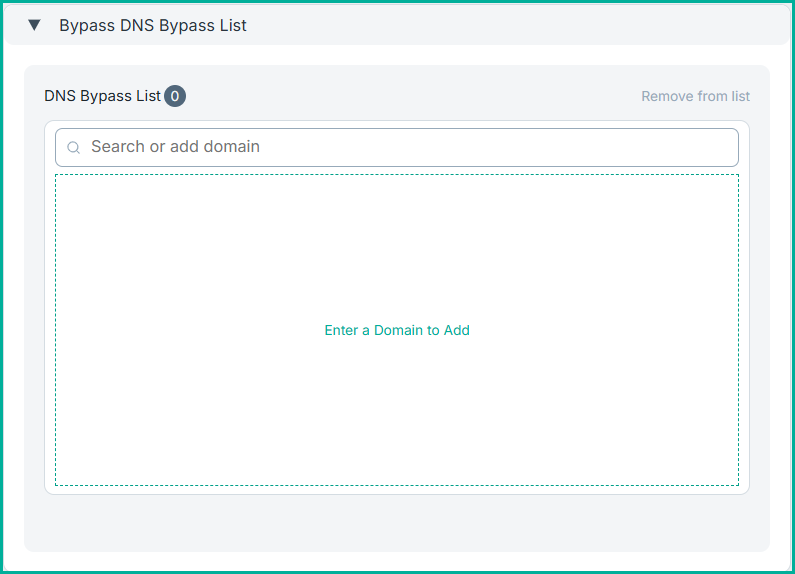
Example: When DNS servers 8.1.2.3 and 182.7.8.9 are added to the DNS Bypass List, queries sent to these servers will bypass the Mobile Endpoint Agent and be resolved directly by those DNS servers.