Profiles
This section allows administrators to create and manage configuration profiles for the Mobile Endpoint Agent.
Each profile defines the settings, policies, and behaviors that will be applied to user devices. Profiles help ensure that the right configurations are delivered to the right users based on their role, group, location, or device type.
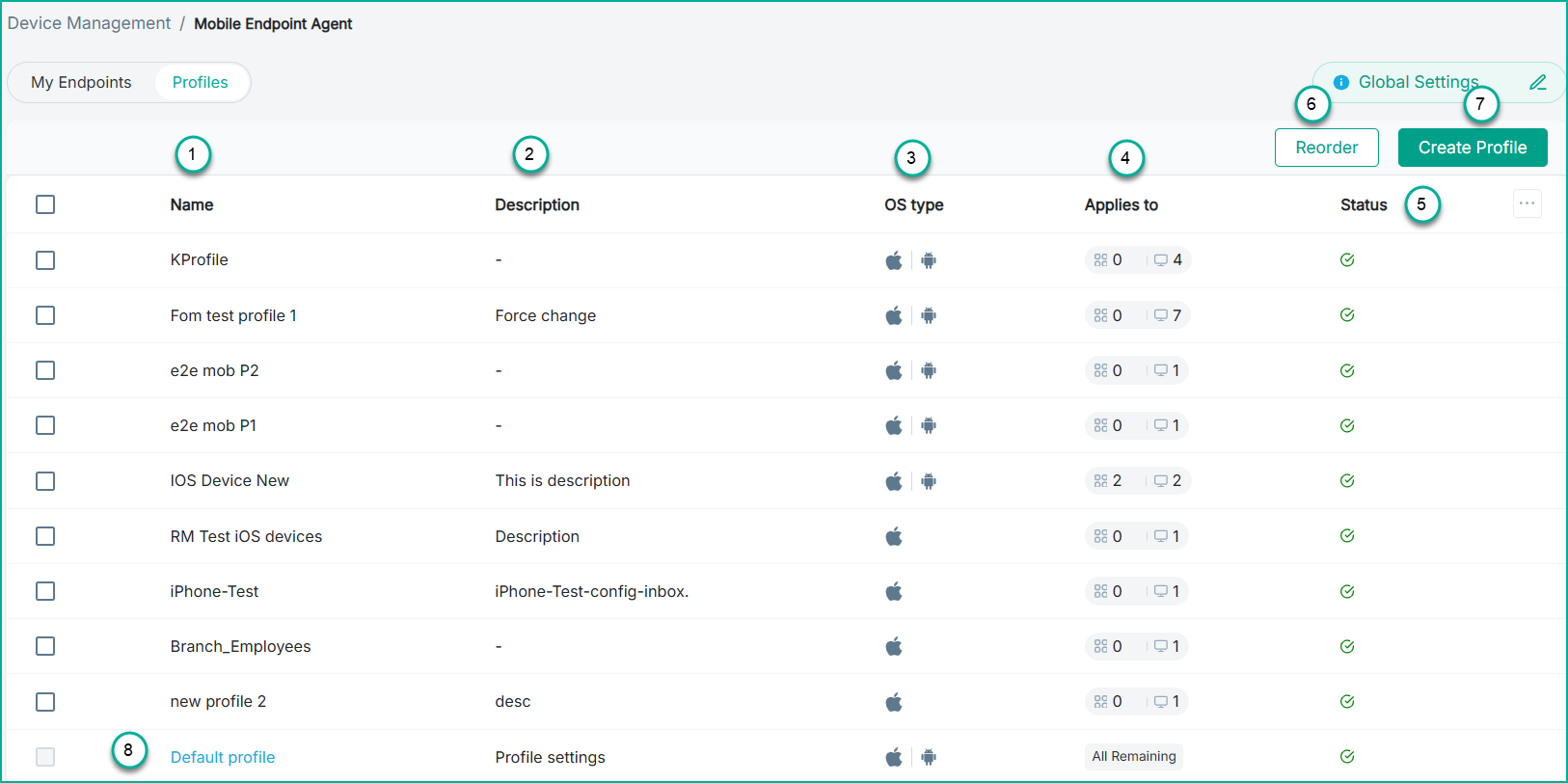
- 1
- Name: The name of the profile.
- 2
- Description: A brief explanation of what the profile contains or its intended use.
- 3
- OS type: Indicates the icons of the operating systems supported by the profile.
- 4
- Applies to: Displays which users or user groups in the profile are assigned to.
- 5
- Status: Displays the current state of the profile, such as whether it is active, correctly configured, or needs attention.
- 6
- Reorder: A tenant can have multiple profiles, and the order in which they appear determines their priority. Select Reorder, then drag the profiles
up or down, and click Save to update the priority list.
Example
Assume the following profiles exist in a tenant:- A profile for the Finance Organizational Unit (OU) that grants access to financial data.
- A profile for the IT department (OU) that grants access to network‑related data.
- A profile for macOS users.
- A Default profile (applied to all users or endpoints that do not match any other profile).
For example:- If the endpoint belongs to the Finance OU, the Finance profile is applied.
- If not, the system checks whether the endpoint belongs to the IT department.
- If yes, the IT profile is applied.
- The evaluation continues down the list until a match is found.
- If no profiles match, the Default profile is applied.
- 7
- Create Profile: Administrators can create new profiles using the Create Profile widget.
- 8
- Default profile: This is the baseline configuration that automatically applies to all remaining users or devices that are not explicitly assigned to any other profile. The default profile ensures that every device receives a minimum, required configuration, even if it does not match any targeted group or custom profile. This prevents unmanaged devices and ensures consistent security coverage.
- 9
- Delete: Administrators can delete profiles from the system when they are no longer needed. To delete a profile, select any profile (or multiple profiles). When selected,
the
 icon becomes available on the top corner. Click the icon to open a confirmation dialog, and upon confirming,
the selected profiles are permanently removed from the list. Deleted profiles no longer apply to any users or devices.
icon becomes available on the top corner. Click the icon to open a confirmation dialog, and upon confirming,
the selected profiles are permanently removed from the list. Deleted profiles no longer apply to any users or devices.