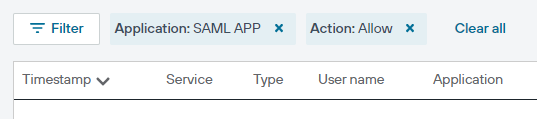
Dashboard filters
Added 11-Jan-2021 A customizable set of filters has been added to the dashboard page.
You can now customize the data displayed on the dashboard or in the log detail page by clicking the Filter button. For each filter you have applied, a filter element is displayed at the top of the dashboard.
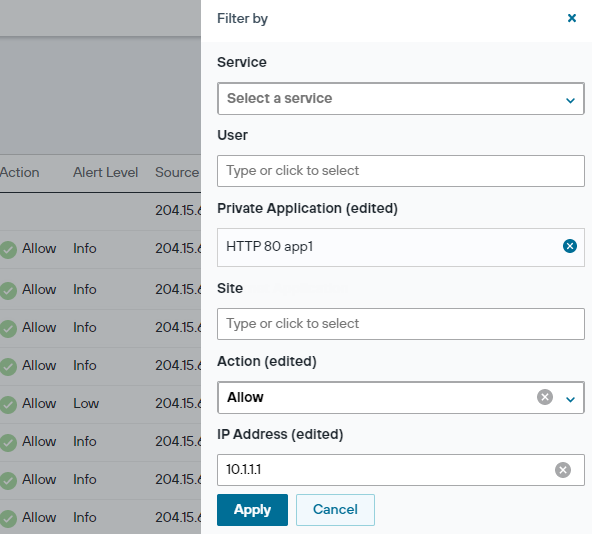
Any filters you apply on the dashboard are also applied on the details page when you click View Details.
You can filter the information displayed on the dashboard by:
- User
- Application
- Site
Two additional filters are available for the details view:
- Action: select Allow or Block to display transactions that were permitted or blocked by your policy or threat inspection rules.
- IP address: enter an IP address to display transactions related to that address.
Remove filters by clicking the x on the filter element displayed at the top of the dashboard, or to remove all filters, click Clear all.