Step 2: Configure DLP policies
Before you begin
Identify or create the DLP policy and rule that contains the classifiers you want to apply to AI Security over DLP Cloud API channel. This task covers only the destination configuration; for more information see Creating Custom DLP Policies in Forcepoint DLP Administrator Help.
Steps
-
Click Edit to choose the applications to analyze.
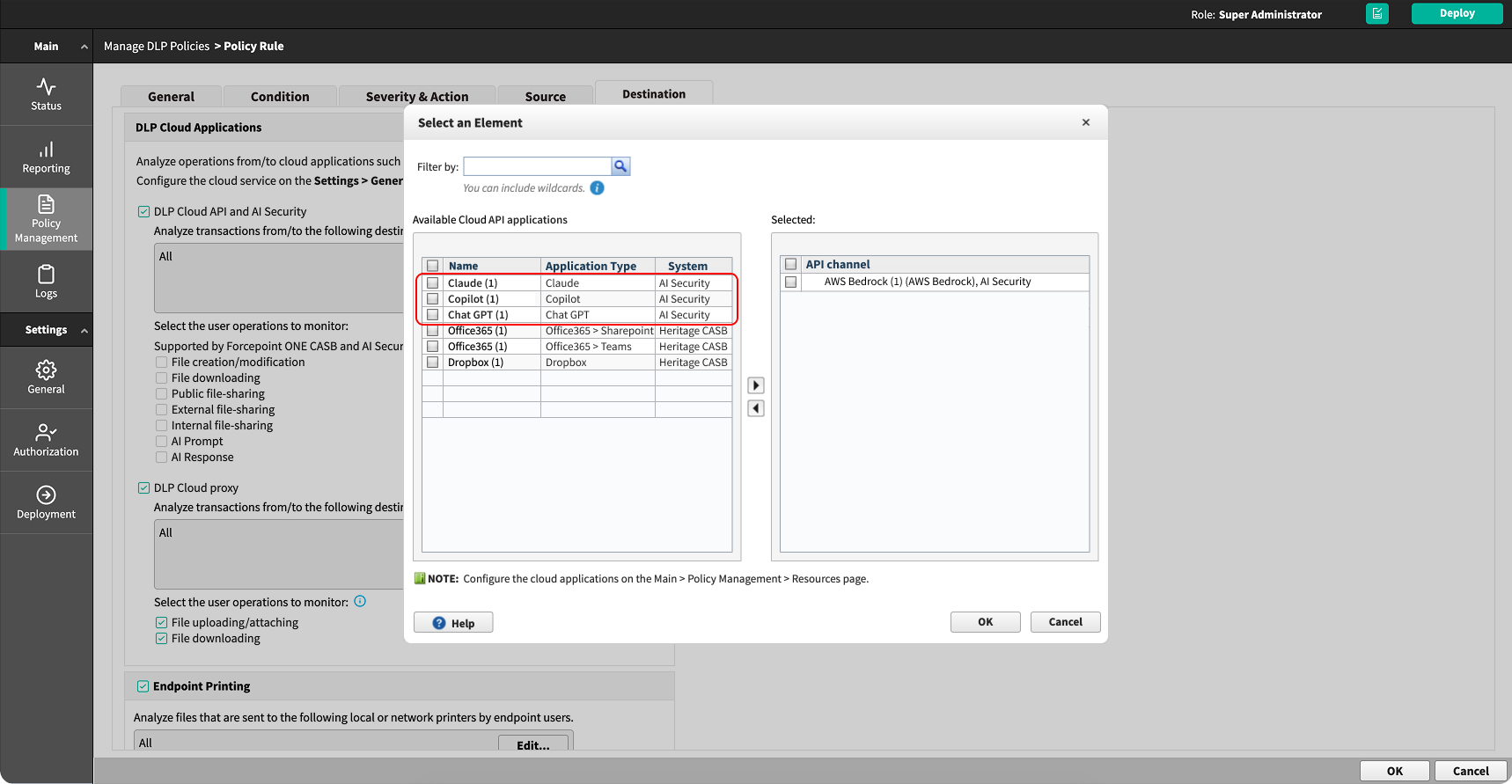
- In the Select an Element dialog box, review the Available Cloud API applications list. Each entry shows the application name, the application type, and the system that provides it.
- Select the AI applications you want this rule to cover and move them to the Selected list.
- Click OK.
-
Under Select the user operations to monitor, select the operations to apply.
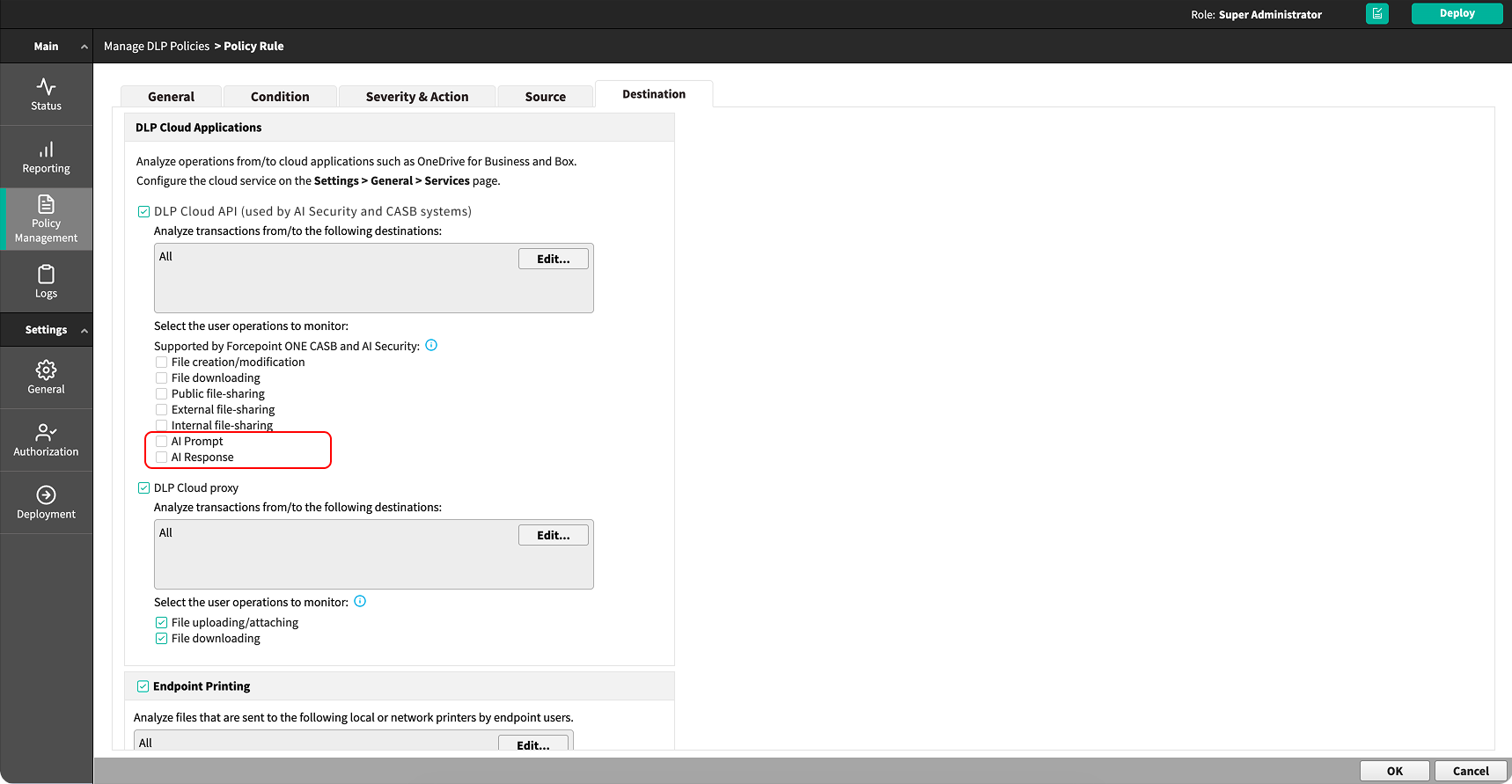
- File creation/modification - Select this option if you want to monitor file uploads.
- File downloading
- Public file-sharing
- External file-sharing
- Internal file-sharing
- AI Prompt
- AI Response
Result
The rule analyzes all the operations with the selected AI applications. The action taken when the rule is breached is determined by the action plan assigned on the Severity & Action tab.