Configuring an action plan
Steps
-
Select one or more of the following operations:
- File creation/modification - Select this option if you want to monitor file uploads.
- File downloading
- Public file-sharing
- External file-sharing
- Internal file-sharing
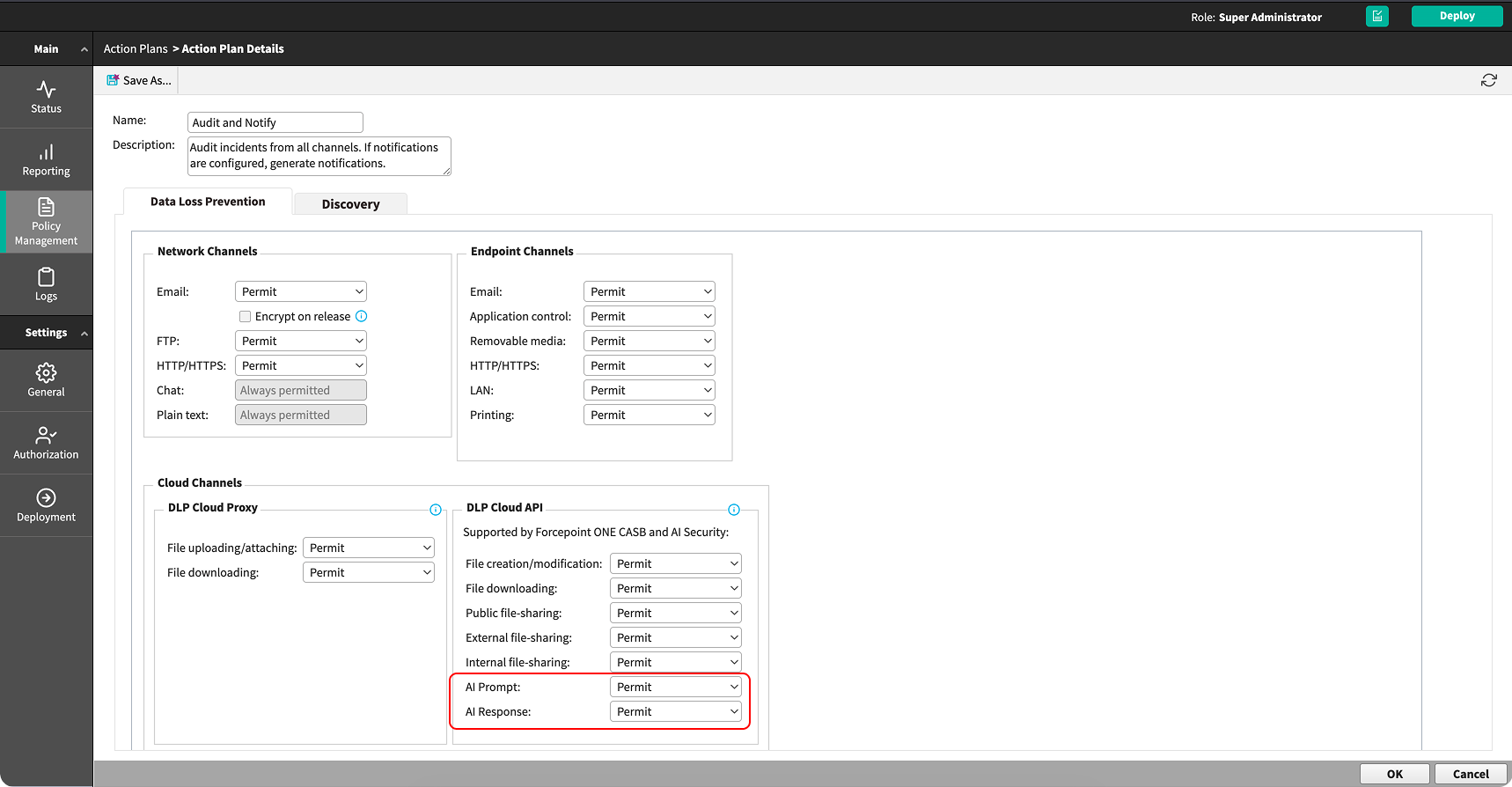
- AI Prompt
- AI Response
Action What happens Permit Allows files to be uploaded, synchronized, downloaded, or shared. Safe copy Keeps a copy of the file in a cloud archive that only administrators can access. Quarantine with a note Quarantine the file and leave a message in place of the original file.
This action is not supported. If you select this option, the Safe copy action is performed instead. Stay tuned for updates on its availability in Understanding Remediation Settings.
Delete AI content Deletes the submitted prompt or the AI-generated content returned to the user.
This action is not supported. Stay tuned for updates on its availability in Understanding Remediation Settings.
Unshare external and public file-sharing Removes sharing permissions for any external address. Unshare all Removes all sharing permissions from the file. Important: Before you select an action, see Understanding Remediation Settings. It explains how each remediation works and how to configure the safe copy path, which you must set up before the Safe copy action can be used. Not all actions are supported for every AI application. If an action is not supported for an application, the activity is audited and an incident is created.