DLP Policies
This feature allows users of Forcepoint DSPM to enable or disable DLP policy groups that apply on specific scan settings. Users can view all the DLP policies for Unstructured and Structured data
under the page. By default, all the policies are disabled. You can enable/disable the policies selectively using the toggle button  next to each listed policy.
This feature is available as a preview only.
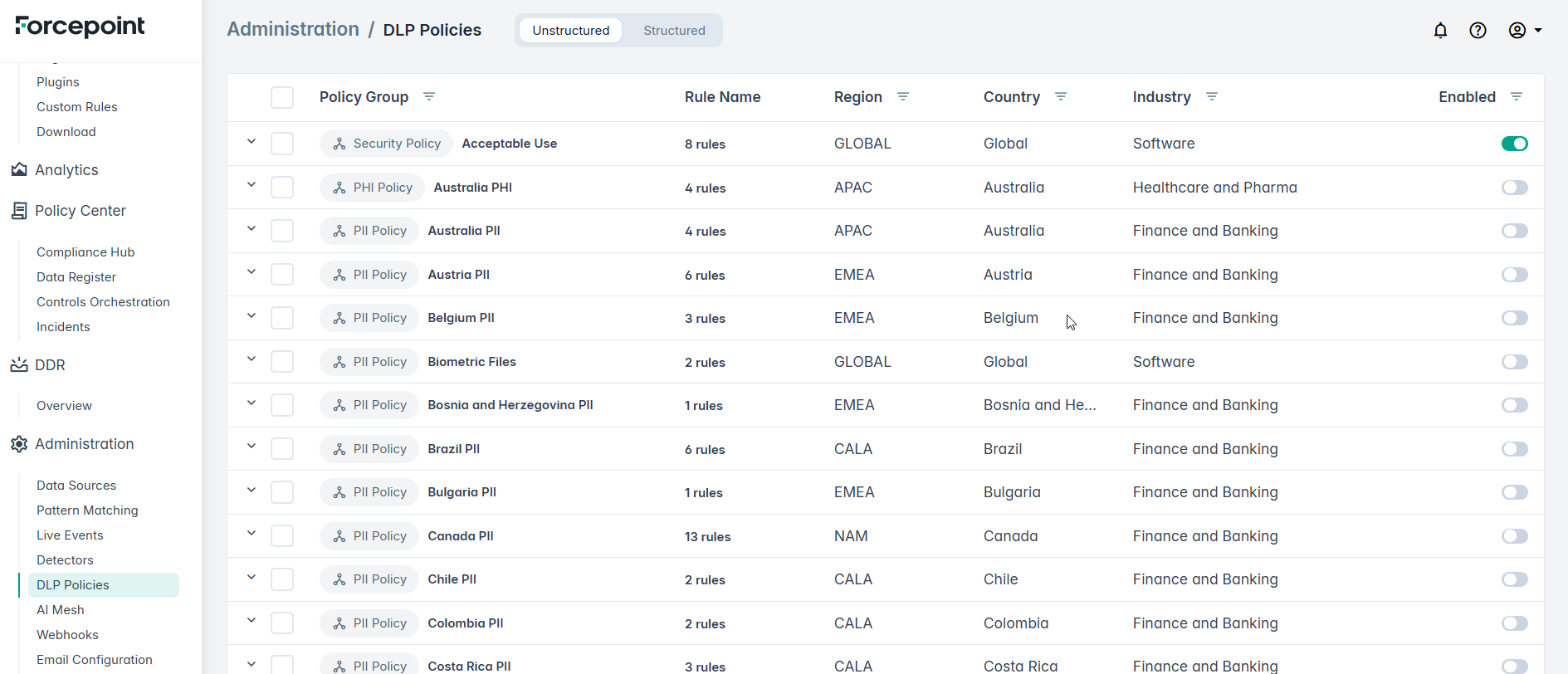
Improved policy management:
The page now includes additional capabilities to simplify policy management:
-
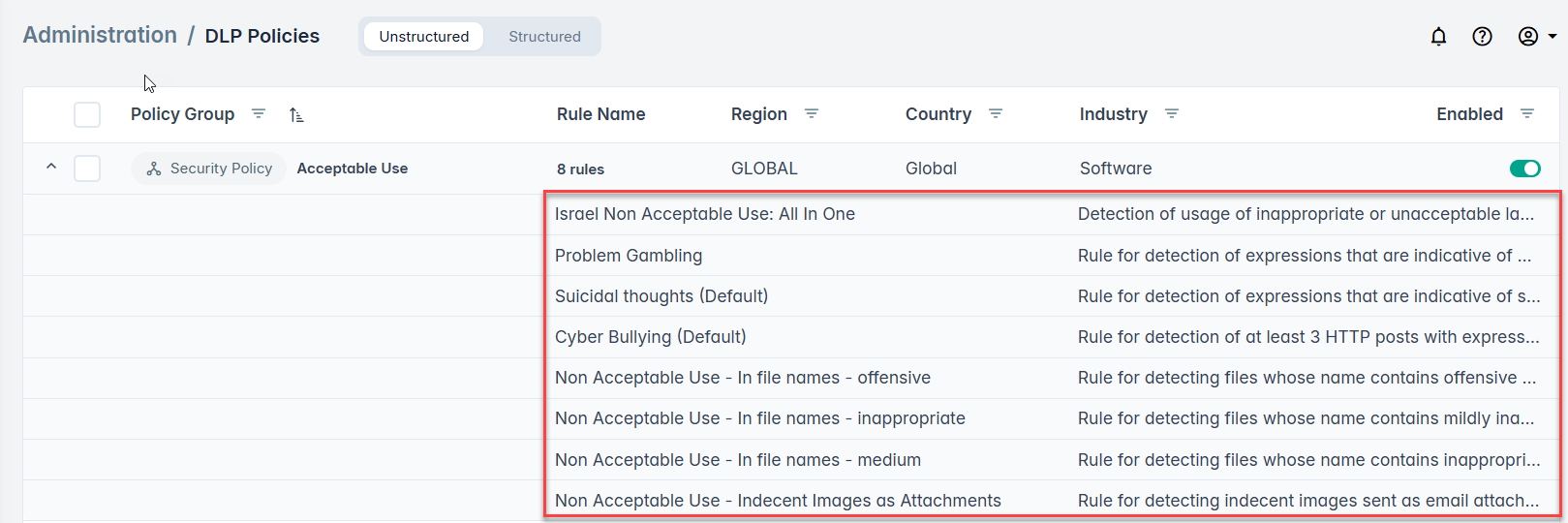
Bulk changes: Users can enable or disable multiple policies at once and expand the Policy Group to view the rules with short description.

-
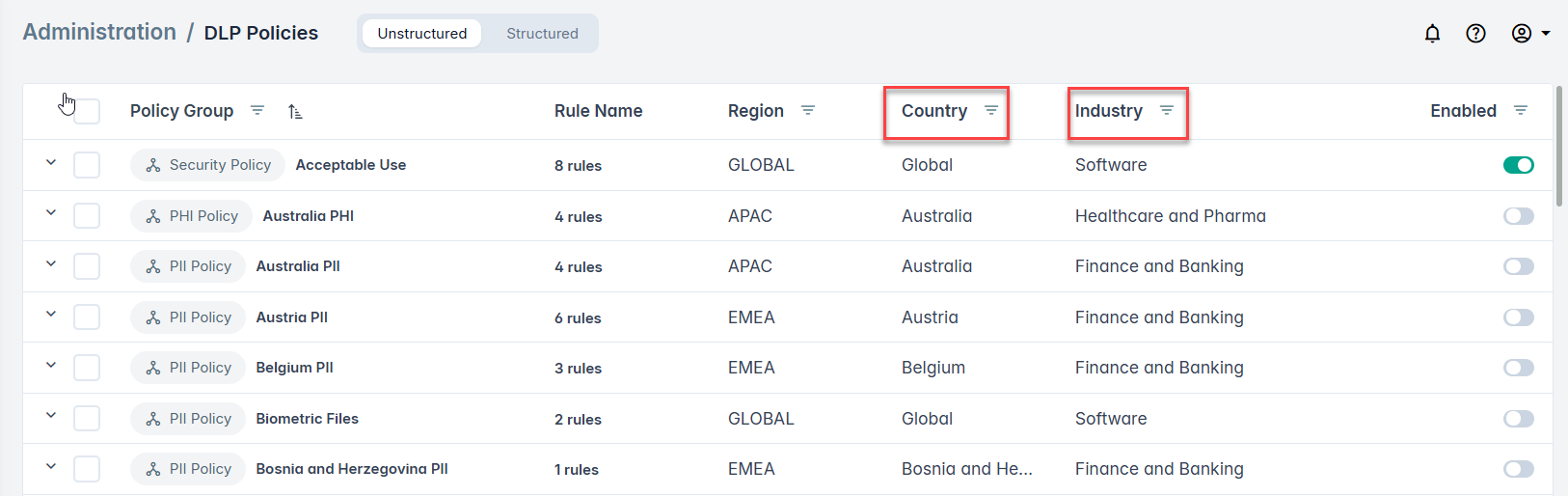
New attributes: Policies can now be filtered and organized using additional metadata fields such as Country and Industry.
Once you have selected a specific DLP policy group(s) that you want to apply, you can next run a scan on the selected data source. If there is a policy hit, then it will display on the rule in the column DLP Rules Name on the Enterprise Search page.
Also, following points are worth noting:
- Only enabled policies will be applied to the extracted content during the scans.
- The platform’s policy coverage has expanded with the number of available DLP policies increasing from 81 to 97, with the 16 newly added policies mapped to additional AI Mesh nodes and contributing indirectly to AIP (Classification) tags.
- If you have run a scan with a certain DLP policy group enabled, and now you want to run the scan again with the same policy group disabled, before you start the scan again, allow some time for the caches to clean.
- If all policies are disabled, there will be no DLP classifier hits.