Taxonomy
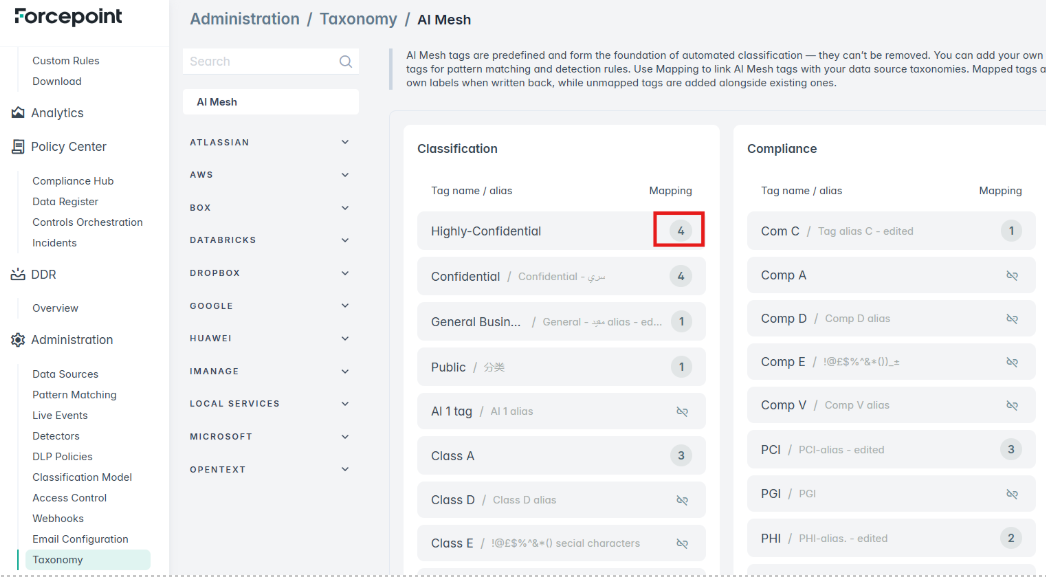
The Taxonomy page is the central place where classification tags are viewed and managed. It defines the vocabulary that the platform uses to label files during classification and tagging. The tags are organized into tagsets (Classification, Compliance, and Distribution; these are fixed and the same for all deployments).
It is a critical configuration surface: it connects the classification model (what the system can detect), pattern matching (custom detection rules), and file tagging (what value is applied to a data source).
Out-of-the-Box (OOTB) Tags
When the page first loads, it displays the out-of-the-box tags predefined in the classification model. These tags are the foundation of classification, establishing the baseline classification outcomes the platform can produce. For the full definition of each tag and the logic behind it, see the Classification Model page.
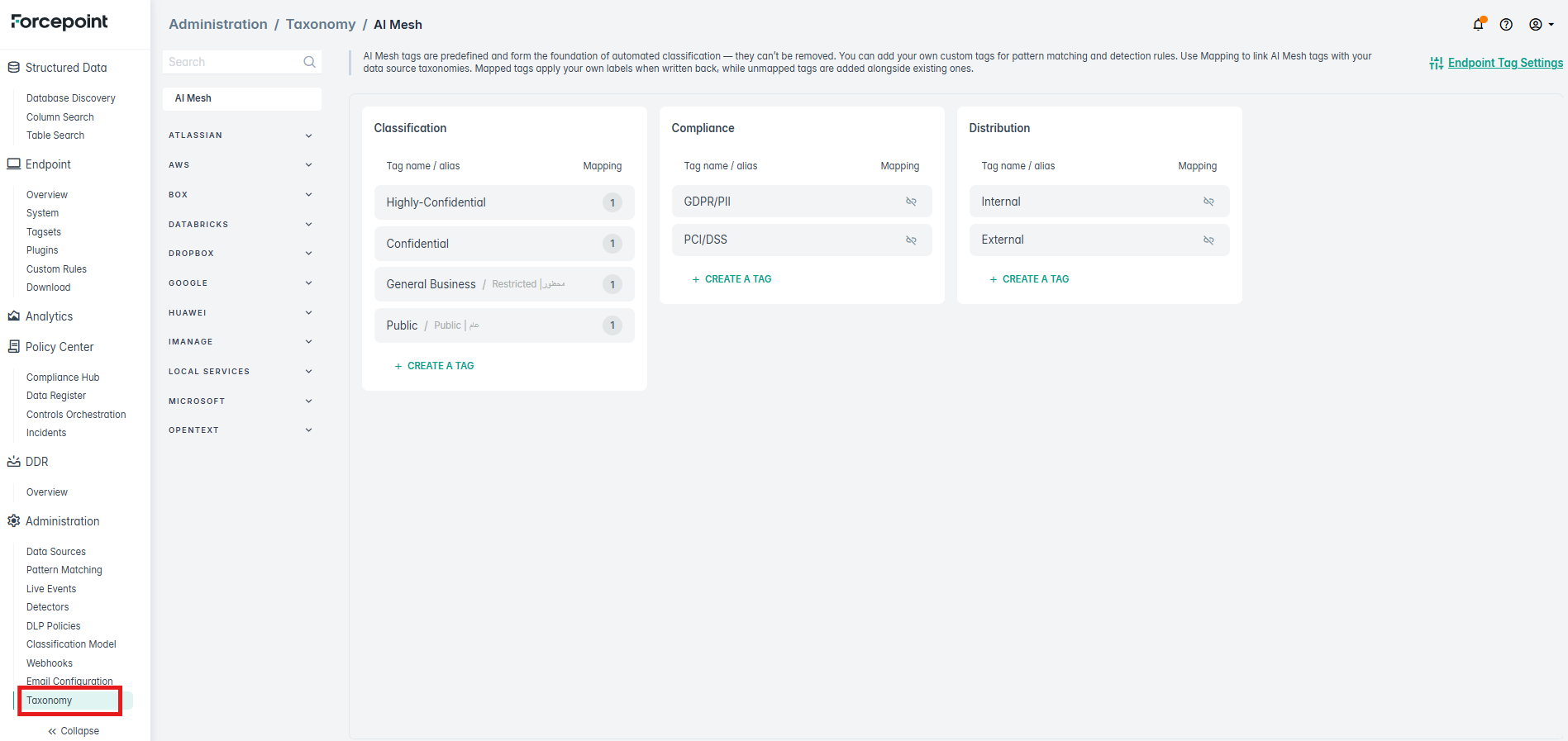
From the Taxonomy page, users can perform four primary actions:
View OOTB tags
- Review the predefined classification tags to understand the classification outcomes the system will produce.
- Follow the link to the Classification Model page to see how each tag is defined and evaluated.
Add, edit, or delete aliases
- An alias is an alternate display label for a tag. When a tag is assigned to a file, the alias (rather than the underlying tag name) is shown in enterprise search results for files that are classified after the alias is defined. Filters in enterprise search and chart widgets currently still display the underlying tag name. Users can add a new alias, edit an existing one, or delete an alias entirely.
- Aliases allow organizations to display classification outcomes in enterprise search results using their own terminology while the underlying OOTB tag remains unchanged. Aliases support multiple languages and special characters.
Tag aliases
You can define an alias for a tag to display a name that better matches your organization’s custom taxonomy. For example, a tag can be given the alias “C4 Top Secret” so that this label appears in place of the underlying tag name.
An alias applies only to files that are classified after the alias is defined:
- If an alias is defined for a tag at classification time, DSPM displays the alias in the Classification, Compliance Tags, and Distribution fields.
- If no alias is defined, DSPM displays the tag name.
- Files that were classified before the alias was defined continue to display the tag name.
Field names and columns are unchanged by aliases. GQL queries and basic filtering continue to use tag names.
To watch the demo video, click here.
Create custom tags for pattern matching
- Users can create custom tags and associate them with patterns defined on the Pattern Matching page.
- This extends automated classification beyond the OOTB set: when a custom pattern matches content in a file, the associated custom tag is applied as part of the classification outcome.
Create data-source-specific tags and map them
- Users can create tags that are specific to a data source and map them to a classification tag.
- When file tagging is initiated for the corresponding data source, the mapped value is the label written back to the file being tagged.
- In other words: the classification tag drives detection, while the mapped data-source tag controls the exact value applied on that data source. Mapped tags apply the organization's own labels when written back; unmapped tags are added alongside any existing labels.