QRadar Custom Properties
This guide walks through adding a custom property to the Forcepoint Insights Log Source Type so that QRadar can extract a new field from the JSON event payload and surface it in searches, rules, and reports.
blockedUrl from the incoming JSON event.Steps
-
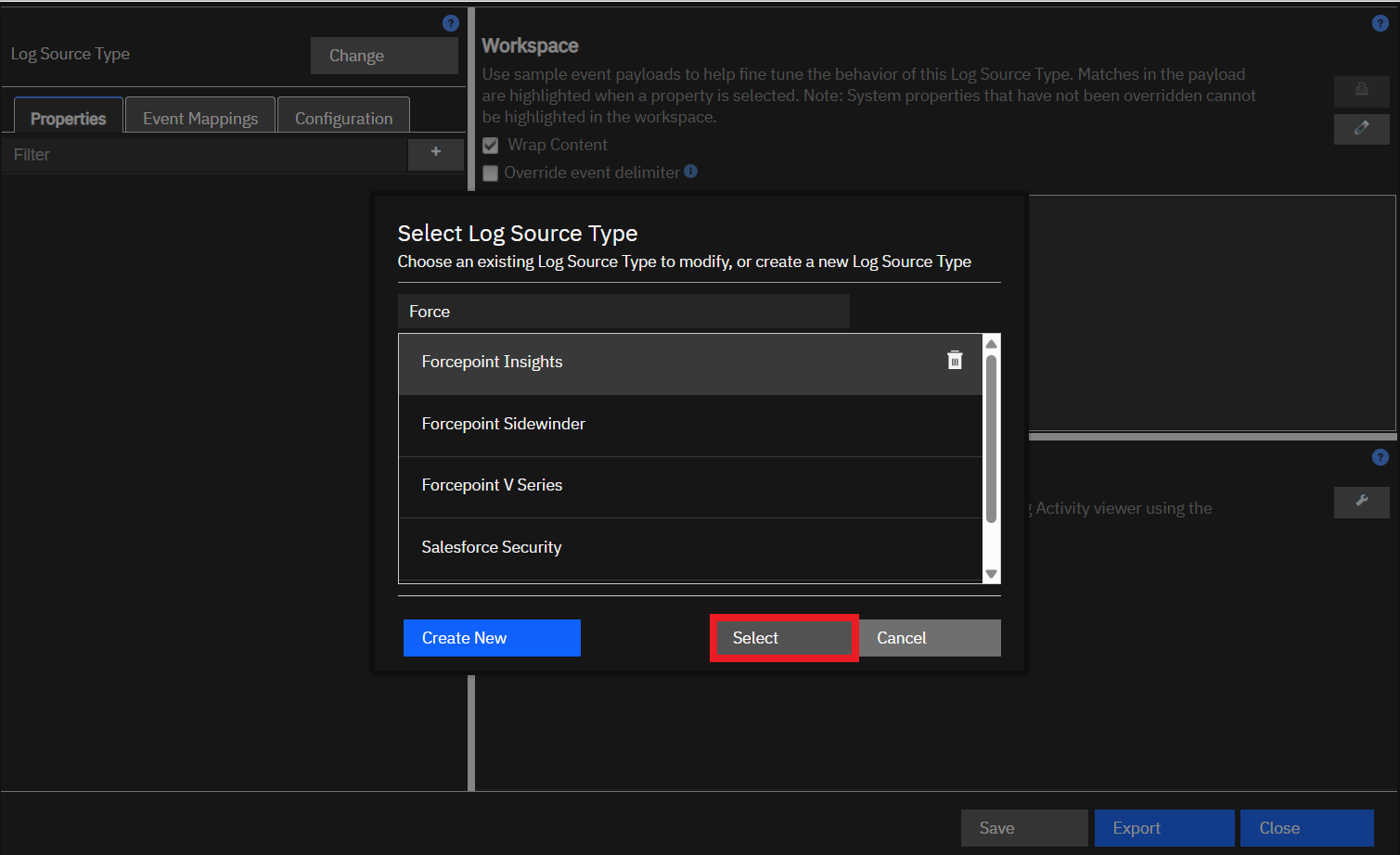
Select the Forcepoint Insights Log Source Type
- In the Select Log Source Type dialog:
- Type Force in the search box.
- Select Forcepoint Insights.
- Click Select.
The Properties tab opens for the Forcepoint Insights Log Source Type.
- In the Select Log Source Type dialog:
-
Add a property
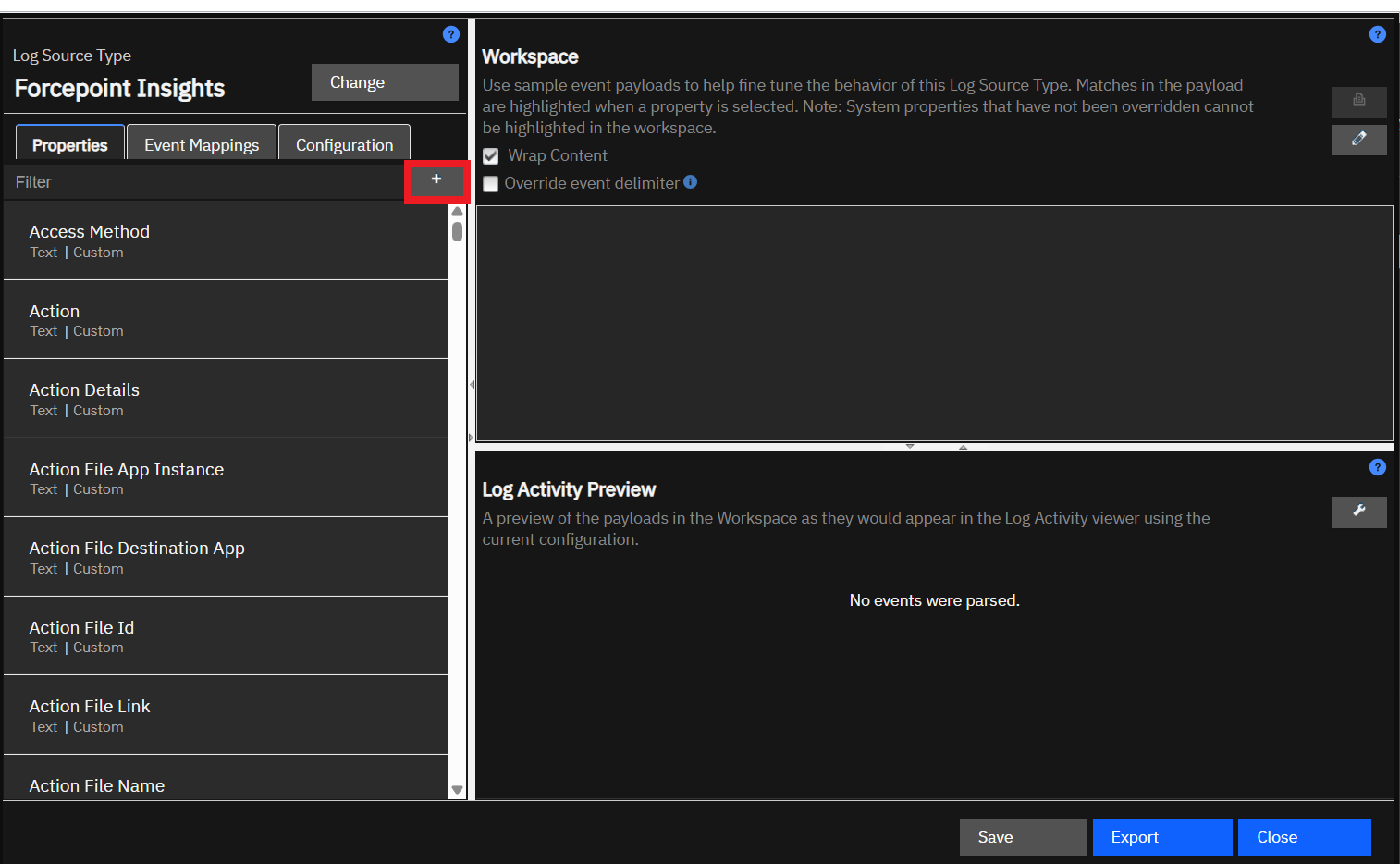
- On the Properties tab, click the + button next to the Filter field. The Choose a Custom Property Definition dialog appears.
- To reuse an existing property, select it and click Select, then proceed to Step 5.
- To create a new property, click Create New and continue to Step 4.
- On the Properties tab, click the + button next to the Filter field. The Choose a Custom Property Definition dialog appears.
-
Create the Custom Property Definition
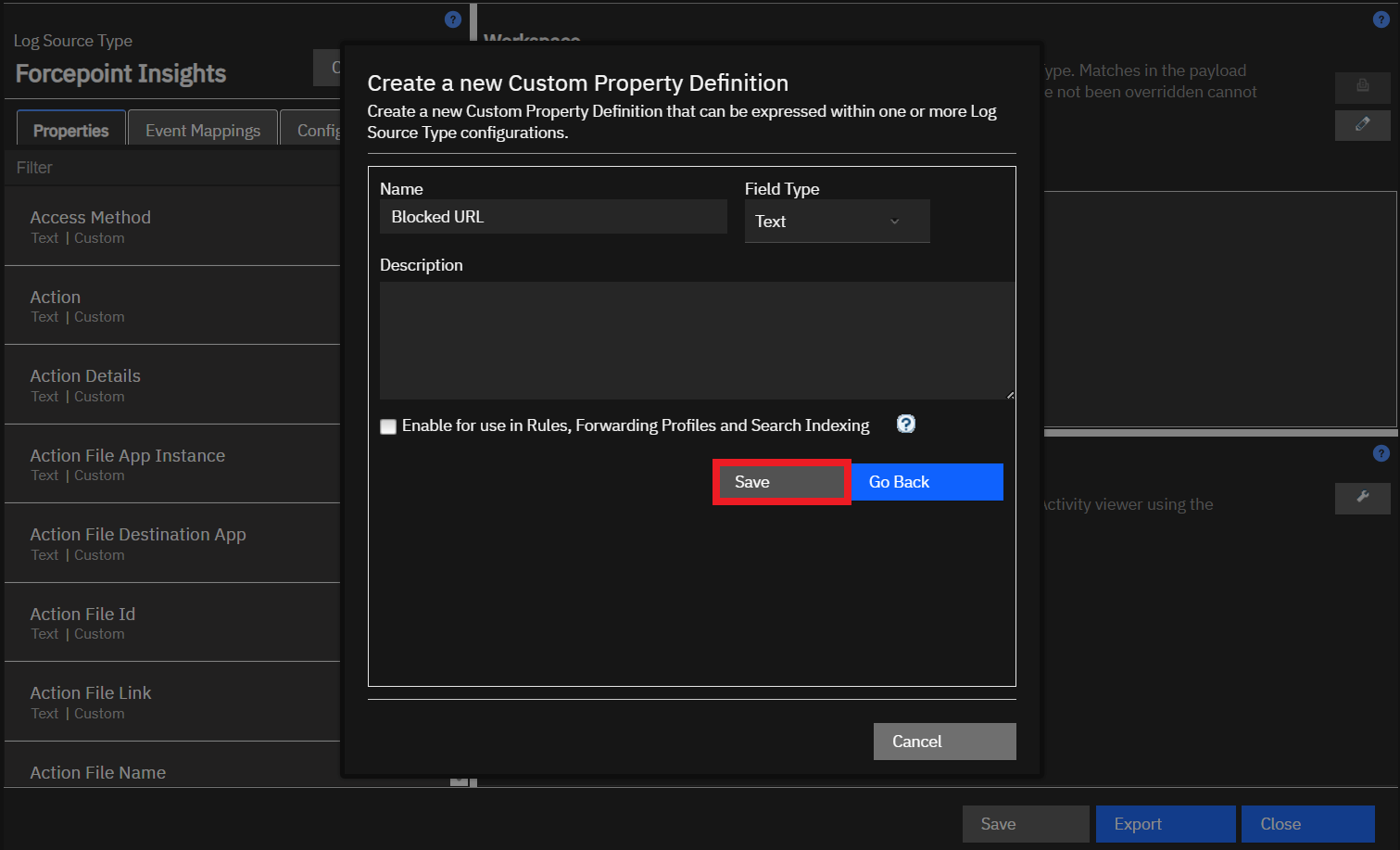
Fill in the following fields:
- Name: for example, Blocked URL
- Field Type: Text, Number, Date, or IP
- Description: optional
Click Save.
-
Configure the extraction expression
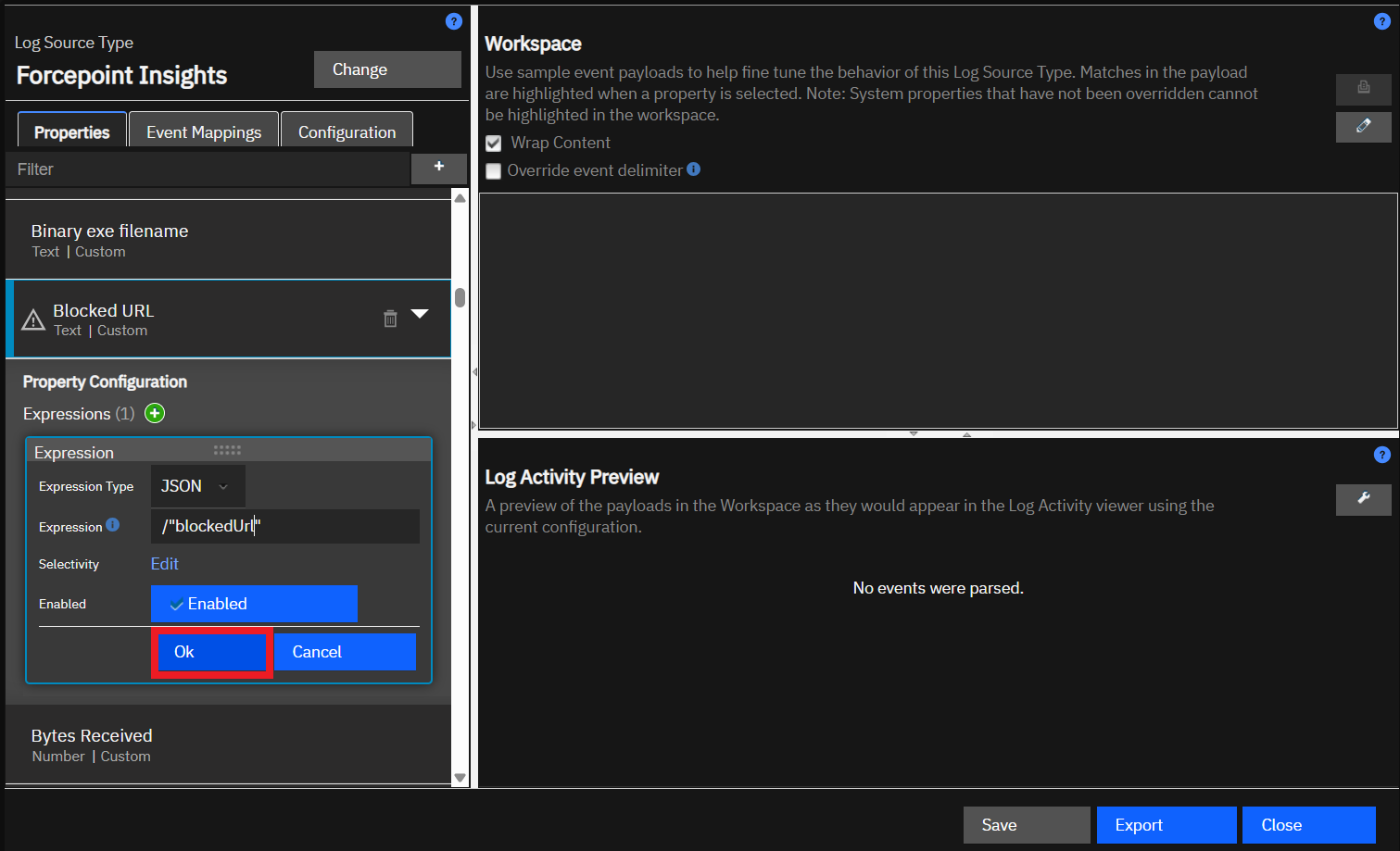
Select the new property in the list to expand it.
Click the + next to Expressions.
Set the following fields:
- Expression Type: JSON
- Expression: the JSON pointer to the field, for example:
/blockedUrl - Enabled: leave set to Enabled
Click OK.
Note: For JSON field name in Expression refer the Script Exported Name here