Modifying licenses
Steps for modifying licenses of a tenant.
Steps
-
On the upper-right corner of the Entitlements section, click the
 icon to open the
Licenses page.
icon to open the
Licenses page.
-
Click the license which you want to view and update the license details.
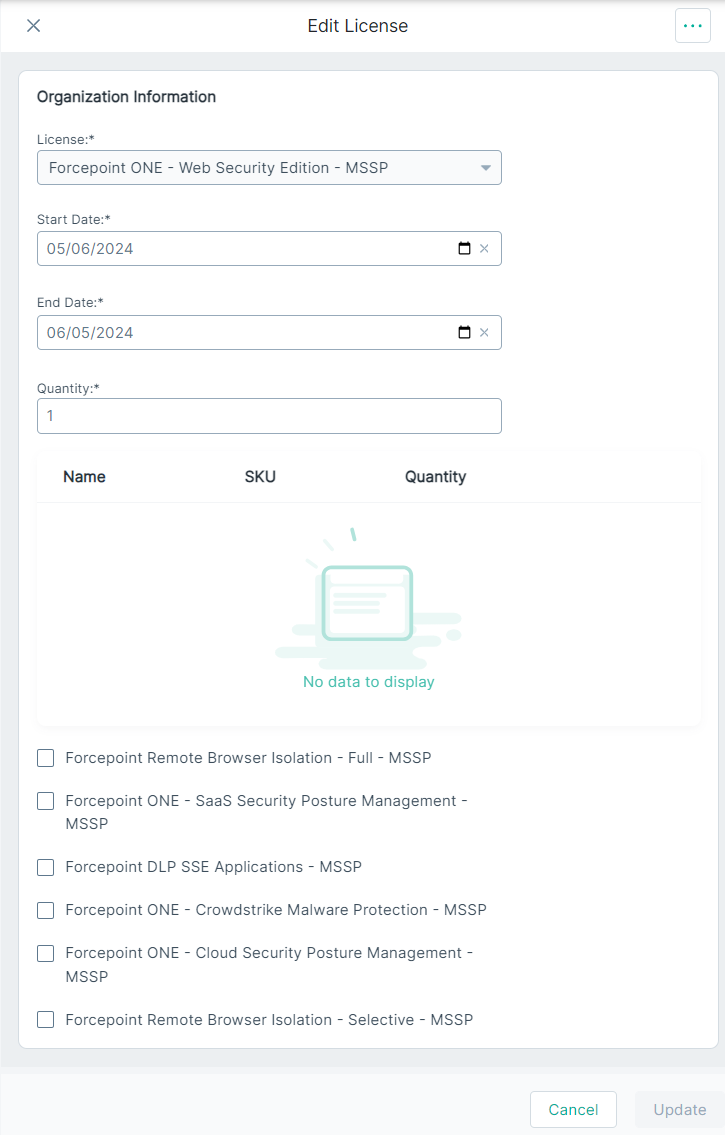
You can modify all the fields except the License field.
-
On the Start Date field, enter the date, in mm/dd/yyyy format, from when license is valid.
OR
Click the
 icon to select the Start Date from when
license is valid.
icon to select the Start Date from when
license is valid. -
On the End Date field, enter the date, in mm/dd/yyyy format, till when license is valid.
OR
Click the
icon to select the End Date till when license is
valid. -
The table under the Quantity field displays components included as part of selected license.
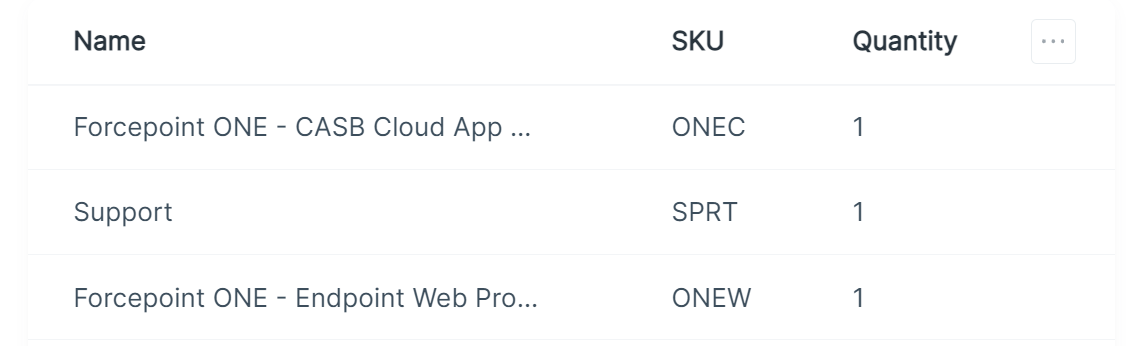
-
Add the applicable add-ons:
-
Select the checkbox of the applicable add-on.
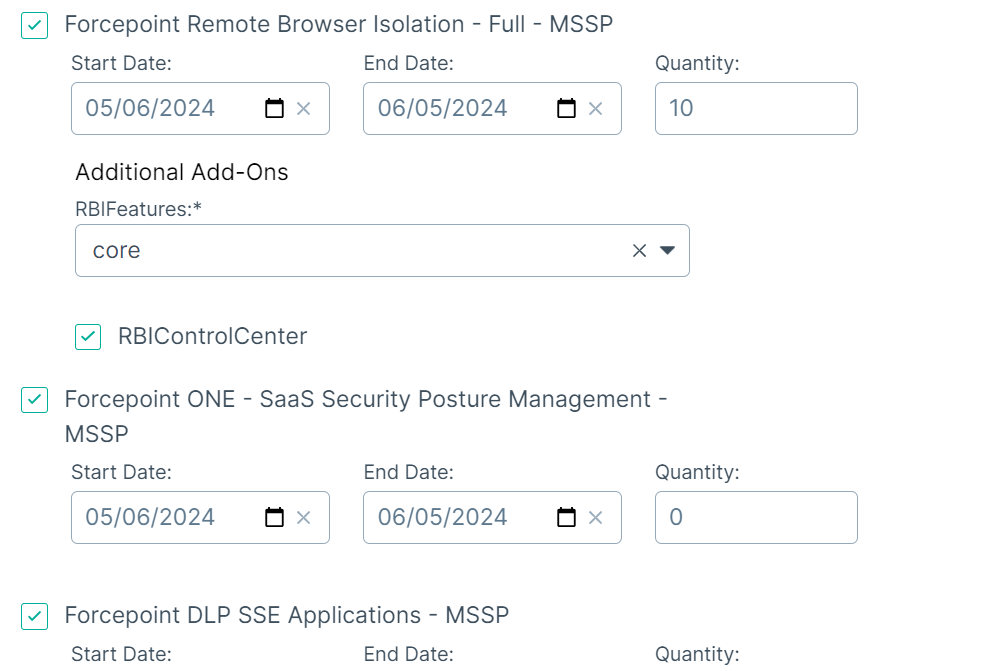
As soon as you select the checkbox, the Start Date, End Date, and Quantity fields are displayed.
-
On the Start Date field, enter the date, in mm/dd/yyyy format, from when add-on is valid.
OR
Click the
icon to select the Start Date from
when add-on is valid.By default, the Start Date and End Date values are set to the Start Date and End Date values of license.
-
On the End Date field, enter the date, in mm/dd/yyyy format, till when add-on is valid.
OR
Click the
icon to select the End Date till
when add-on is valid.By default, the Start Date and End Date values are set to the Start Date and End Date values of license.
-
Select the checkbox of the applicable add-on.
-
To save the updates, click Update.
The saved license appears on the Licenses page.
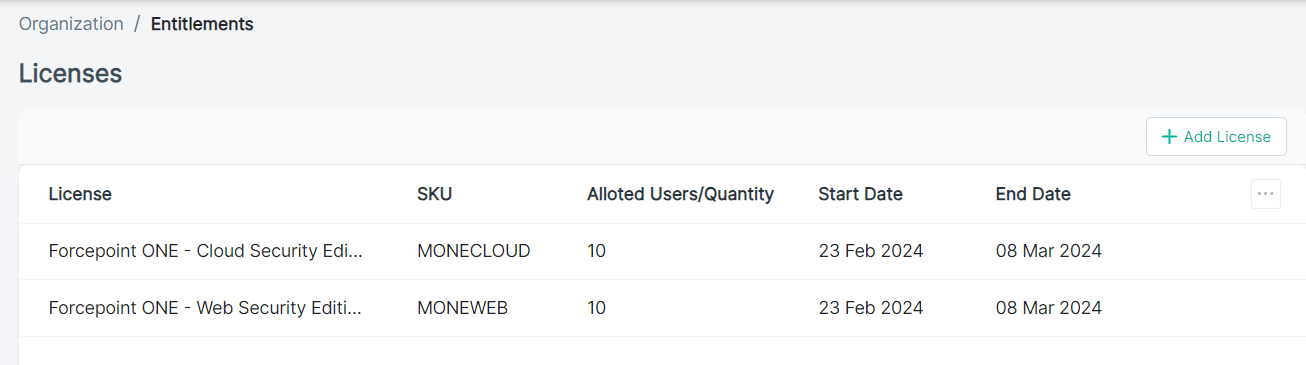
Column Description License Displays name of the license. SKU Displays SKU associated with the license. Alloted Users/Quantity Displays number of licenses purchased by customer. Start Date Displays the date from when the license is valid. End Date Displays the date till when the license is valid.