Adding licenses
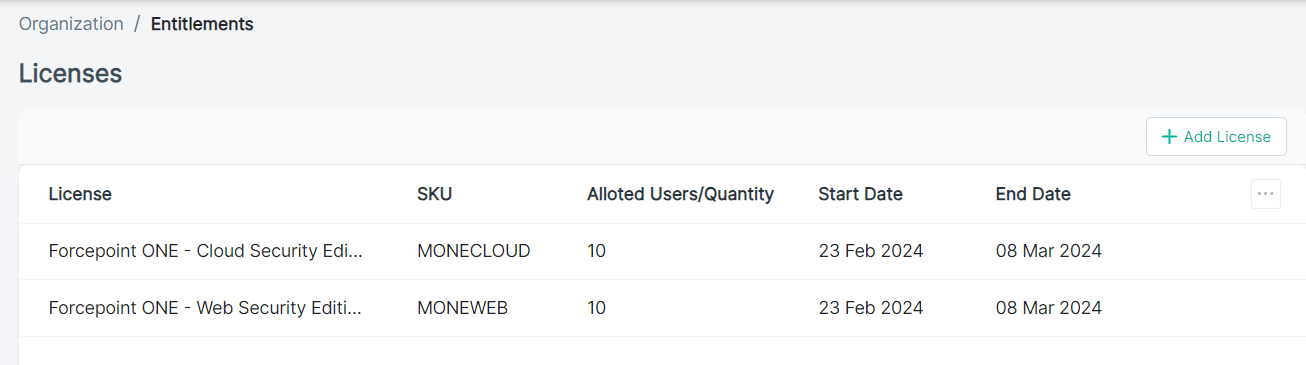
Entitlements (licenses) are representations of products and services purchased by a customer.
Steps
-
On the upper-right corner of the Entitlements section, click the
 icon to open the
Licenses page.
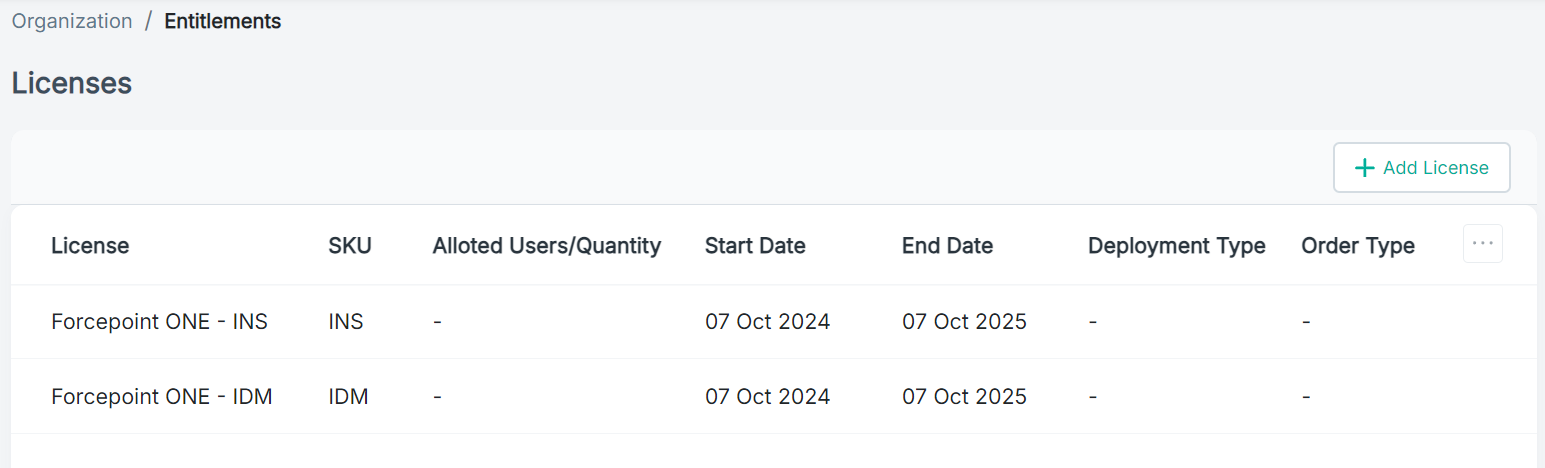
icon to open the
Licenses page.
-
Click Add License.
-
On the Add License dialog, select the applicable license from the License drop-down.
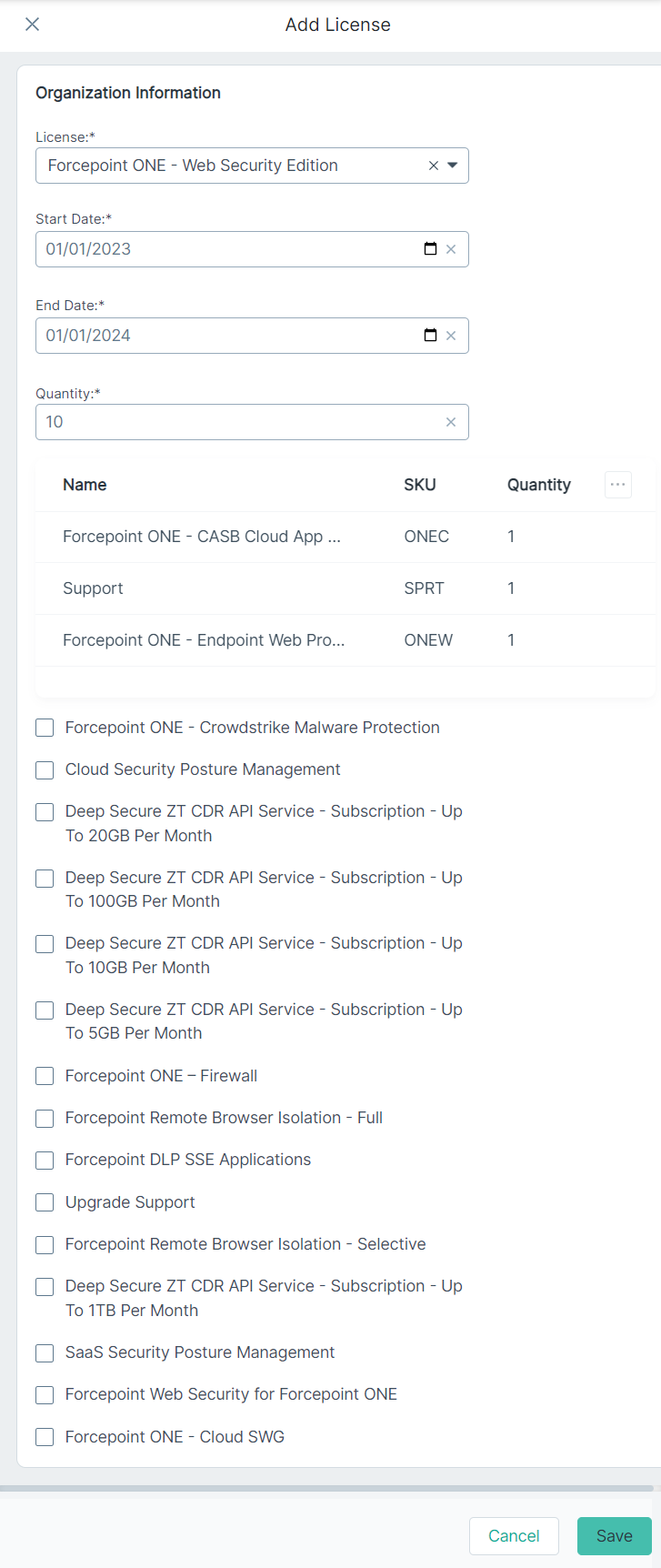
Based on the selected license, add-ons are displayed. To know about licenses and their components, refer to Licensing SKUs.
-
On the Start Date field, enter the date, in mm/dd/yyyy format, from when license is valid.
OR
Click the
 icon to select the Start Date from when
license is valid.
icon to select the Start Date from when
license is valid. -
On the End Date field, enter the date, in mm/dd/yyyy format, till when license is valid.
OR
Click the
icon to select the End Date till when license is
valid. -
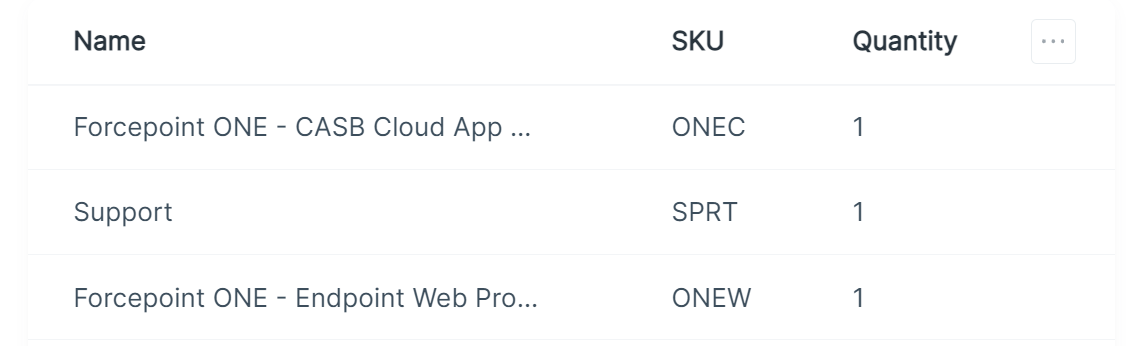
The table under the Quantity field displays components included as part of selected license.
-
Add the applicable add-ons:
-
Select the checkbox of the applicable add-on.
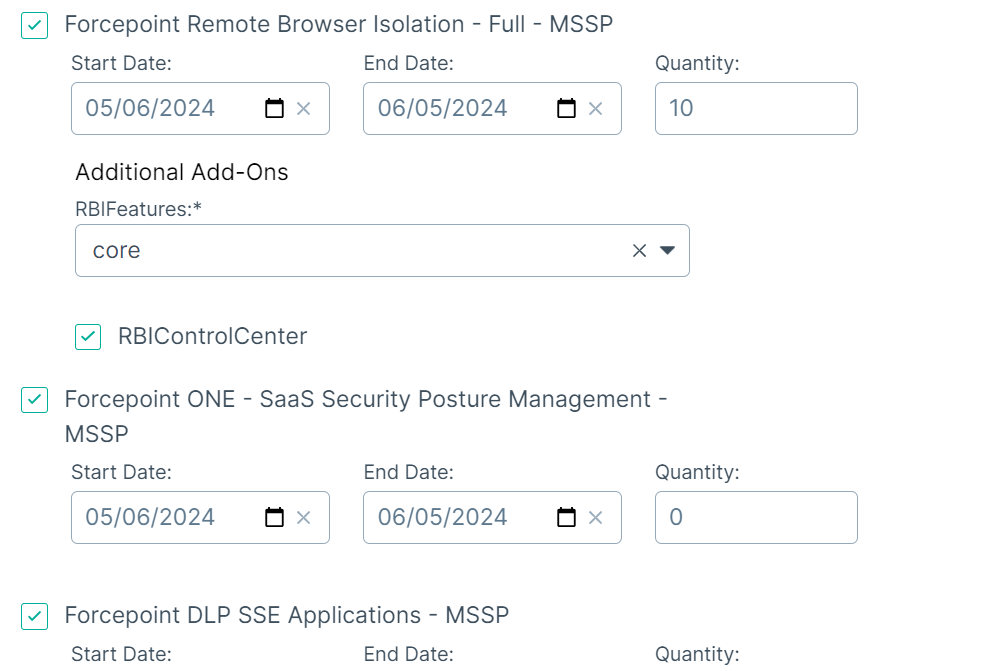
As soon as you select the checkbox, the Start Date, End Date, and Quantity fields are displayed.
-
On the Start Date field, enter the date, in mm/dd/yyyy format, from when add-on is valid.
OR
Click the
icon to select the Start Date from
when add-on is valid.By default, the Start Date and End Date values are set to the Start Date and End Date values of license.
-
On the End Date field, enter the date, in mm/dd/yyyy format, till when add-on is valid.
OR
Click the
icon to select the End Date till
when add-on is valid.By default, the Start Date and End Date values are set to the Start Date and End Date values of license.
-
Select the checkbox of the applicable add-on.
-
To save the entered license, click Save.
The saved license appears on the Licenses page.