Policy Levels
Policy Levels
Policy Levels help users manage and prioritize a large number of policies. By organizing policies into different levels, users can ensure that the policy engine processes only the highest-priority policies first.
For example, If a user violates policies in multiple levels, the policy engine stops at the top-priority level. Once a rule in that top level is breached, an alert is triggered. This alert will appear in the investigation module. The system does not continue down to lower-priority levels once a higher-priority violation is found.
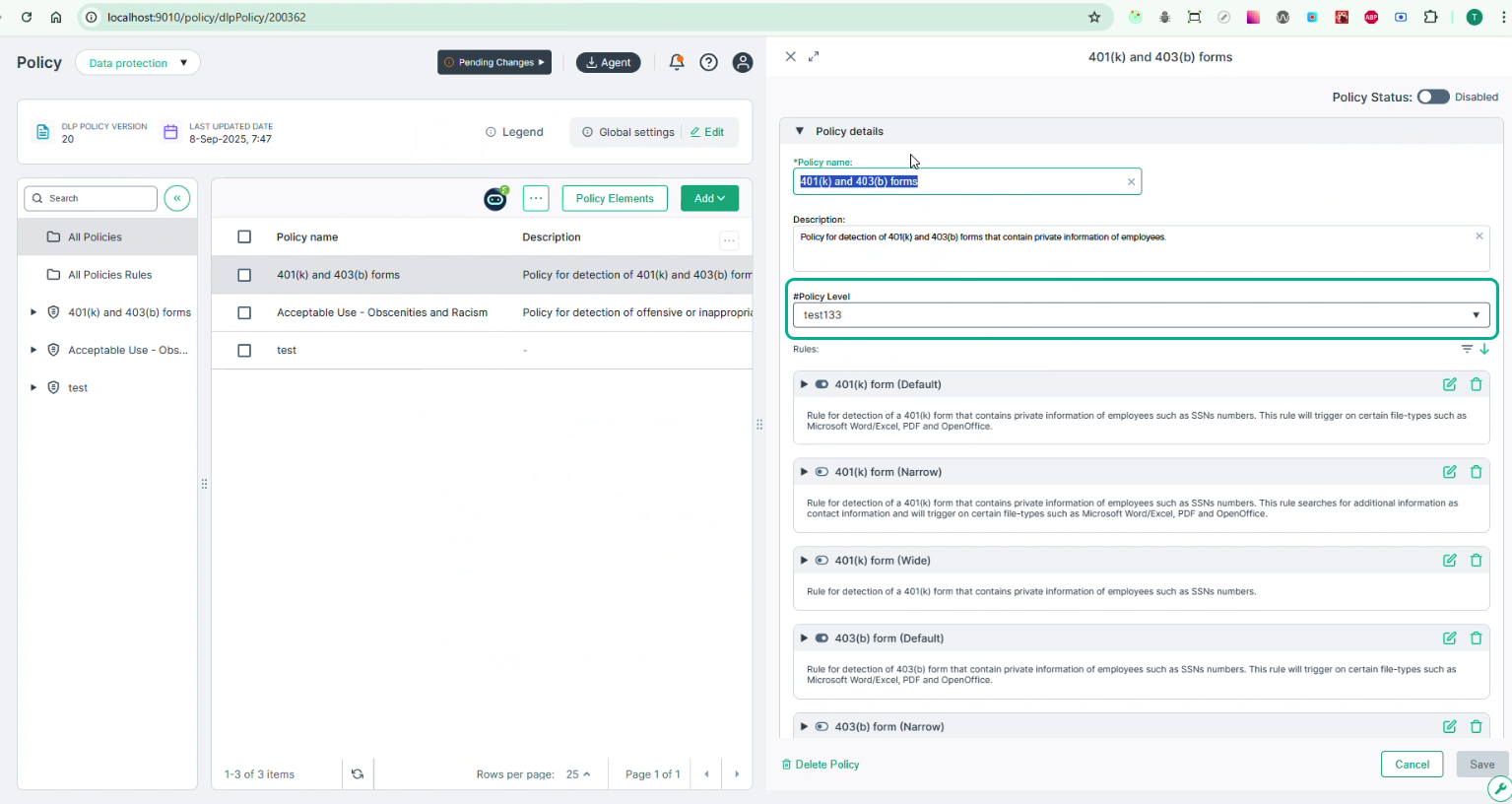
Users with the required permissions can create, edit, and delete policy levels. They can also configure these levels to prioritize one set of policies over another.
Understanding Policy Priority
Navigate to the Policy menu.
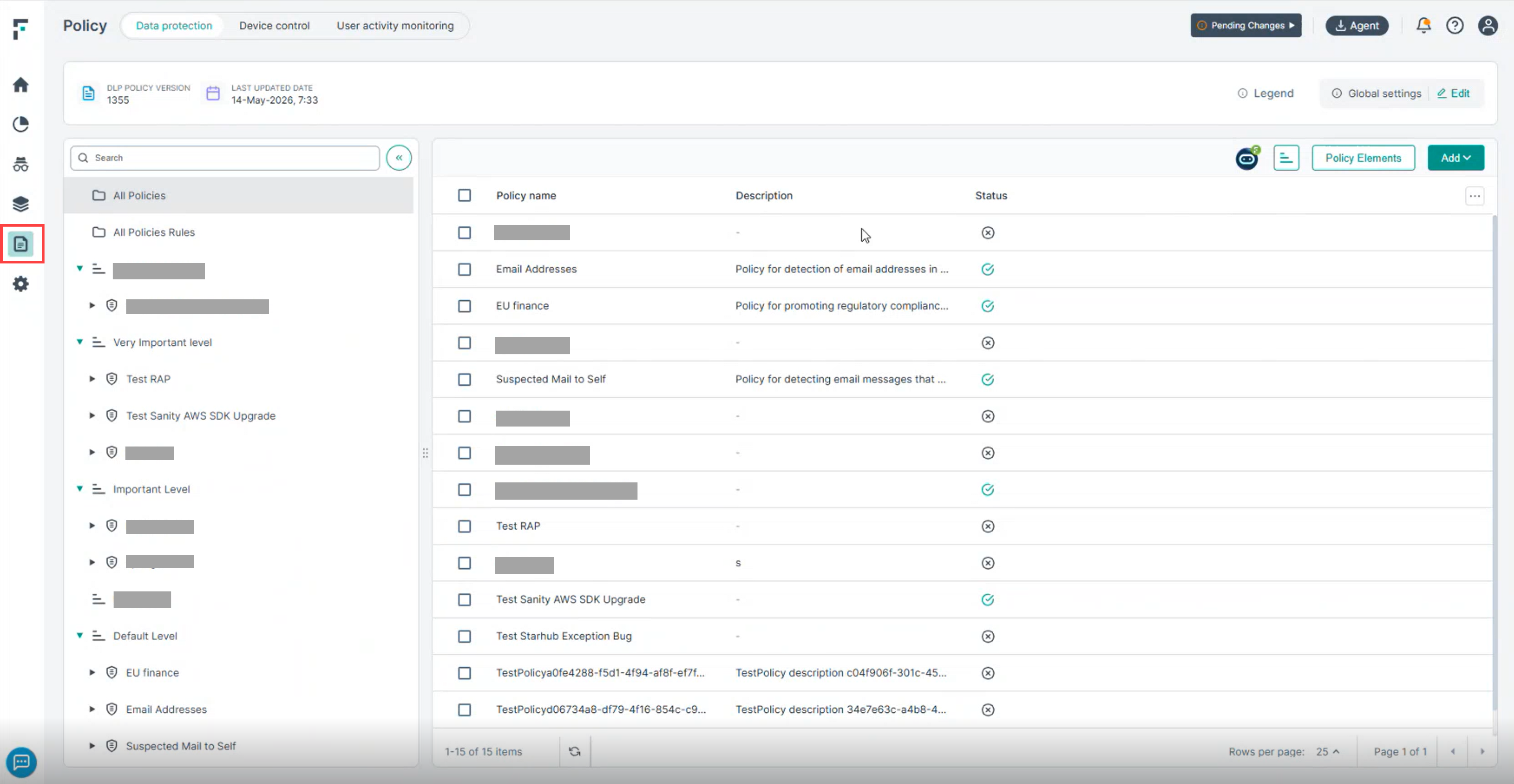
The left-hand panel of the Policy page displays all policies organized by their assigned priority level, from the highest priority at the top to the Default level at the bottom.
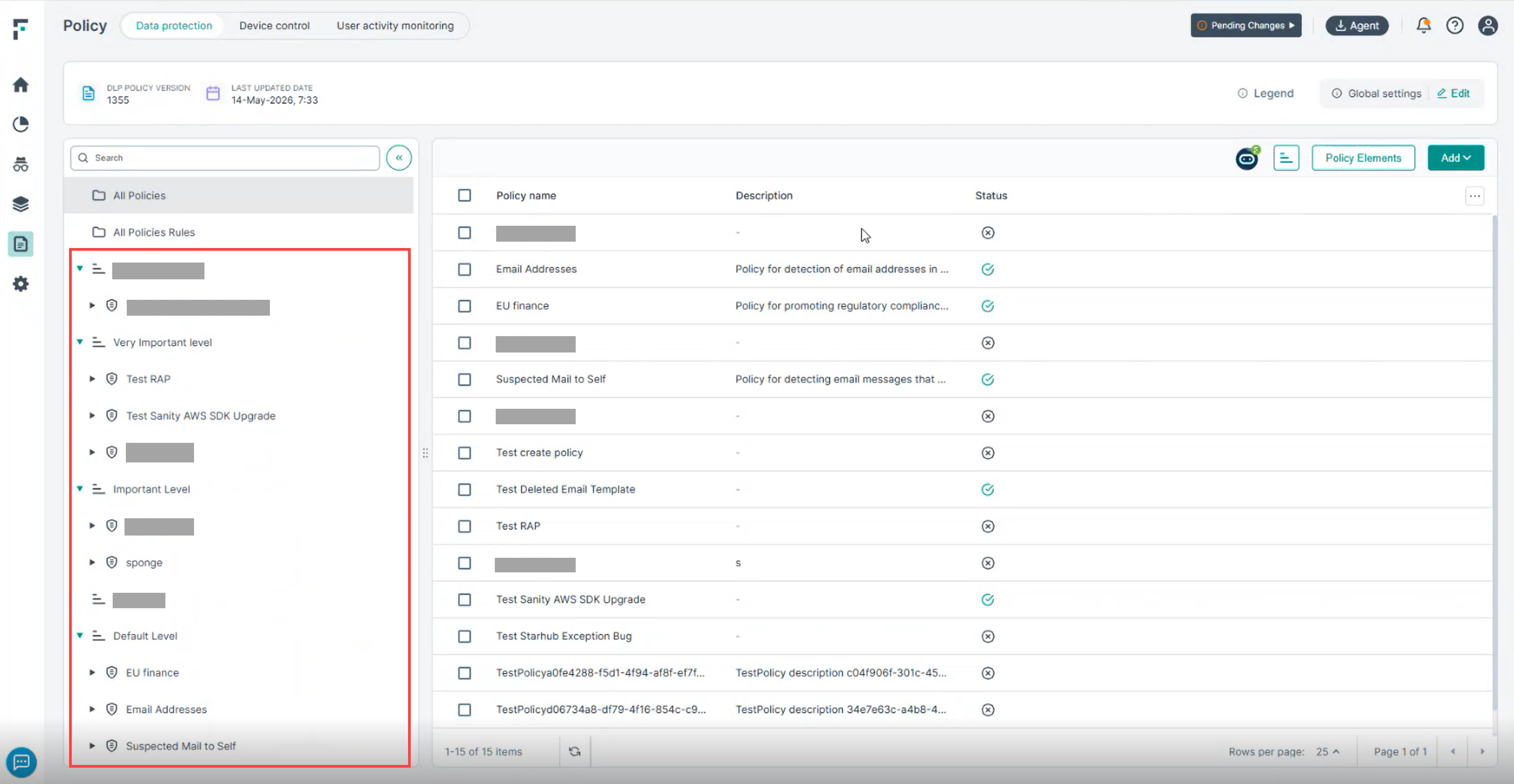
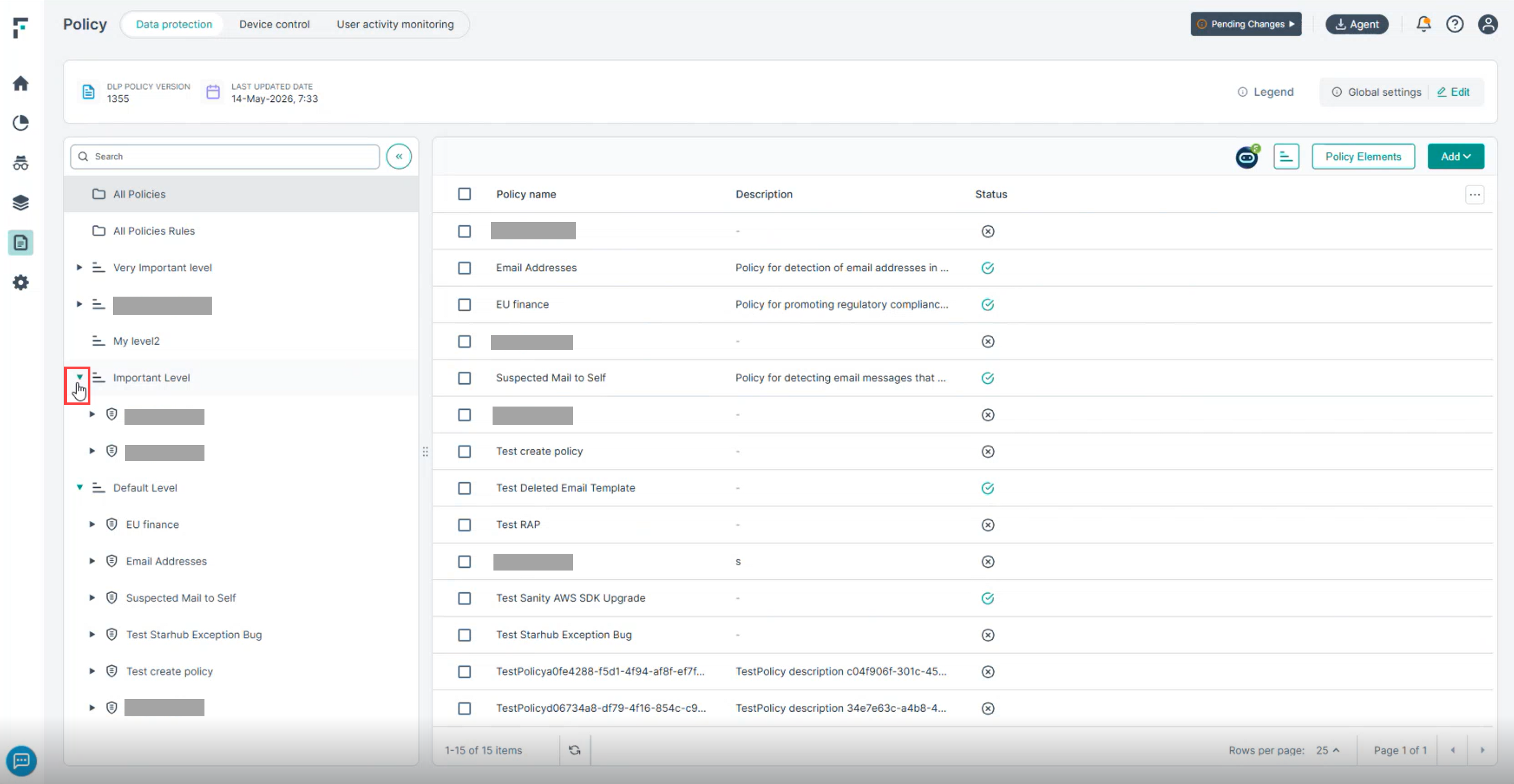
You can click the expand arrow next to a level to view all the policies assigned to it.
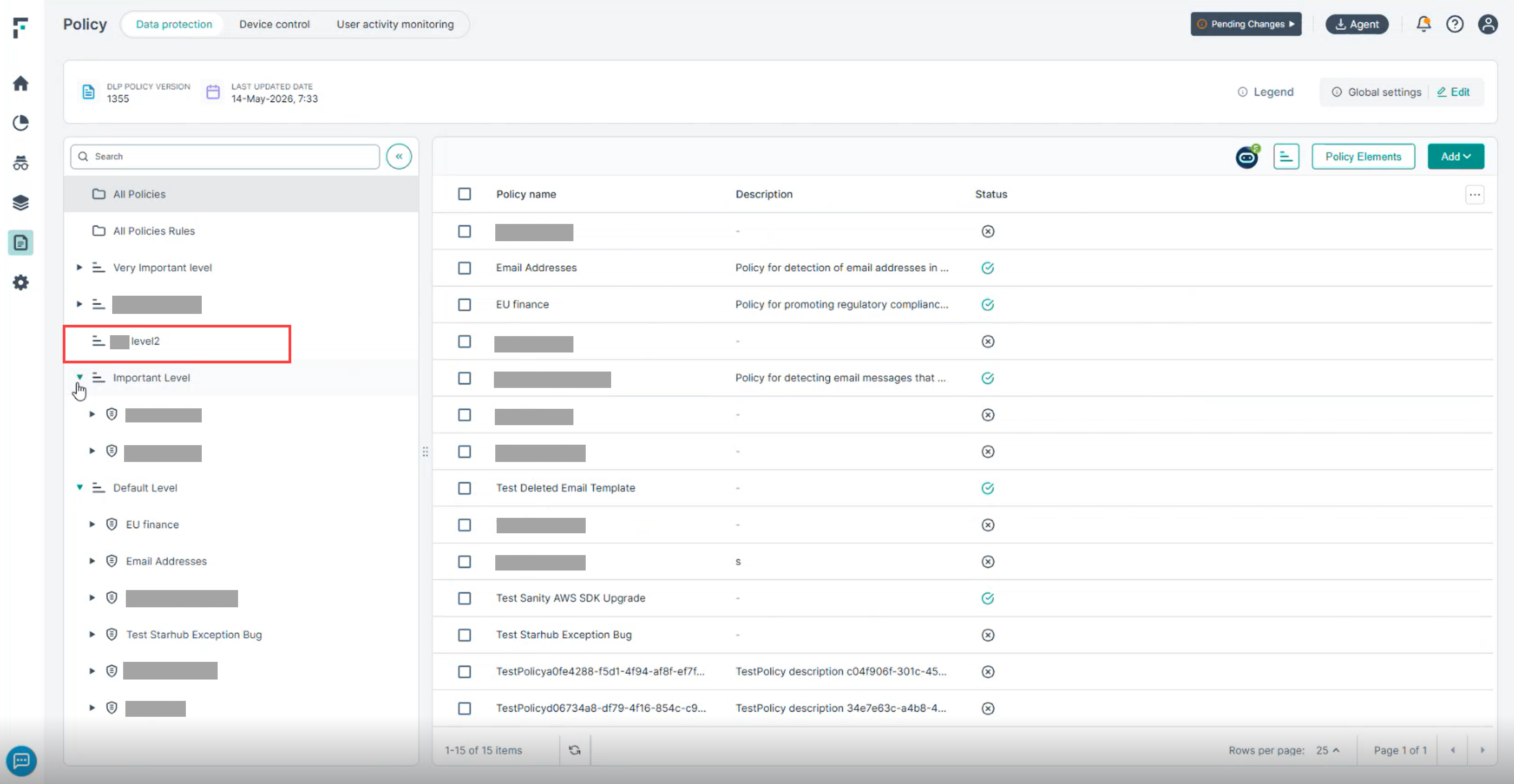
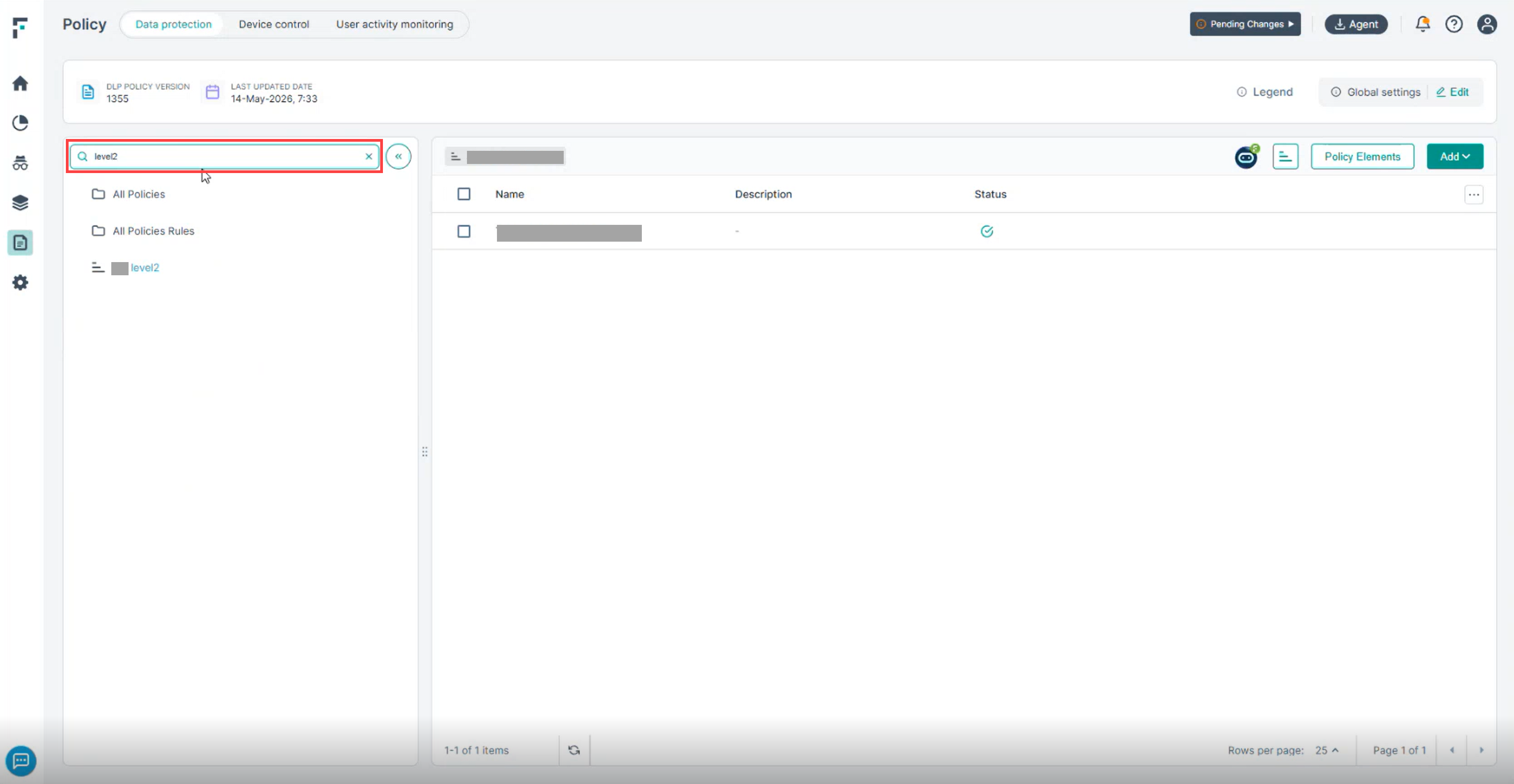
If no policies are assigned to a level, no expand arrow is shown next to it.
Managing Policy Levels
To manage your policy levels, click the Manage policy levels button.
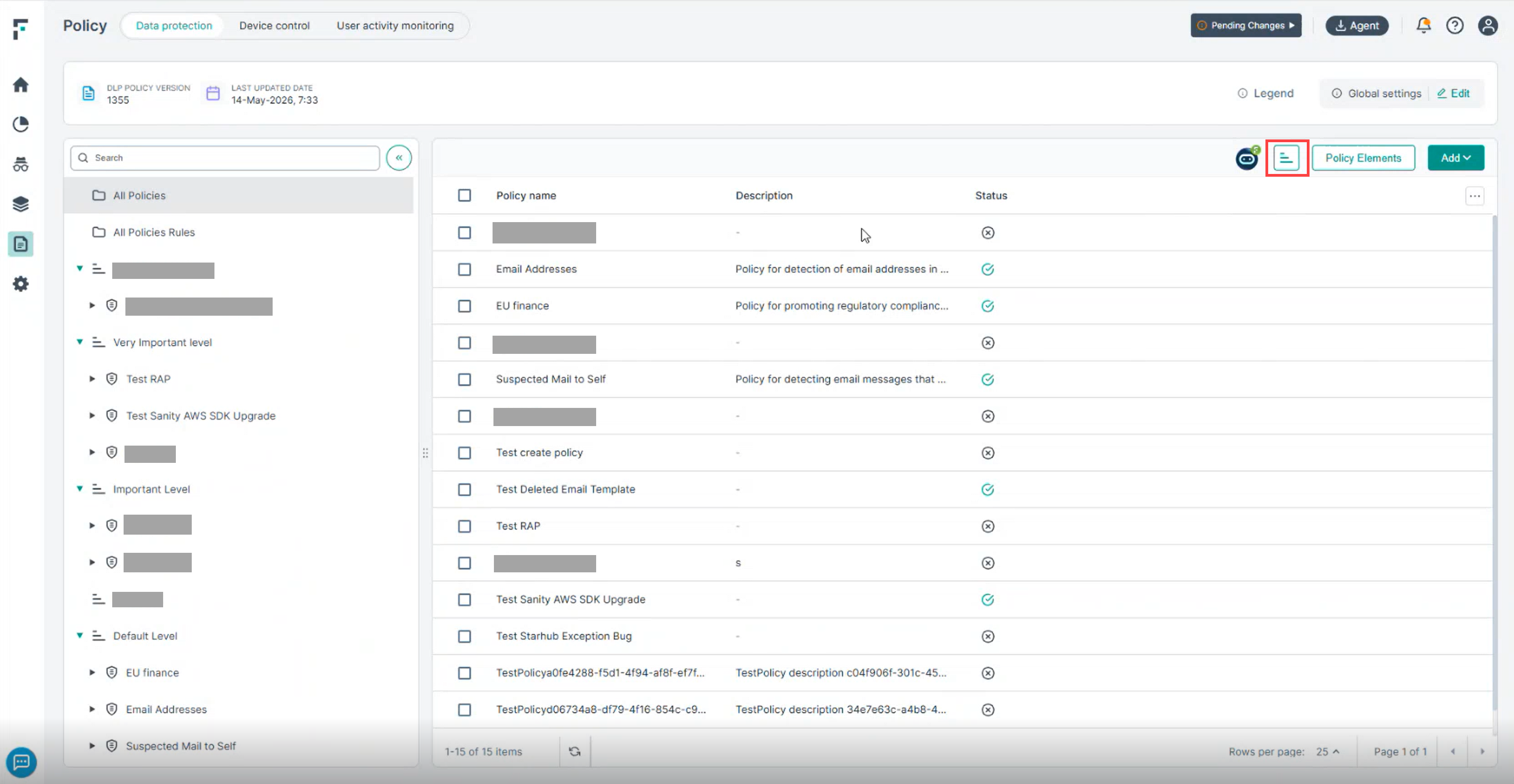
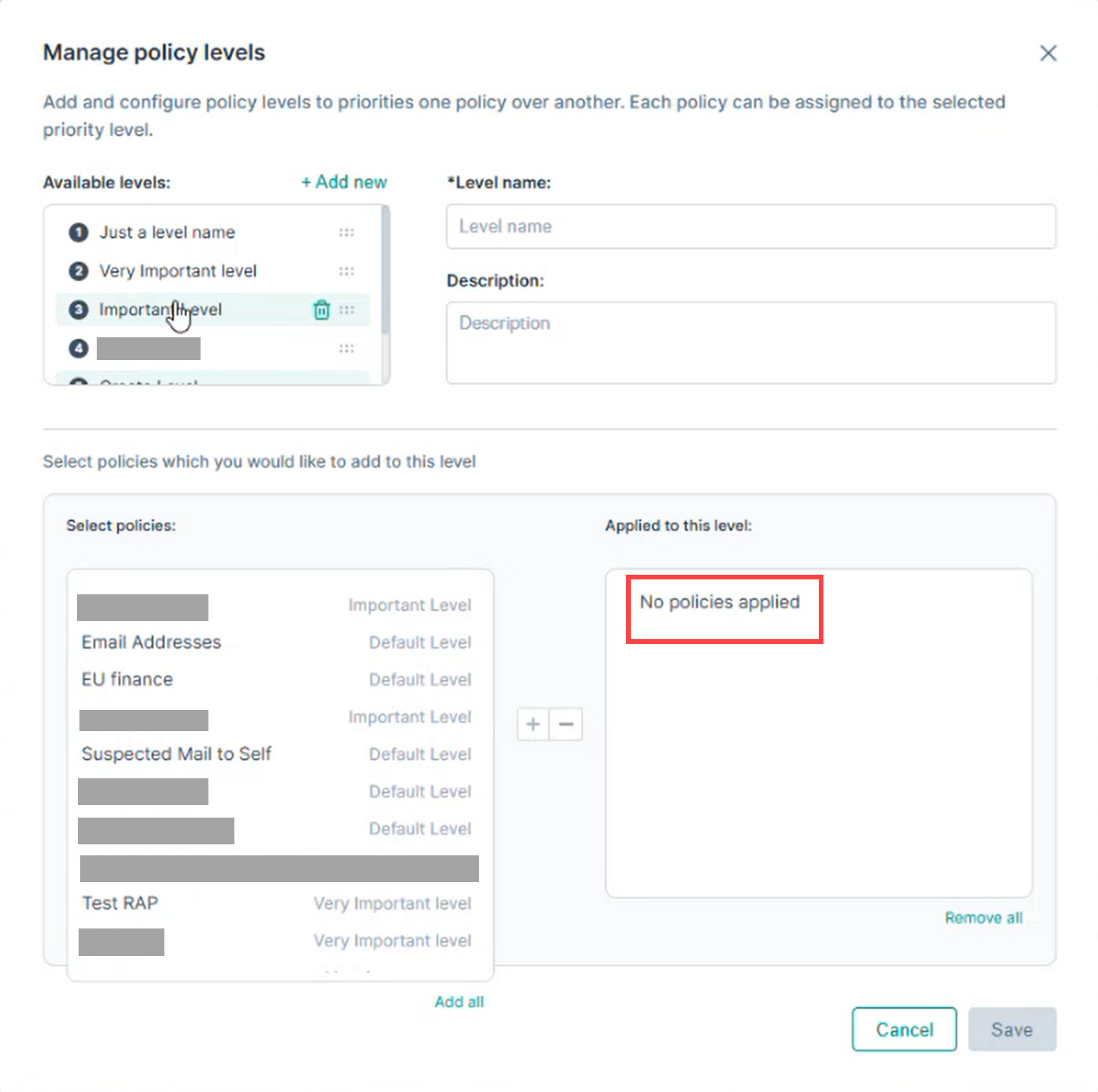
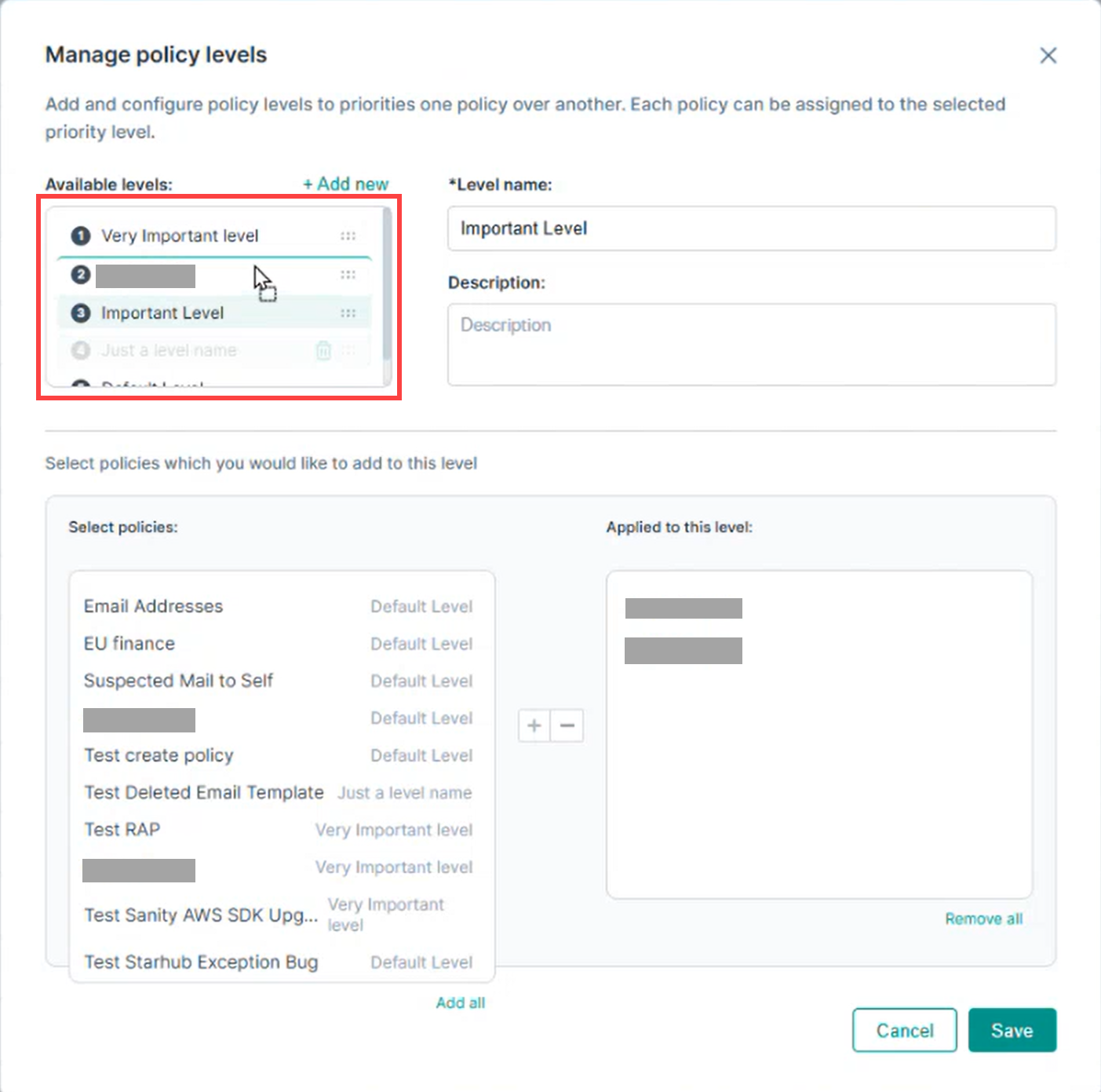
The Manage policy levels window opens. All available policy levels are displayed as a list. The top-priority level is shown first.
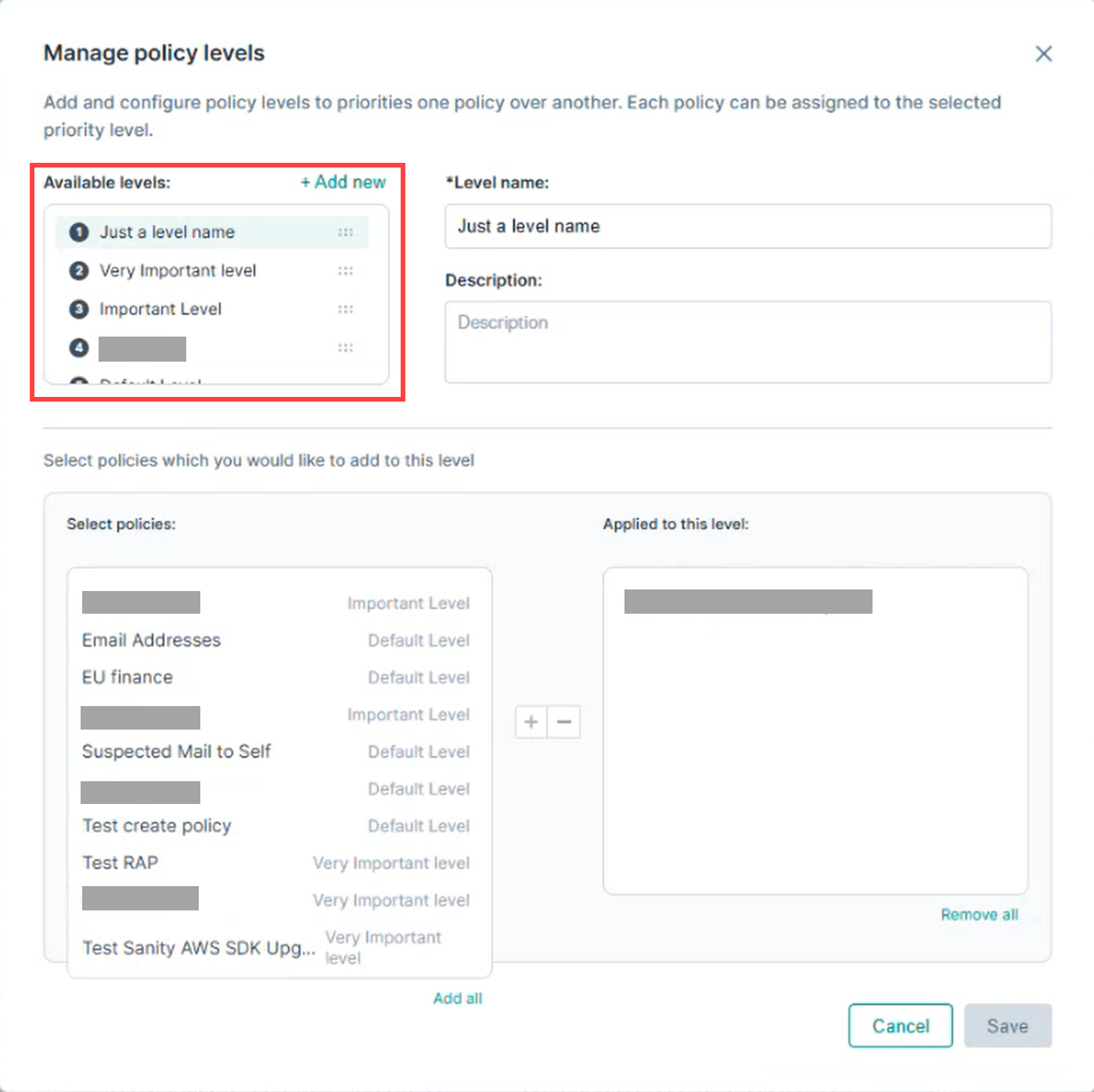
Policy priority is displayed from top to bottom:
- Top of the list indicates the highest priority.
- Bottom of the list indicates the lowest priority.
When you select a policy level from the list, the Level Name, Description, and the policies associated with that level are displayed on the right.
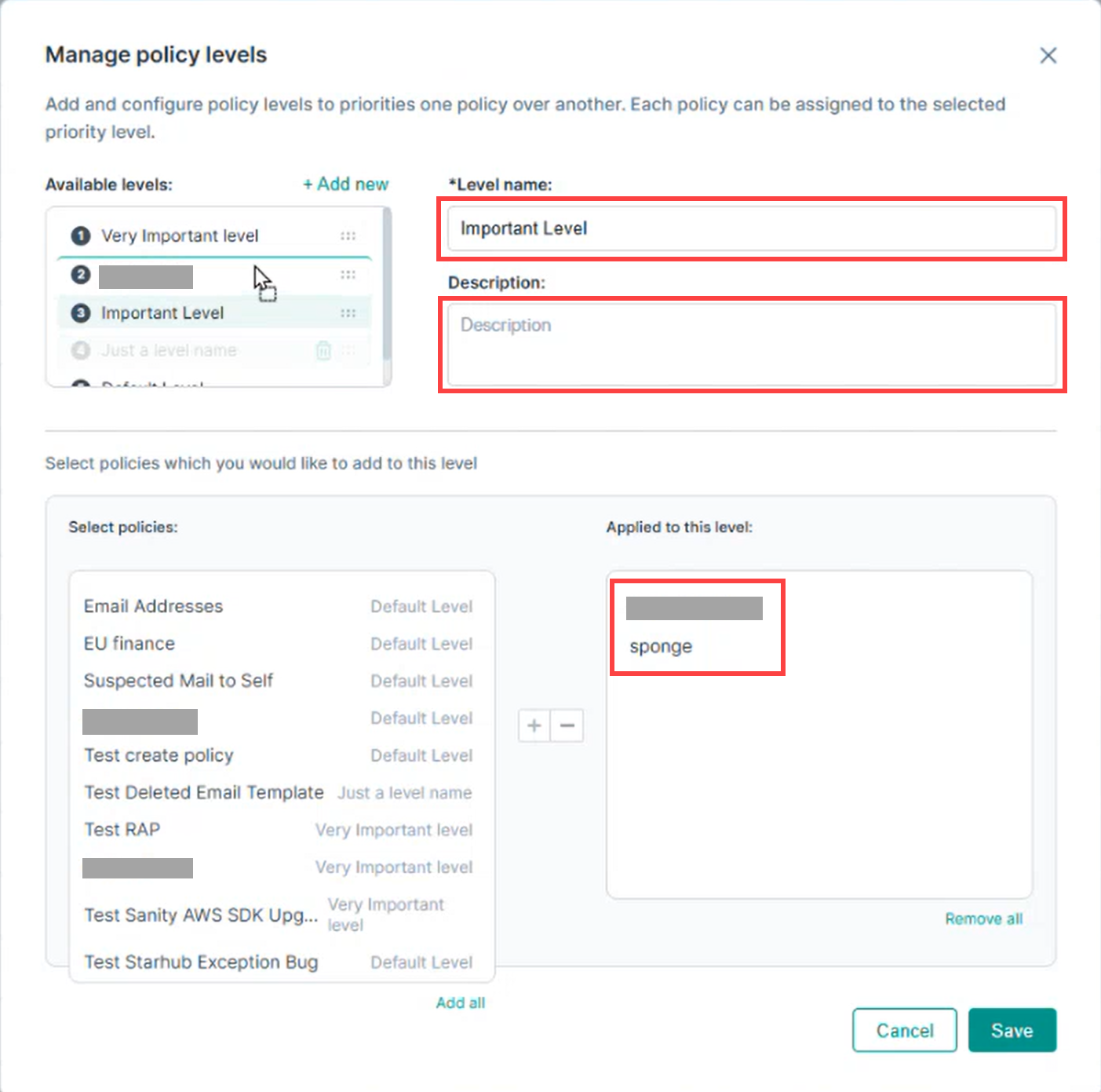
If no policies have been assigned to the selected level, the Applied to this level panel shows No policies applied.