How to Use the DLP Policy Advisor
The DLP Policy Advisor is specifically designed to help users discover relevant pre-built policies from Forcepoint's curated knowledge base through guided conversation about their organizational context (industry, region, and data categories).
You can interact with DLP Policy Advisor using natural language. The example below demonstrates a sample query, policy recommendations, how Advisor automatically identifies applicable policies, and other available features.
Steps
-
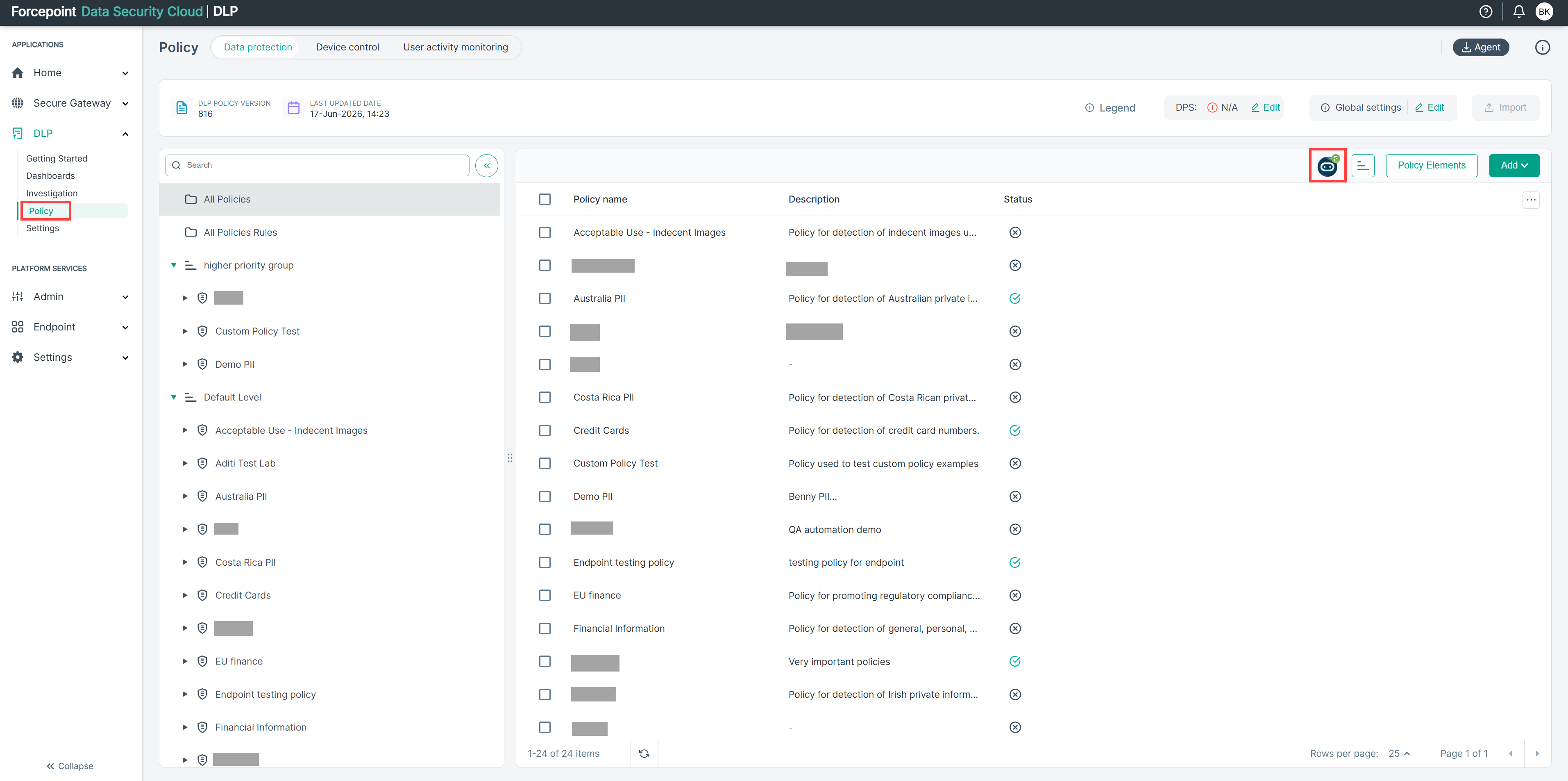
Navigate to the Policy section and click the DLP Policy Advisor icon as shown below:
-
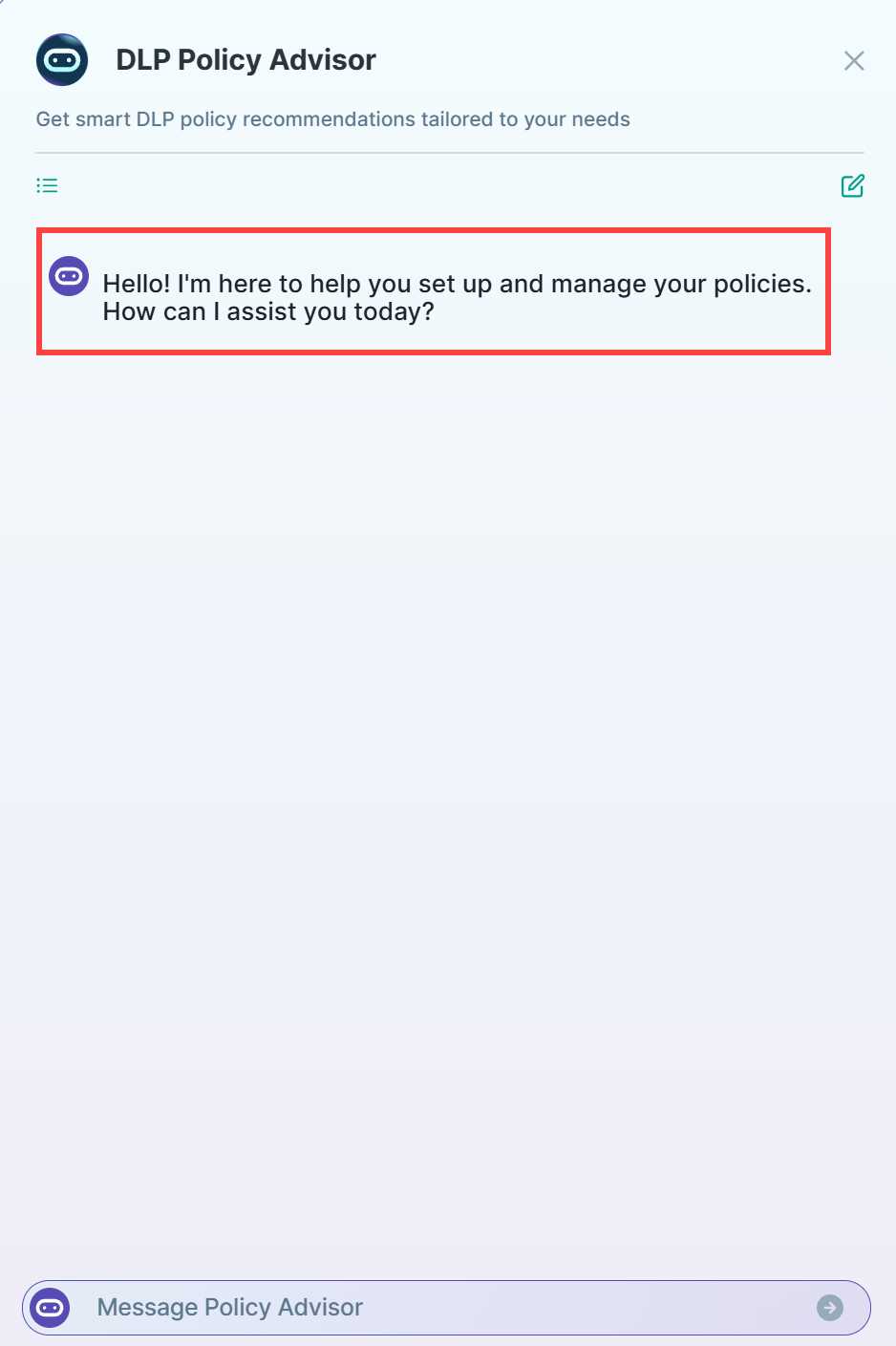
When the Advisor chat panel opens, it displays a brief introduction explaining its purpose.
 Note: The conversation adapts to the information you provide. The system asks about industry, region, and data categories as needed, but it's flexible—if your intent is clear, it will adjust accordingly.
 -
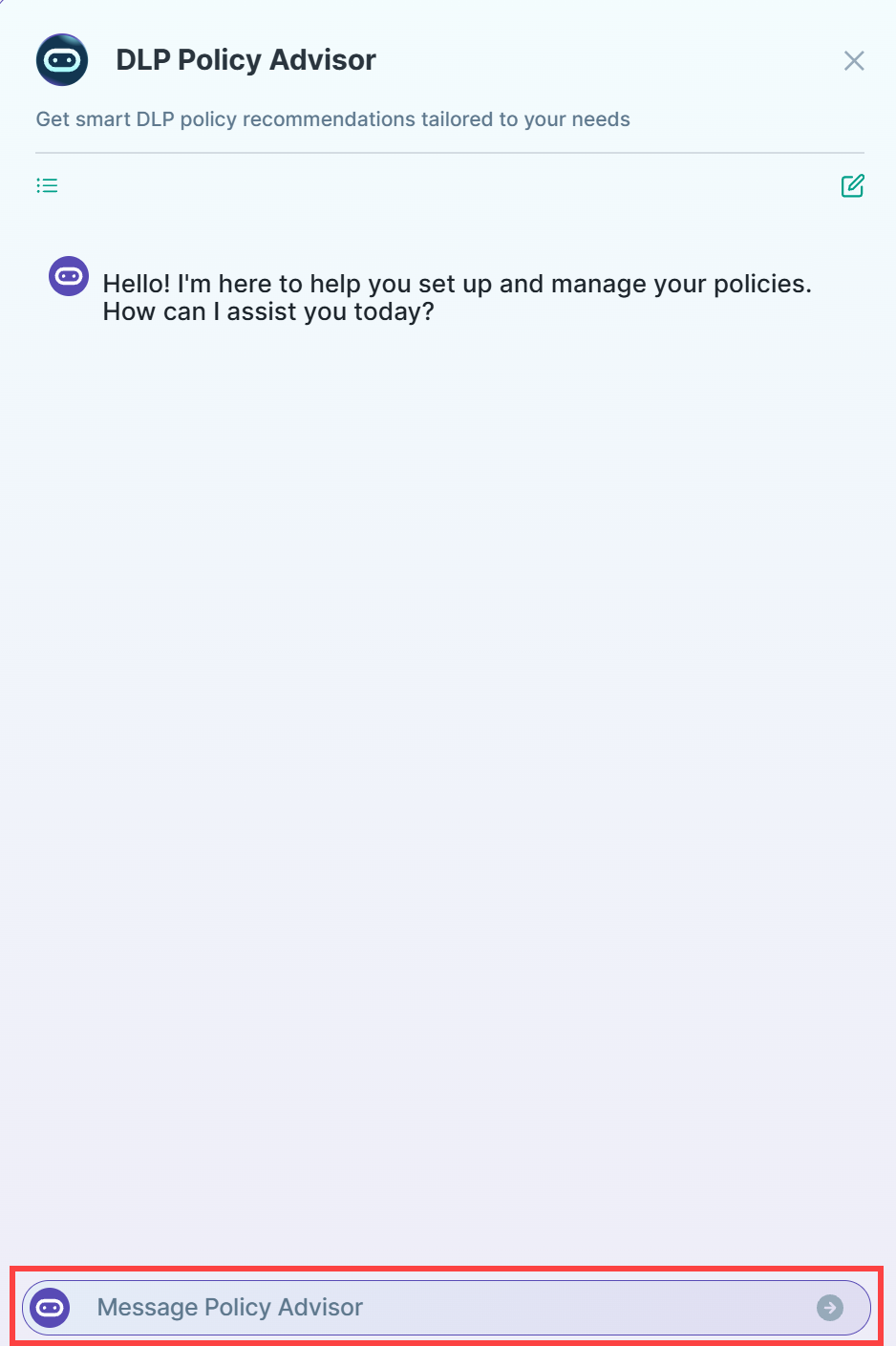
Type your question or security requirement in the chat box at the bottom of the panel. Example: "I need policies to protect credit card data or suggest policies."
-
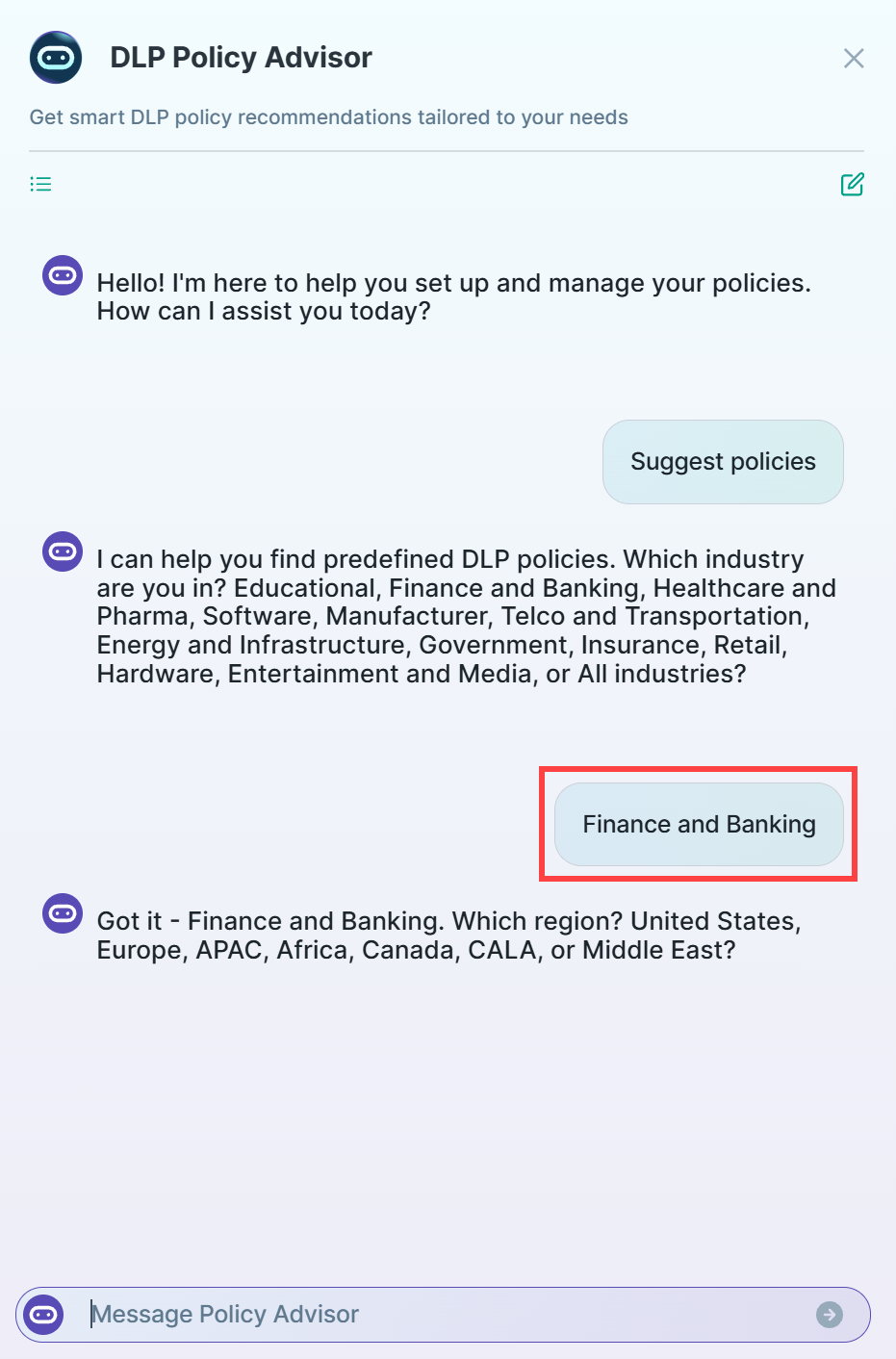
The Advisor prompts you to provide your industry. Example: Finance and Banking.
-
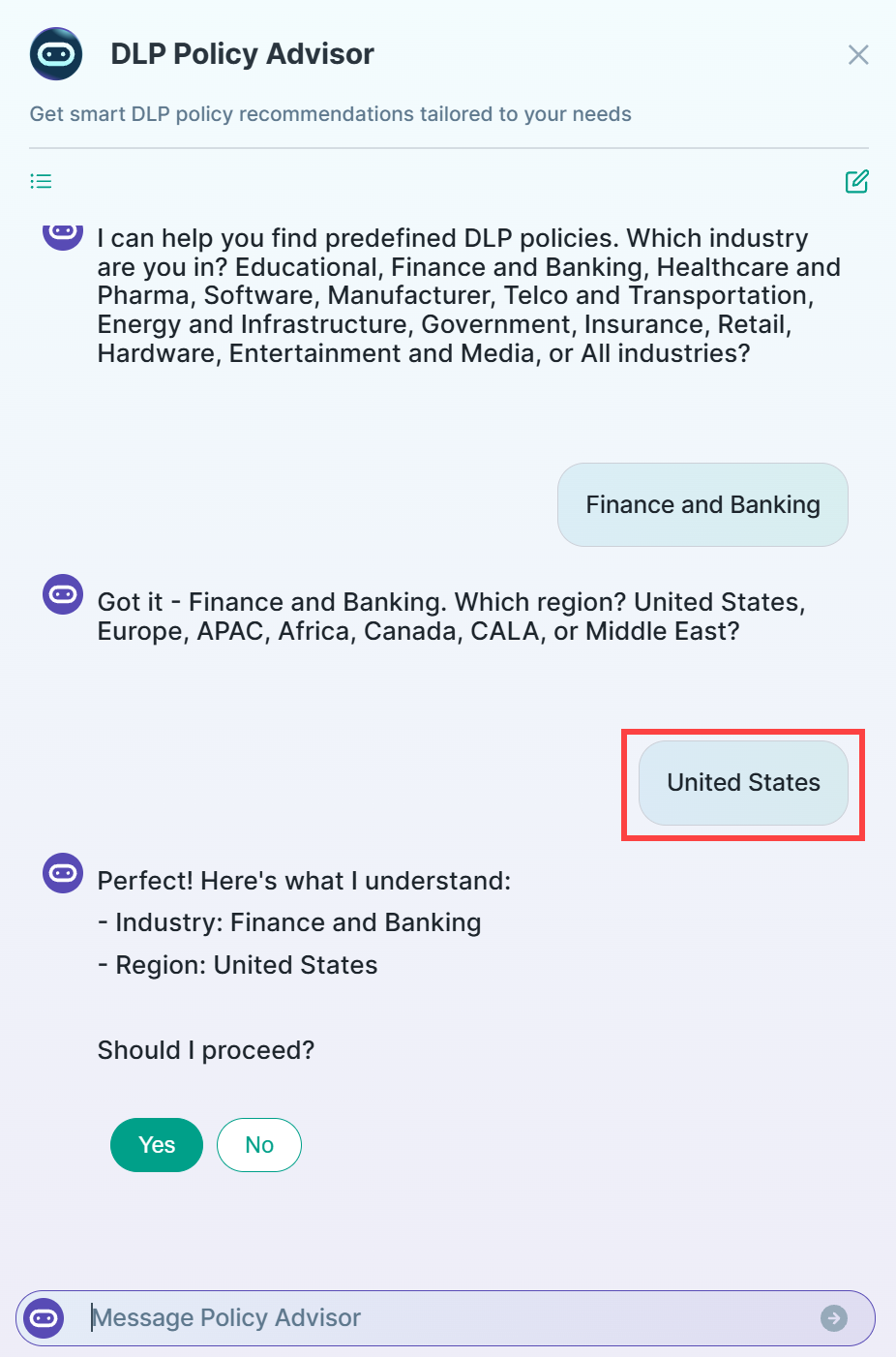
Next, the Advisor asks you to specify the region. Example: United States.
-
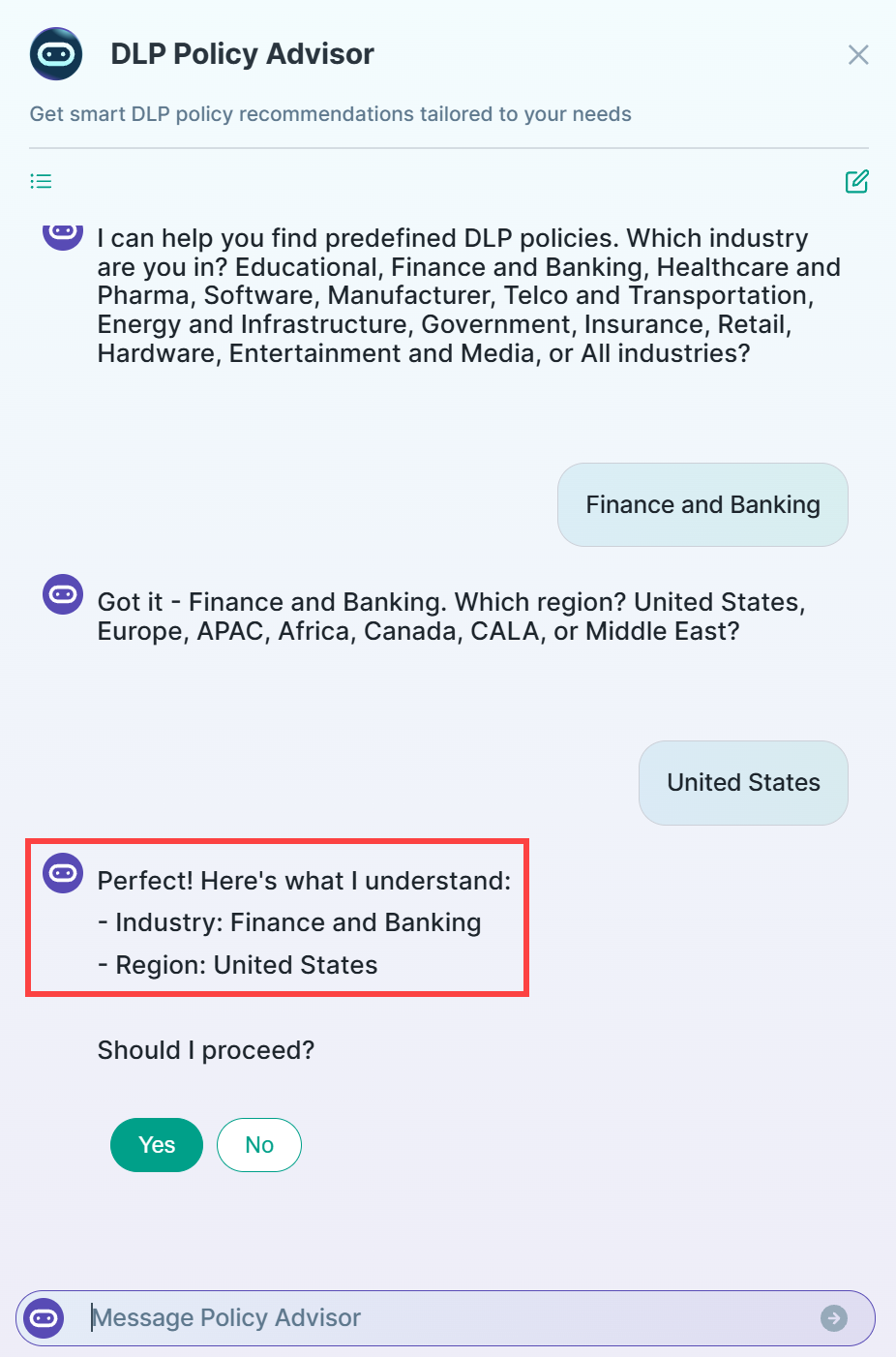
The Advisor then displays its understanding of the provided information and asks you to confirm it.
-
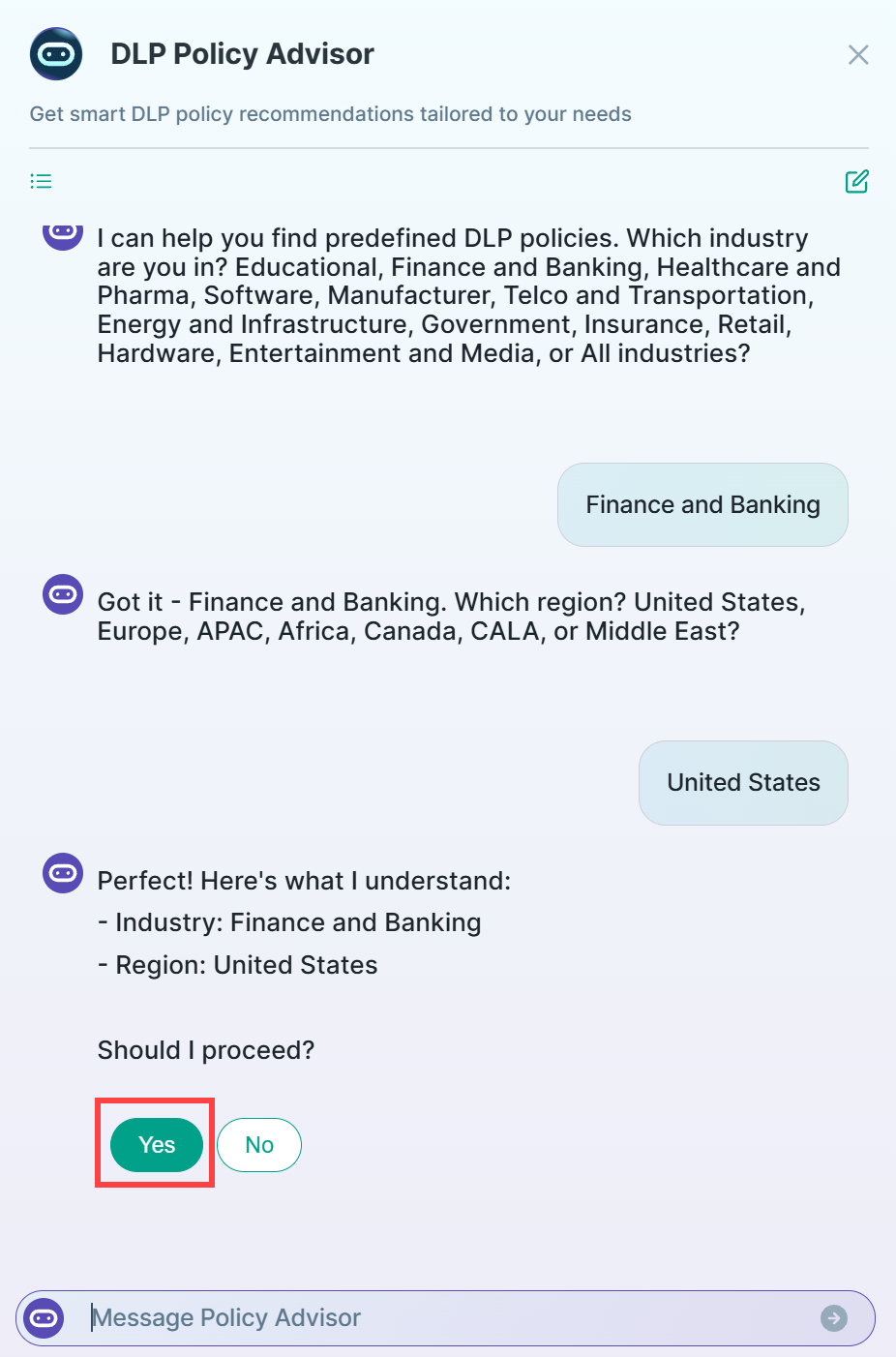
Click on Yes to proceed with locating pre-defined policies based on the selected industry and region.
-
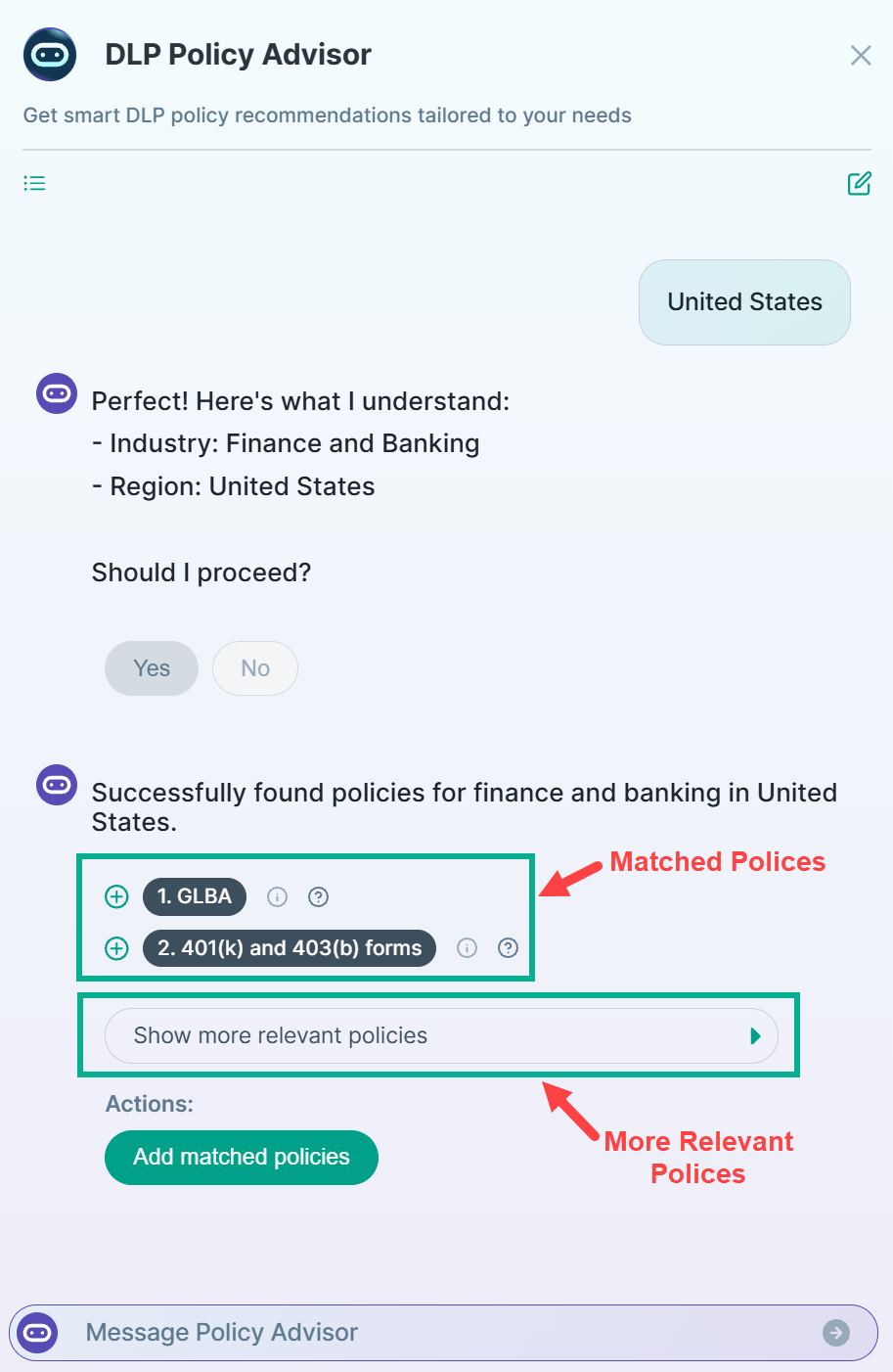
The DLP Policy Advisor displays the matched policy or policies.
-
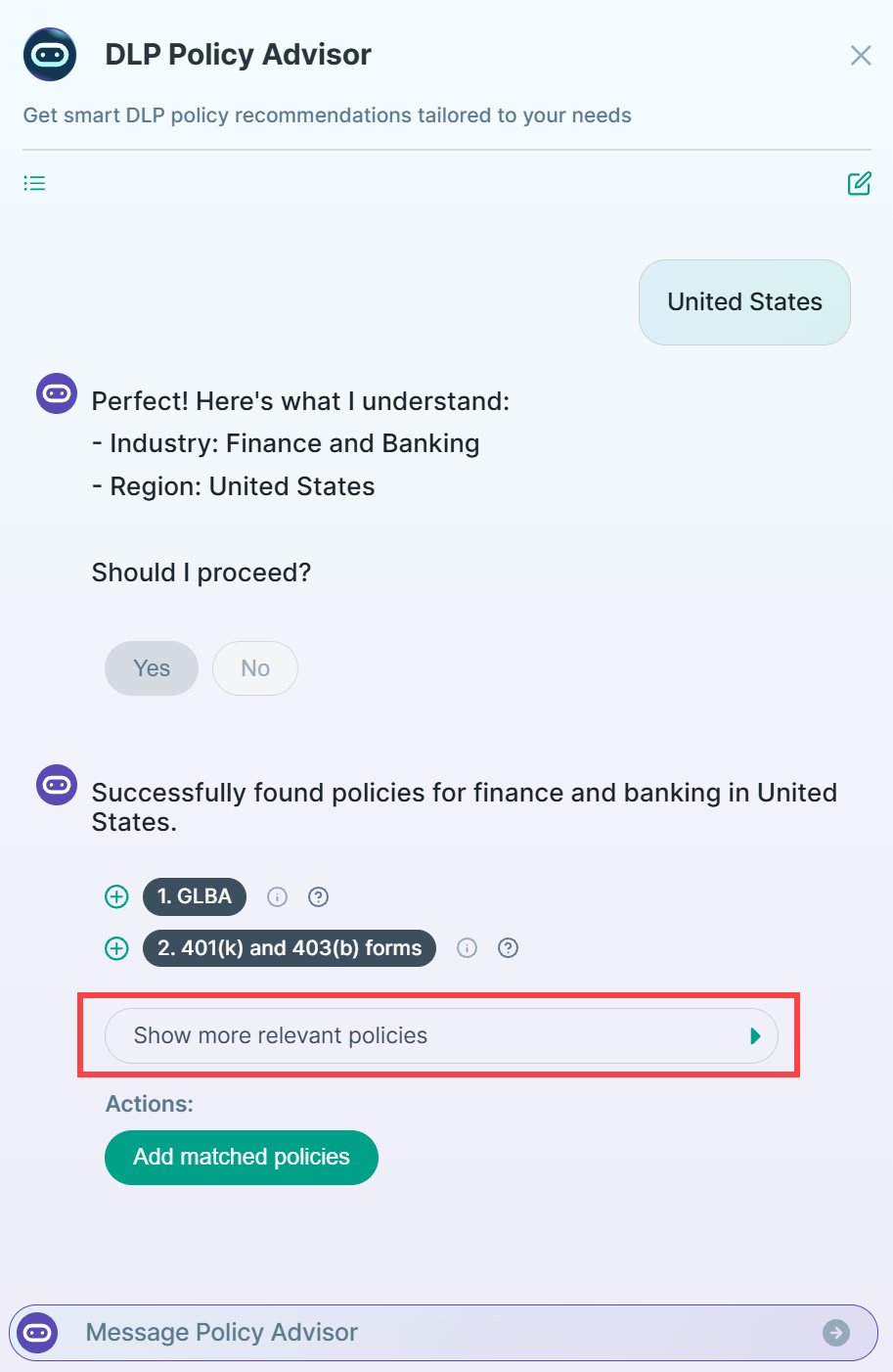
To explore additional recommendations, click Show more relevant policies.
-
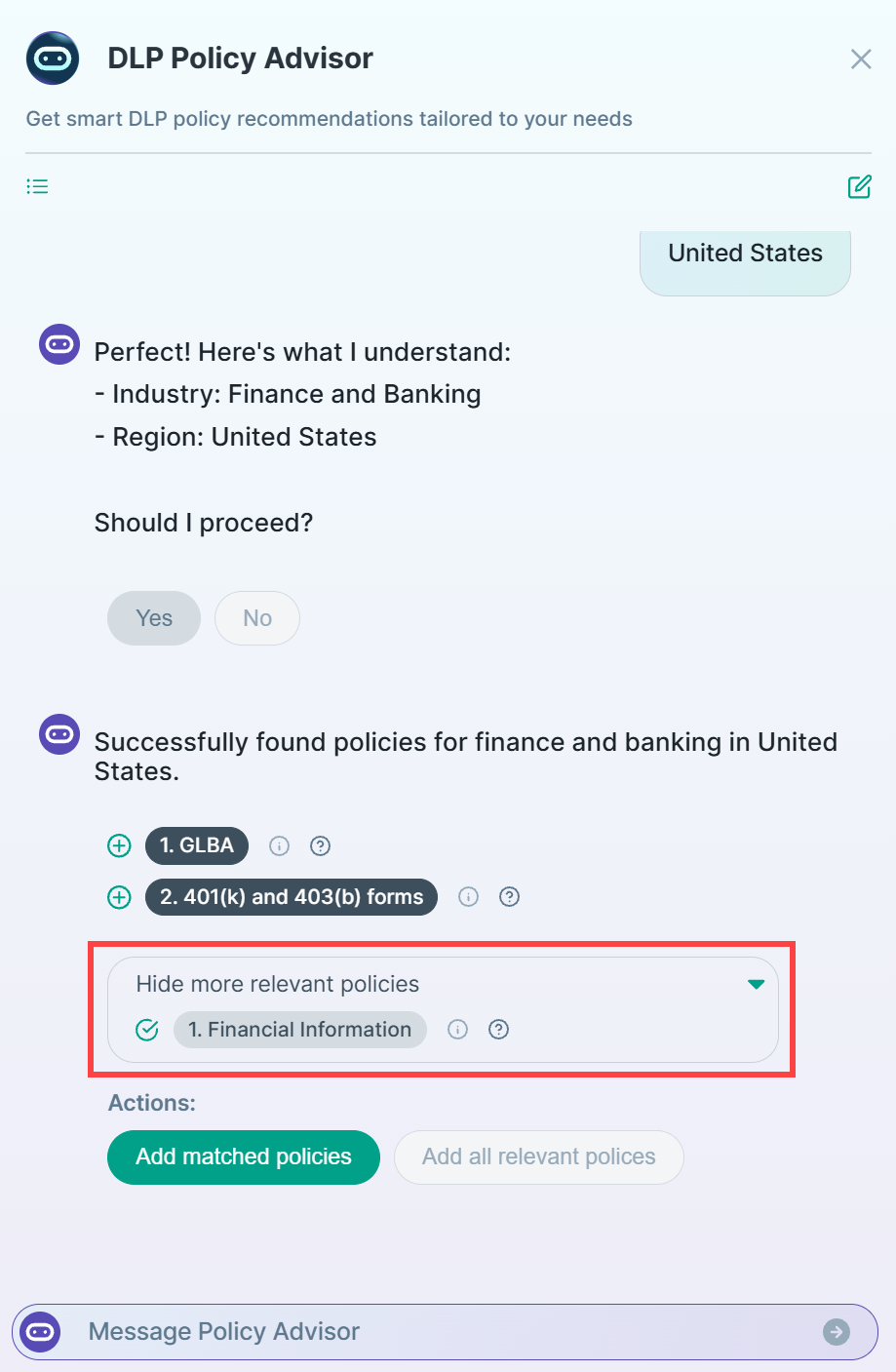
The Advisor then displays additional relevant policies, as shown below.
-
You have three options to add the policies recommended by the Advisor:
-
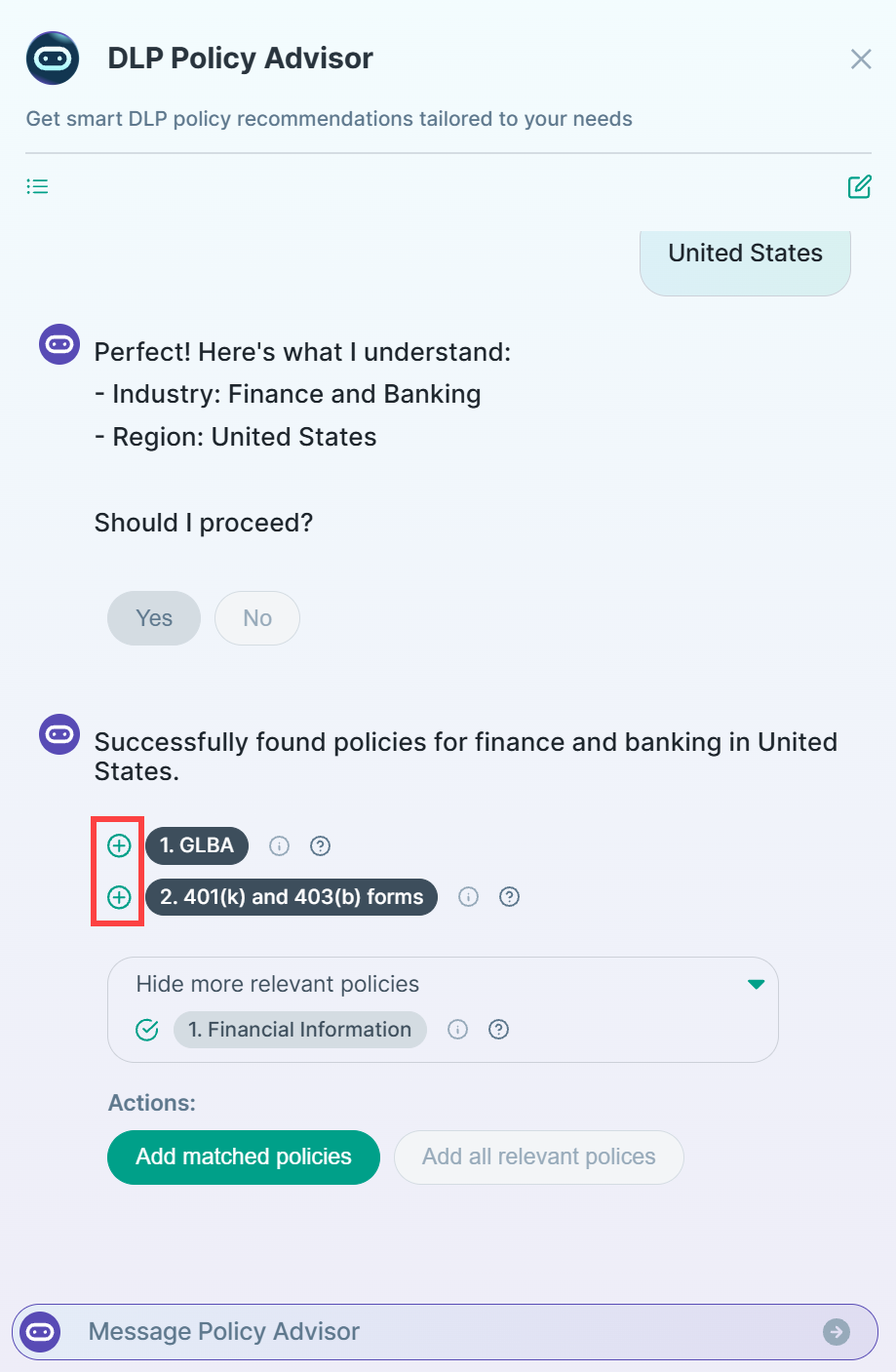
You can use Plus icons to add the individual policies from the suggested one at a time.
-
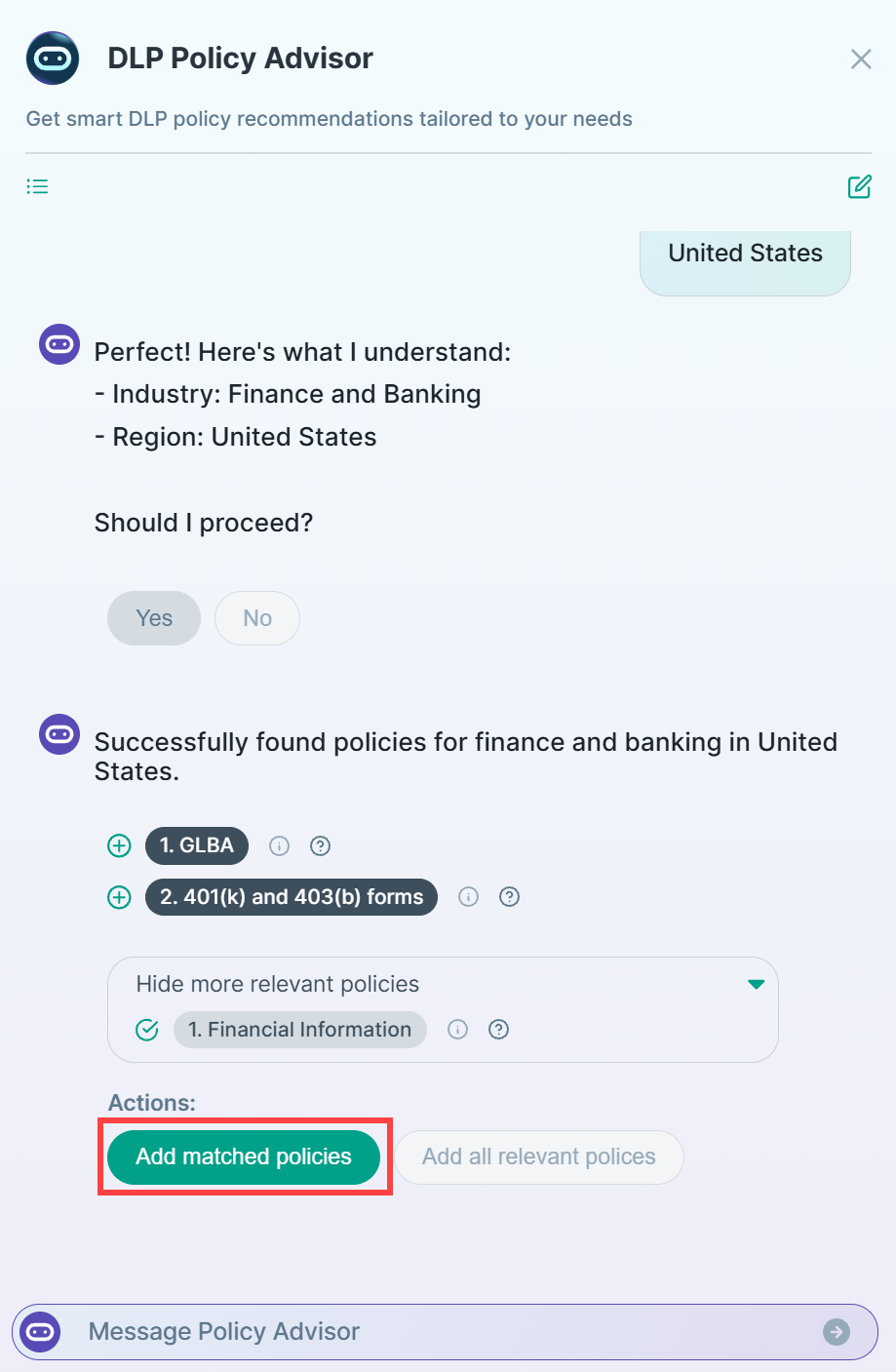
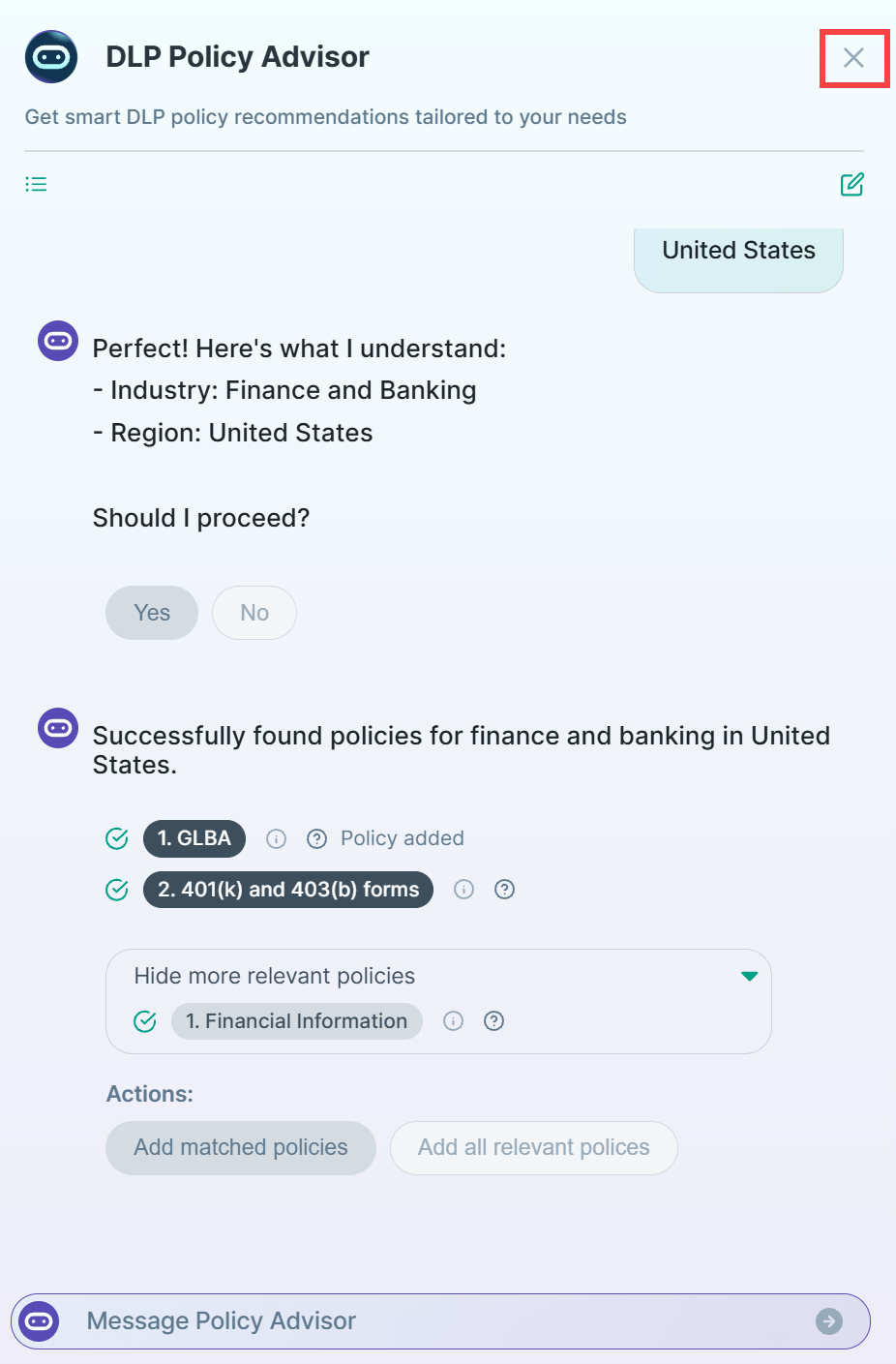
If you click on Add matched policies, the Advisor adds only the matched policies (Policies listed under Relevant policies will not be
included).
-
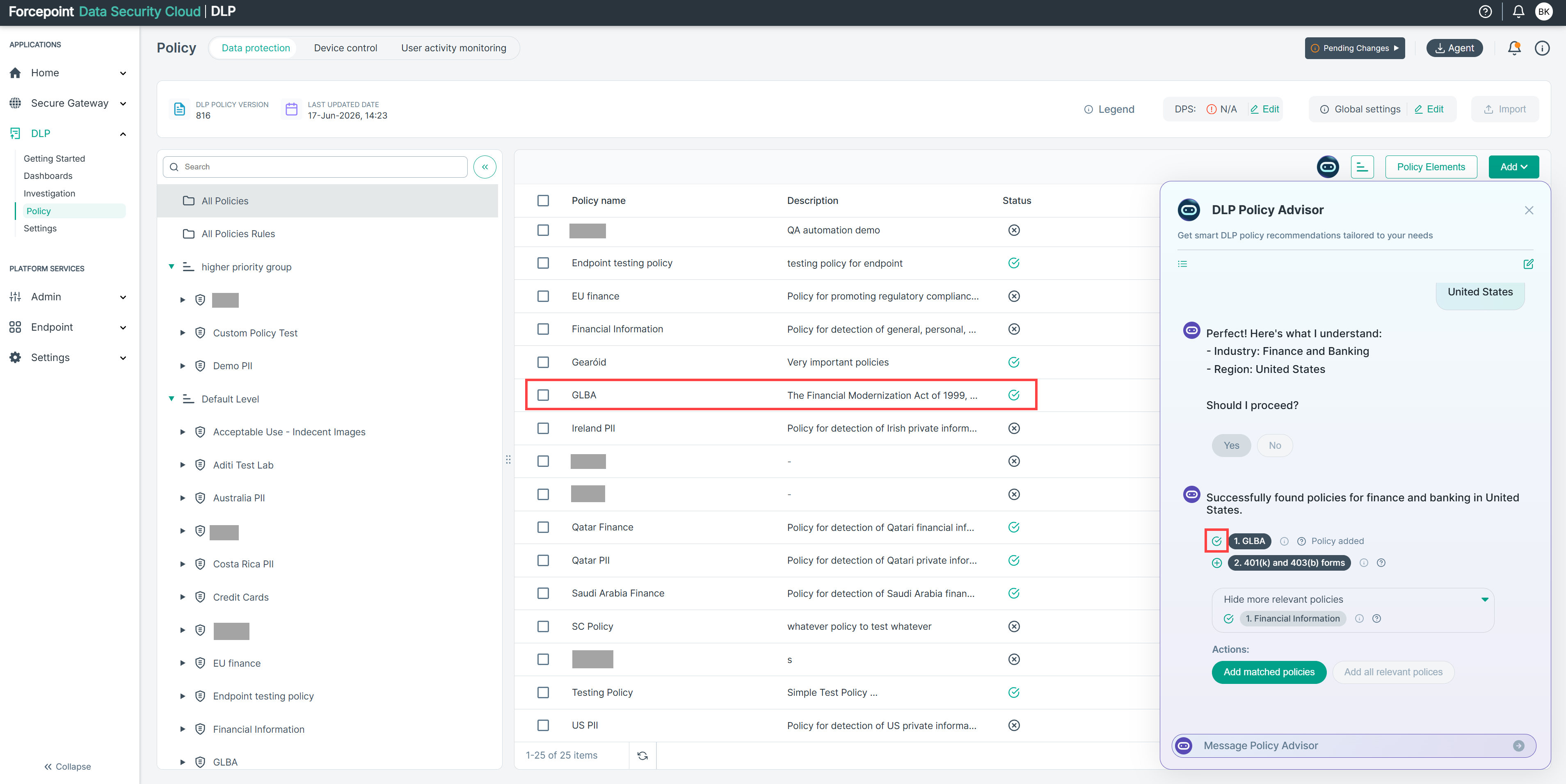
A checkmark appears next to the policy in the Advisor chat panel, indicating that the policy has been successfully added. The policy will also appear in the All Policies
list view.
-
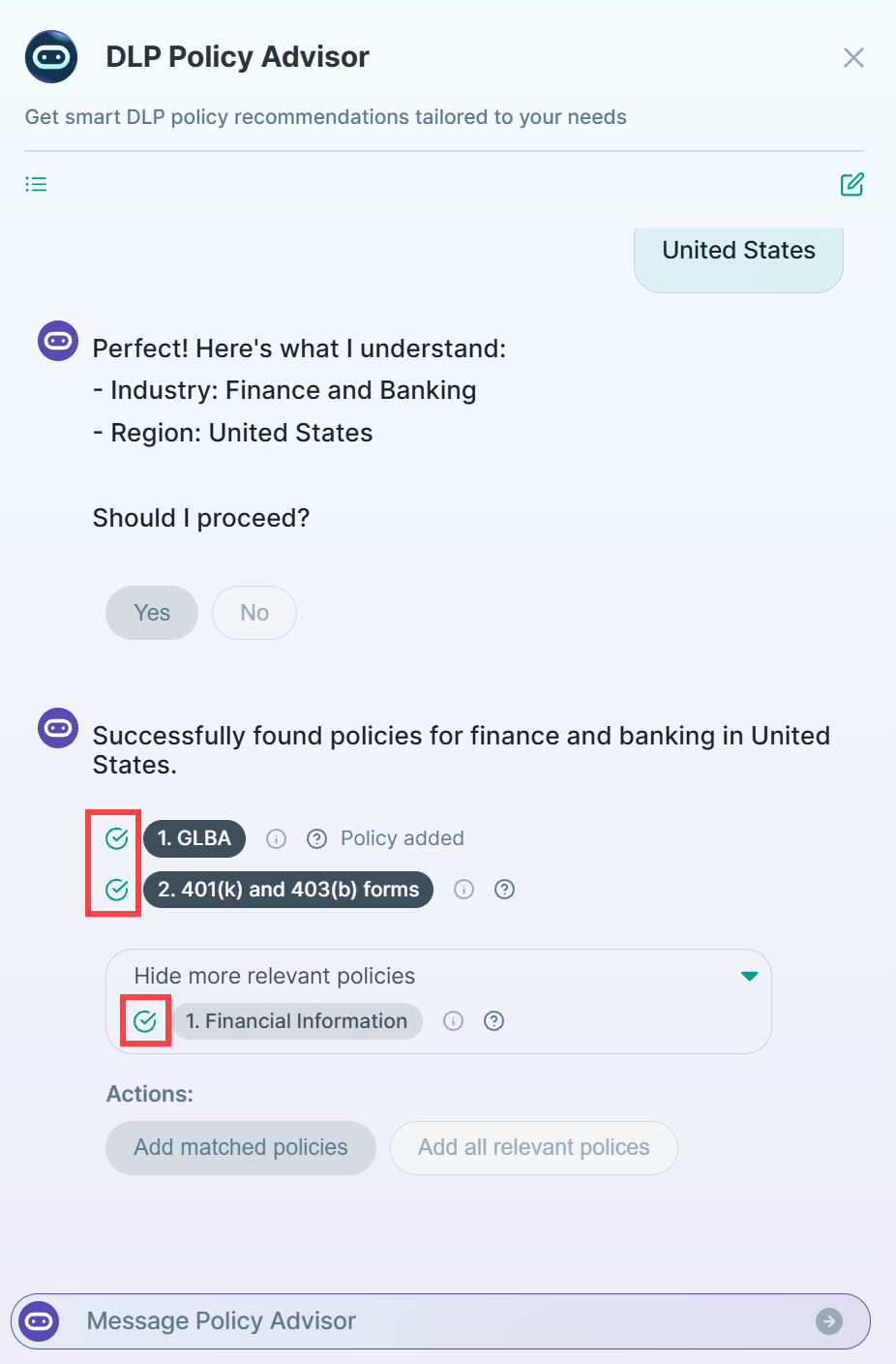
If you click on Add all relevant policies, the Advisor adds both the matched policies and the additional relevant policies.
-
You can use Plus icons to add the individual policies from the suggested one at a time.
-
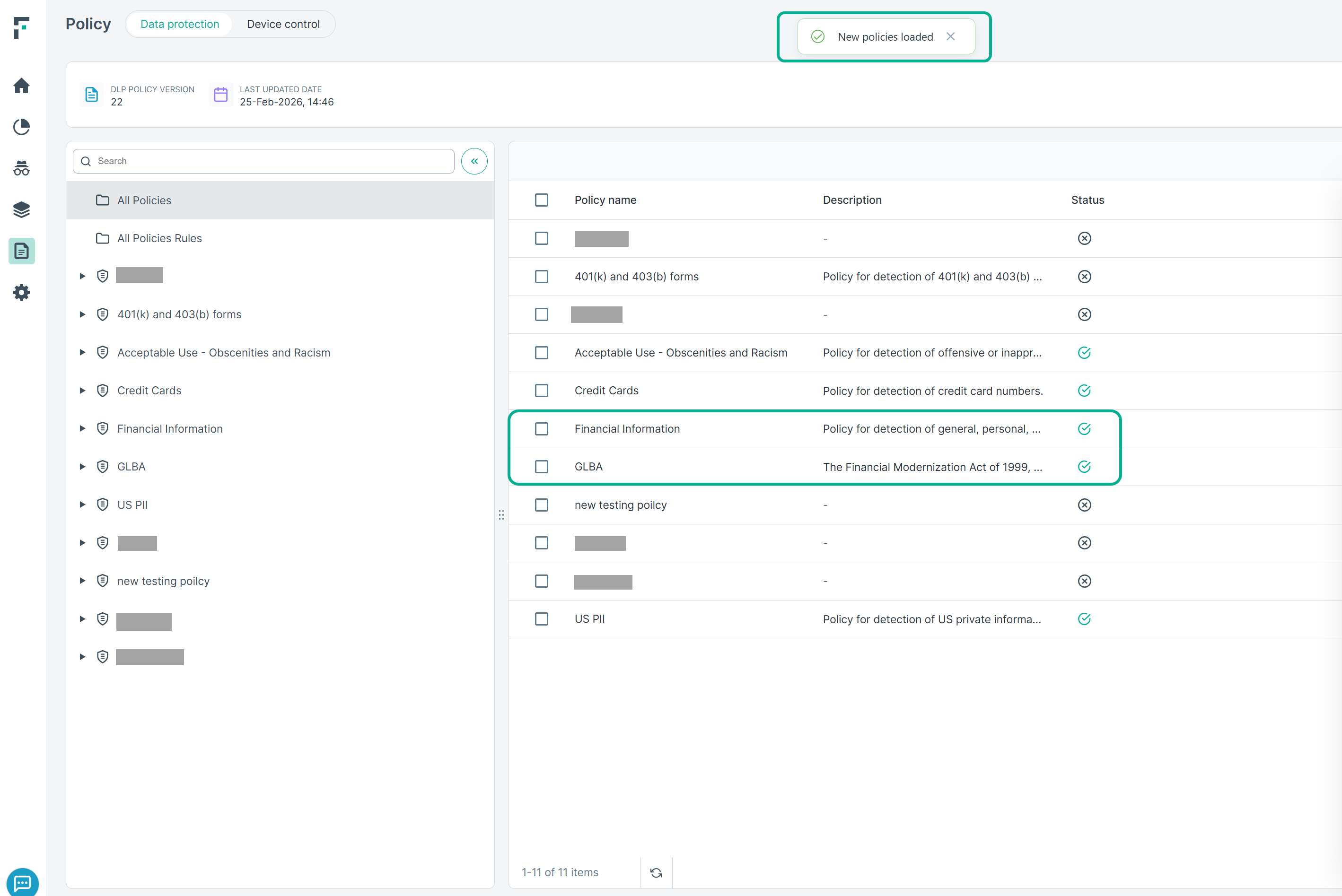
Once the process is complete, a “New policies added” confirmation notification appears.
-
After adding the recommended policies, you can close the Advisor panel.
-
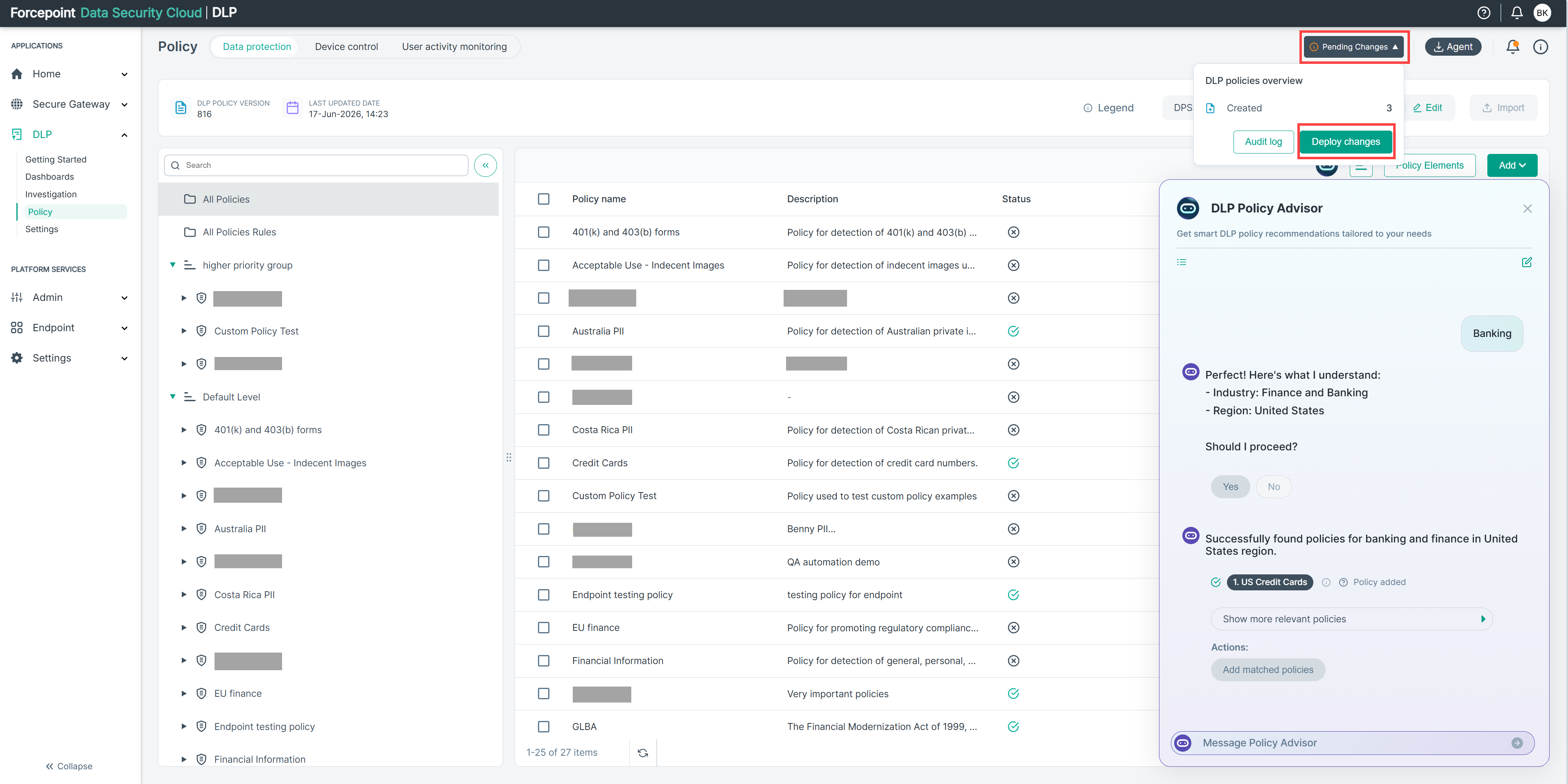
The system displays the total number of newly added policies. Click Deploy changes to apply the same.
-
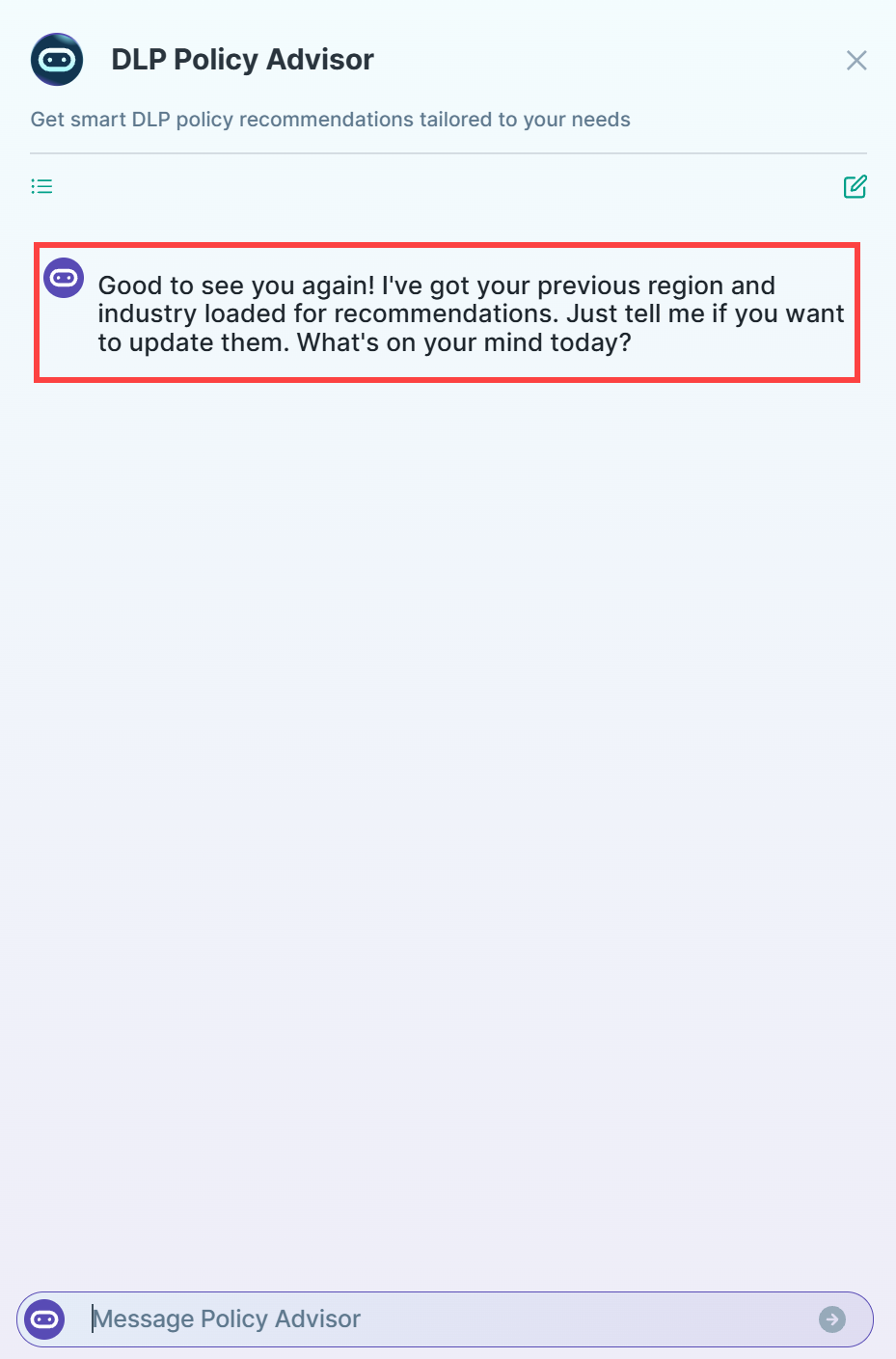
The next time you open the Advisor, it automatically remembers your industry and region, making future searches faster and easier.
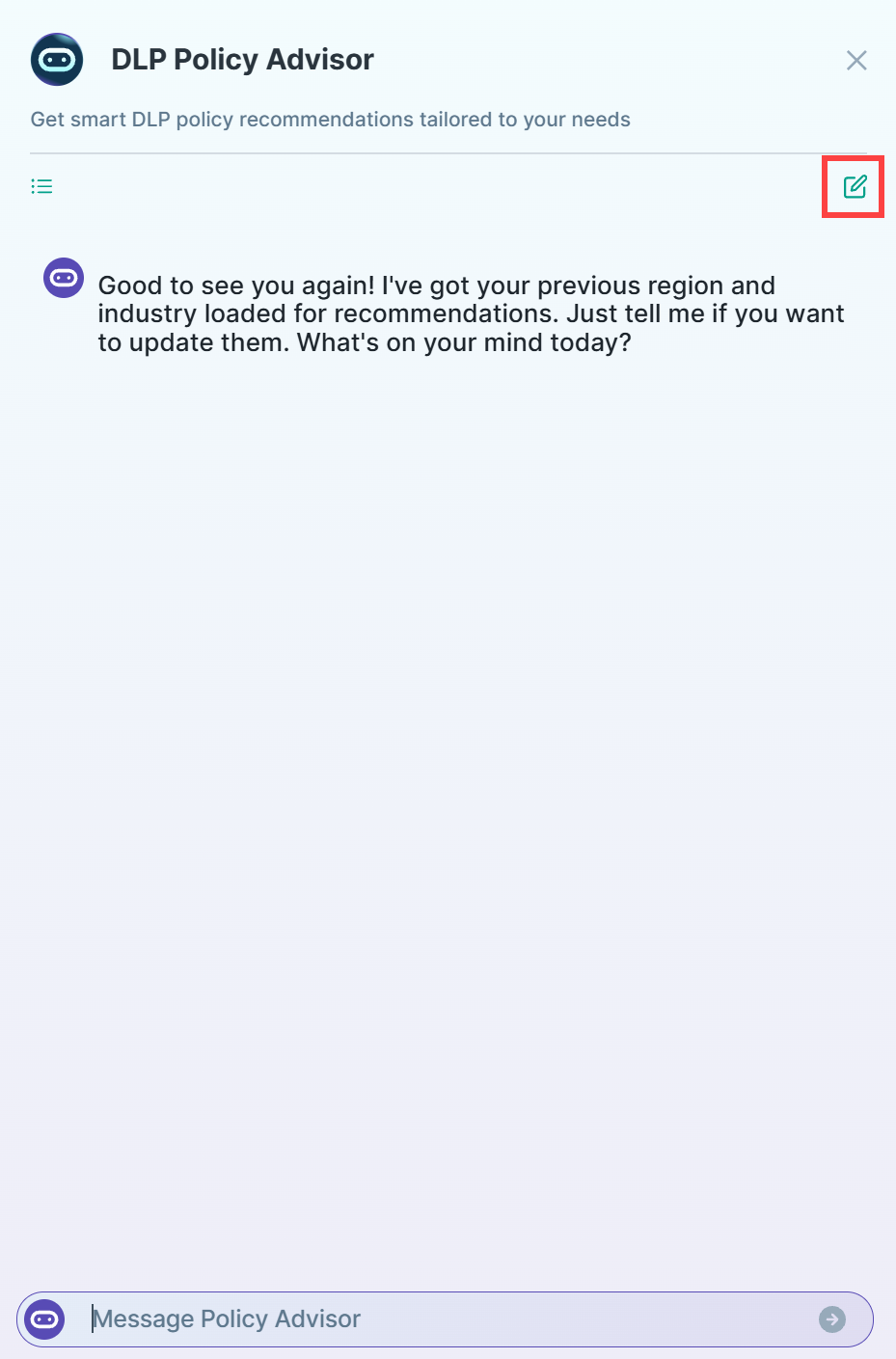
The Advisor panel also includes the following icons:
- New Conversation (Pencil icon) – Starts a new conversation with the Advisor.
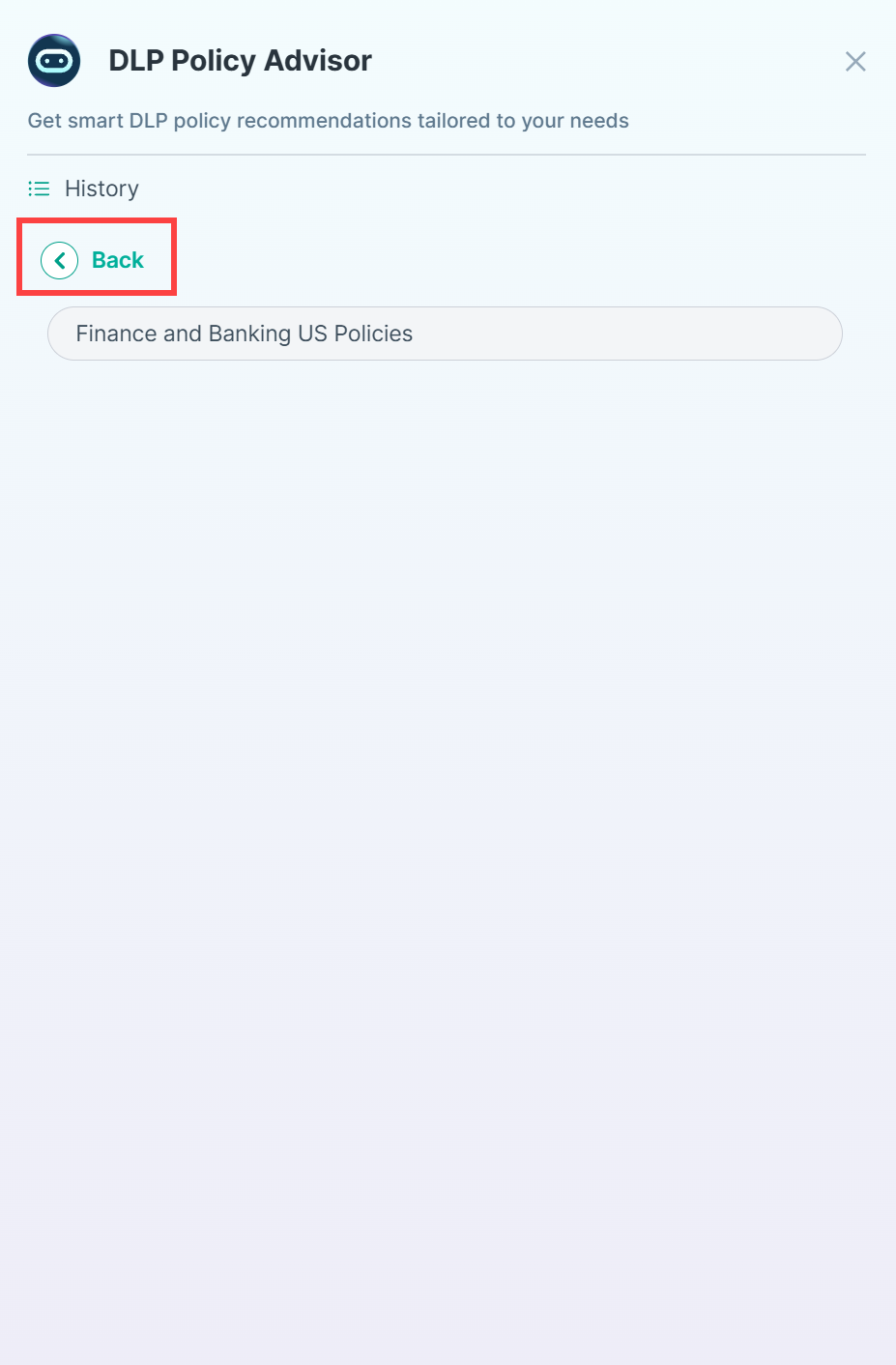
- Chat History (Hamburger menu) – Displays the complete history of your previous interactions.
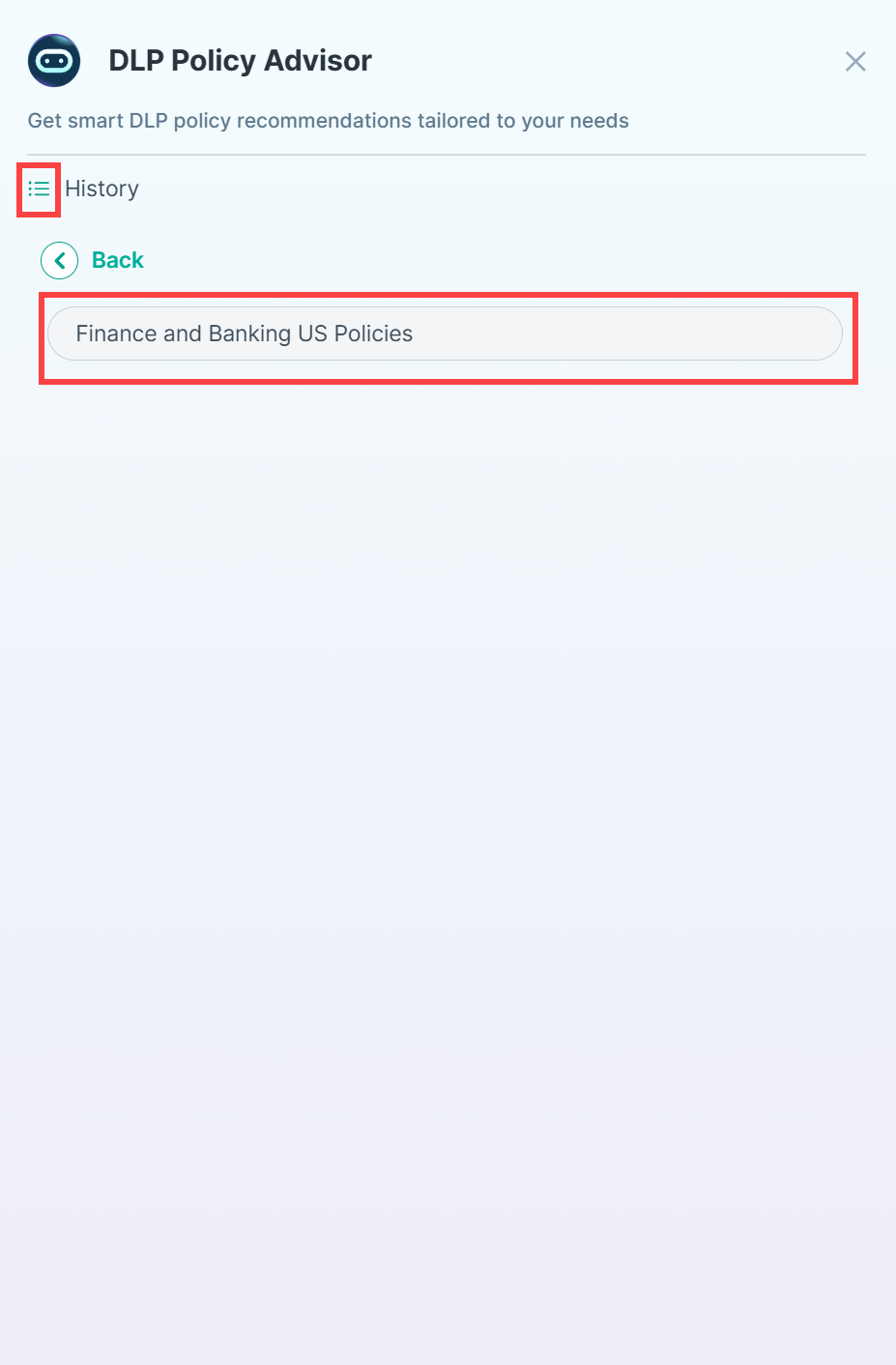
- A Back button to redirect you to the chat panel.